How to remove yourself from data broker sites with ExpressVPN


ExpressVPN’s Data Removal service finds your personal information on data broker and people-search sites, sends removal requests on your behalf, and keeps checking in case your information reappears. This improves your privacy and reduces exposure to spam and scams.
It’s available in the U.S. with an ExpressVPN Advanced or Express Pro subscription as part of the Identity Defender suite. To see which sites list you before you subscribe, you can run a free scan.
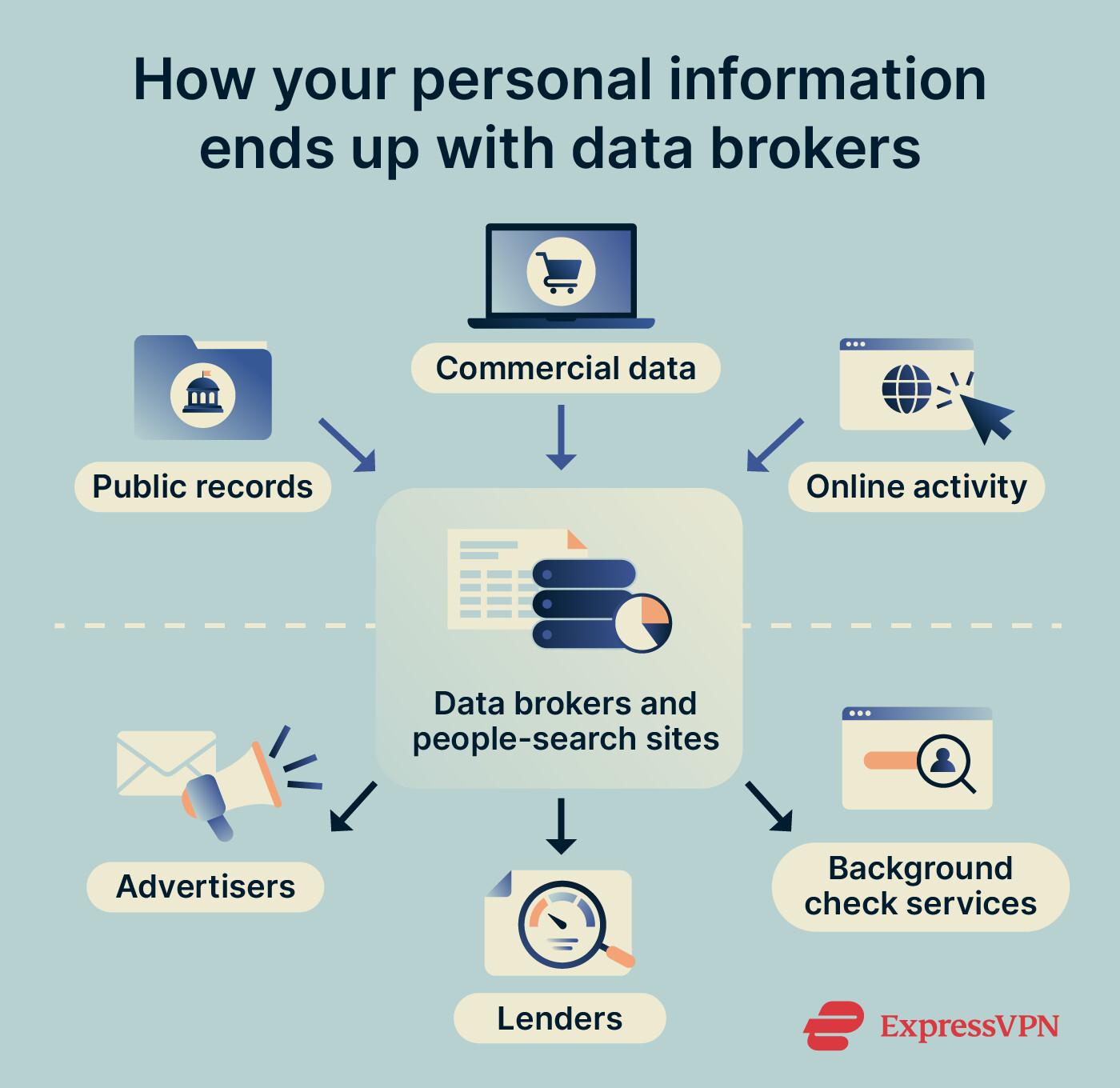
What are data brokers, and how do they get your info?
Data brokers collect personal information from public records, social media, and other companies, then sell or share it. These profiles can include details such as a person’s age, address history, employment history, court records, and family members.
That information can linger online for years and be obtained by anyone. Removing your data from broker sites reduces that exposure and limits what brokers can sell.
Check where your information appears with a free scan
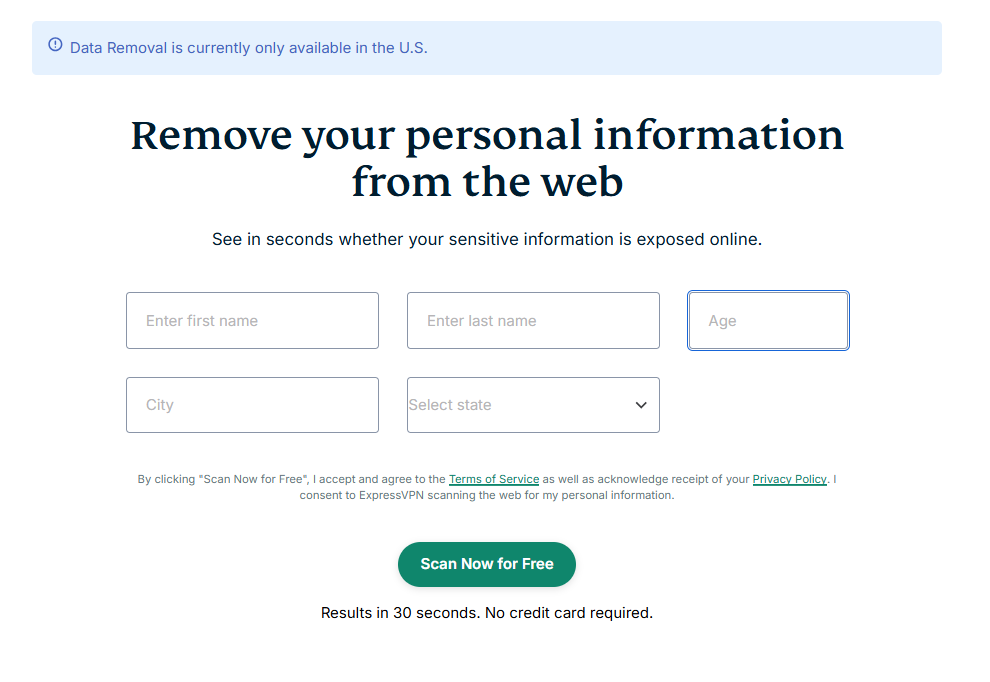
Before you decide to subscribe, you can check which data brokers and people-search sites list your information with a free scan. It takes about 30 seconds and doesn’t require an account or a credit card.
- Go to the ExpressVPN Data Removal page.
- Enter your name, age, city, and state, then click Scan Now for Free.
- Review the list of sites where your information appears.
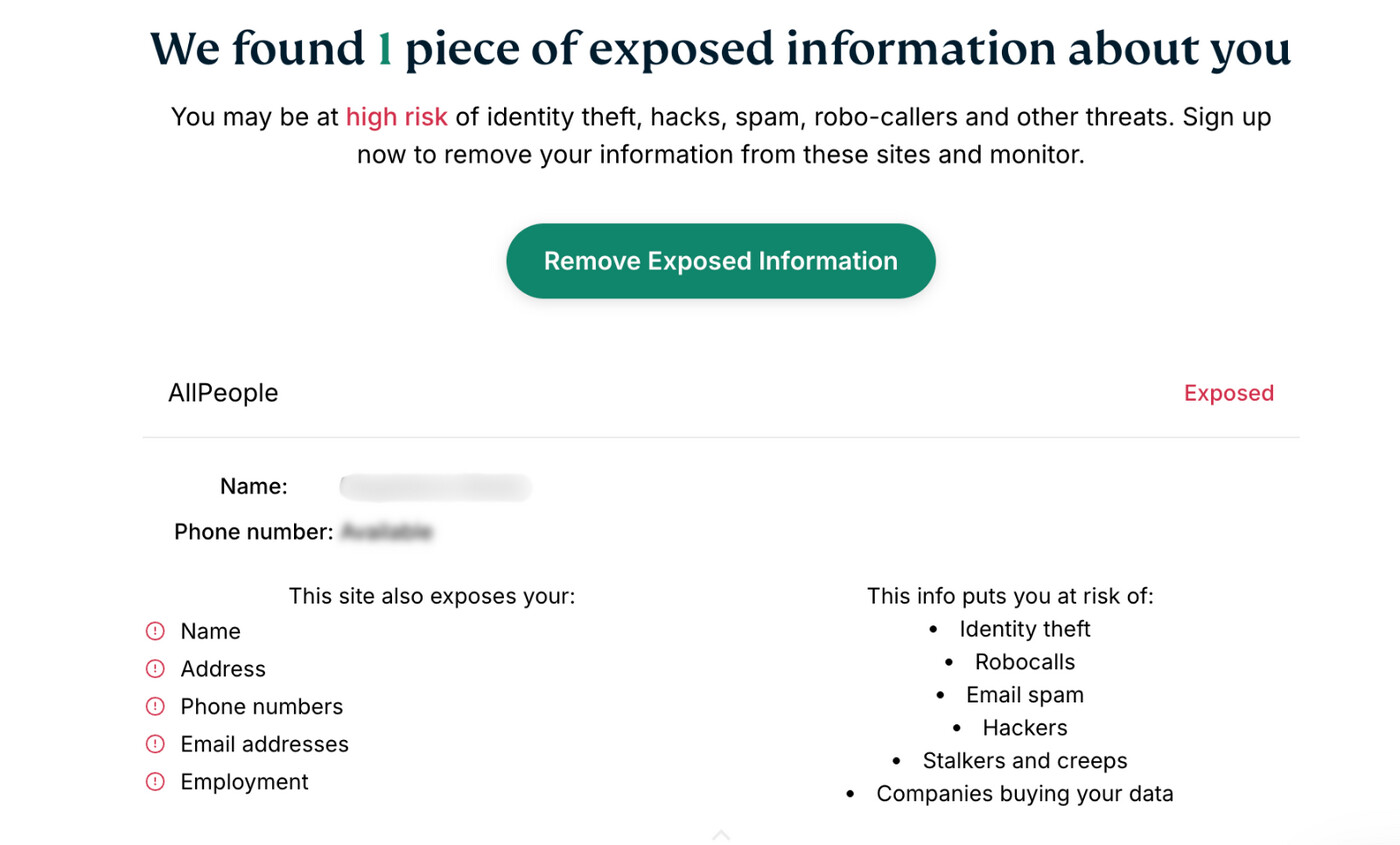
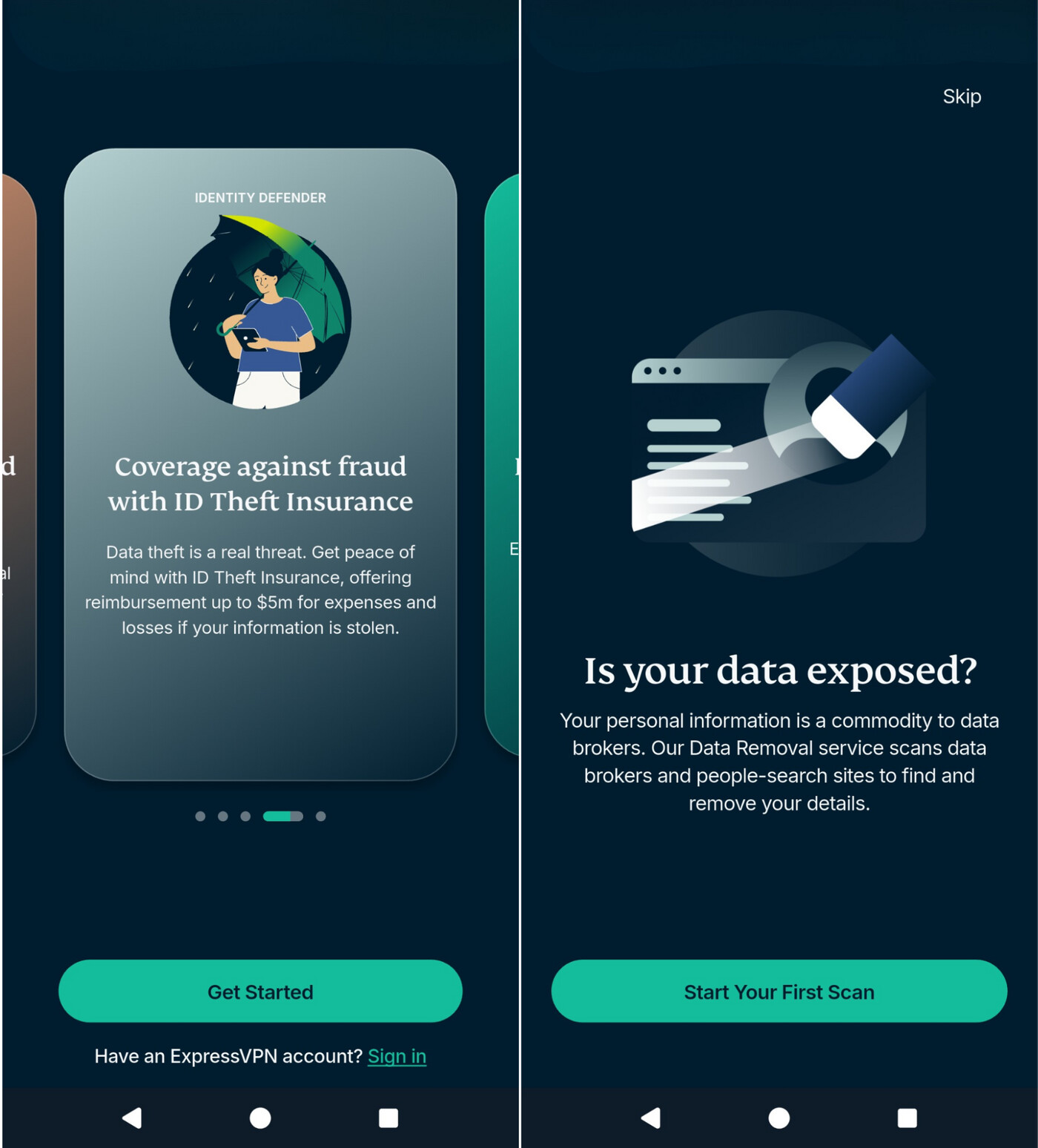
You can also run a scan on your phone with the ExpressVPN Identity Defender app. On the welcome screen, tap Get Started, then Start Your First Scan, and follow the on-screen instructions to complete it.

Note: Because the free scan uses only a few personal details, some listings in the results may belong to someone else. Check each result to confirm the information is yours.
How to remove your data with ExpressVPN
To remove the listings the free scan found, set up Data Removal in Identity Defender. Here’s what to do step by step:
Get ExpressVPN
Data Removal is included with the Advanced and Express Pro plans for users in the U.S. You can subscribe on the ExpressVPN order page, which offers both plans, or buy Express Pro directly in the Identity Defender app. Either way, you’ll create an ExpressVPN account, which you need to use Identity Defender.
For more details, check out our how to download and install ExpressVPN guide.
Sign into Identity Defender
You can use the Identity Defender mobile app or the ExpressVPN+ dashboard in a browser. Both use your ExpressVPN account credentials.
To sign in through the app:
- Download Identity Defender from the App Store or Google Play and open it.
- On the welcome screen, tap Skip to go past the free scan, or run it first.
- On the subscription screen, tap Sign In and enter your ExpressVPN email and password.
- Enter the verification code sent to your email, then tap Next.
The Identity Defender setup guide covers both routes in more detail.
Set up and use Data Removal
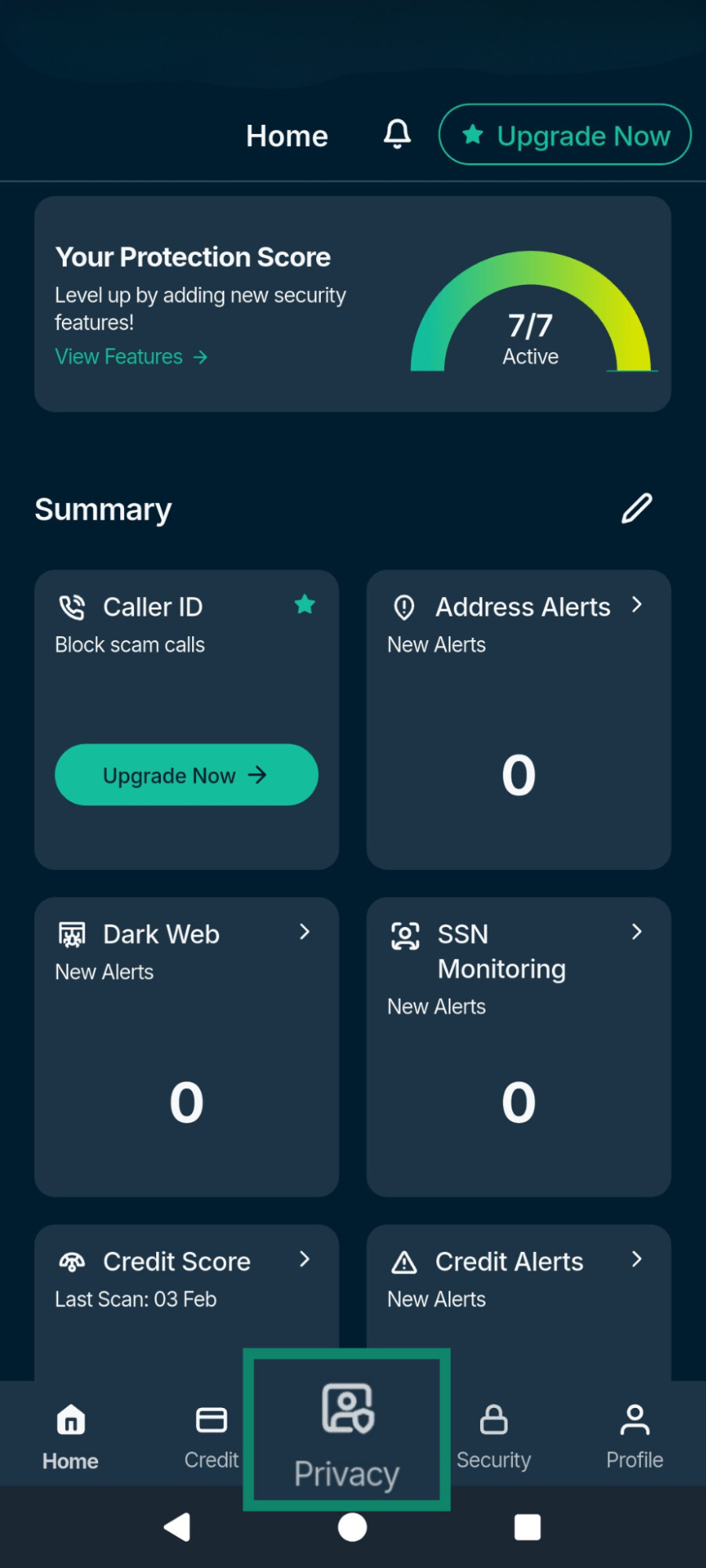
- Open the Identity Defender app and tap Privacy.
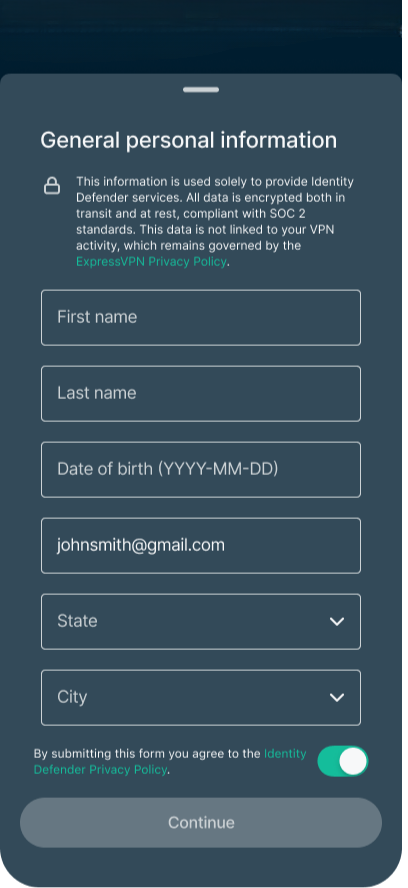
- Enter your personal information, such as your name, date of birth, email address, phone number, Social Security number (SSN), and home address. If you’ve already set up another Identity Defender service, these details carry over. Turn on the toggle to agree to the Identity Defender Privacy Policy, then tap Continue. The scan starts automatically.
- When the scan finishes, use the dropdown menu to switch between Complete, In Progress, and Action Required.
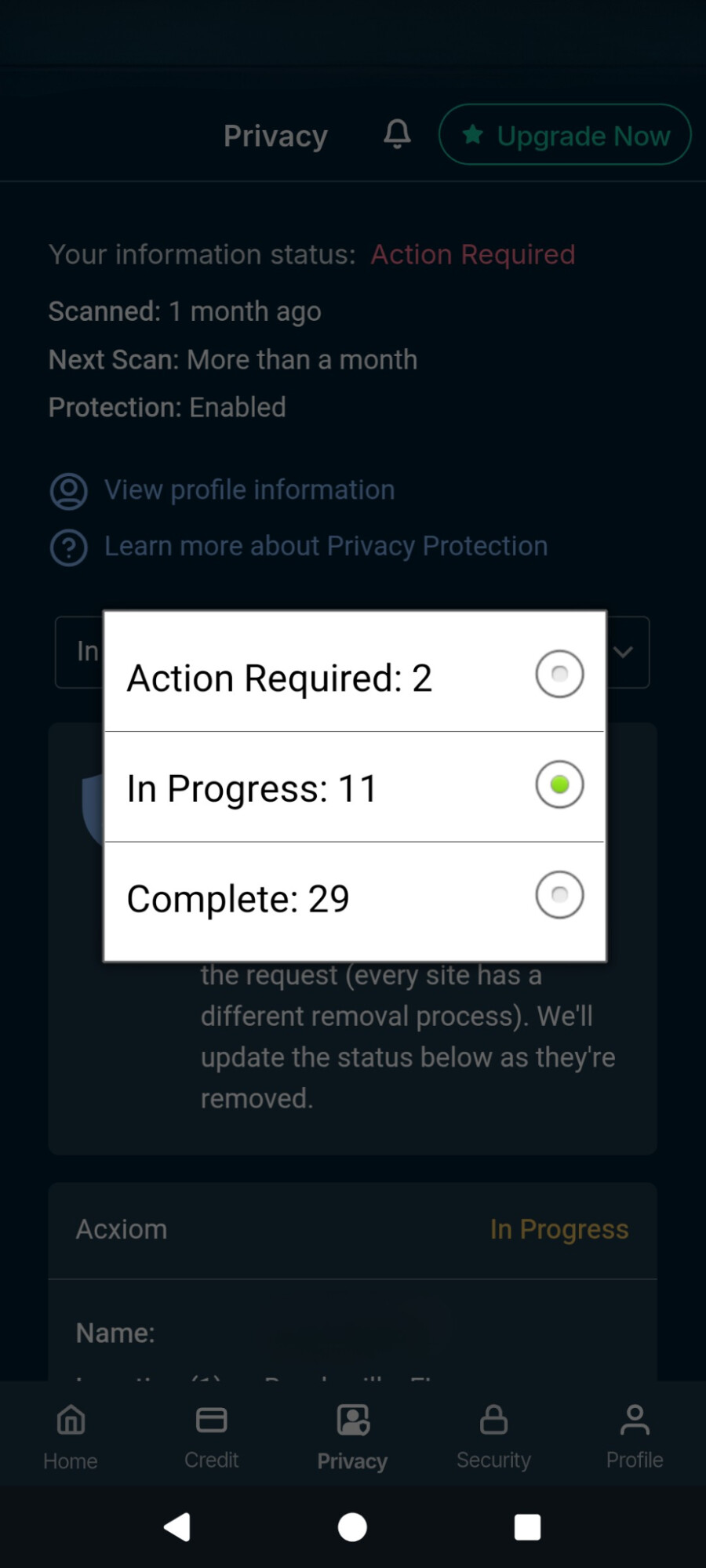
Each tab shows a different stage of the removal process:
-
Action Required: Sites where Data Removal found your information but can’t submit a request for you, usually because the site only accepts removal requests from the person themselves. The app links to each site and gives step-by-step instructions for removing your data manually.
-
In Progress: Sites where Data Removal has already sent a removal request. Depending on the site, this can take up to 45 days, and you’ll get an alert when the removal is finished.
-
Complete: Information that has been removed, where from, and when the site will be scanned again. If your data reappears in a later scan, Data Removal sends another removal request.
See ExpressVPN's Data Removal guide for more details and the ExpressVPN+ dashboard setup.
Note: The information you enter is encrypted in transit and at rest in line with the System and Organization Controls 2 (SOC 2) standards, and it isn’t linked to your VPN activity. When you set up Data Removal, you authorize ExpressVPN and its service providers to act as your representative with data broker sites, which includes submitting your details, agreeing to the sites’ terms, and signing documents on your behalf.
Other ExpressVPN tools that help keep your data off broker sites
Besides Data Removal, we have other tools that limit how much new information about you reaches advertisers and data brokers. Note that none of them remove existing listings, and they can’t stop brokers from collecting public records.
- ExpressMailGuard: Creates email aliases you can use instead of your real address for sign-ups, newsletters, and other online accounts, so your main address isn’t added to more lists. If an alias starts getting spam, you can delete it, and messages sent to it will stop reaching your inbox.
- Block trackers: Blocks known tracker domains on your device, which limits the browsing data that reaches ad networks and data brokers. It doesn’t remove data brokers have already collected, and it doesn’t stop all forms of tracking.
- VPN: Hides your IP address from the sites you visit by routing your traffic through an ExpressVPN server, so sites can’t use your IP address to identify your location. It doesn’t stop sites from collecting information through logged-in accounts or cookies.
Take control of your personal data with Identity Defender
ExpressVPN’s Identity Defender helps remove your personal information from data broker sites and monitors for signs of identity misuse.
Try it risk-free with a 30-day money-back guarantee for new users.
FAQ
Do data removal services work?
Will a data removal service reduce spam calls and emails?
For email, ExpressMailGuard lets you sign up for services with aliases instead of your real address, and you can delete an alias if it starts getting spam. For Express Pro subscribers in the U.S., Identity Defender’s Caller Identification feature on Android and iOS flags suspected spam and scam calls and can block them automatically.