Stay protected with ExpressVPN’s Internet Kill Switch
Internet Kill Switch automatically blocks all internet traffic if your VPN connection is interrupted, until the secure VPN tunnel is restored
- Keep your data from leaking through connection drops and switching networks
- Protect your privacy on every device connected to ExpressVPN
- Try the optimized Lightway protocol for lightning-fast reconnection
30-DAY MONEY-BACK GUARANTEE FOR FIRST-TIME USERS

Why use a VPN kill switch
Keep your information safe, even on unreliable connections
-
![Stop data leaks during connection drops When a VPN service disconnects because your laptop is in sleep mode, you switched Wi-Fi, or a hotspot dropp...]()
Stop data leaks during connection drops
When a VPN service disconnects because your laptop is in sleep mode, you switched Wi-Fi, or a hotspot dropped, your device can send traffic outside the encrypted tunnel.
A VPN kill switch halts that traffic until a secure connection is restored, keeping your data secure.
-
![Prevent IP and DNS exposure on shaky networks Even a minor network glitch can expose your DNS request to your ISP, or your IP to others on the netw...]()
Prevent IP and DNS exposure on shaky networks
Even a minor network glitch can expose your DNS request to your ISP, or your IP to others on the network and other third parties.
A kill switch closes that window by blocking all non-VPN traffic until the VPN is online—something a simple auto-reconnect can’t do on its own.
-
![Stay private without constant checks VPN automatic kill switch reconnection is a common feature, but you may still experience small bursts of unpro...]()
Stay private without constant checks
VPN automatic kill switch reconnection is a common feature, but you may still experience small bursts of unprotected data.
A true kill switch adds an extra layer of protection, blocking unencrypted traffic even before auto-reconnect kicks in.



What Internet Kill Switch does to keep you safe online
Learn how a VPN kill switch works to provide instant protection for your data

Prevents data exposure during VPN drops
When the VPN disconnects, Internet Kill Switch applies firewall-based rules that block all unencrypted traffic.
This containment covers IPv4, IPv6, and DNS requests until the encrypted tunnel is back online, upon which traffic resumes automatically.

Maintains secure connections across networks
Internet Kill Switch remains active when you switch between networks, maintaining protection without user input.
It works side-by-side with ExpressVPN’s proprietary Lightway protocol for fast, stable reconnections to quickly restore the encrypted tunnel.
This combination keeps your connection secure during Wi-Fi changes or short signal drops, so your data never travels outside the VPN’s encrypted tunnel.
Supported devices
-
![Image 23]()
Windows, macOS, and Linux
Internet Kill Switch is enabled by default in the ExpressVPN apps for Windows, macOS, and Linux. It blocks all unencrypted traffic if the VPN connection is in flux, but allows traffic when you disconnect from the VPN.
You can extend kill switch protection by selecting Enable at all times in your settings. This blocks internet traffic even when you disconnect from the VPN intentionally.
-
![Expressvpn Fortify Visual]()
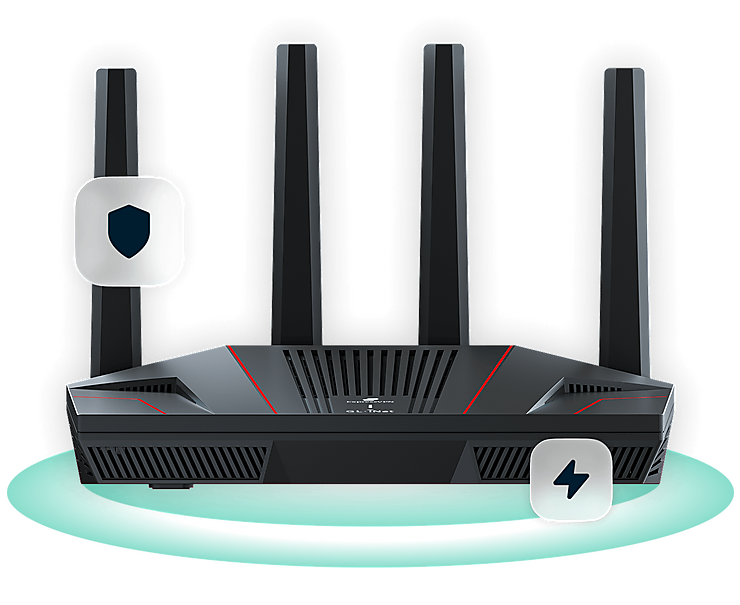
Fortify router
The Fortify router has a kill switch that can block traffic if the VPN disconnects, extending protection to all devices on your network, including devices that can't run VPN apps.
You can apply the kill switch to specific VPN tunnels or enable the Enhanced Kill Switch to make sure all connected devices use the VPN.
*Fortify has built-in VPN capabilities and comes with a 12-month ExpressVPN Advanced subscription.

-
![Image 25]()
Android
On Android, the in-app kill switch is enabled by default and blocks internet traffic if the VPN disconnects unexpectedly, while still allowing split tunneling.
For stricter protection, you can enable Block connections without VPN in Android settings to block all traffic, including traffic to devices on your local network.
-
![Image 26]()
iOS
On iOS, Internet Kill Switch is always on and can’t be disabled, but you can choose between two levels of protection.
The Standard Kill Switch blocks internet traffic only if the VPN connection is interrupted. The Advanced Kill Switch blocks all traffic when the VPN is off, except for essential Apple DNS requests.


Real-world scenarios where Internet Kill Switch helps
Maintain your privacy at home or on the go
-
![Switching between servers or networks Internet Kill Switch keeps traffic sealed inside the encrypted tunnel, even if you’re switching VPN servers...]()
Switching between servers or networks
Internet Kill Switch keeps traffic sealed inside the encrypted tunnel, even if you’re switching VPN servers.
In the ExpressVPN apps for desktop and mobile, you can adjust kill switch settings in the Profile tab for different levels of protection.
-
![Using unstable Wi-Fi or public hotspots On café, airport, or hotel Wi-Fi, short drops can expose unencrypted data. Internet Kill Switch blocks all...]()
Using unstable Wi-Fi or public hotspots
On café, airport, or hotel Wi-Fi, short drops can expose unencrypted data.
Internet Kill Switch blocks all traffic during those interruptions until Lightway quickly restores the secure tunnel.
-
![Detecting apps that try to circumvent VPN settings Background processes (like messaging apps, cloud sync, or even online games) can try to reconnec...]()
Detecting apps that try to circumvent VPN settings
Background processes (like messaging apps, cloud sync, or even online games) can try to reconnect before the VPN reconnects.
Internet Kill Switch stops that traffic instantly (IPv4, IPv6, and DNS), acting as a last line of defense



ExpressVPN’s Internet Kill Switch vs. other VPN kill switches
Kill switch capabilities vary significantly across VPNs
| ExpressVPN kill switch | Typical VPN kill switches | |
|---|---|---|
| Activation and scope | Instantly ready upon installing the VPN app on your device; system-wide rules help keep your data private and safe | Frequently needs manual activation, and often buried in settings. More likely to cover just certain apps |
| Router and smart device support | Fortify VPN router comes with built-in ExpressVPN capabilities to keep all devices on your network protected | Rarely includes routers or "whole home" coverage |
| Drop recovery | Works with Lightway protocol on 10Gbps and 40Gbps servers in 113 countries to bring you back online fast | Depends on common protocols; reconnects can lag, with short windows where data may leak |
| Privacy & data handling | Runs on RAM-only servers; every restart wipes data and firewall rules, so nothing sticks around | Most stick with older server models, which may store data on hard drives. Full RAM-only networks are still rare |
| Mobile coverage | Consistent protection on Android and iOS, with system-level blocking and better control during and after disconnects | VPNs usually offer kill switch protection on Android, while iOS support is less common |
| Independent audits | Subject to third-party audits confirming consistent performance under stress testing | Many don’t share or barely mention third-party reviews or stress tests |
The trusted technology behind Internet Kill Switch
Built with a highly technical backbone for straightforward privacy
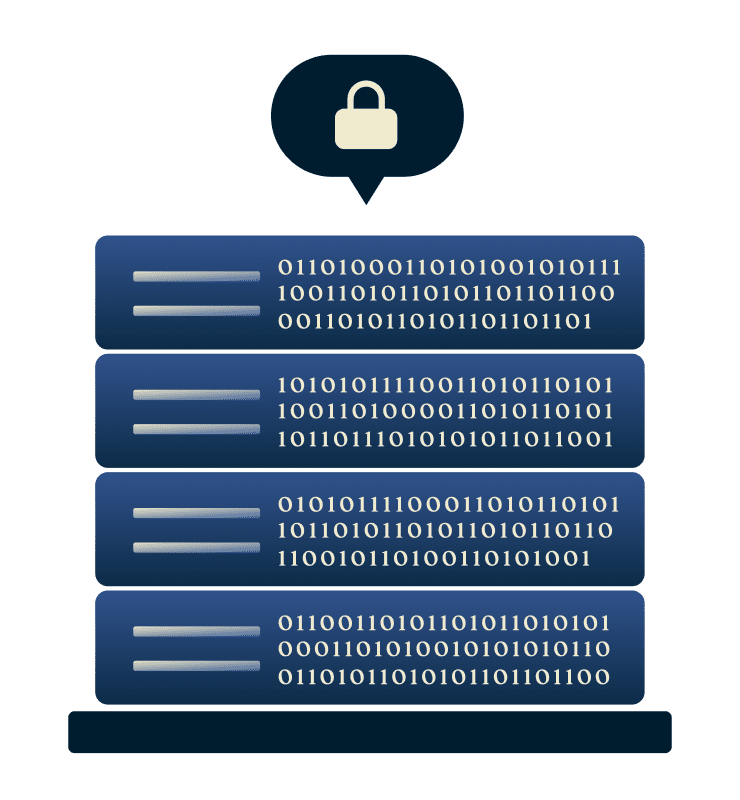
Firewall-based safeguards
Internet Kill Switch covers IPv4, IPv6, and DNS requests, and it operates silently in the background to resume traffic only after a secure tunnel is active again.
It’s built to integrate with the Lightway protocol for faster reconnection, and supported by TrustedServer’s RAM-only architecture, which resets ExpressVPN’s servers to a clean state on every reboot.

Continuous protection architecture
Internet Kill Switch is part of a larger security stack engineered for consistency: Lightway for rapid recovery, TrustedServer for verifiable server security and resets, and network-level isolation for leak prevention.
Independent audits (by cybersecurity auditors KPMG and Cure53) confirm that this integrated system maintains protection across real-world conditions—your privacy is built into our VPN architecture.
What people are saying about ExpressVPN
I have ExpressVPN on all my devices - phone, laptop, tablet, AppleTV, etc., and absolutely love it.


* A sample of reviews from our most satisfied customers
Got an account with @expressvpn yesterday. Great decision for traveling out of the country!
@D_Geiger

* A sample of reviews from our most satisfied customers
With its consistent performance and reliable security, ExpressVPN is the best VPN out there.

* We sometimes pay expert sites for customer referrals
FAQ
What is a VPN kill switch?
A VPN kill switch, also called a VPN automatic kill switch, blocks web traffic if your internet connection drops. ExpressVPN’s Internet Kill Switch does this at the system level to keep your IP address and data protected inside the encrypted tunnel. The VPN restores your connection when it reconnects.
Should you enable the kill switch?
Absolutely. Keeping your VPN kill switch on helps you prevent leaks if your connection drops.
How do you activate the kill switch in ExpressVPN?
You don’t need to activate Internet Kill Switch on most devices. It’s enabled by default on Windows, macOS, Linux, and Android. On iOS, the kill switch is always on and can’t be disabled. Depending on your device, you can adjust the level of kill switch protection in your settings.
What if Internet Kill Switch isn't working correctly?
If the Internet Kill Switch isn't blocking traffic when expected, make sure your ExpressVPN app is up to date and check your kill switch settings under Profile > Settings. If the problem persists, contact ExpressVPN Support.
Does every VPN offer a kill switch feature?
Not every VPN provides a full system-level VPN kill switch. Some need manual activation or protect only specific apps. ExpressVPN’s Internet Kill Switch blocks IPv4, IPv6, and DNS traffic outside the encrypted tunnel on Windows, Mac, Linux, iOS, and Android devices.
How can I tell if my kill switch is active?
Want to know how to test a VPN kill switch? Connect to ExpressVPN, then turn off your internet connection briefly. If your internet pauses until Lightway restores the tunnel, the kill switch is active.
Try ExpressVPN risk-free with Internet Kill Switch
- Keep your internet traffic protected even during VPN drops, with lightning-quick reconnects
- Maintain privacy across platforms, with protection for Windows, Mac, Linux, routers, Android, and iOS
- Get a 30-day money-back guarantee as a first-time customer