



This guide will show you how to generate strong passwords for all your online accounts using ExpressKeys.
ExpressKeys can generate strong passwords that are long, randomized, and complex, making them difficult for attackers to crack. You can determine the length of your generated password and can also specify whether you want the password to include capitals, numbers, or symbols.
Once you generate a password, you can save it in your password manager and fill it with a click or tap when signing into your accounts.
Jump to…
ExpressKeys for Android
There are multiple ways to generate strong passwords within ExpressKeys for Android. You can generate strong passwords when creating a new login or when editing an existing login.
Generate a strong password for a new login
There are two ways you can generate a strong password for a new login in ExpressKeys: while creating an account with a website or app or while manually adding a new login to ExpressKeys.
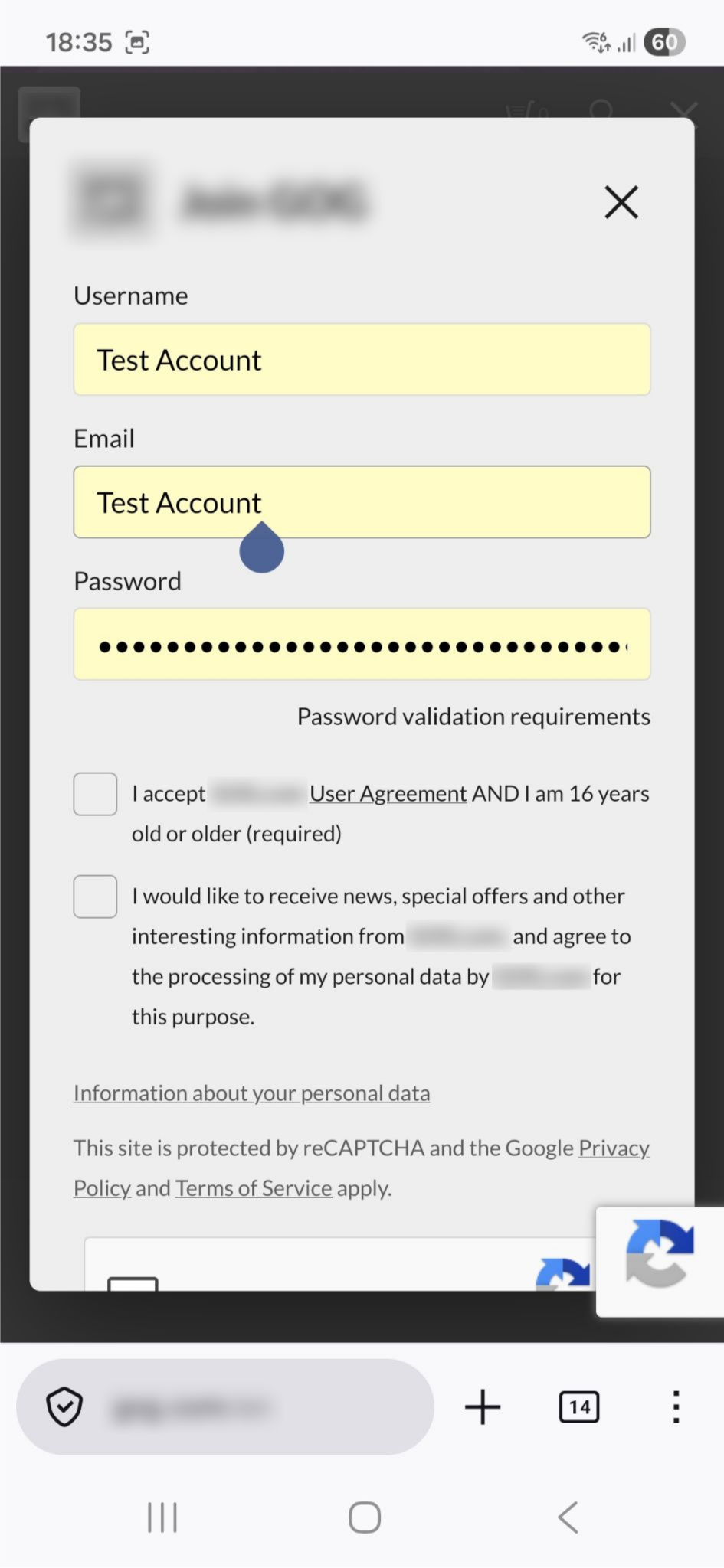
During signup on a website or app
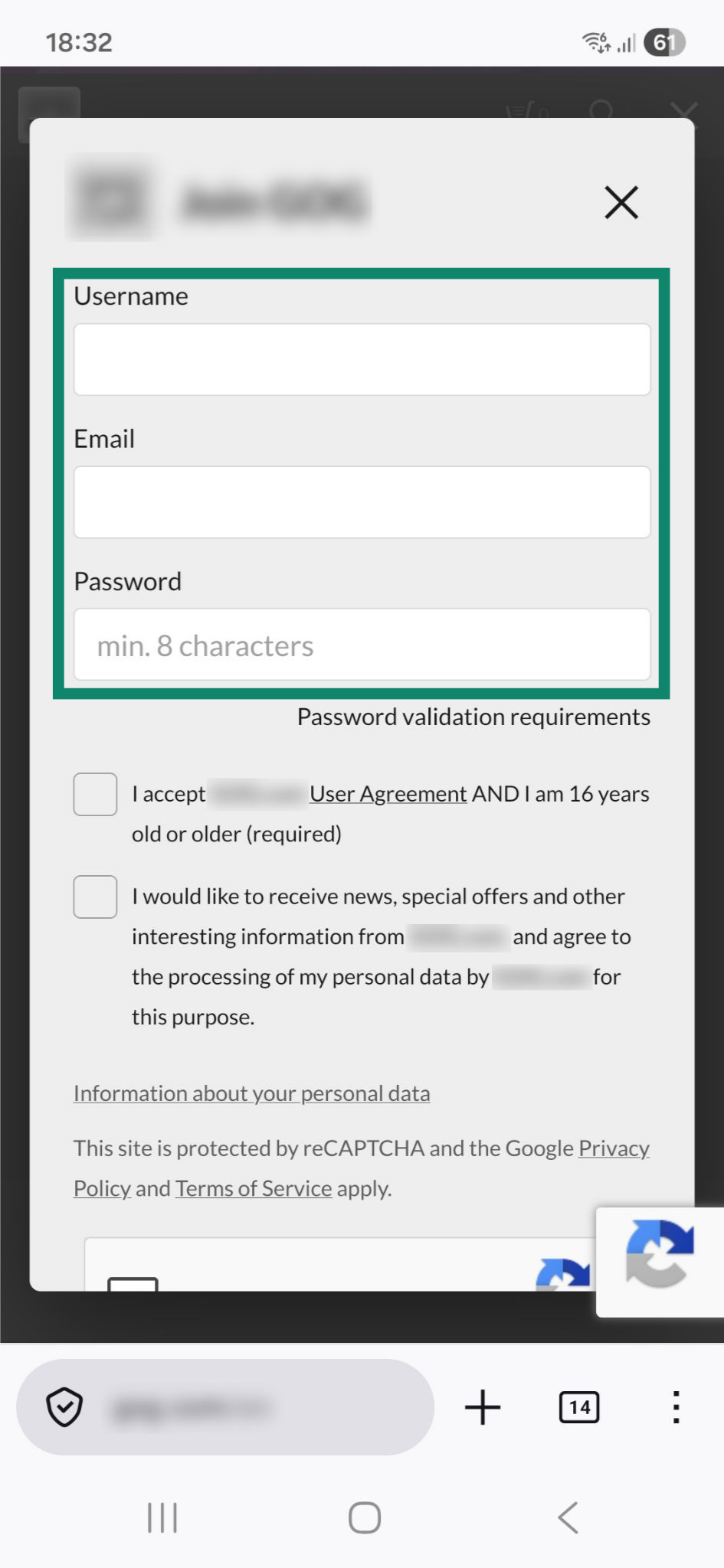
- Go to the website or app’s signup screen or page.
- Tap the username, email, or password field.


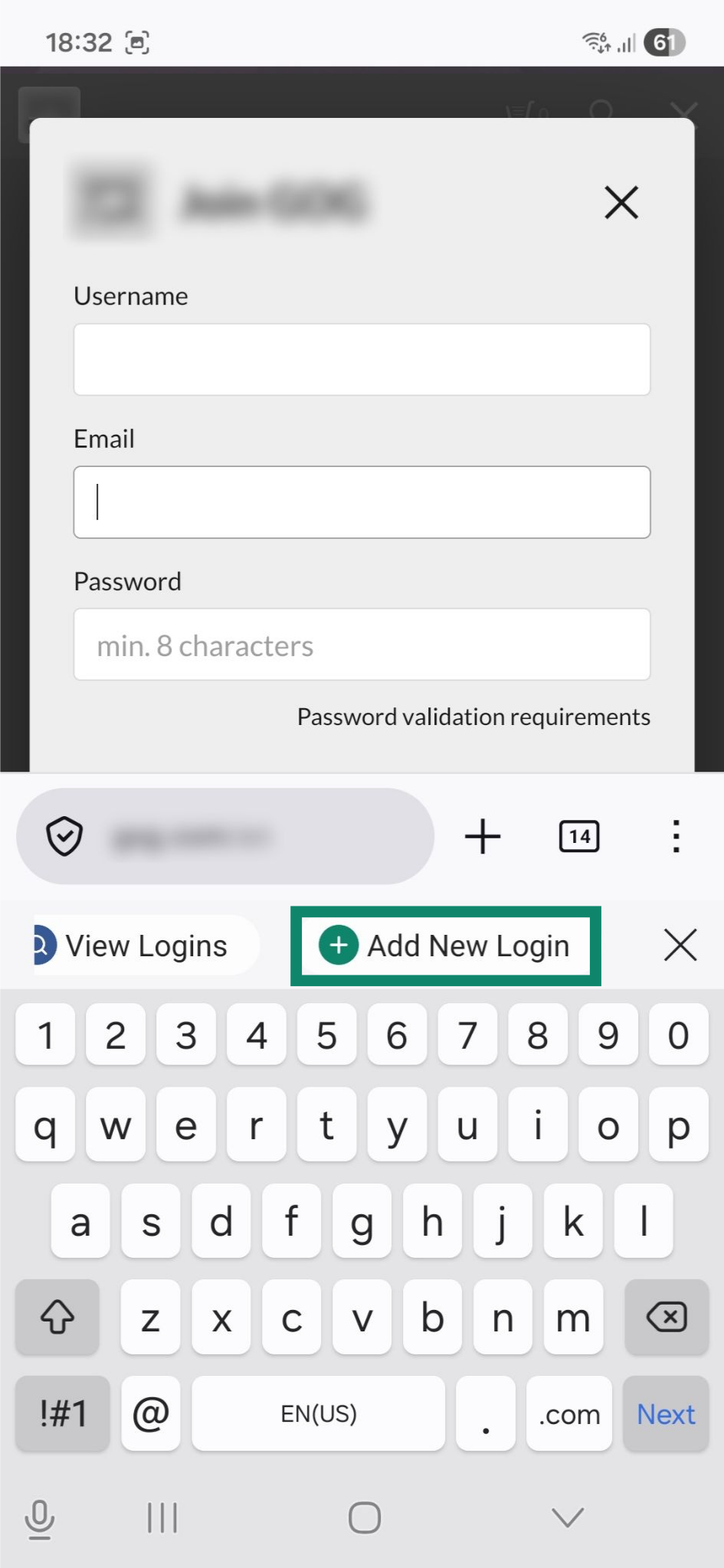
- Your keyboard will pop up. Tap Add New Login above it to open a login creation page within ExpressKeys.

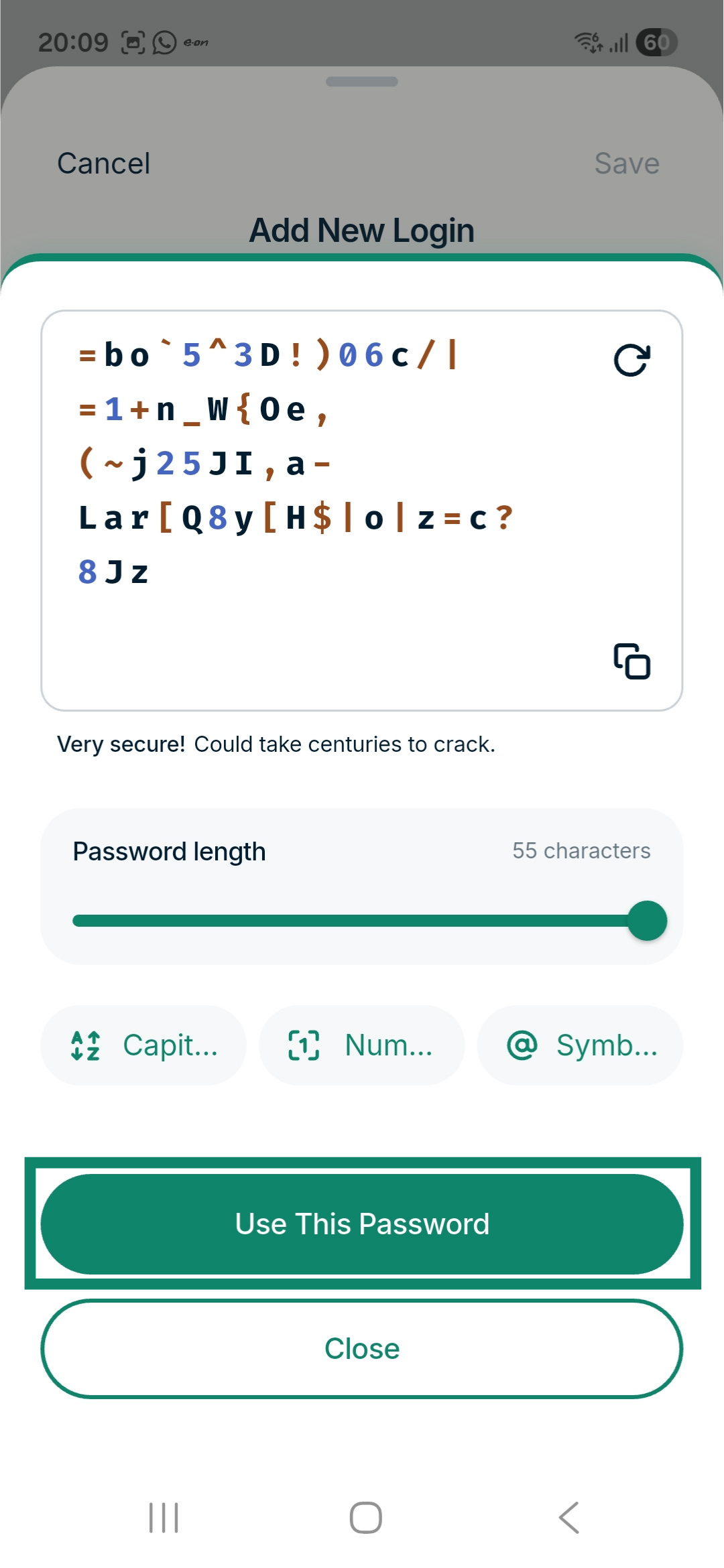
- Under the Password field, tap Need a new password? to open the password generator.

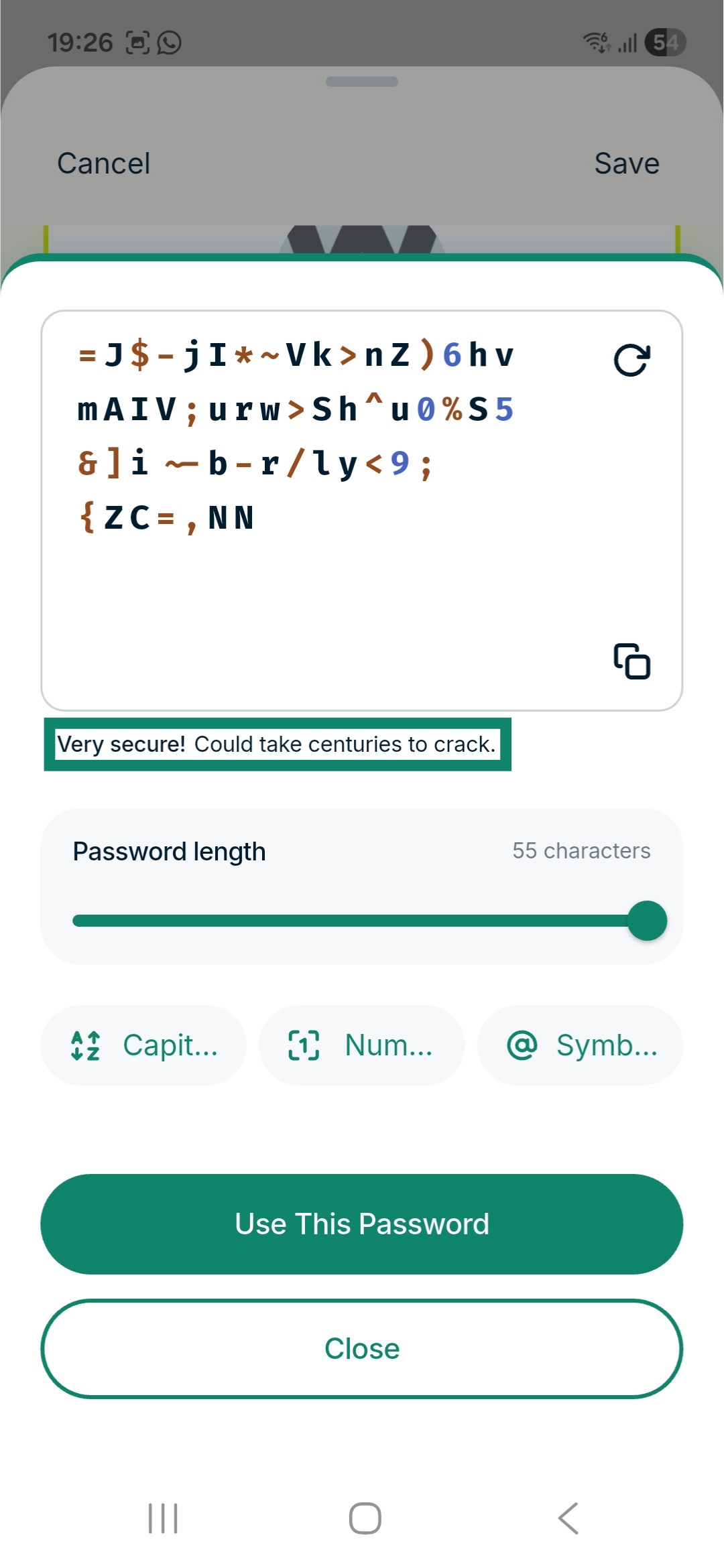
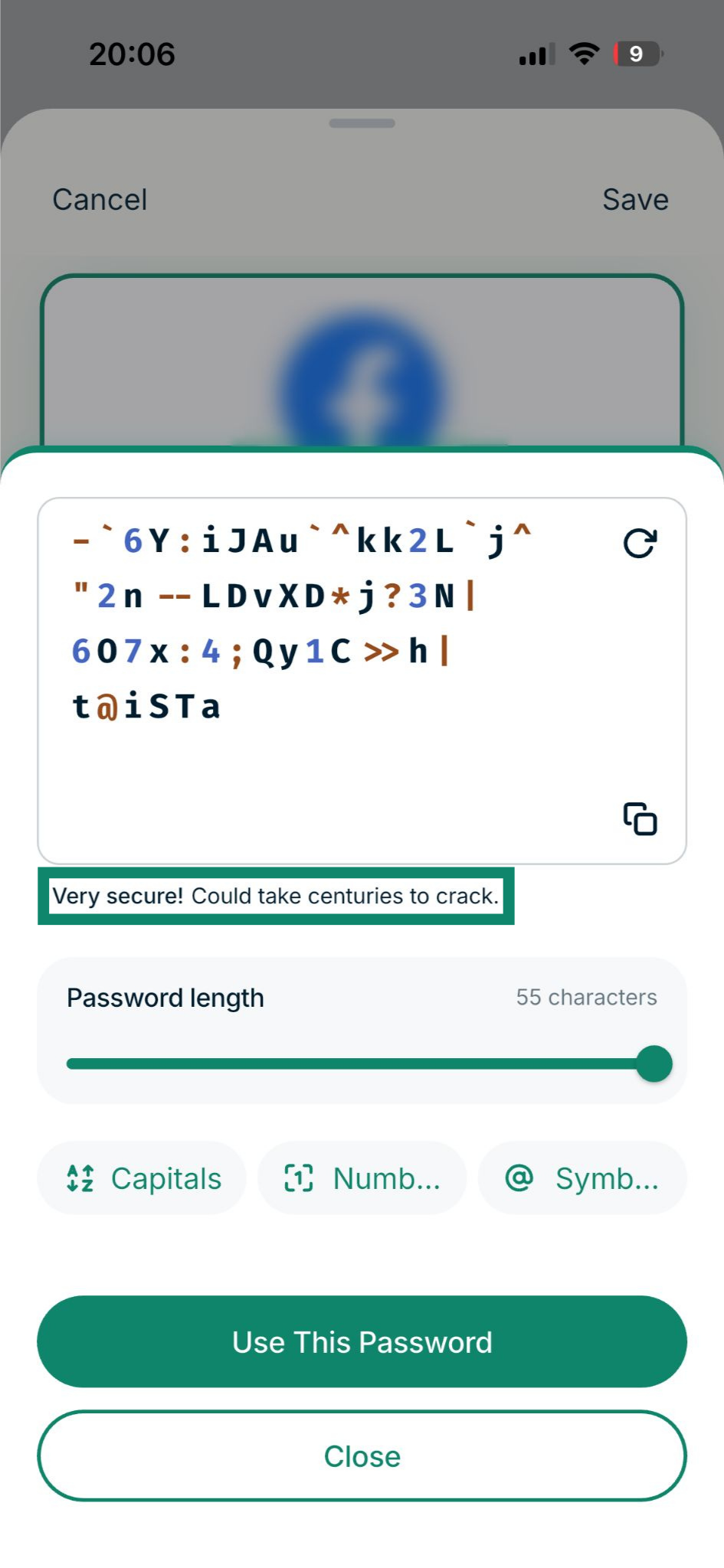
- Customize your password. For the strongest security, look for a message saying, Very secure! Could take centuries to crack.
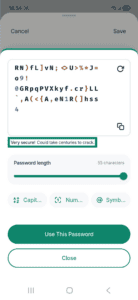
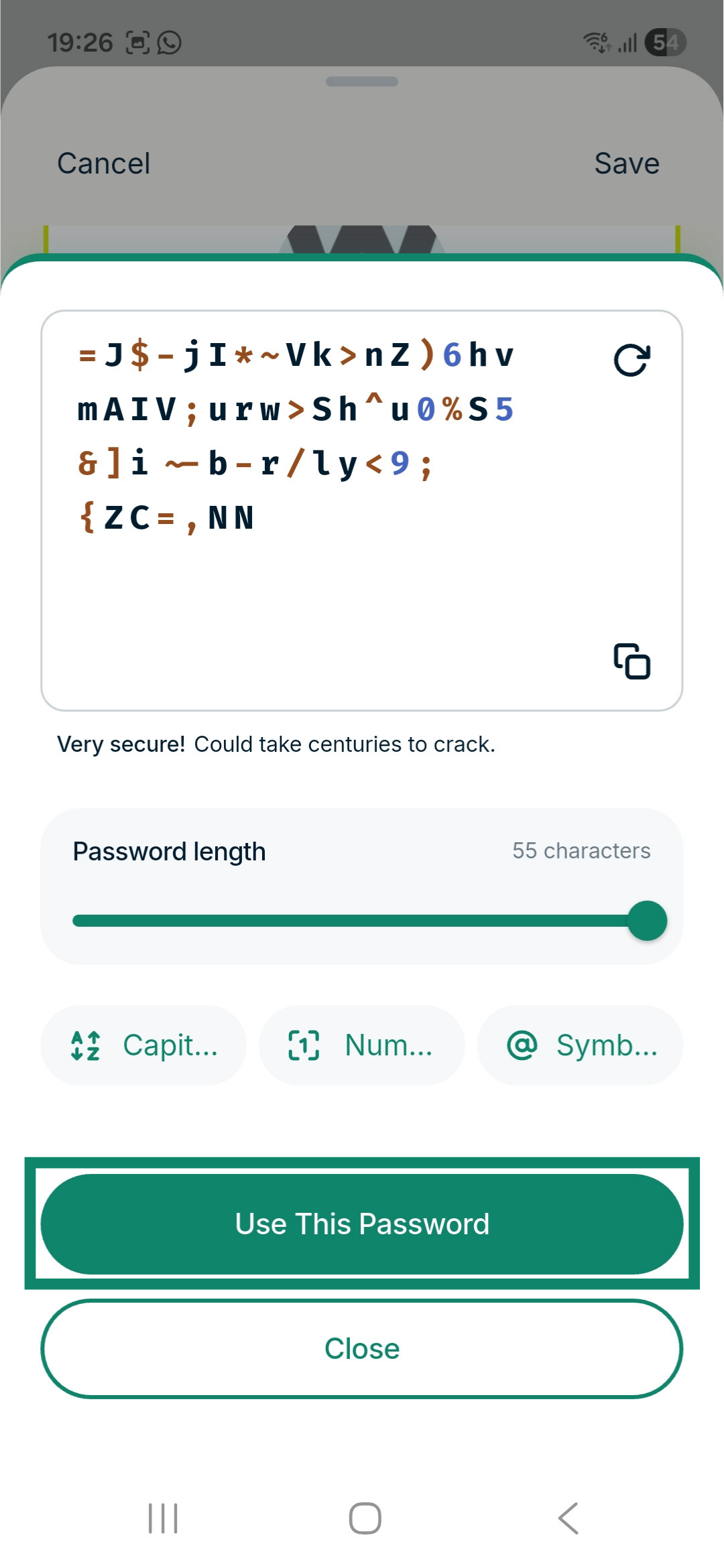
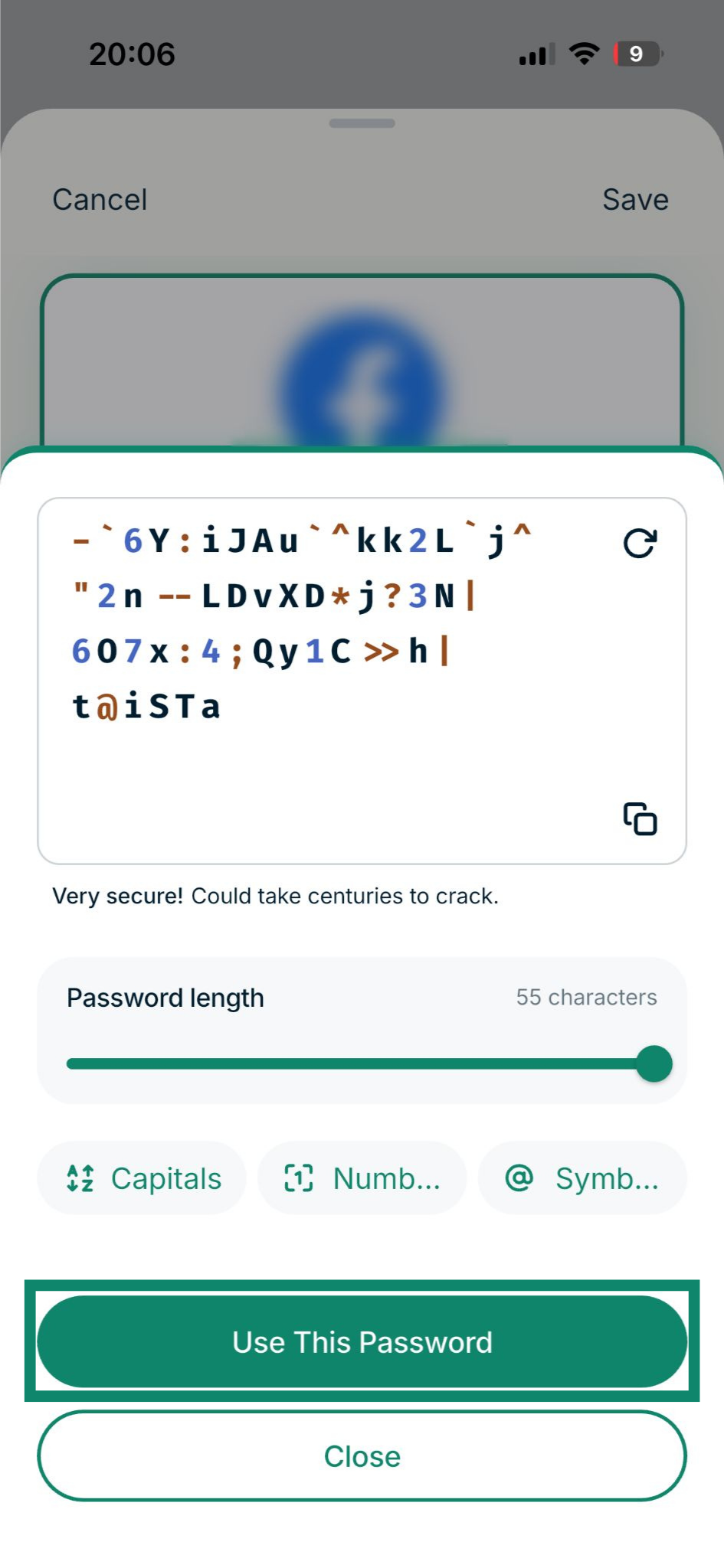
- Tap Use This Password.
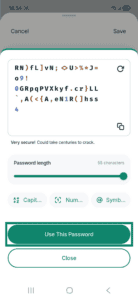
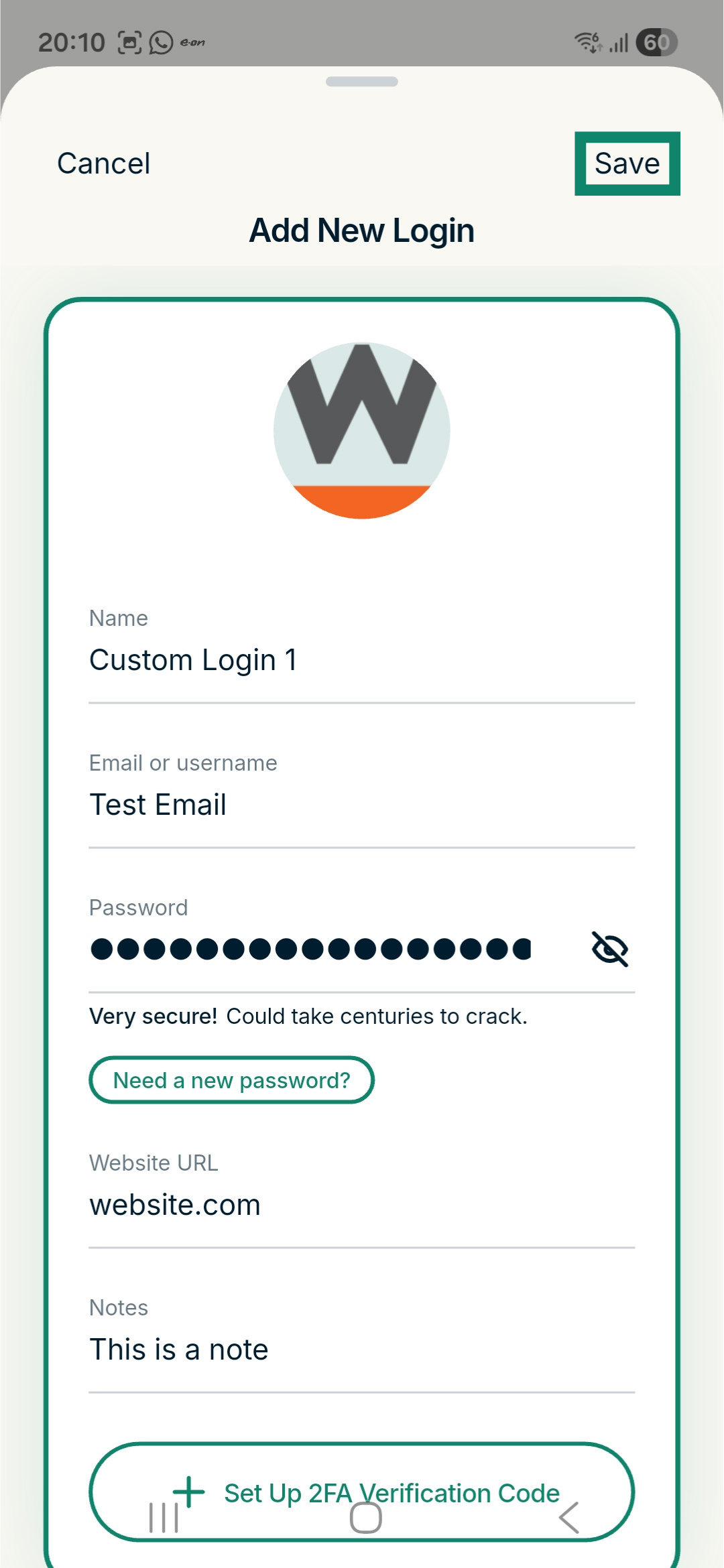
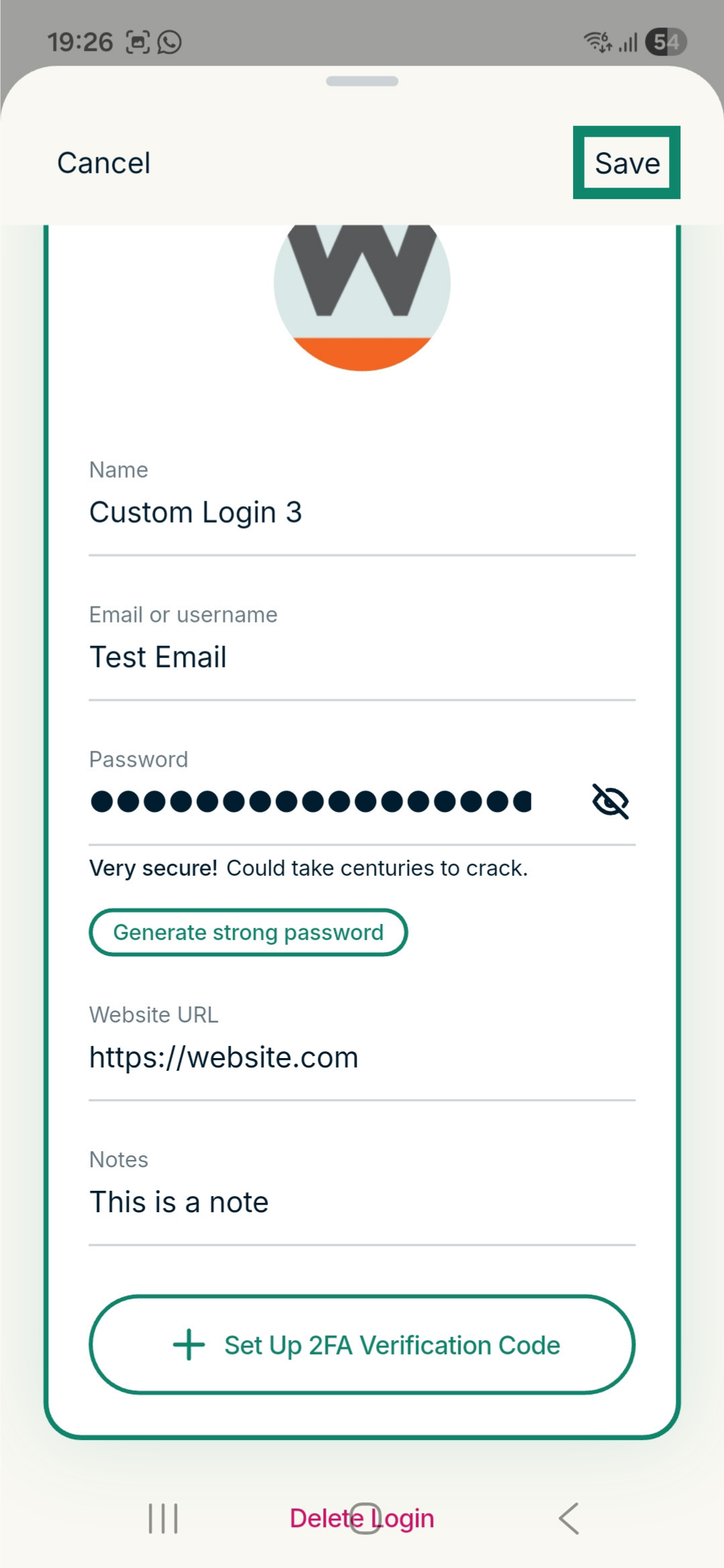
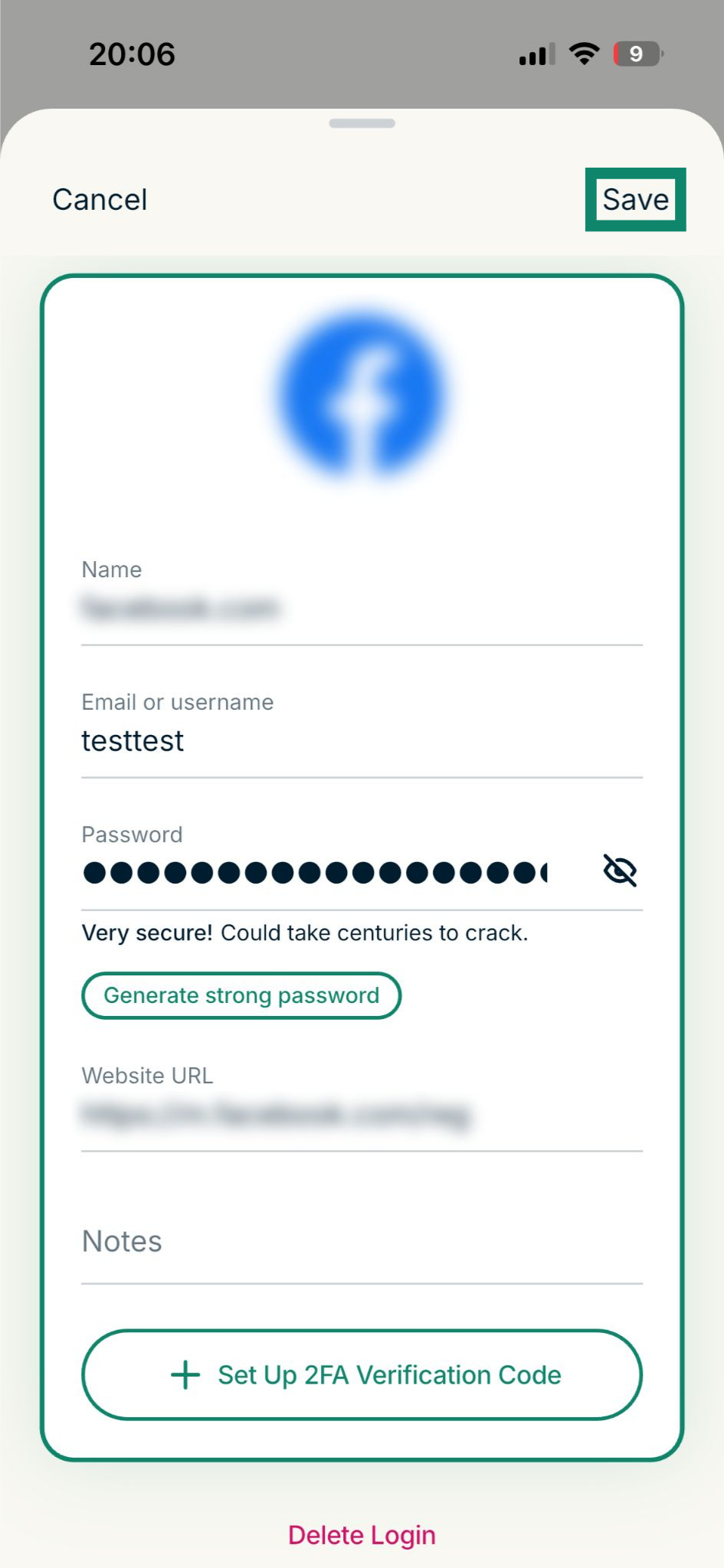
- Fill out the remaining fields and tap Save.

- ExpressKeys will automatically fill the relevant signup fields.

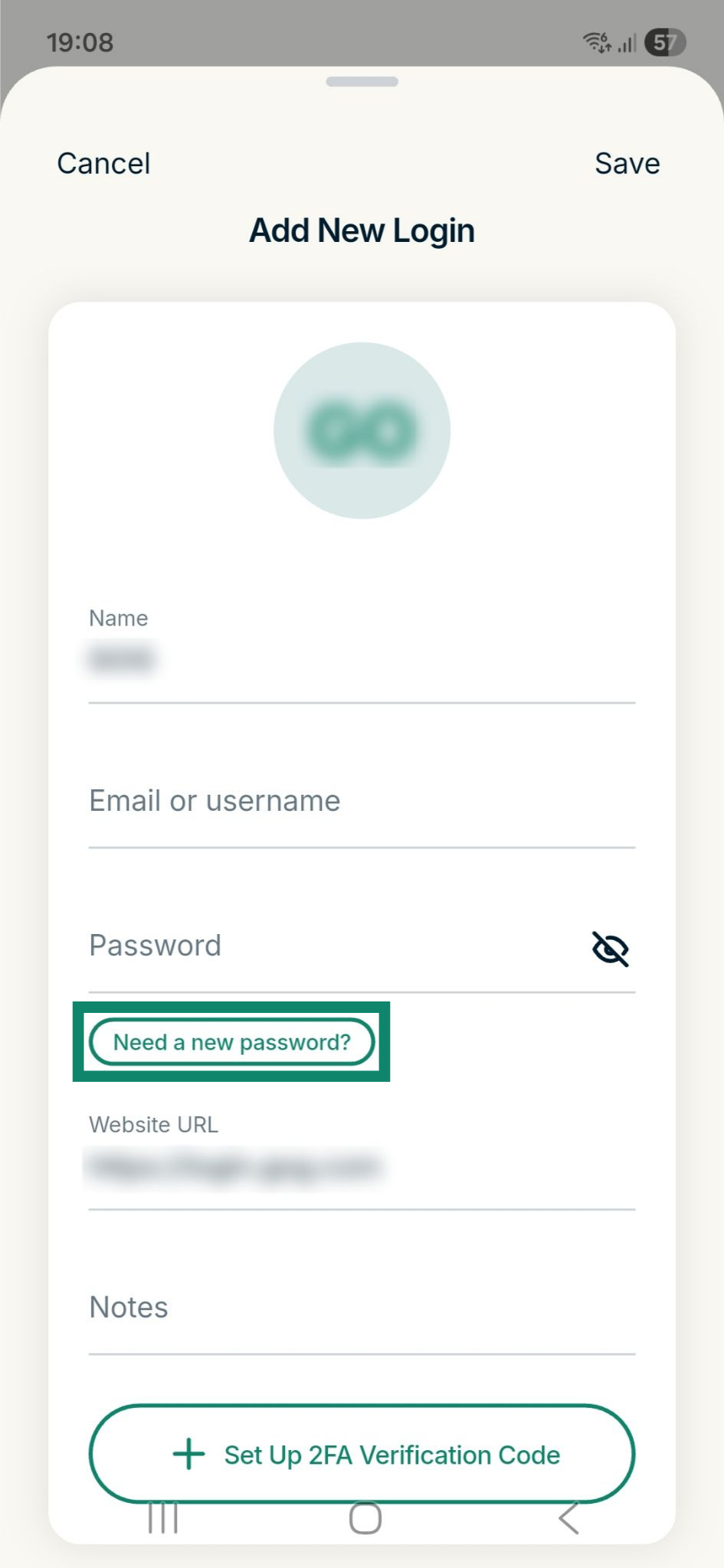
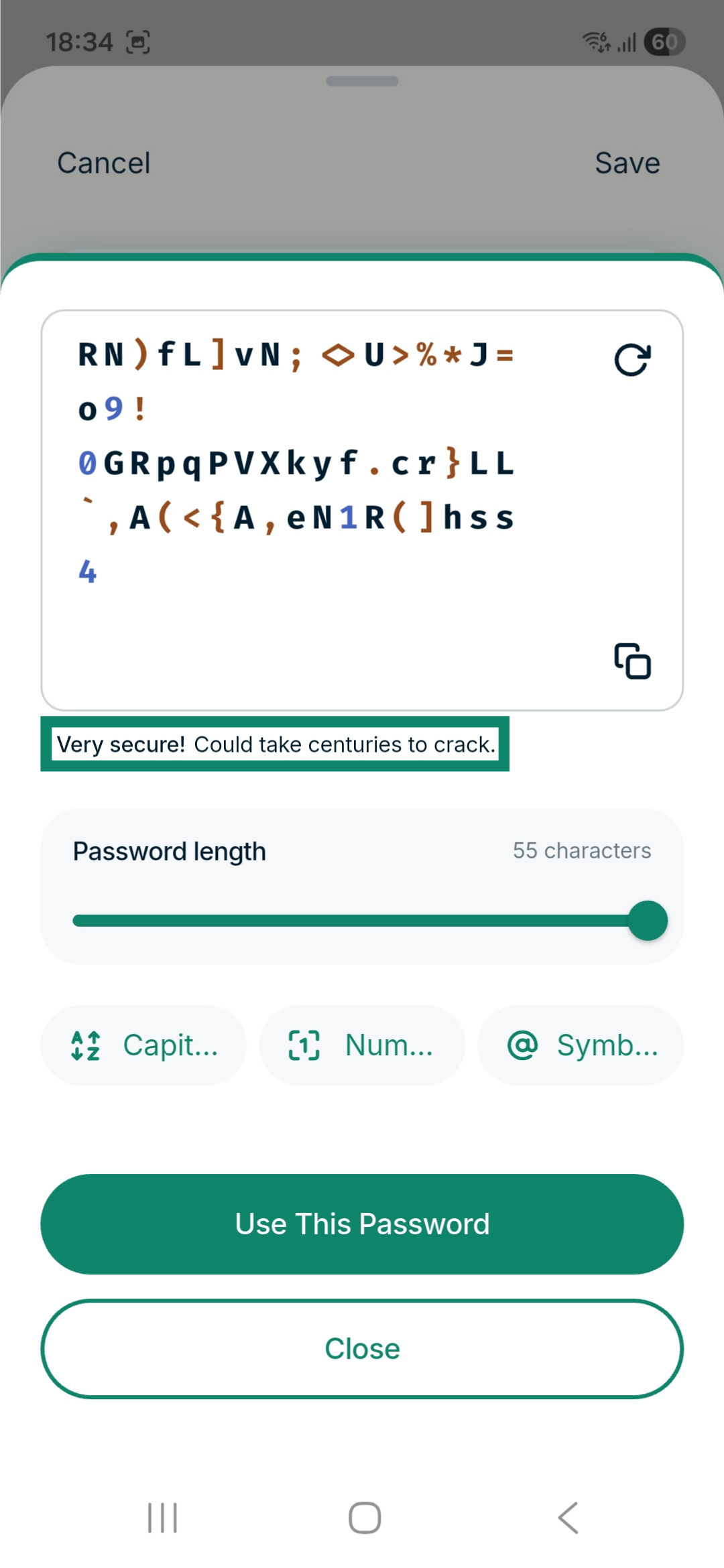
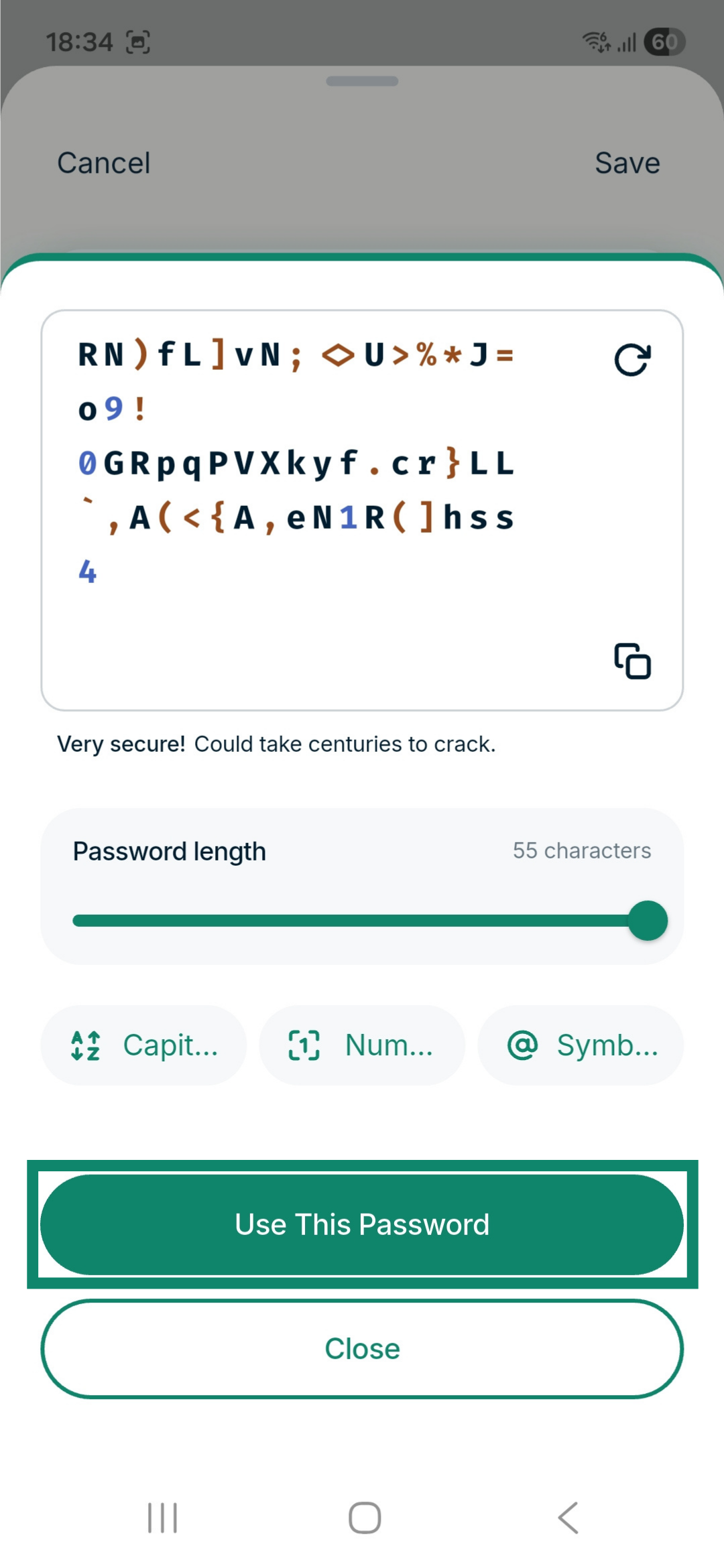
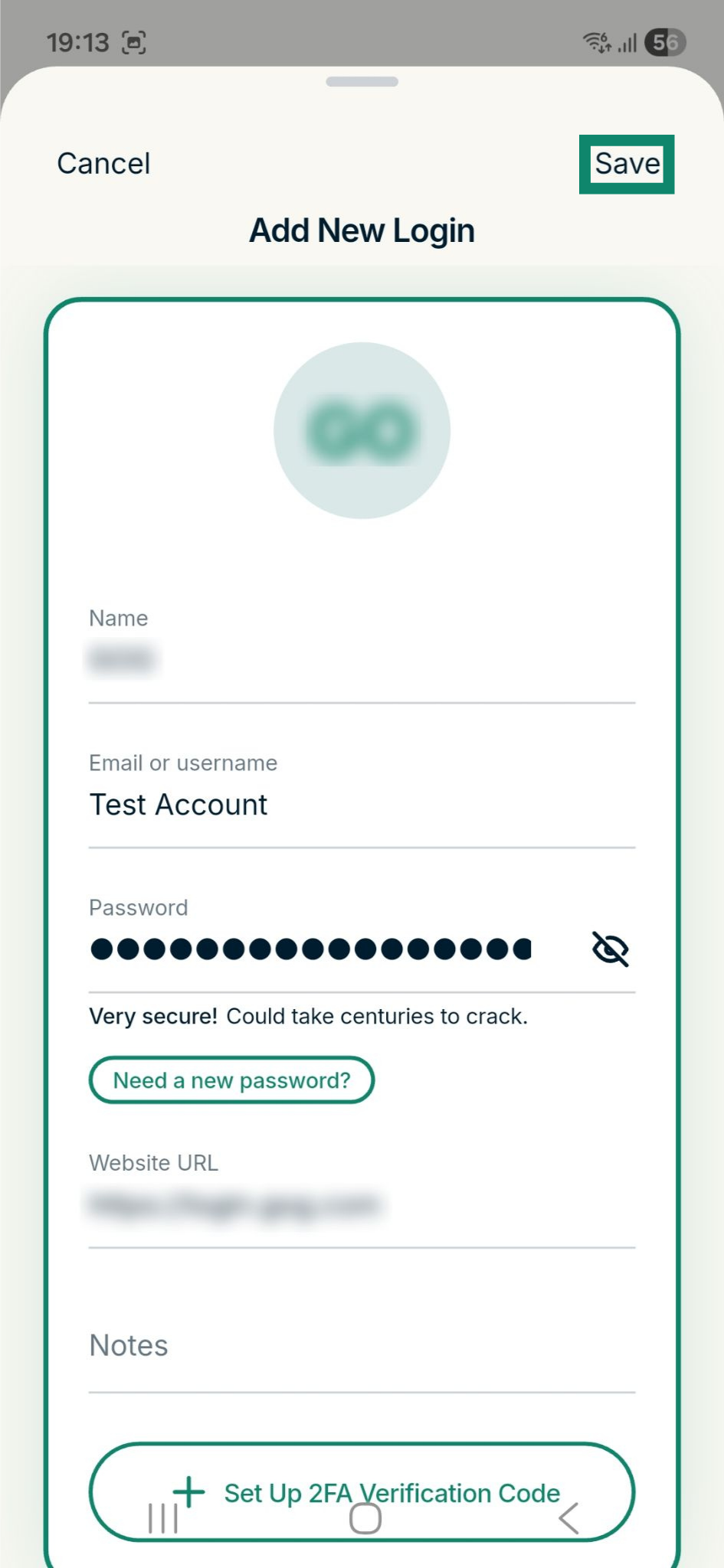
While creating a new login in the ExpressKeys app
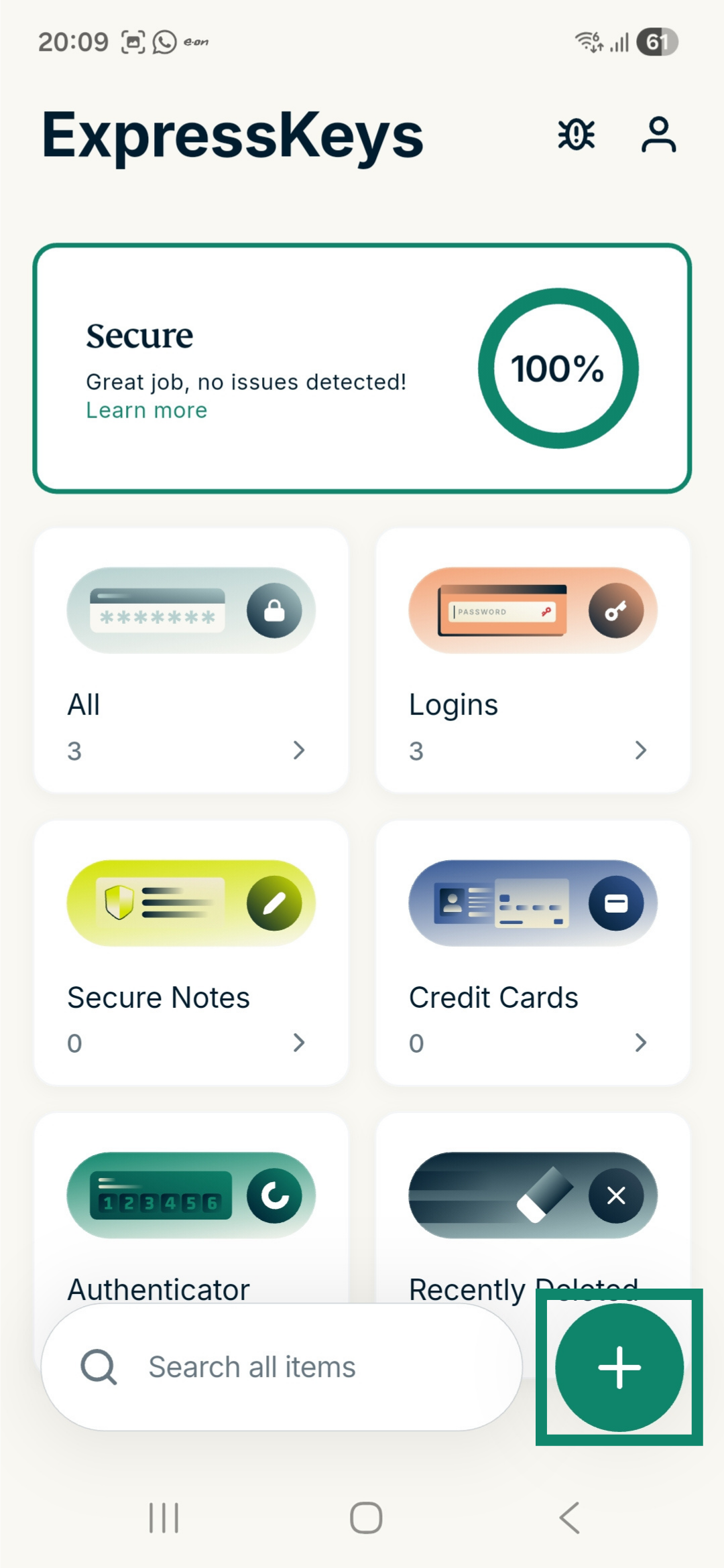
- Open the ExpressKeys app.
- Unlock your vault using your credentials or biometrics.
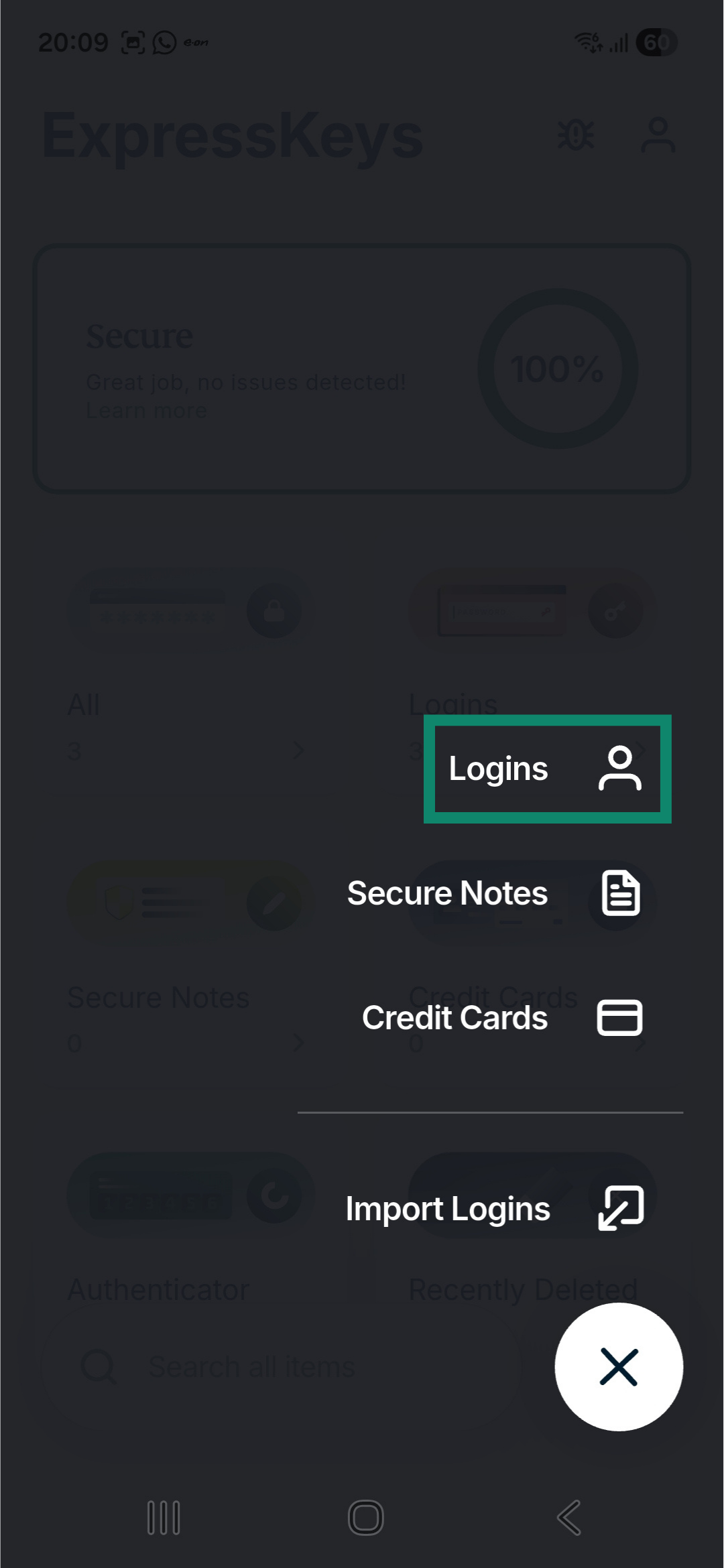
- Tap the plus icon

 .
.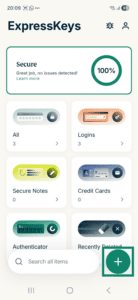
- Tap Logins.

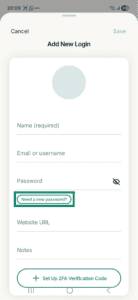
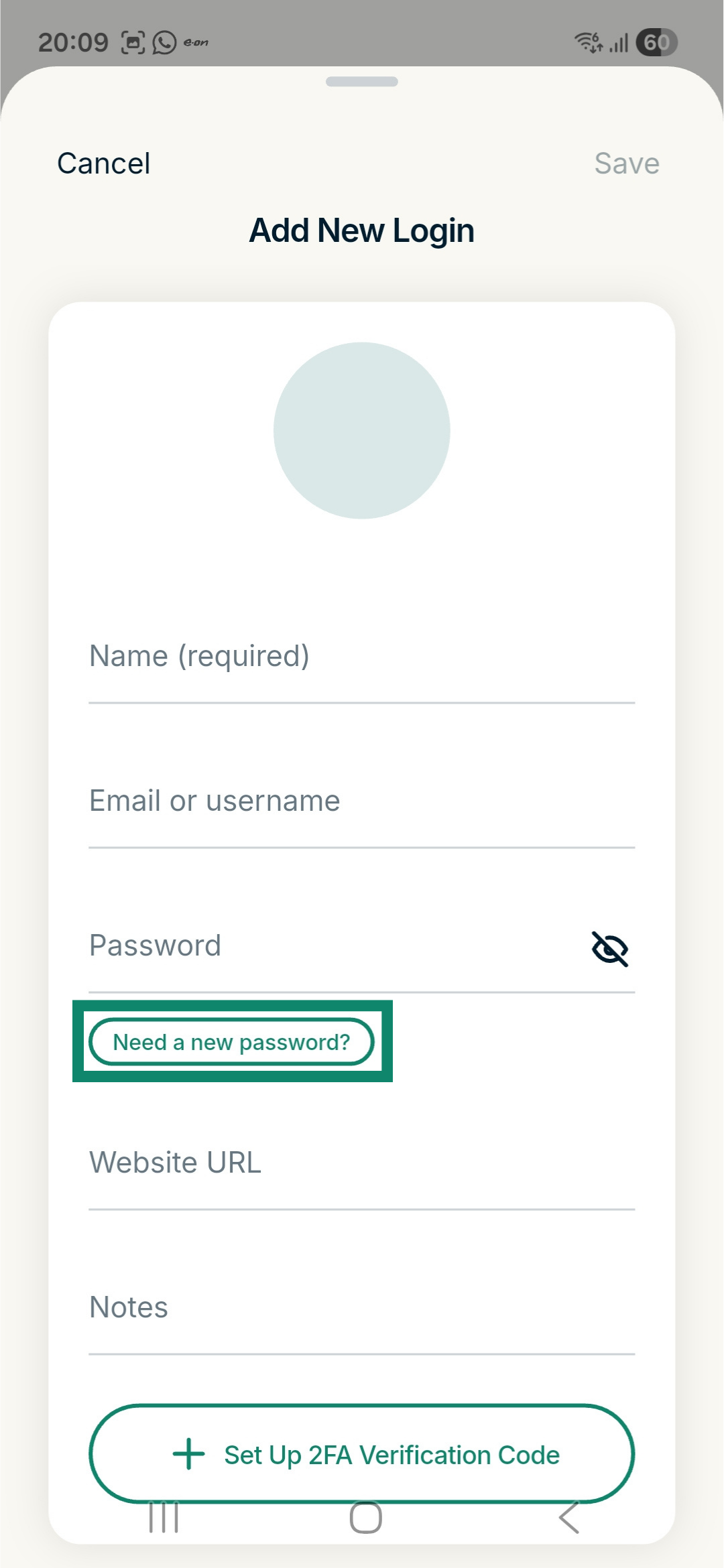
- Under the Password field, tap Need a new password? This will open the built-in password generator.
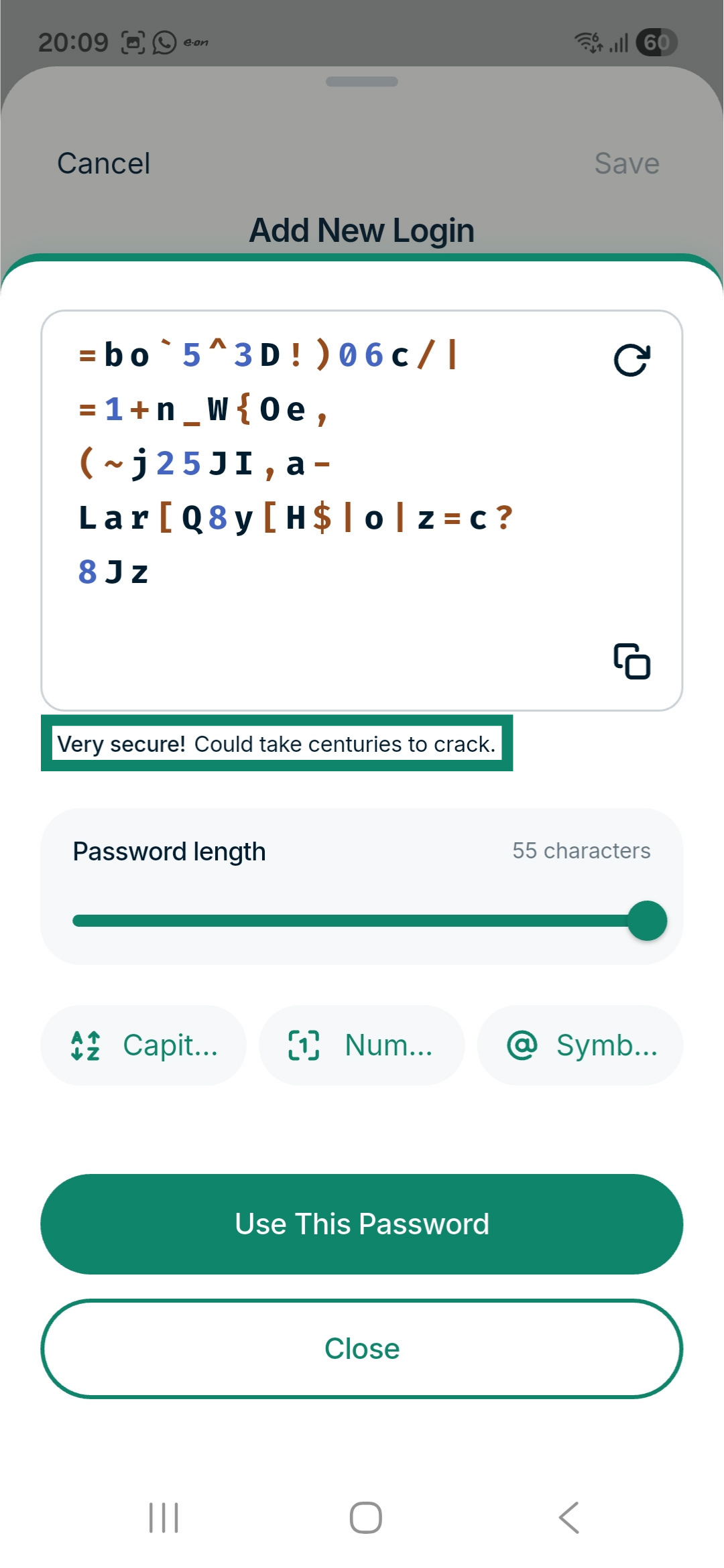
- Customize your password using the available settings. For the strongest security, look for a message saying, Very secure! Could take centuries to crack.
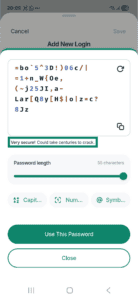
- Once you are happy with your password, tap Use This Password.

- Fill in the other details, then tap Save.

Generate a strong password for an existing login
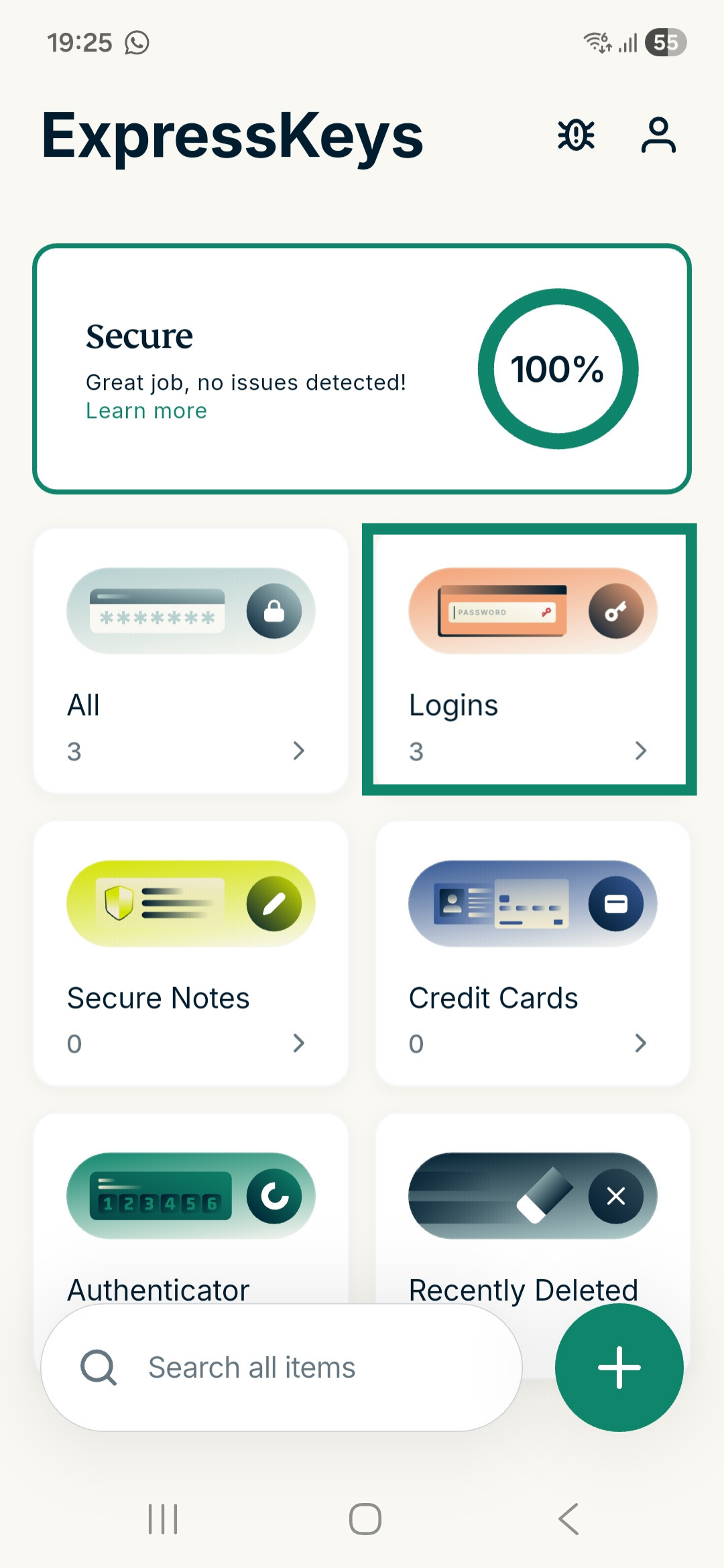
- Open the ExpressKeys app.
- Unlock your password manager.
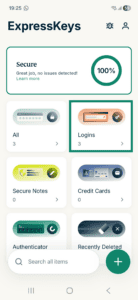
- Tap the Logins widget.
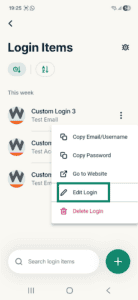
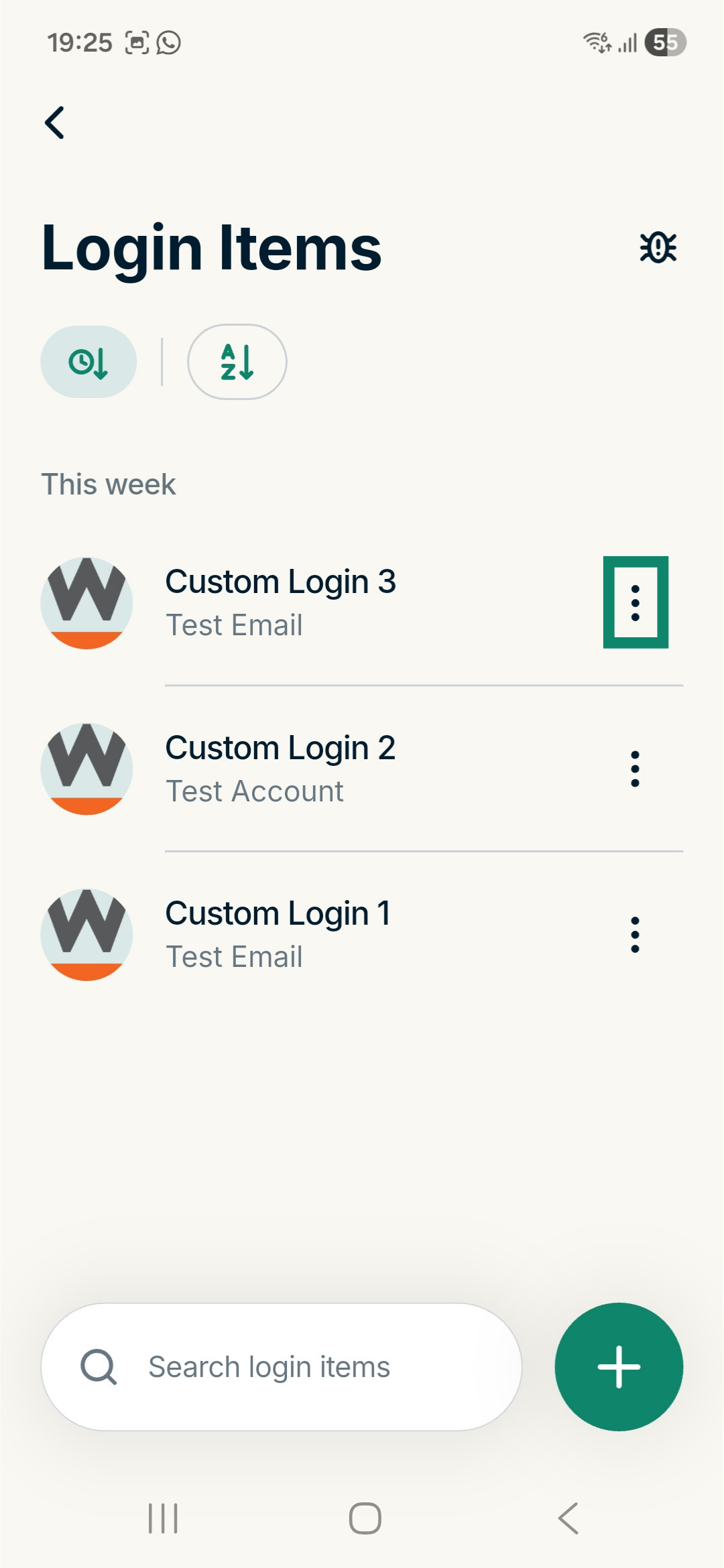
- Tap the three-dot menu icon next to the login you want to generate a password for.

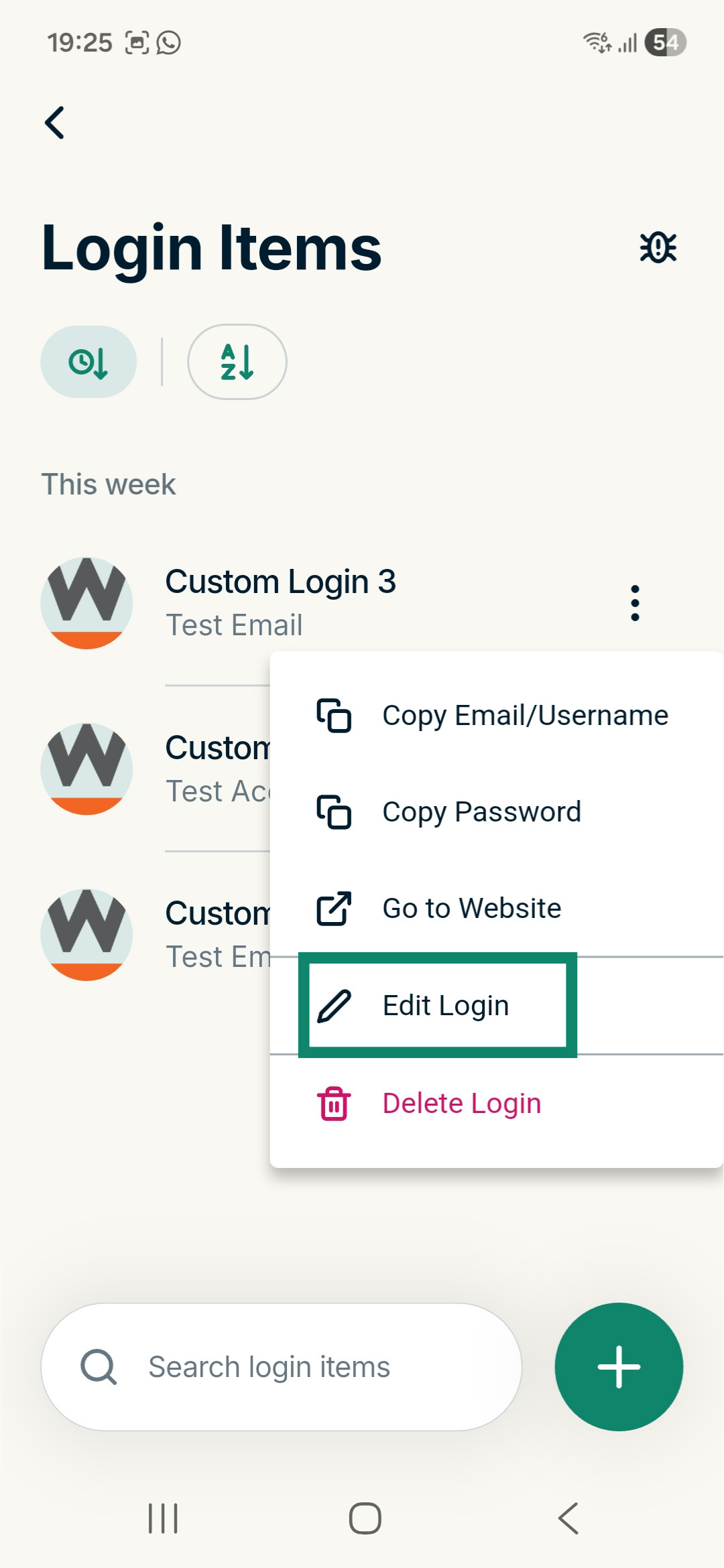
- In the menu that appears, tap Edit Login.
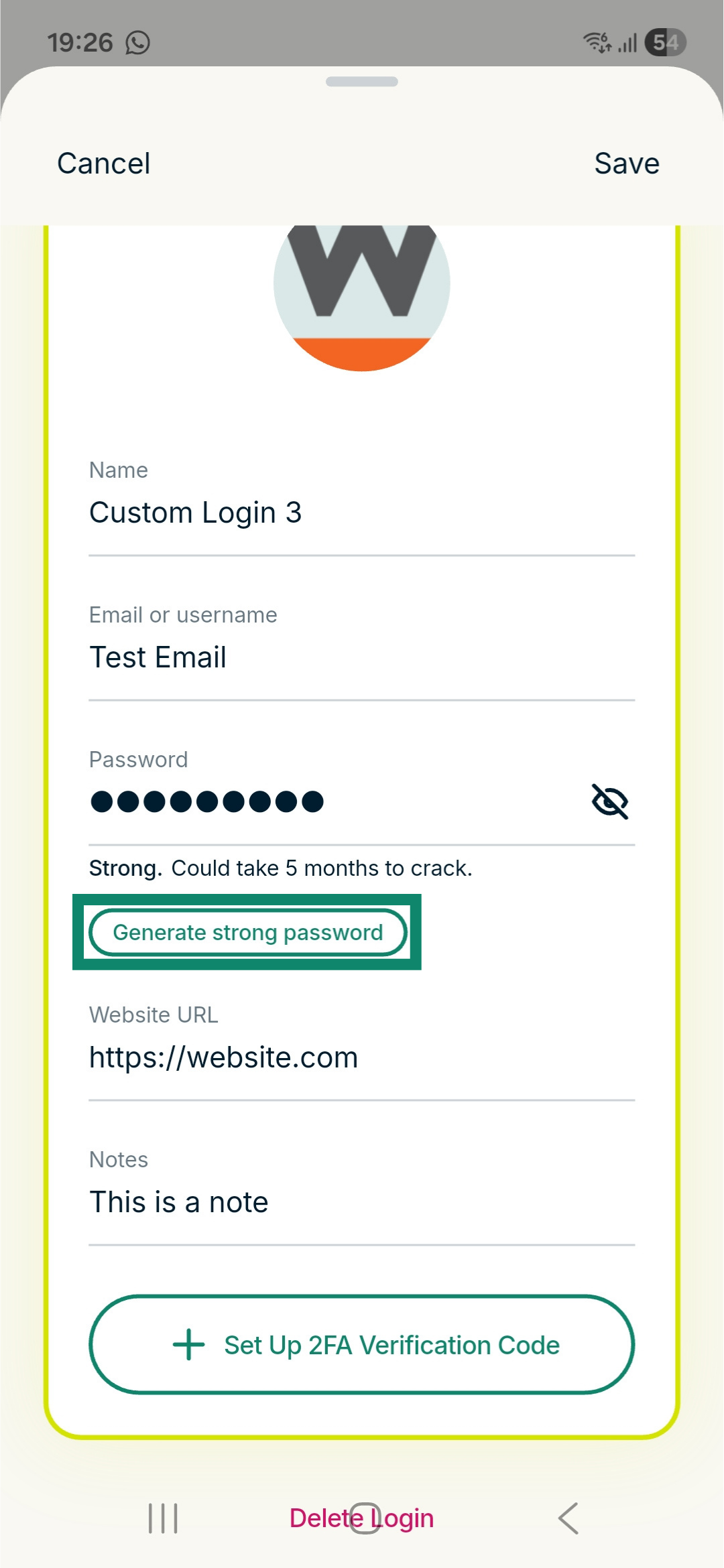
- Under the Password field, tap Generate strong password. This opens the built-in password generator.

- For the strongest security, change password settings until you see a message saying Very secure! Could take centuries to crack.

- Tap Use This Password.

- Tap Save.

Need help? Contact our Support Team for immediate assistance.
ExpressKeys for iOS
There are multiple ways to generate strong passwords within ExpressKeys for iOS. You can generate strong passwords when creating a new login or when editing an existing login.
Generate a strong password for a new login
There are two ways you can generate a strong password for a new login in ExpressKeys: while creating an account with a website or app or while manually adding a new login to ExpressKeys.
During signup on a website or app
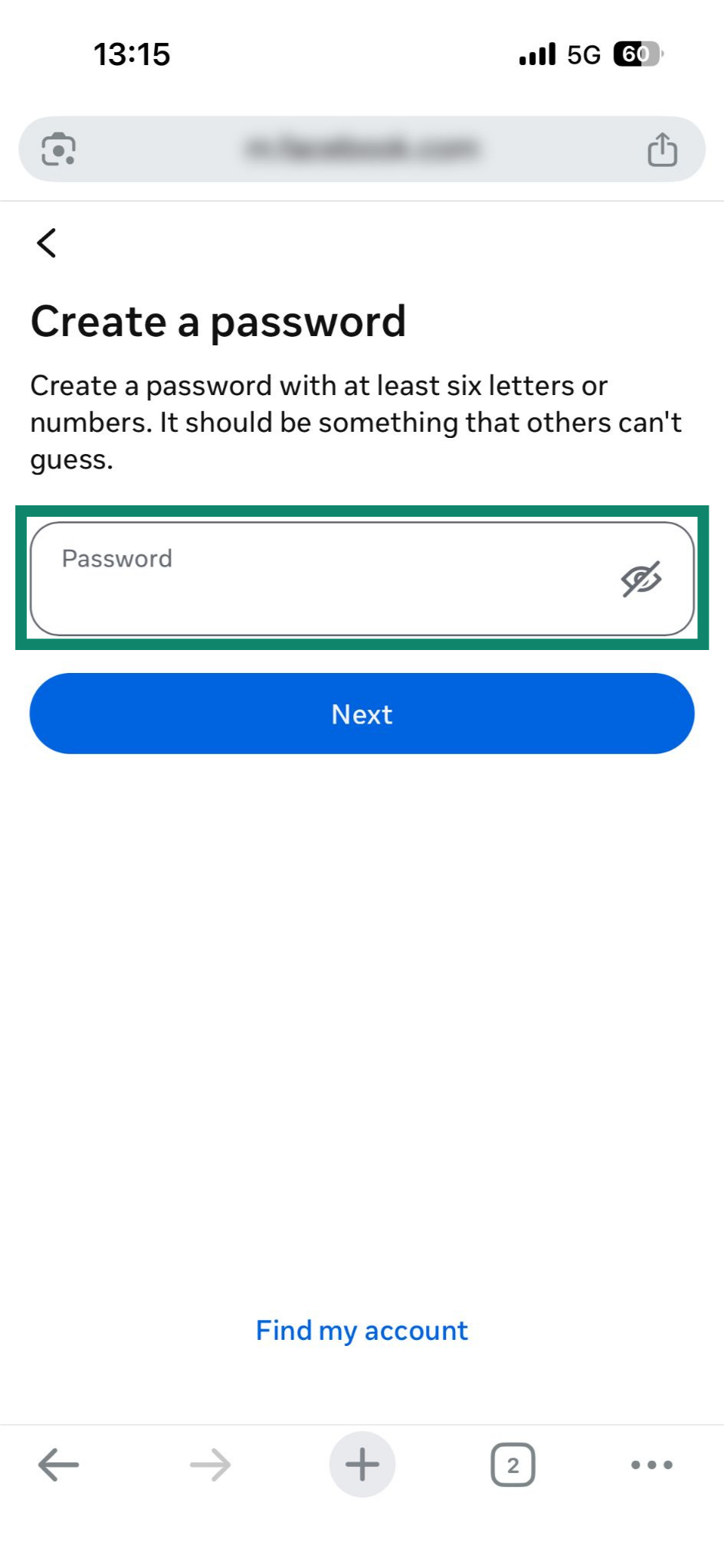
- Go to the website’s or app’s signup page.
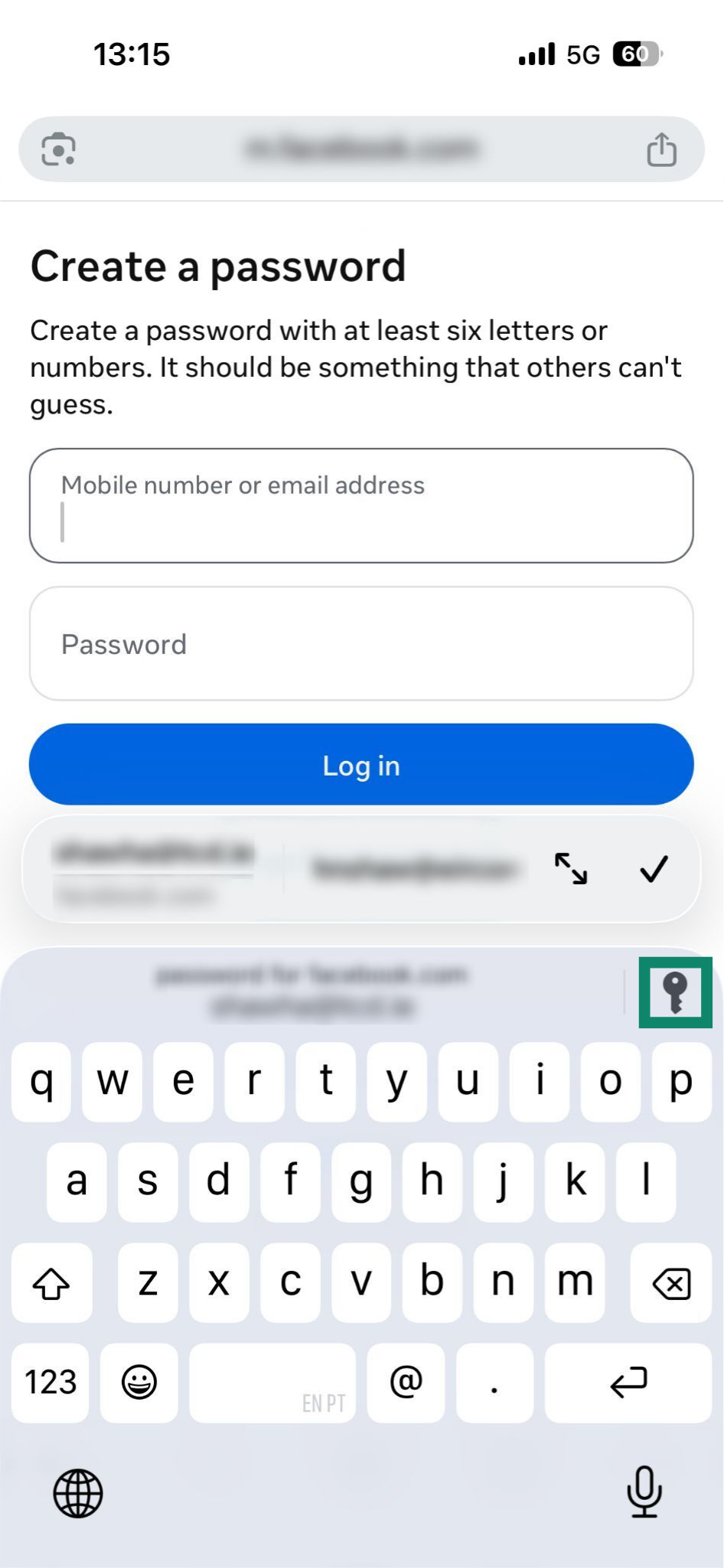
- Tap the username, email, or password field to open the keyboard.

- Tap the key icon in the top-right of your keyboard.

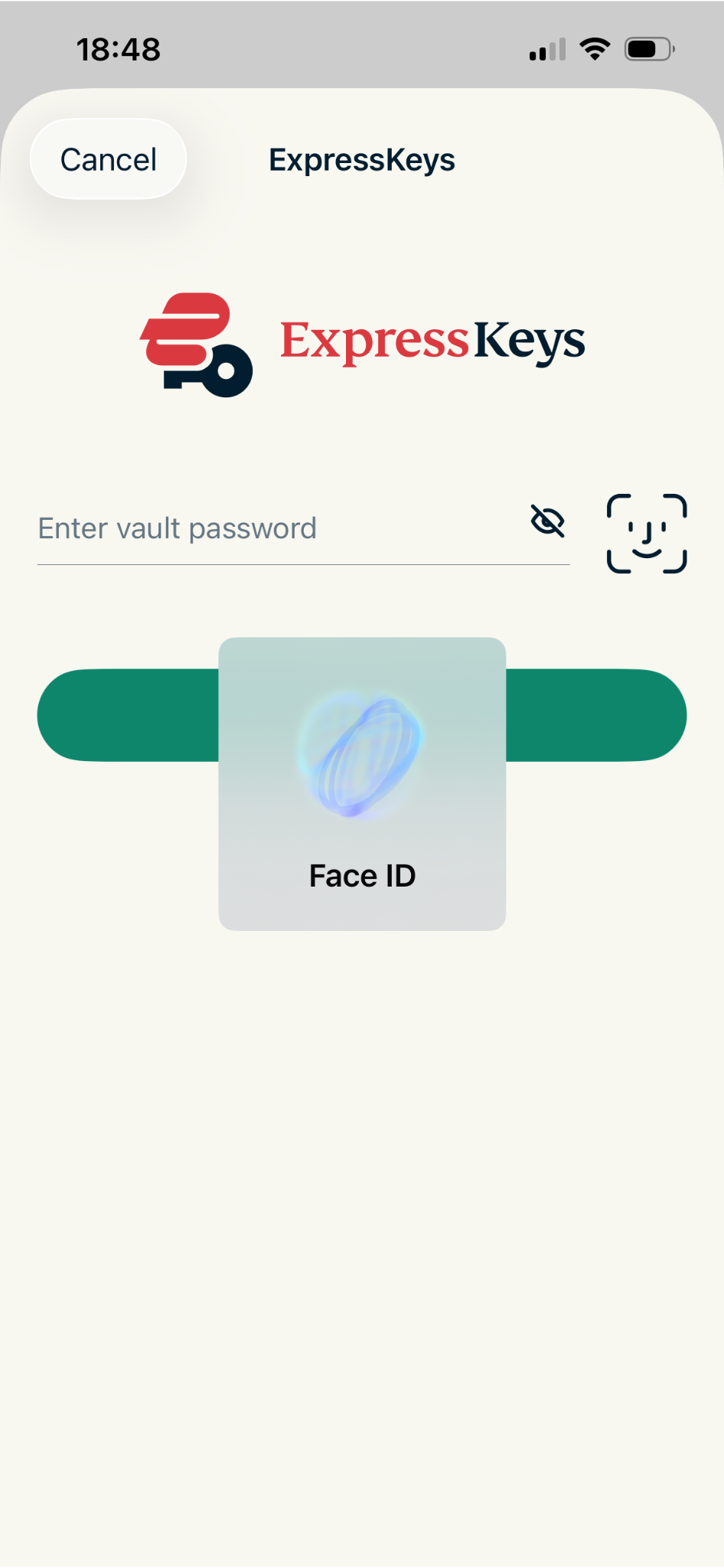
- Enter your vault password or use Face ID or Touch ID to open the ExpressKeys app.
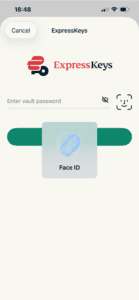
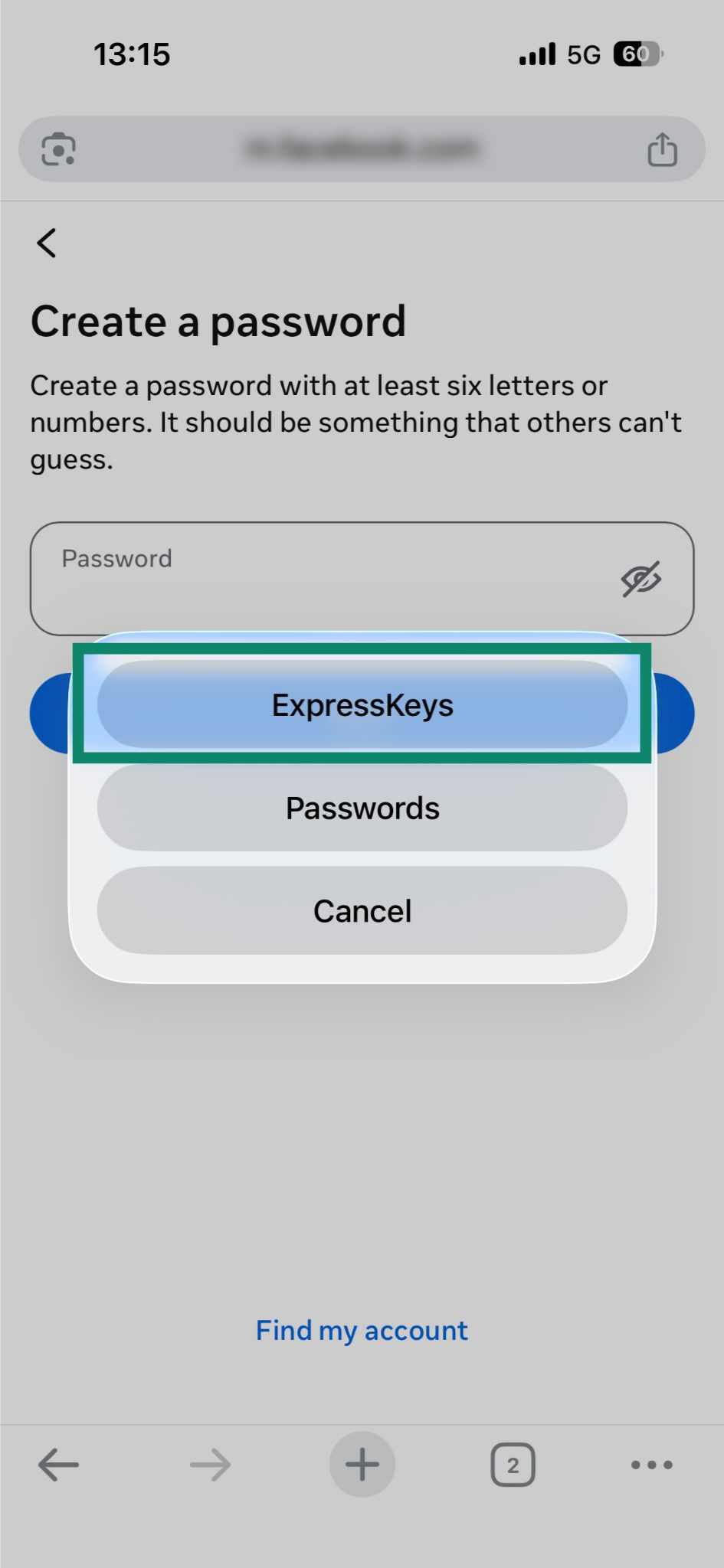
Note: If you have multiple password managers enabled, you will see a popup menu instead of the ExpressKeys authentication screen. Tap ExpressKeys to proceed.
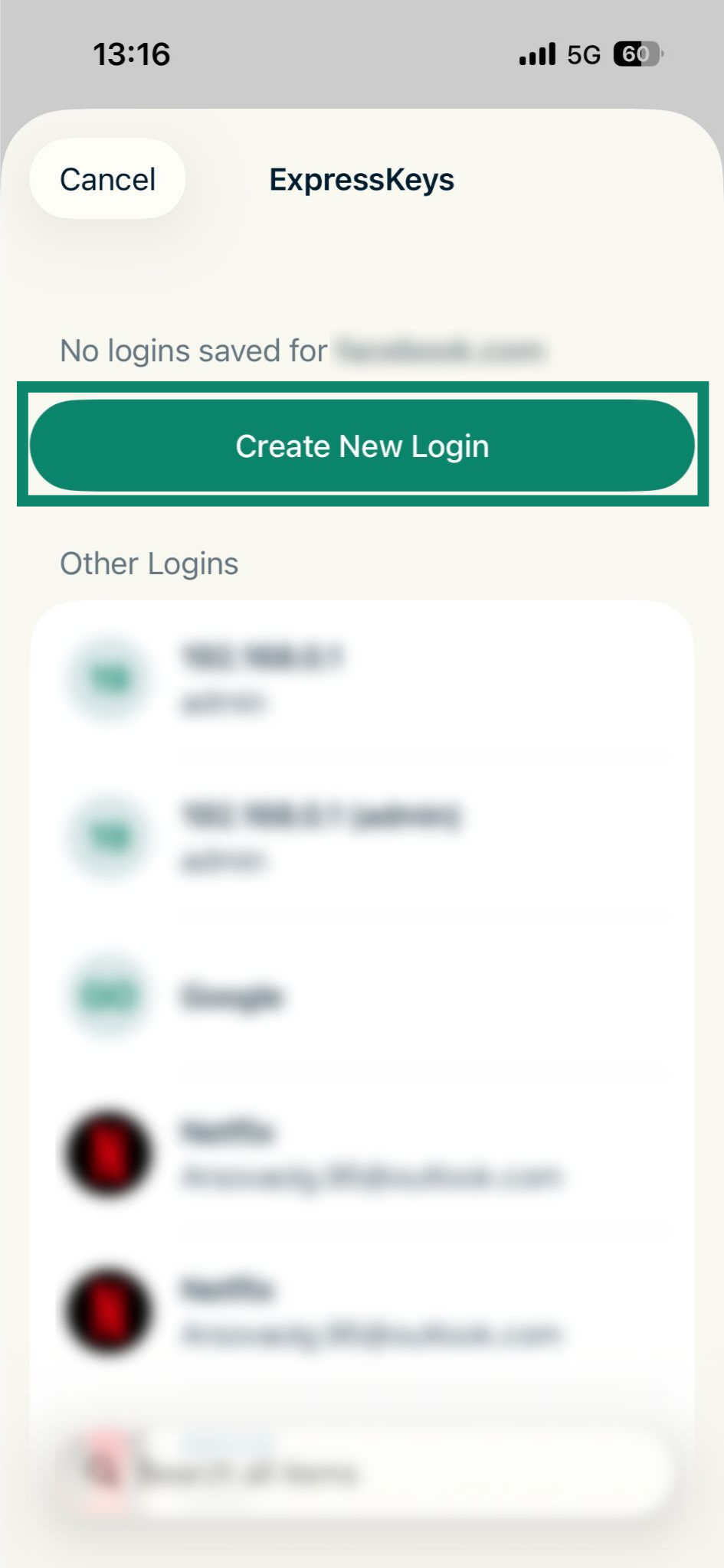
- This opens the ExpressKeys login options for the website or app you are using. Tap Create New Login to create a login for the service.

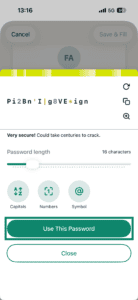
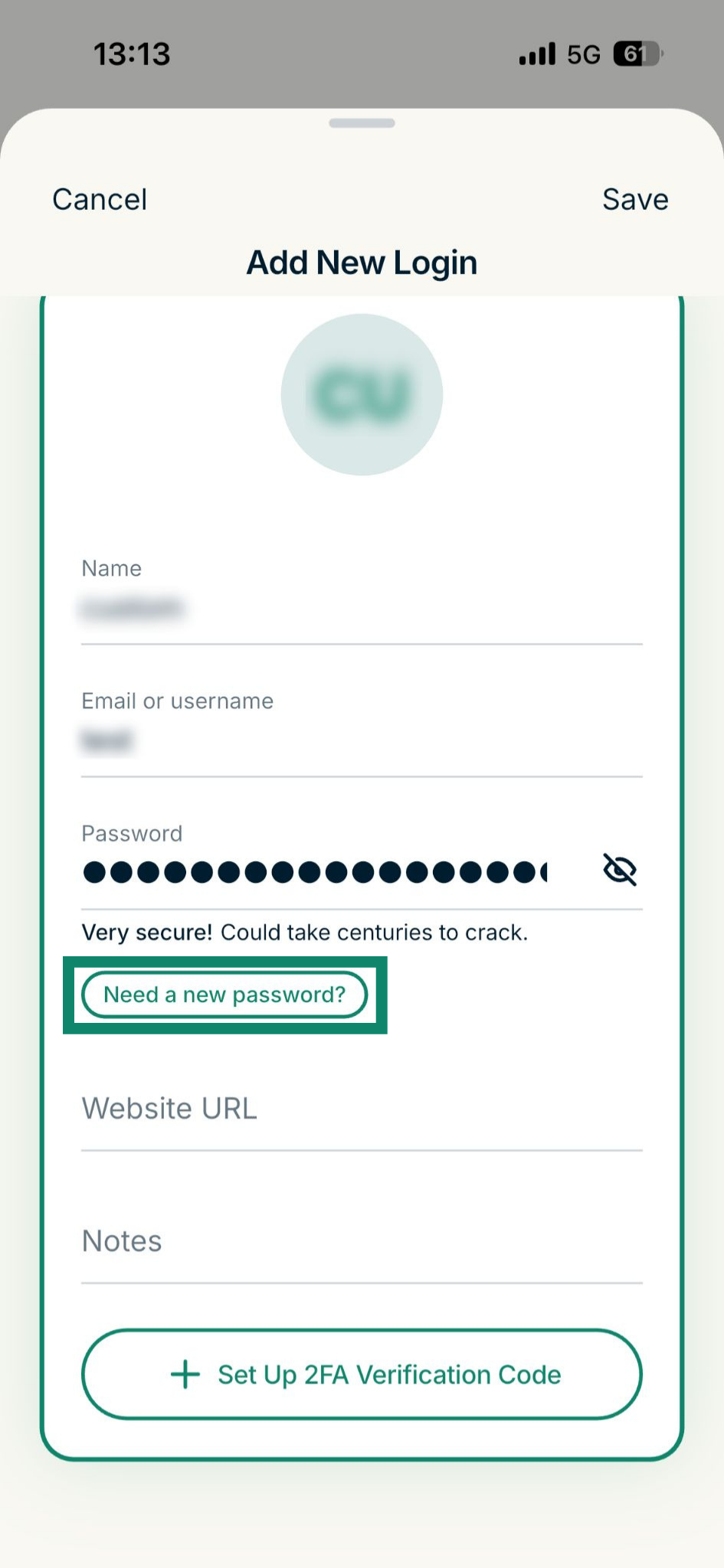
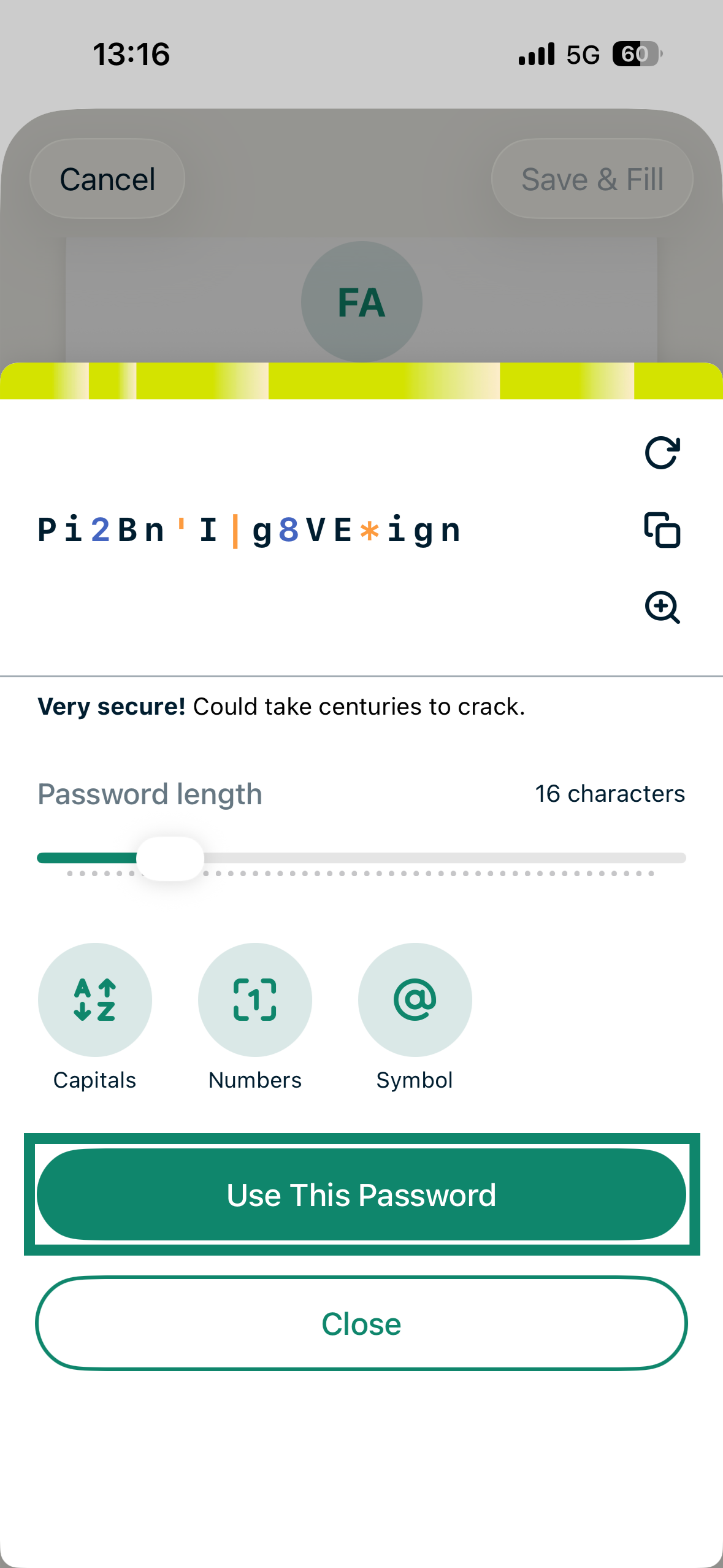
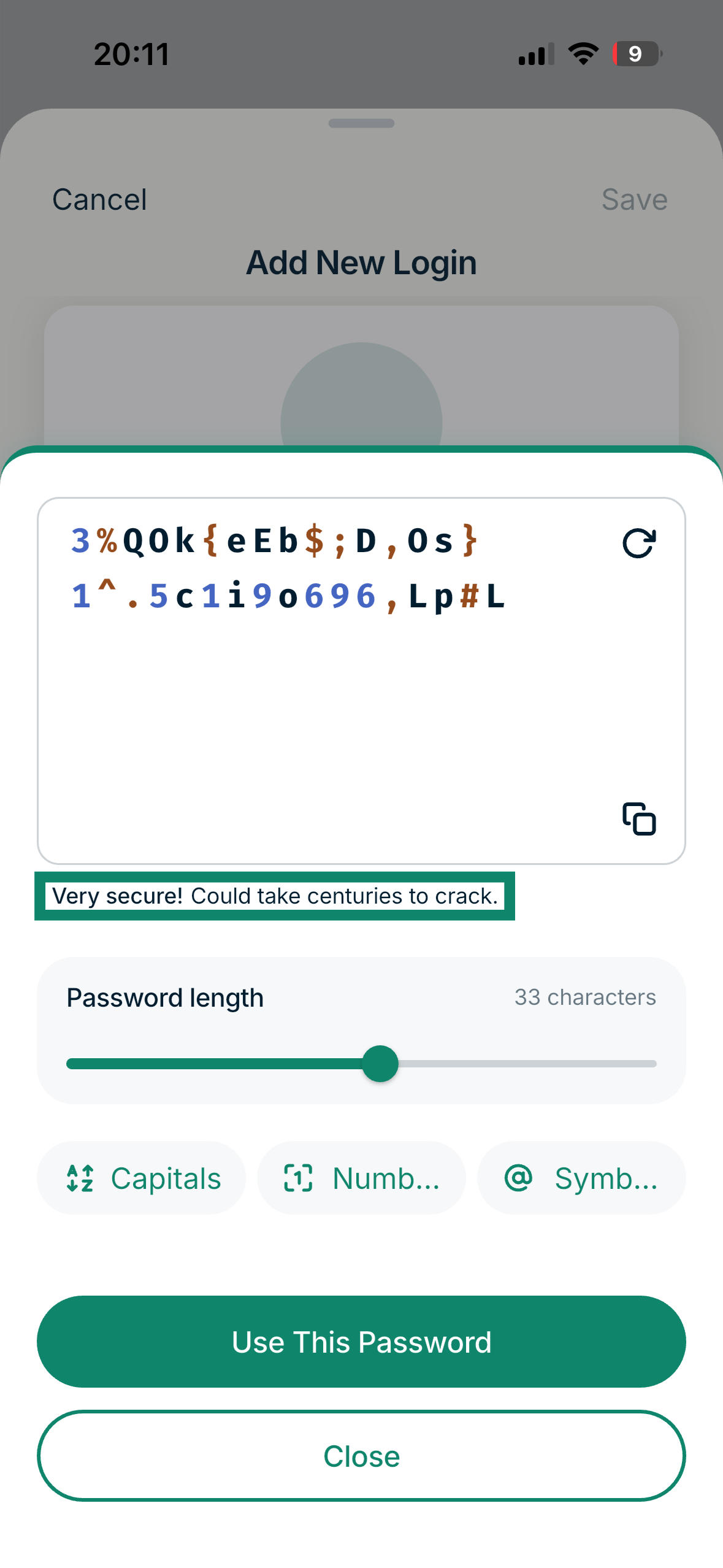
- Under the Password field, tap Need a new password? This will open the ExpressKeys password generator.

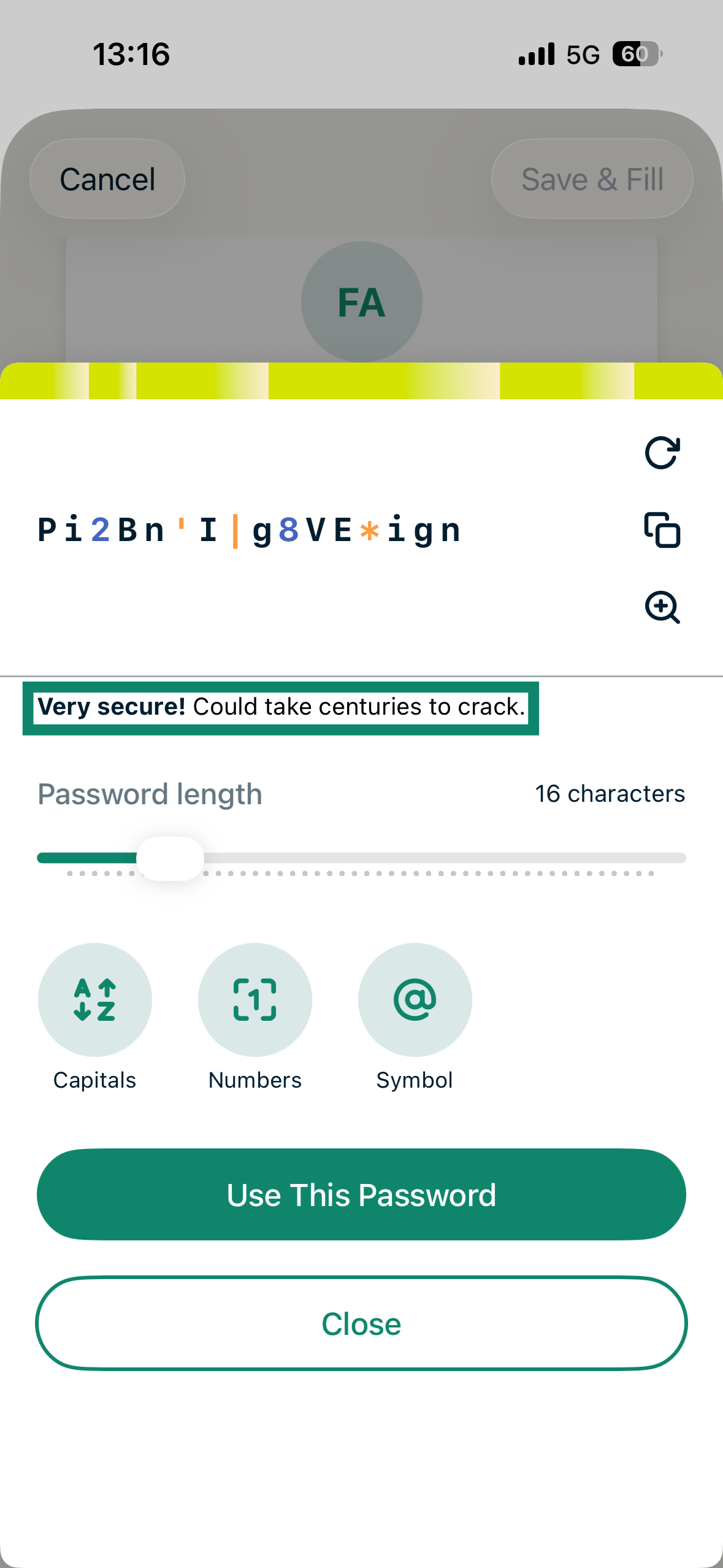
- For the strongest security, customize the password until you see Very secure! Could take centuries to crack.

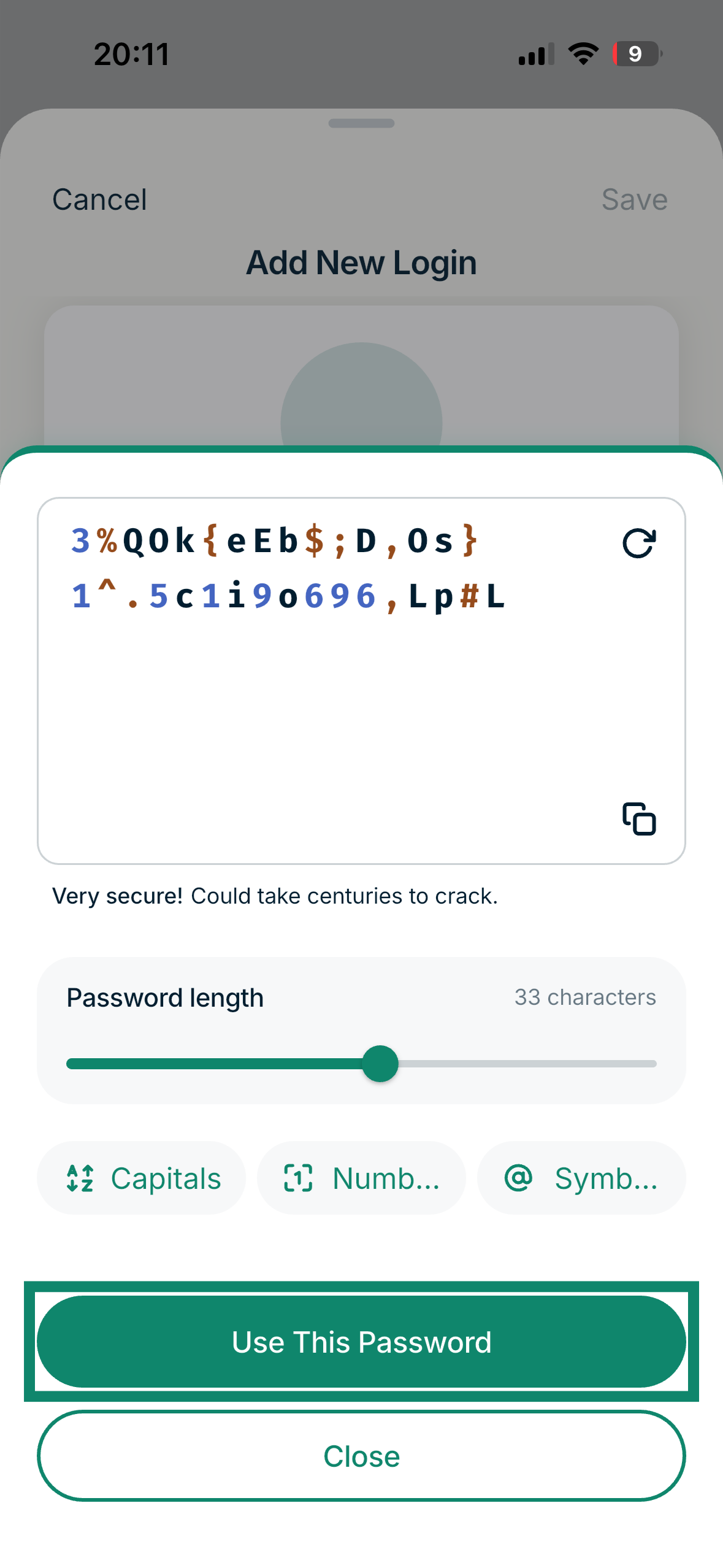
- When done, tap Use This Password.
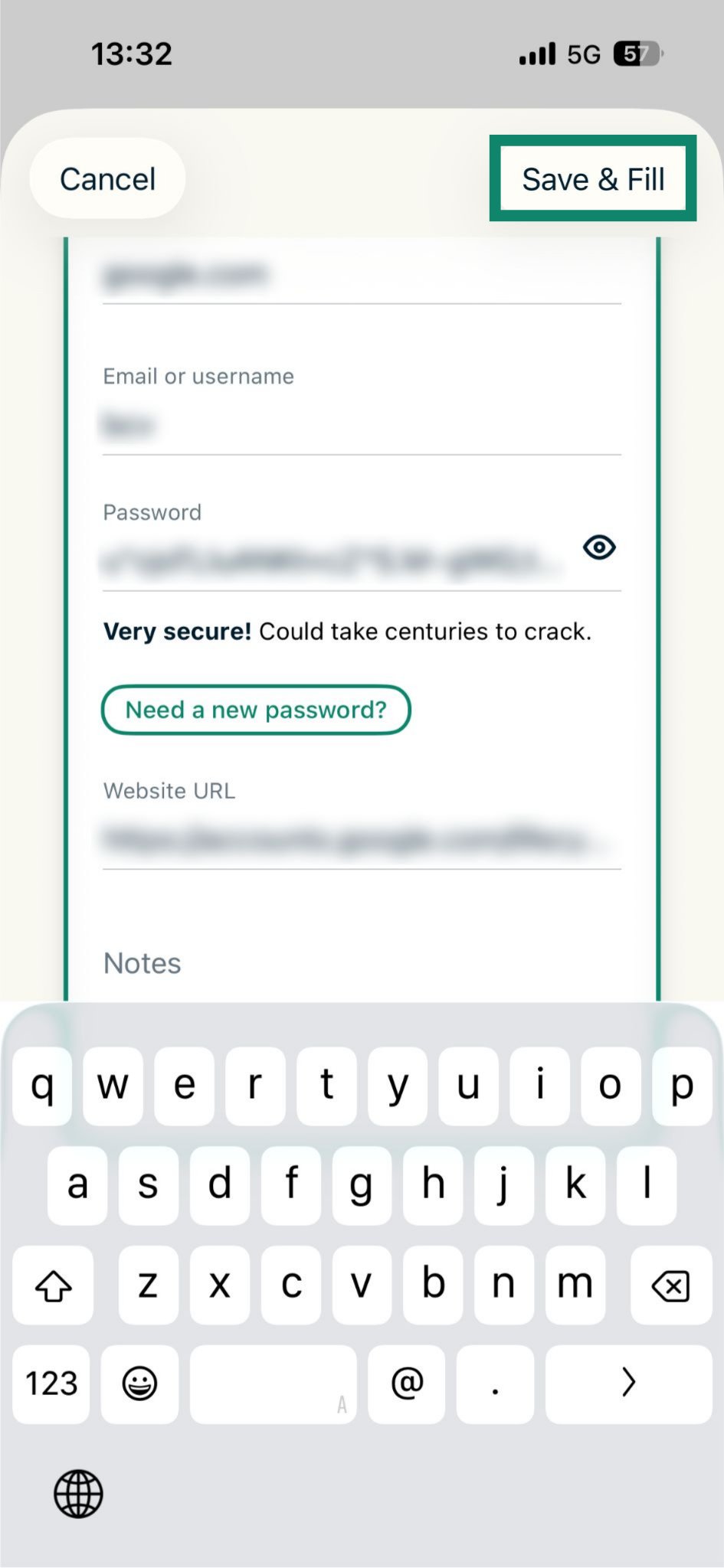
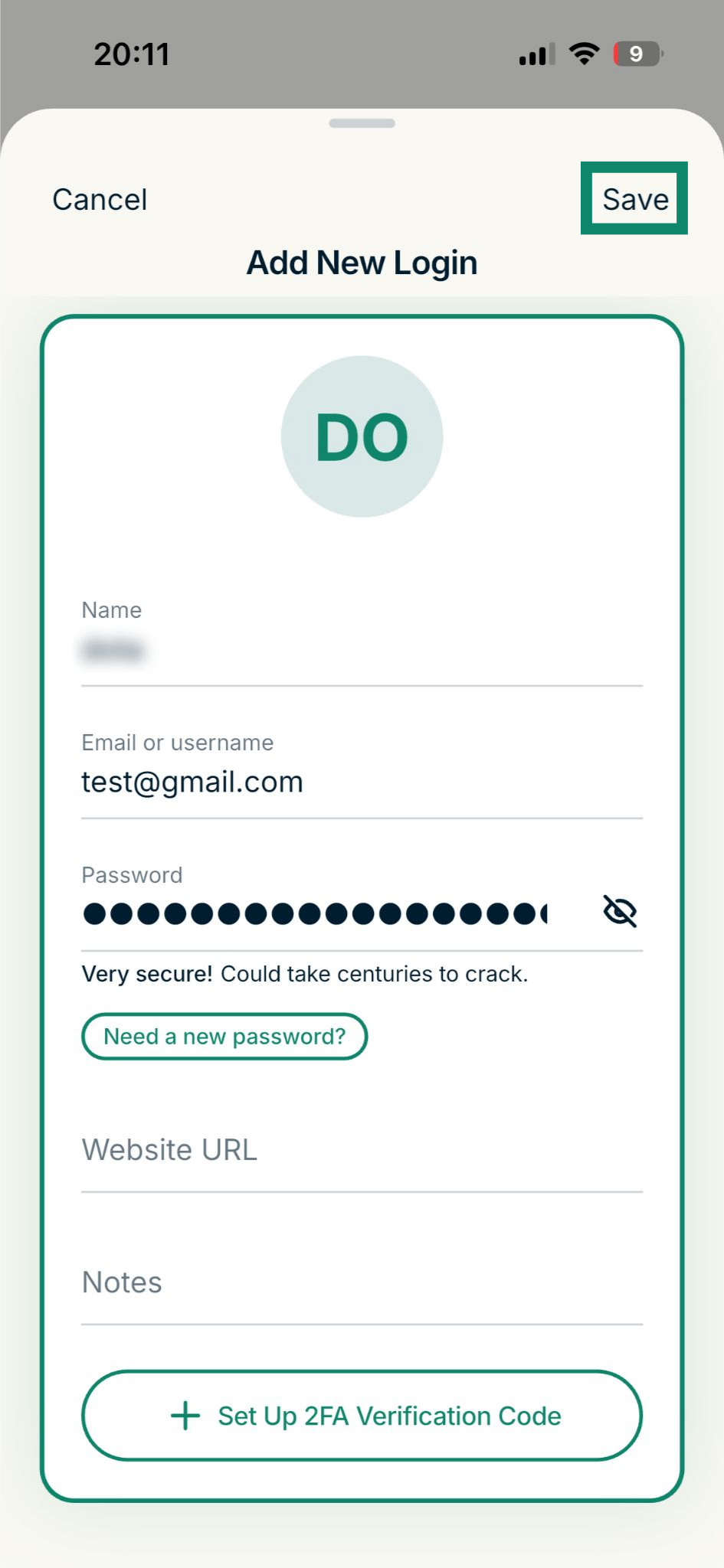
- Add the other details and tap Save & Fill.

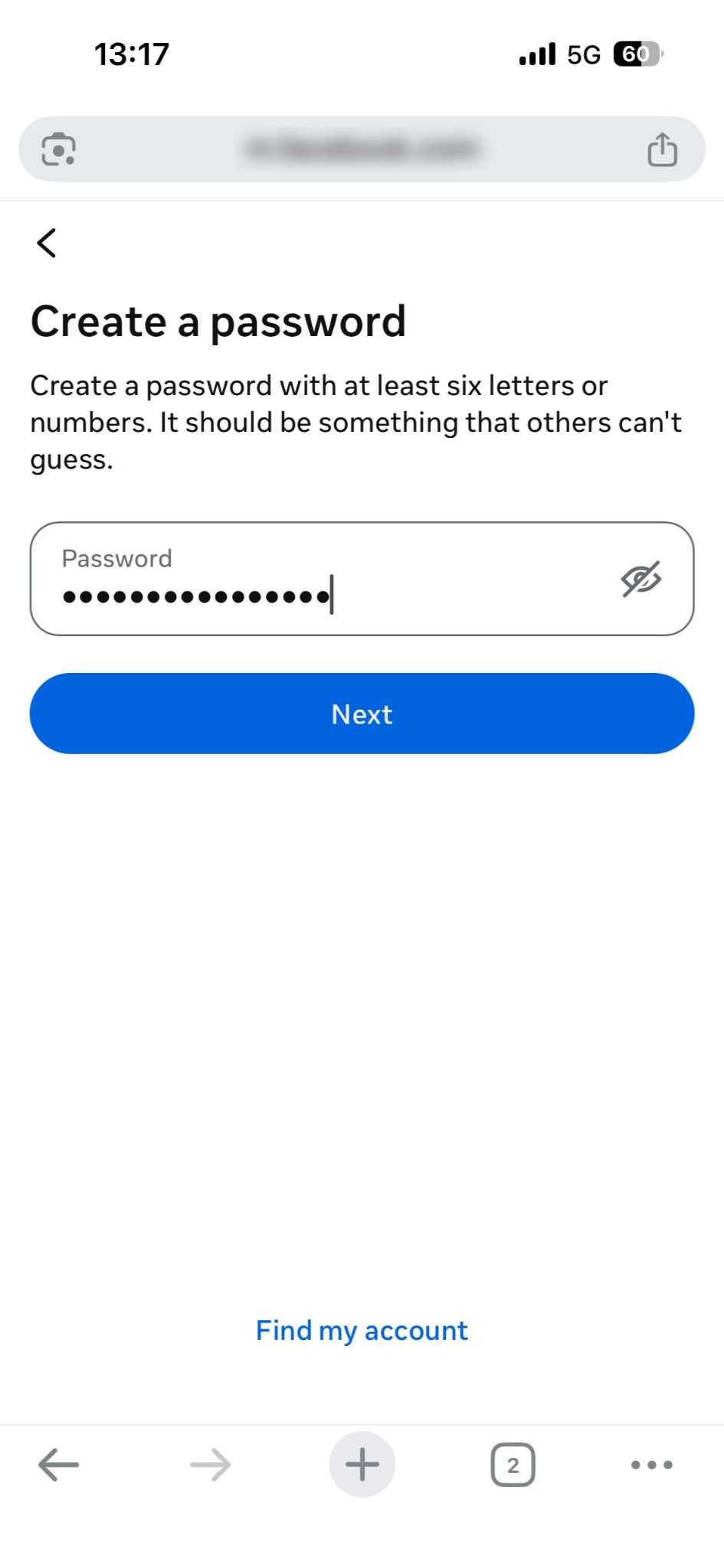
- ExpressKeys will automatically fill out the relevant signup fields.

While creating a new login in the ExpressKeys app
- Open the ExpressKeys app.
- Unlock your vault using your credentials or biometrics.
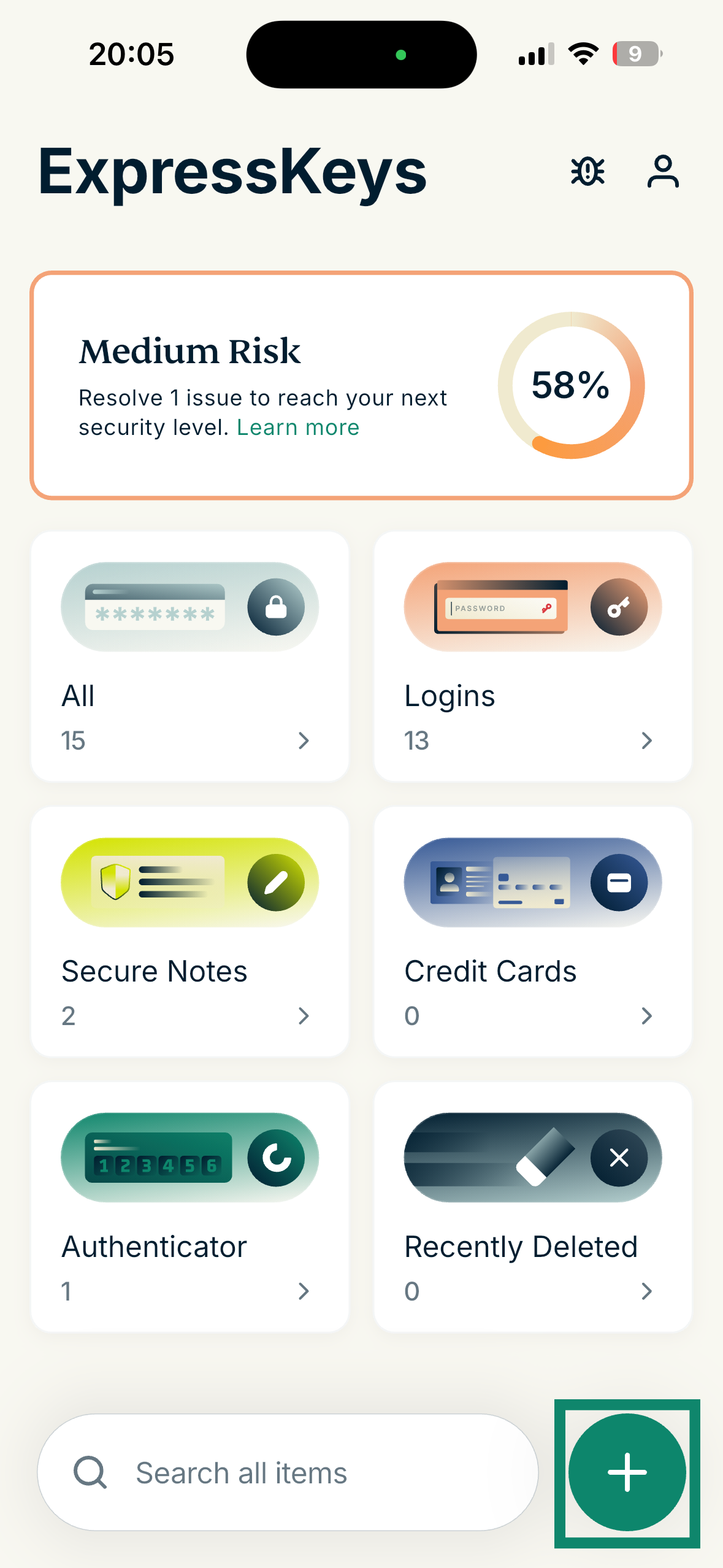
- Tap the plus icon .
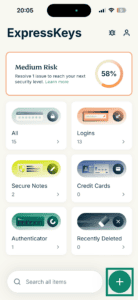
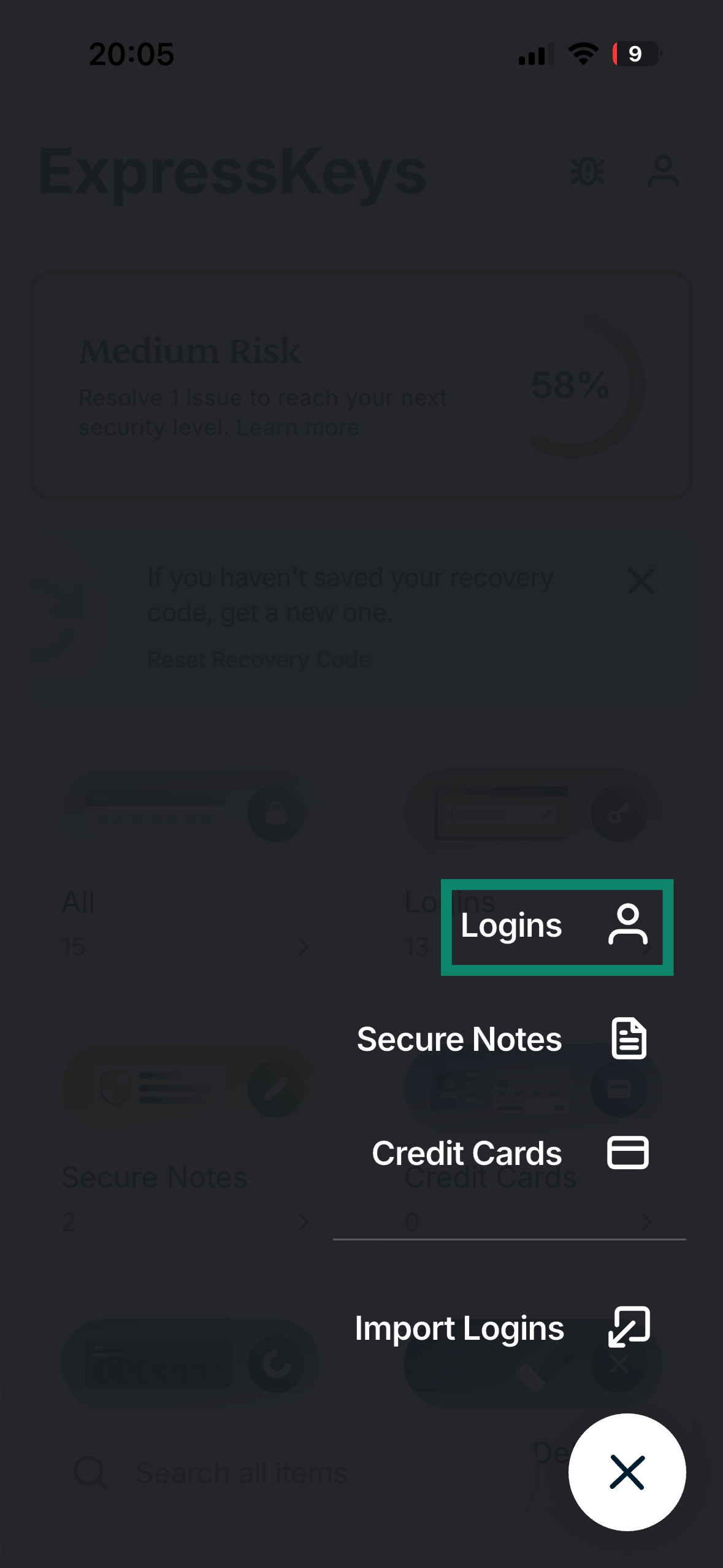
- Tap Logins.

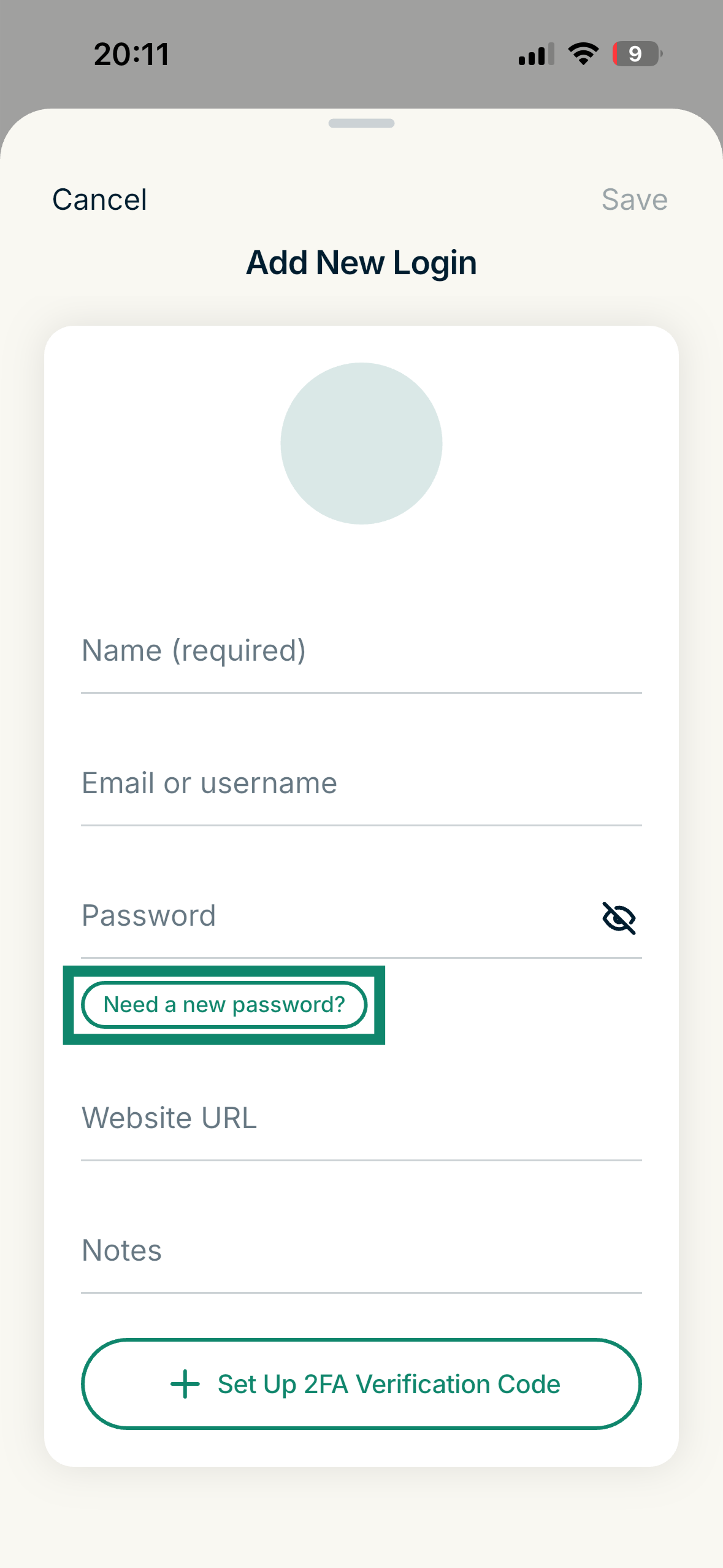
- Under the Password field, tap Need a new password? to open the built-in password generator.

- Customize your password. For the strongest security, look for a message saying, Very secure! Could take centuries to crack.
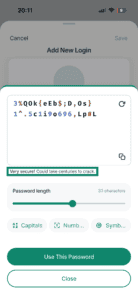
- When done, tap Use This Password.

- Fill in the other details, then tap Save.

Generate a strong password for an existing login
- Open the ExpressKeys app.
- Unlock your vault using your credentials or biometrics.
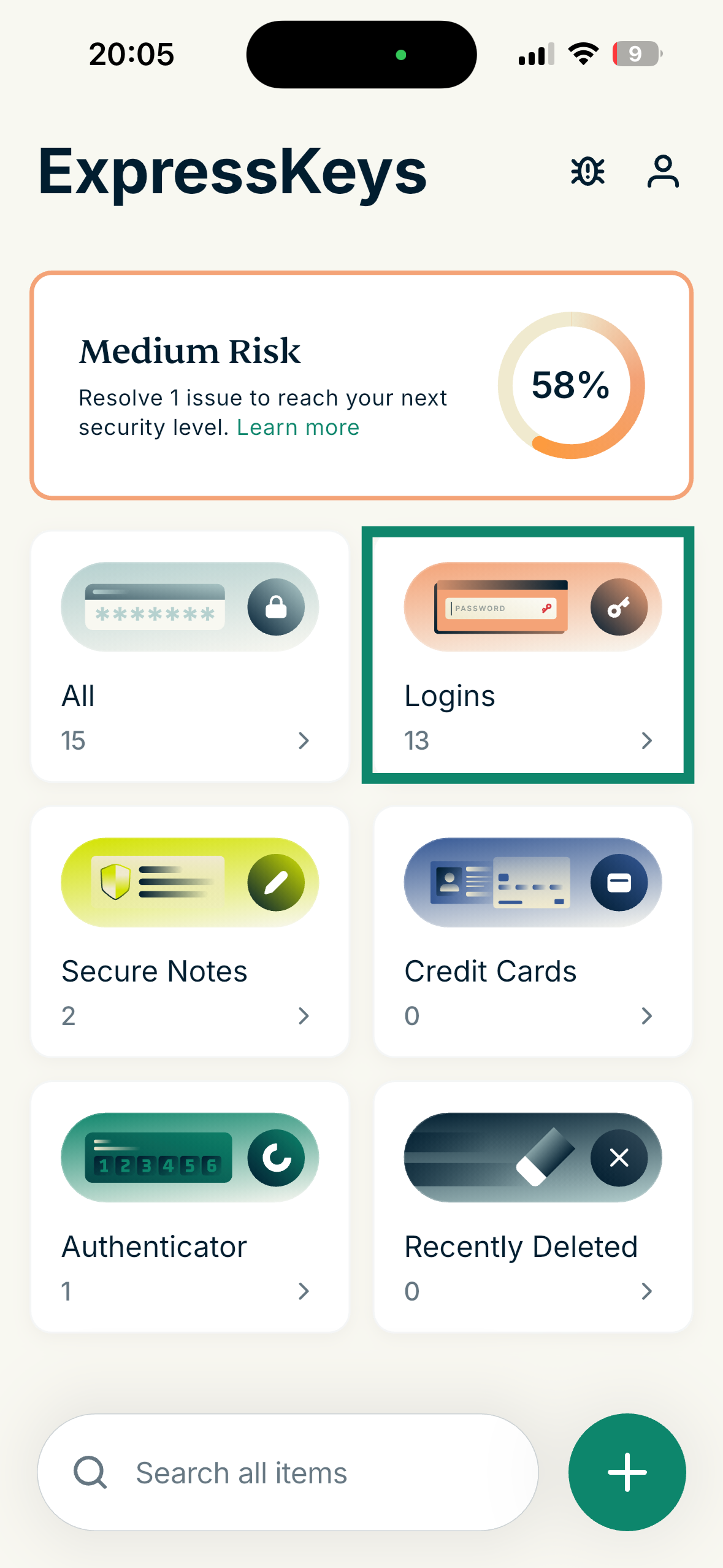
- Tap the Logins widget.

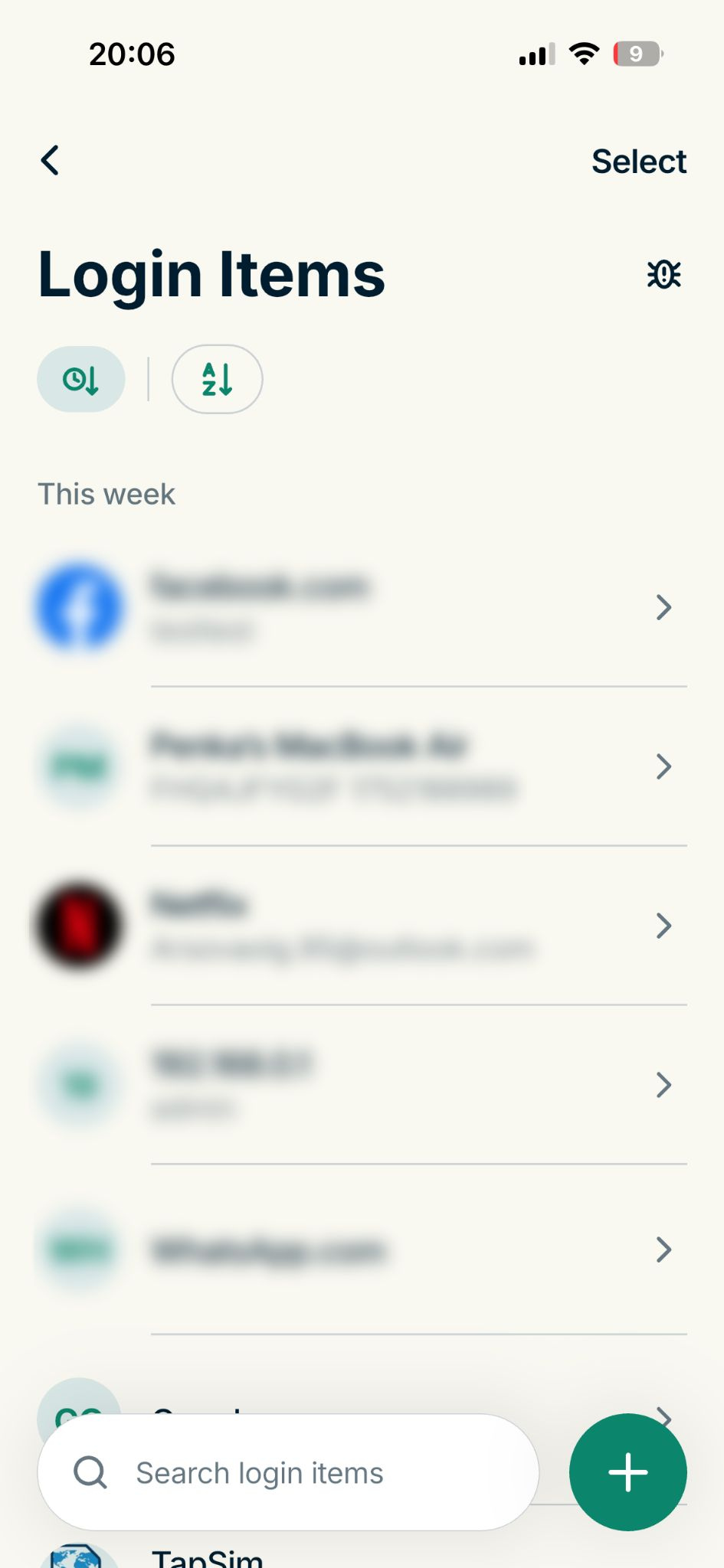
- Tap the login you want to generate a password for.

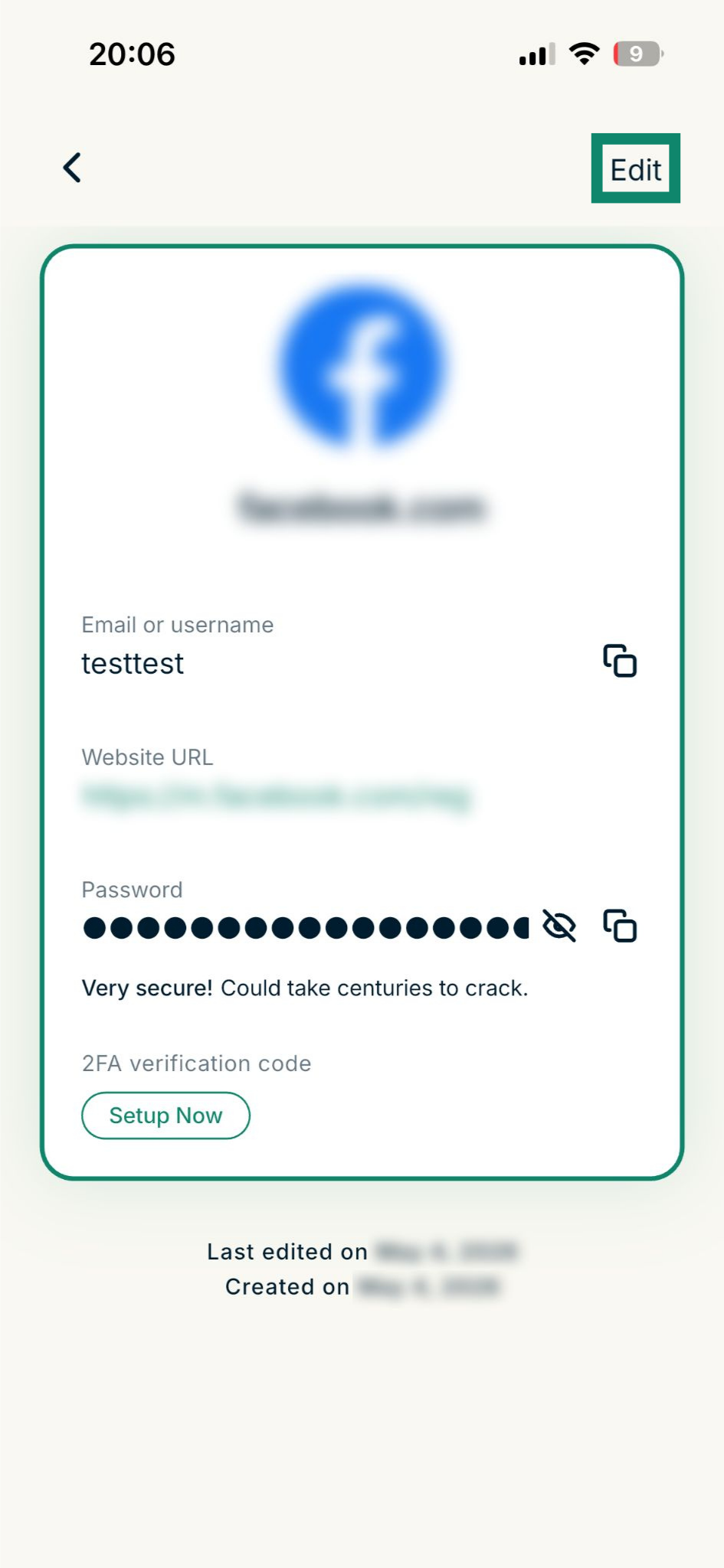
- Tap Edit.
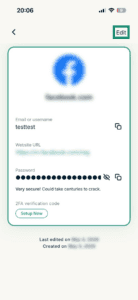
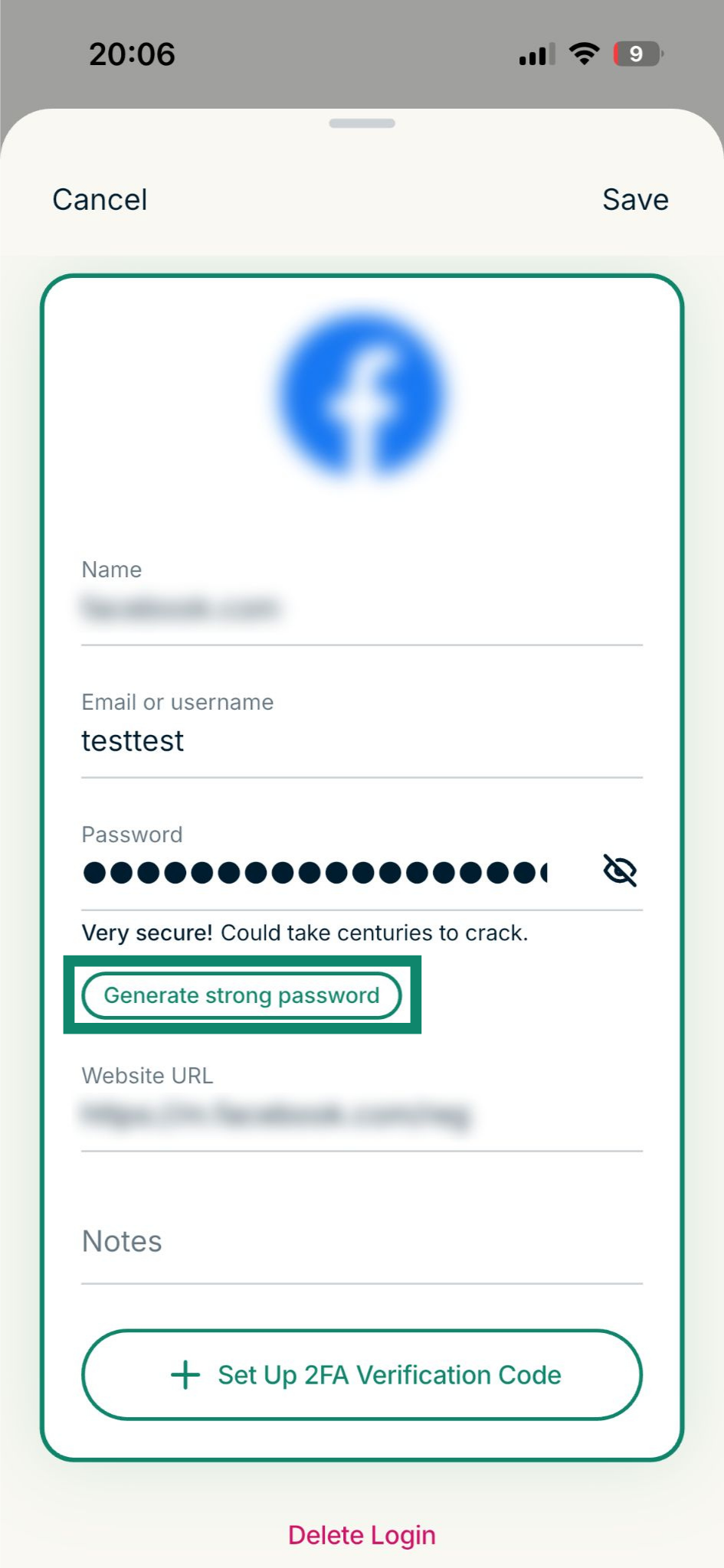
- Under the Password field, tap Generate strong password. This opens the built-in password generator.

- For the strongest security, customize the password until you see Very secure! Could take centuries to crack.

- Tap Use This Password.

- Tap Save.

Need help? Contact the ExpressVPN Support Team for immediate assistance.