This guide will show you how to save your first login after setting up ExpressKeys.
Jump to…
ExpressKeys for Android
To save the login details for a new or an existing account (within the ExpressKeys app):
- Open the ExpressKeys app.
- Unlock the password manager.
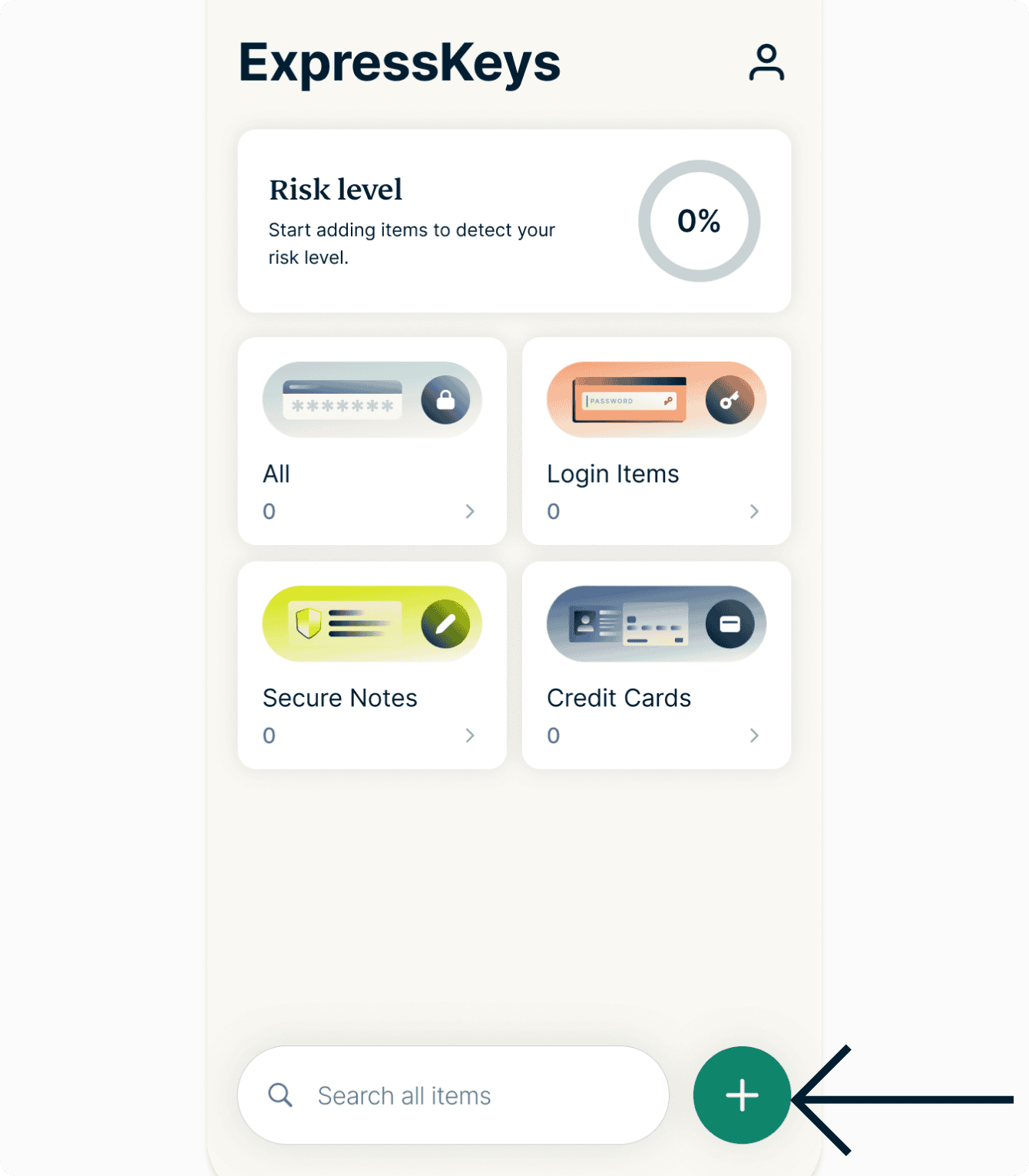
- Tap

 .
.

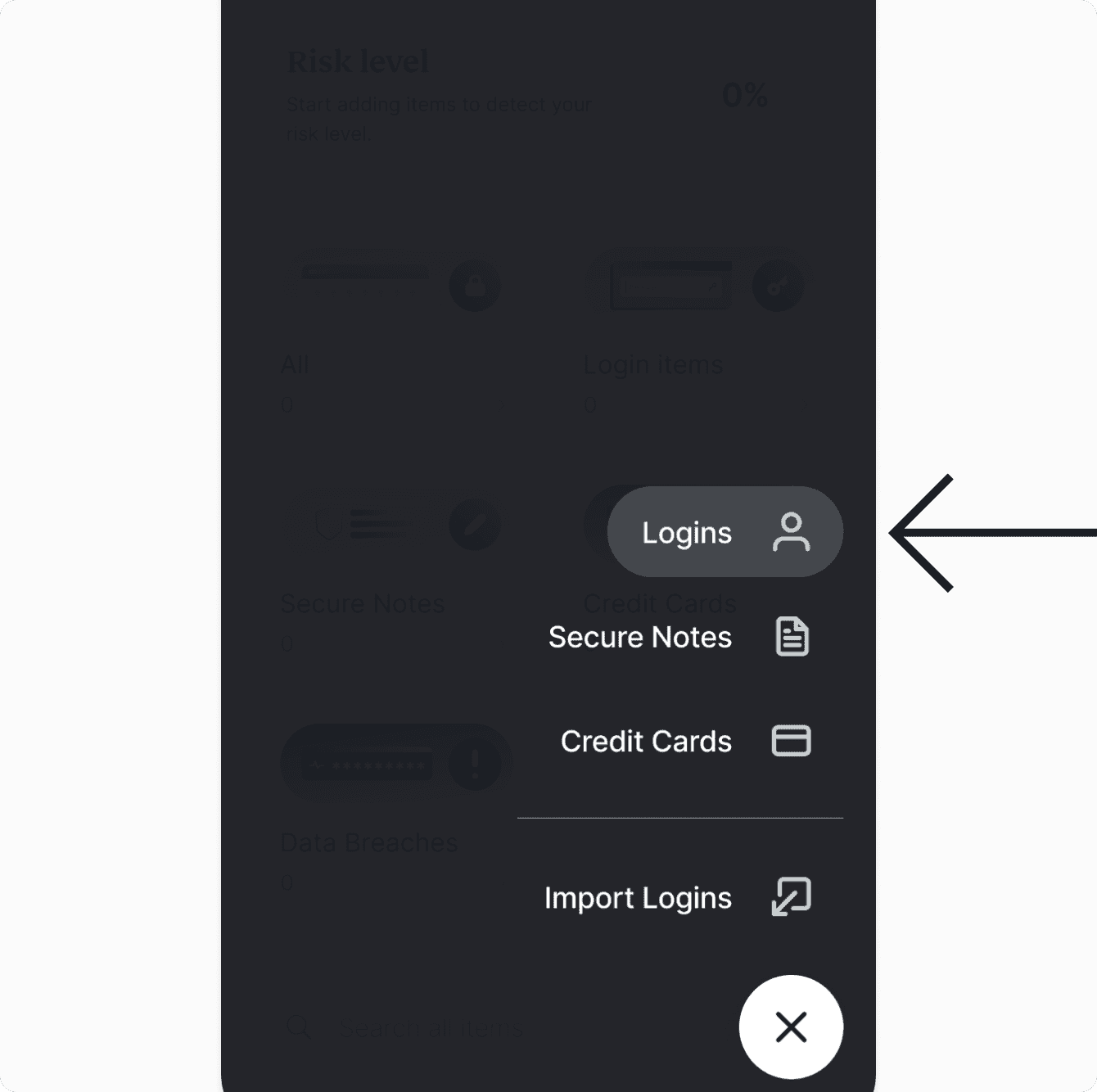
- Tap Logins.

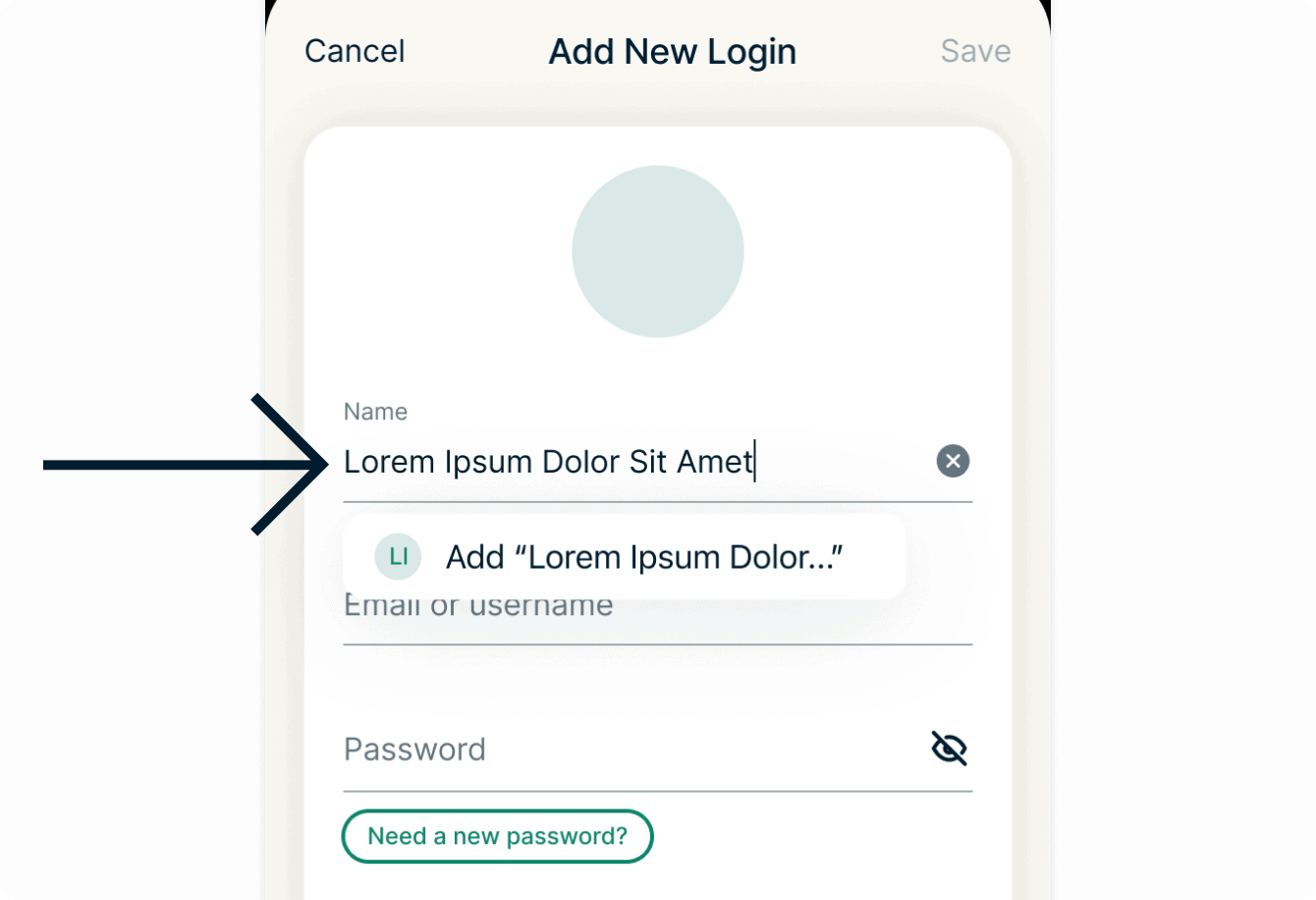
- Fill in the Name (required) of your login.

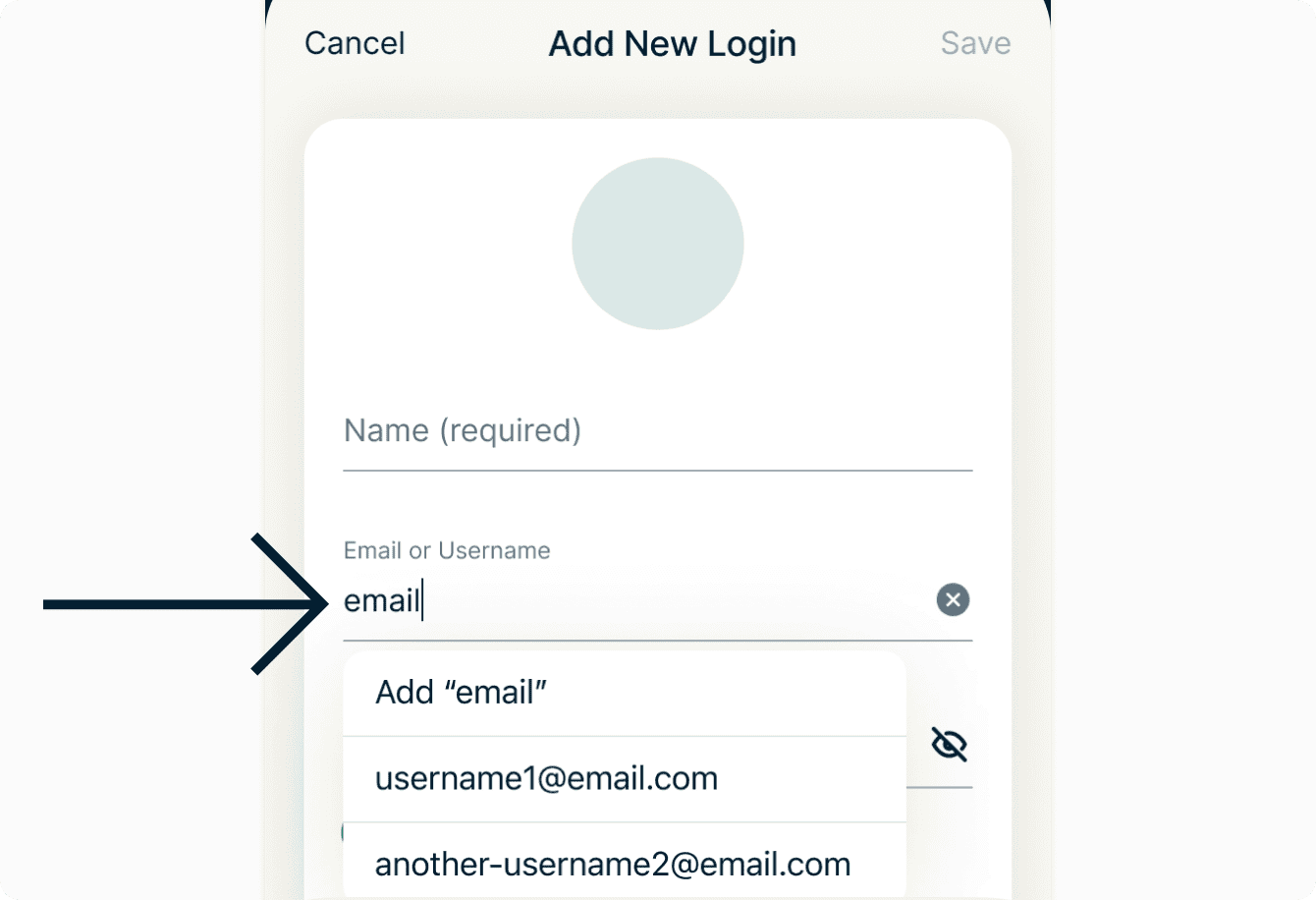
- (Optional) FIll in the Email or username.
- Enter a password. (To generate a password suggested by the password manager:
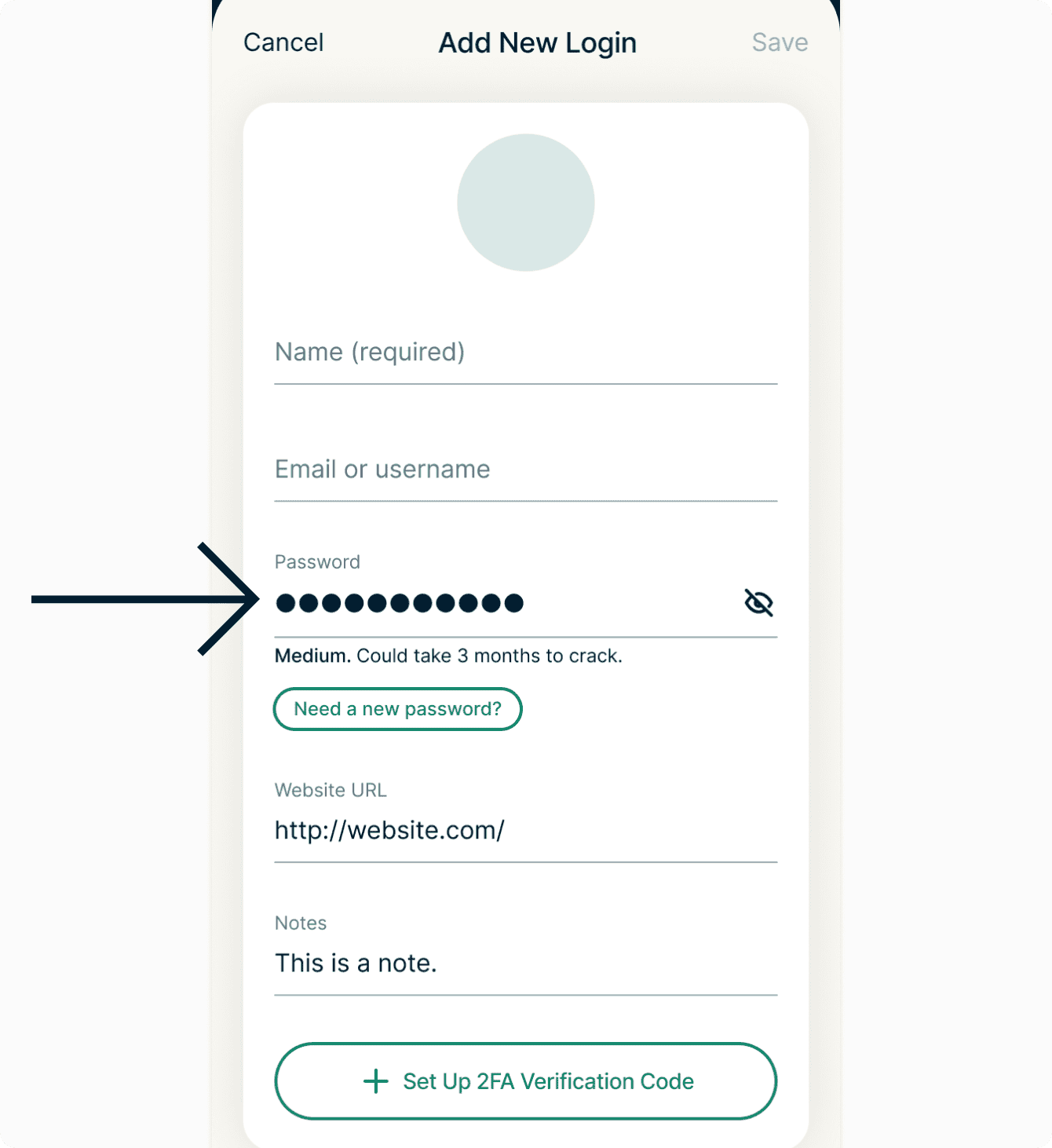

- Tap Need a new password?
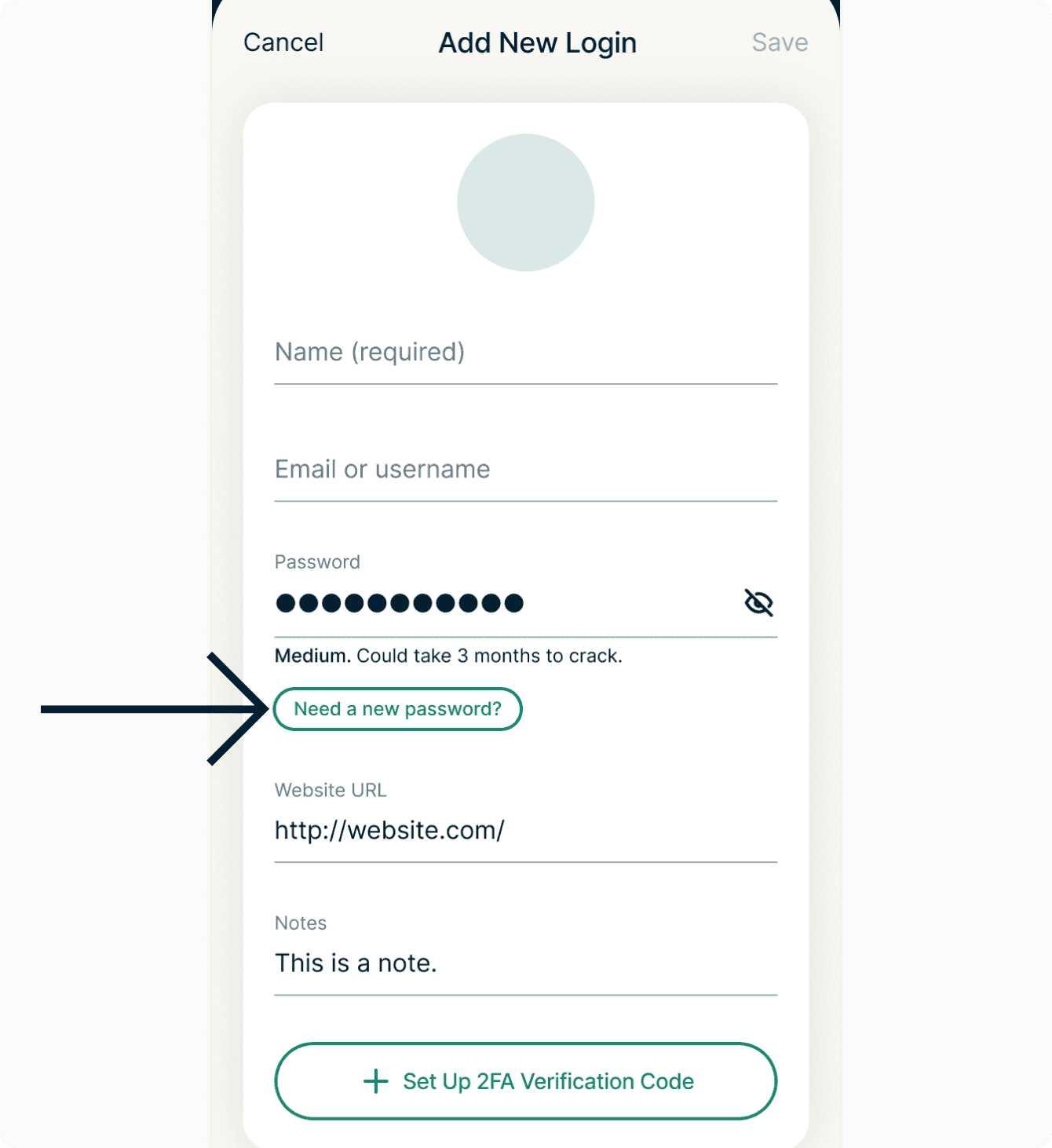
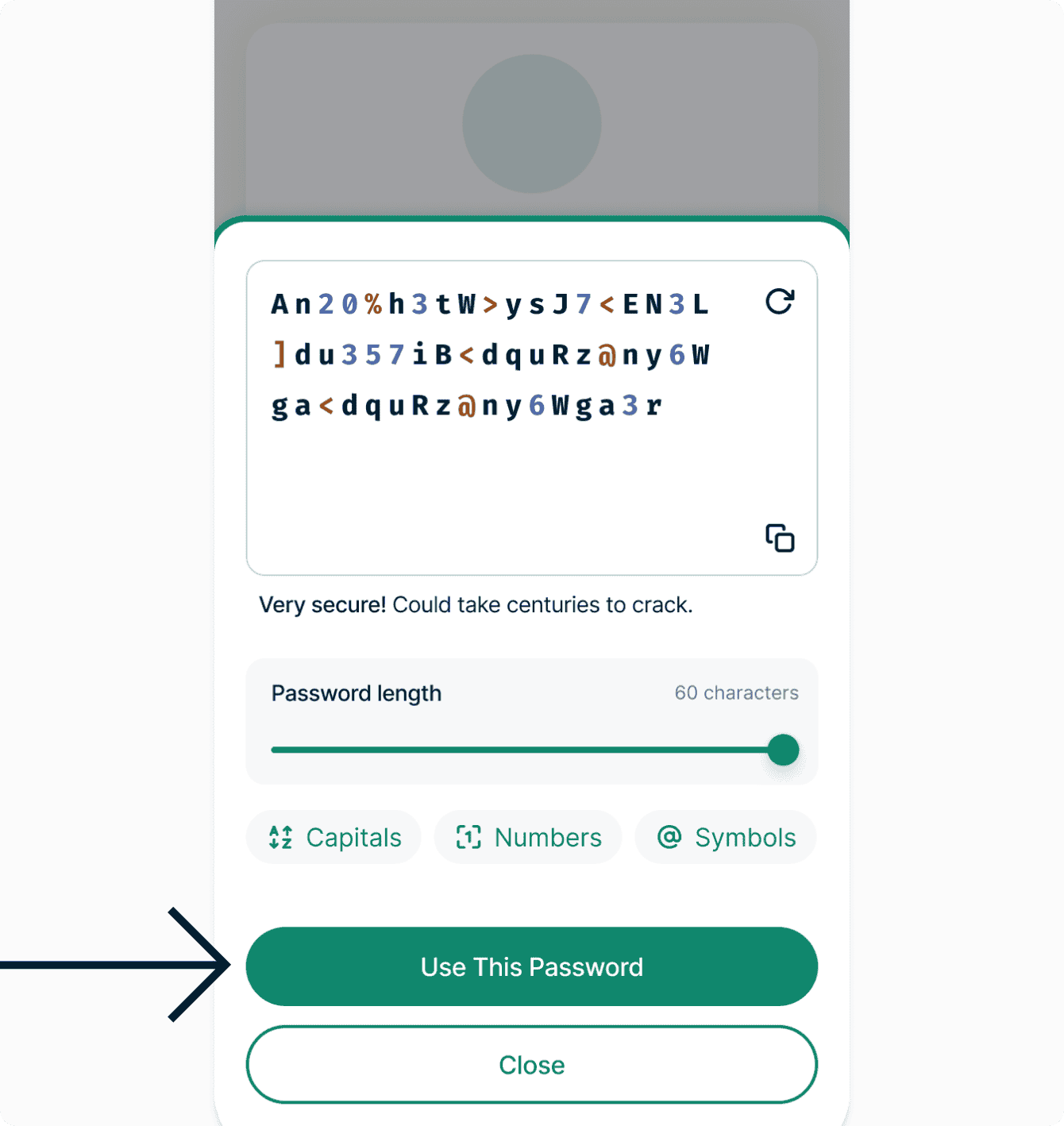
- Once happy woth your generated password, tap Use This Password.

- Tap Need a new password?
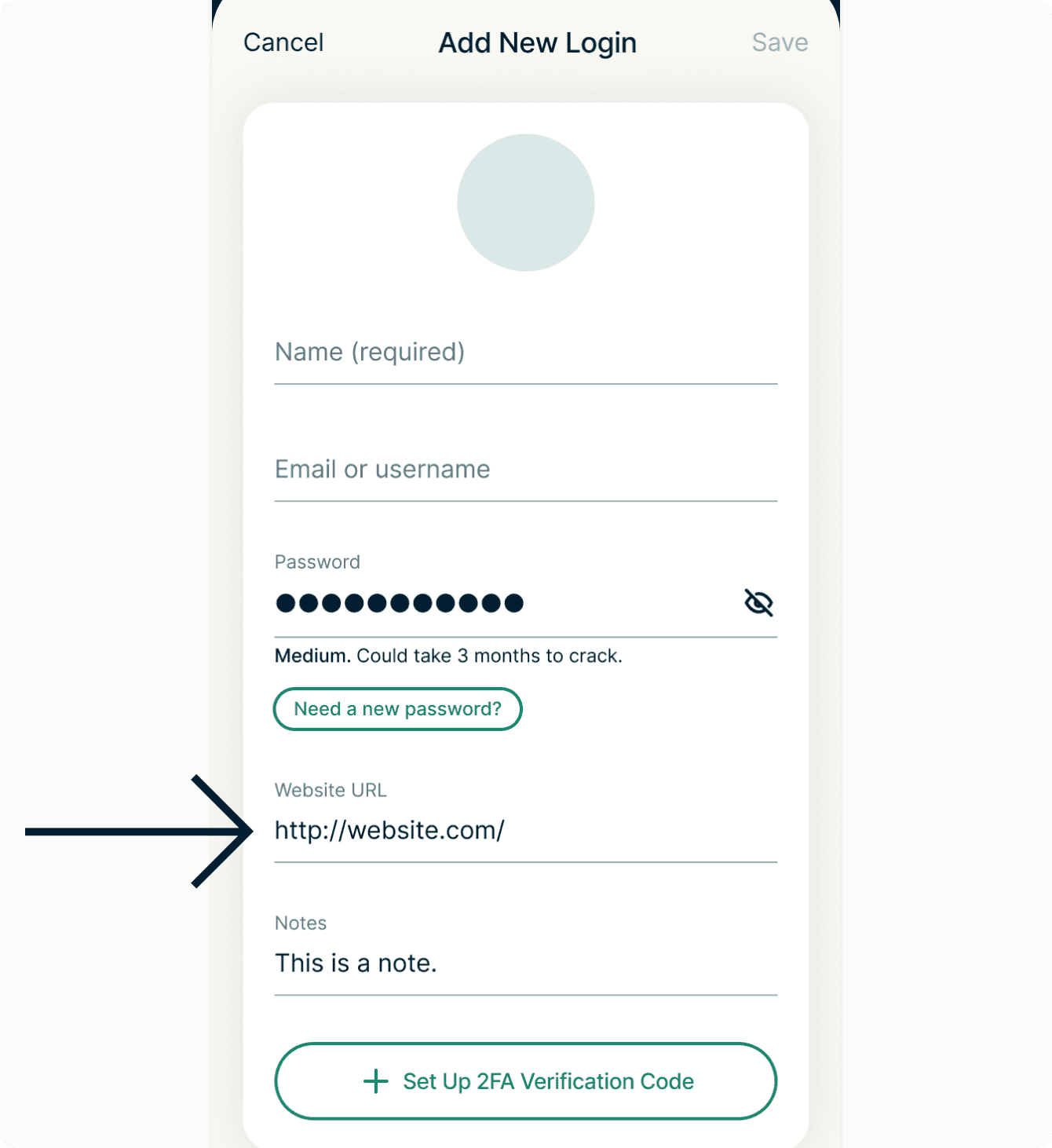
- (Optional) Enter the Website URL.
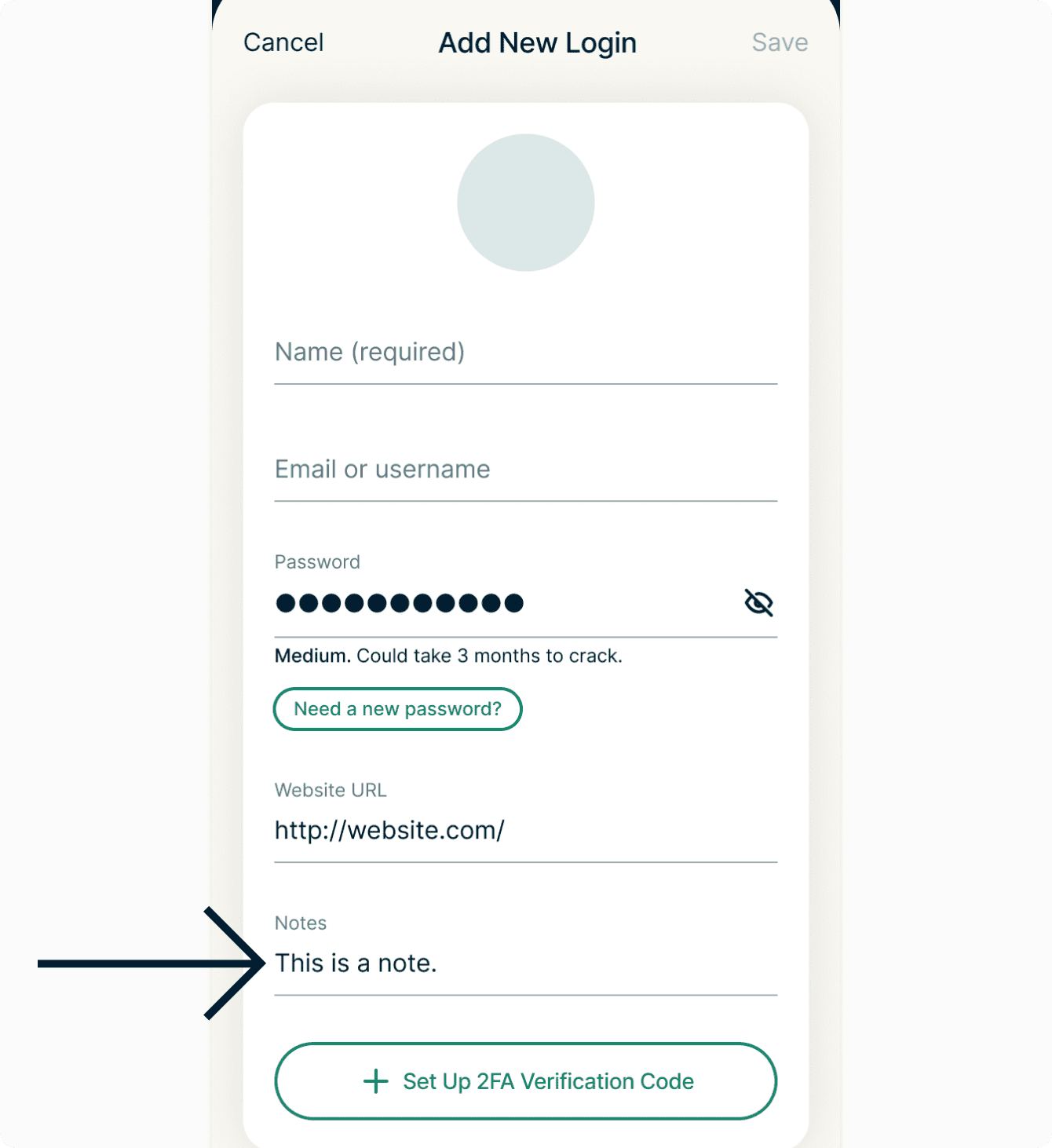
- (Optional) Enter any notes you want to add about this login.
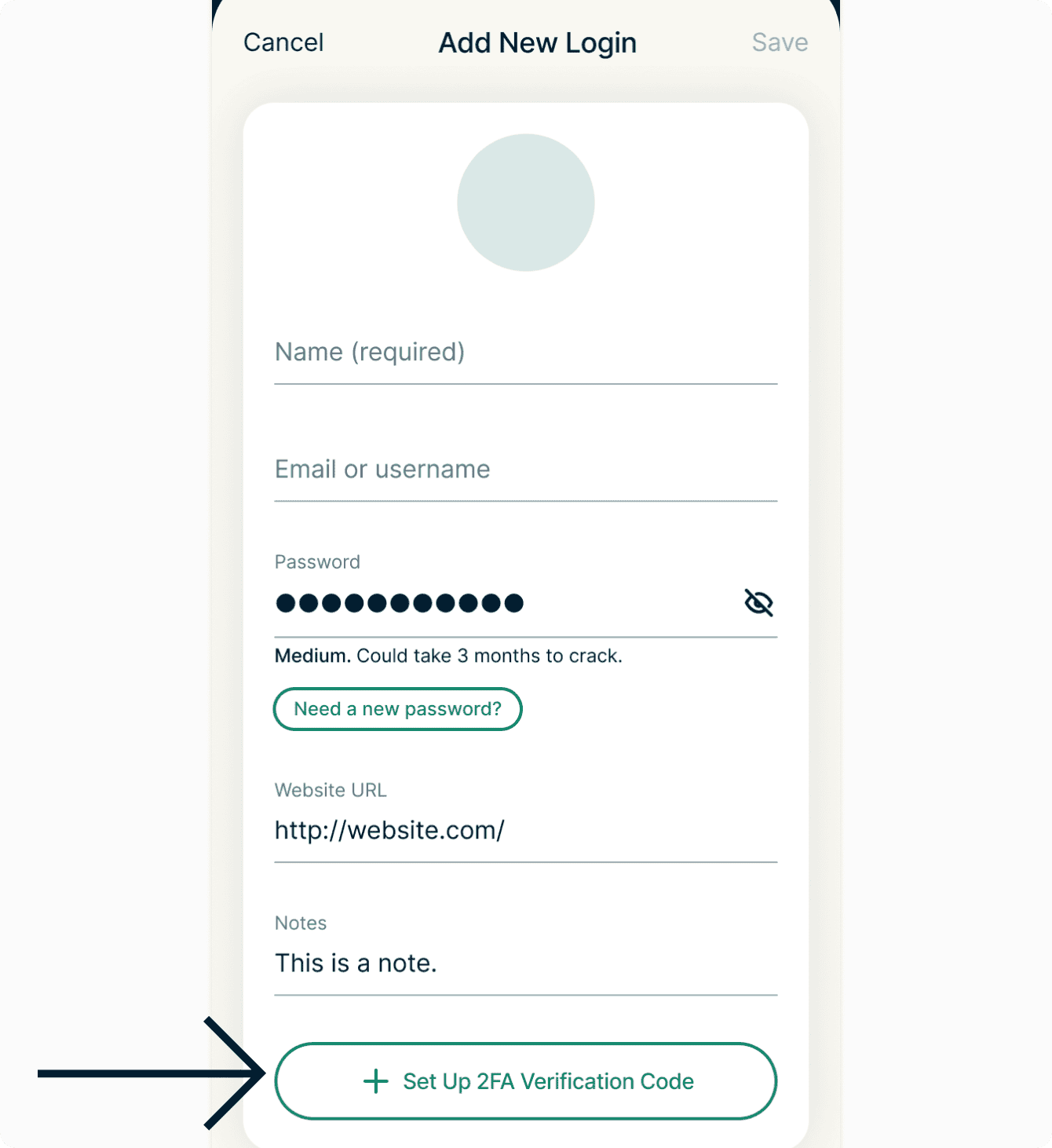
- (Optional) Tap + Set Up 2FA Verification Code to add two-factor verification for your login.
- Enable 2FA under the website or app’s security settings, then enter the setup key you see on the ExpressKeys app. Then tap Continue. If a QR code is present, tap San QR code instead.
- A 2FA verification code will be generated. Tap Close.
- Tap Save.


To save the login details for a new or an existing account (within an app or a website):
- Before proceeding, make sure to enable autofill in the app settings.
- Go to the login screen or page.
- Tap the username or password field.
- Tap the keyboard or dropdown button for Add New Login.
- Fill in the login details.
- Tap SAVE & FILL.
Need help? Contact the ExpressVPN Support Team for immediate assistance.
ExpressKeys for iOS
To save the login details for a new or an existing account:
- Open the ExpressKeys app.
- Unlock the password manager.
- Tap .
- Tap Logins.
- Fill in the Name (required) of your login.
- (Optional) FIll in the Email or username.
- Enter a password. (To generate a password suggested by the password manager:
- Tap Need a new password?
- Once happy woth your generated password, tap Use This Password.
- Tap Need a new password?
- (Optional) Enter the Website URL.
- (Optional) Enter any notes you want to add about this login.
- (Optional) Tap + Set Up 2FA Verification Code to add two-factor verification for your login.
- Enable 2FA under the website or app’s security settings, then enter the setup key you see on the ExpressKeys app. Then tap Continue. If a QR code is present, tap San QR code instead.
- A 2FA verification code will be generated. Tap Close.
- Tap Save.
To save the login details for a new or an existing account (within an app or a website):
- Before proceeding, make sure to enable autofill in the app settings.
- Go to the login screen or page.
- Tap the username or password field.
- Tap the Passwords button or the Key icon above the keyboard.
- Tap Add login for…
- Fill in the login details.
- Tap Save & Fill.
Need help? Contact our Support Team for immediate assistance.