What is private DNS? The complete guide to privacy and security



The Domain Name System (DNS) is often called the internet's phonebook: it helps translate human-readable domain names like example.com into IP addresses (and other DNS records) that devices use to locate services online.
Because DNS was designed decades ago, traditional DNS traffic often isn’t encrypted, which means DNS queries can reveal browsing-related metadata to networks and intermediaries.
This guide explains common DNS privacy gaps, how private DNS works, and how to set it up. We also briefly cover how the term is used differently in organizational networks versus personal devices.
What is private DNS? Understanding the two different meanings
Private DNS can mean different things depending on context. For organizations, private DNS usually refers to internal DNS servers that manage domain name resolution within a company network (often for private domains and internal services).
For individuals, private DNS often refers to configuring a device to use a resolver that supports encrypted DNS.
Private DNS for organizations (internal DNS servers)
For larger organizations and enterprises, private DNS manages queries for internal networks. It’s a way to create a custom DNS namespace within a private environment, meaning only devices with access to the organization's internal DNS infrastructure can resolve those internal domain names.
This reduces reliance on public DNS resolvers for internal name resolution, which can limit exposure of internal hostnames and give administrators greater control (policy, logging, segmentation). However, it doesn’t automatically encrypt DNS traffic or enforce access controls on its own.
Benefits for internal network management
There are various reasons why some organizations turn to private DNS. These include:
- Improved performance: For internal services, private DNS can reduce lookup latency by keeping resolution local and benefiting from local caching, especially in large or hybrid environments.
- Greater control: Administrators can use private DNS servers to block access to certain websites (such as social media) during working hours as part of broader policy enforcement.
- Enhanced security: Private DNS can help keep internal service names and records off the public internet and support separation of internal vs. external resolution. Access to resources still depends on network and identity controls beyond DNS.
Common enterprise DNS architectures
Architecturally, private DNS for organizations can take several forms. The main options are:
- On-premises: Uses DNS servers that are installed locally on-site. These often act as resolving and forwarding systems for all devices on the local network.
- Cloud-based: Allows organizations to host private DNS zones/hosted zones that resolve only from associated virtual networks (for example, Azure Private DNS and AWS Route 53 private hosted zones).
- Hybrid: Combines on-premises DNS with cloud private DNS for internal cloud resources.
- Split-horizon (split-view): Configures the same domain to resolve differently based on the source of the query (internal vs. external), commonly used to separate internal and public records.
Private DNS for individuals (encrypted DNS queries)
In the consumer context, private DNS usually refers to encrypting the DNS queries made by a device. Traditionally, DNS queries are not encrypted, which can allow internet service providers (ISPs), network administrators, or potential threat actors to observe the domain names being queried (valuable browsing metadata), even if it doesn’t reveal the full URL.
Private DNS mitigates this problem by securing DNS queries using protocols such as DNS over TLS (DoT) or DNS over HTTPS (DoH). This makes it somewhat harder for anyone monitoring your internet connection to view a log of the domains you visit.
How private DNS works for consumers
Understanding how private DNS protects your browsing starts with knowing how traditional DNS resolution works.
The traditional DNS resolution process
The process of DNS resolution typically involves the following steps:
- Browser request: When a user enters a URL into their browser, the device initially checks its local cache to determine if the domain/hostname is already stored. If found, it bypasses the remaining steps and connects directly to the website. If not found, it sends the request to the recursive DNS resolver.
- DNS resolver: Next, the device sends a request to a recursive DNS resolver (usually one run by an ISP). If the answer isn’t cached, the resolver locates the records associated with the requested domain by querying the DNS hierarchy, starting with a root nameserver.
- Root name server: Root name servers sit at the top of the DNS hierarchy. They direct the resolver toward the relevant top-level domain (TLD) server (such as .com, .org, or .net).
- TLD name server: TLD servers point the recursive resolver to the authoritative DNS server for the requested domain.
- Authoritative DNS server: These servers hold the official records for the domain and return the relevant DNS records to recursive resolvers (often including the IP address).
- Response and caching: The recursive resolver returns the result to the device (and typically caches it for future queries).
- Website loads: The browser uses the result (such as an IP address) to initiate a connection to the website's server, allowing the site to load.
What changes with private DNS
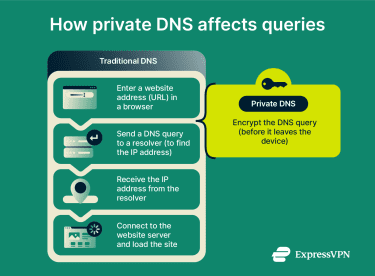 Private DNS comes in after the first step in the process outlined above. Specifically, queries are wrapped in a layer of encryption in transit between your device and the DNS resolver, protecting them from potential eavesdroppers on the network.
Encryption methods are defined by specific protocols. In practice, this encryption usually doesn’t happen automatically by default, because DoT and DoH require support from both the device (or browser) and the DNS resolver, and not every network or DNS server supports encrypted DNS.
This means that in order to use private DNS, you must first choose a DNS provider that supports these protocols. From there, devices must be configured to send DNS queries to that provider.
Popular public resolvers such as Cloudflare (1.1.1.1) and Google Public DNS (8.8.8.8) offer support for both these protocols, allowing users to encrypt DNS traffic instead of sending it in plaintext.
Key protocols explained
Here’s an overview of the most popular protocols supporting encrypted DNS:
- DoT: Uses Transport Layer Security (TLS), the same protocol used to secure connections for domains that use HTTPS (which now includes most websites). It typically uses Transmission Control Protocol (TCP) over port 853.
- DoH: Encrypts DNS queries in HTTPS requests, typically over port 443. Since this uses the same protocol and port as other HTTPS traffic, DNS queries become harder to distinguish from regular web traffic.
- DNSCrypt: A protocol designed to encrypt and authenticate DNS traffic between a DNS client and a DNS resolver, helping prevent spoofing and tampering. It commonly uses port 443 and requires support from both the client and resolver. It’s an open specification with free and open-source implementations.
Benefits of using private DNS
Using private DNS offers several notable benefits for online privacy and security.
Enhanced online privacy
By encrypting your queries, private DNS makes it harder for third parties to see the domains your device looks up in transit. Whether you’re worried about being tracked by your ISP or a potentially malicious third party, private DNS adds an additional layer of security to your online activity.
Improved security and DNS spoofing protection
Private DNS is a useful tool that provides protection against certain DNS threats. These include DNS spoofing, DNS cache poisoning, and DNS hijacking. Though each works differently, all of these attacks can send victims to dangerous websites, exposing them to drive-by downloads, phishing campaigns, and other threats. Encryption can prevent attackers from intercepting and altering DNS queries and responses.
Reduced third-party tracking
Private DNS can also help reduce tracking by third-party services. Some DNS providers offer features such as blocking unwanted ads and known tracking domains to prevent your device from resolving queries for those services. This adds an extra layer of privacy by reducing connections to advertisers and analytics services at the DNS level.
Just be careful and vet your chosen DNS provider before configuring your devices to use their servers; choosing an untrusted resolver can introduce privacy and security risks.
How to set up private DNS on your devices
The steps to configure private DNS across different devices vary slightly, but the fundamental goal is the same: choose a DNS provider and adjust your device’s DNS settings to use it (encrypted DNS is available on some platforms and setups).
We’ll start with Android before moving on to iOS, macOS, and Windows.
How to set up private DNS on Android
Setting up private DNS on Android is usually very simple. On some phones, private DNS may be on by default (when the network supports it). Here’s how to check your phone’s configuration and enable private DNS if it isn’t already on:
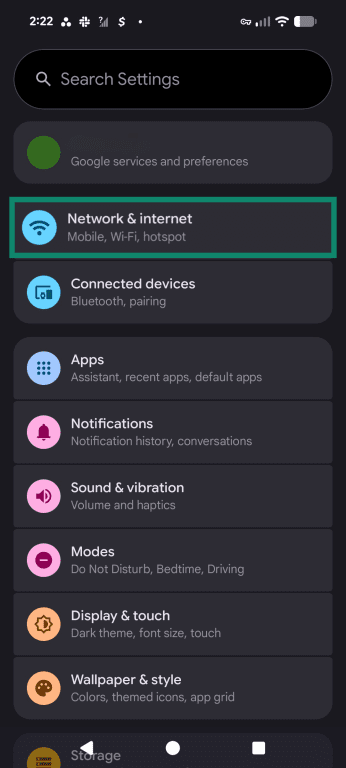
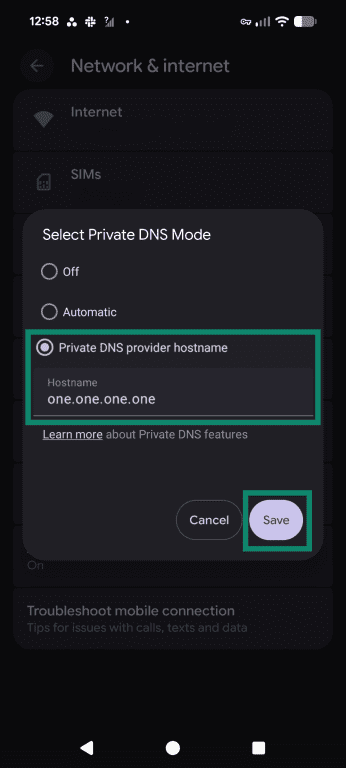
- Open your Android device’s settings and tap Network & internet.
- Scroll down and find Private DNS. If it’s already set to Automatic, your device will already use encrypted DNS on networks that support private DNS. On some phones, you may need to tap Private DNS, choose Private DNS provider hostname, and enter the provider hostname manually.
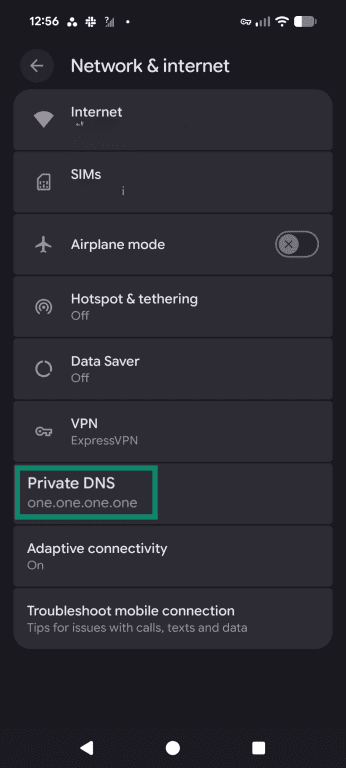
- In the pop-up, input your chosen provider’s information into the Hostname field and tap Save.
How to change DNS settings on iPhone/iOS
If you’re an iPhone user, follow these steps:
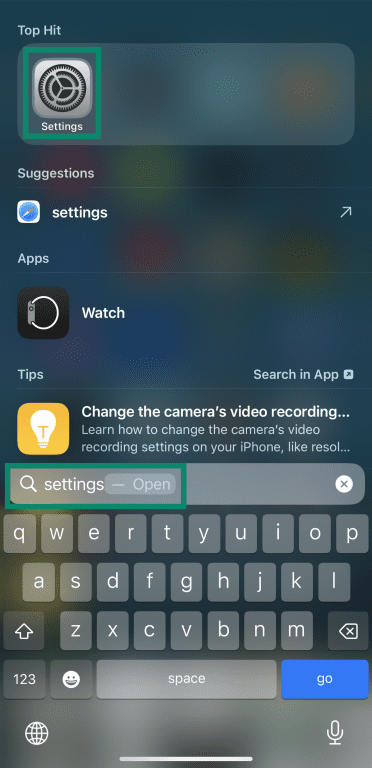
- Access the Settings menu on your iOS device.
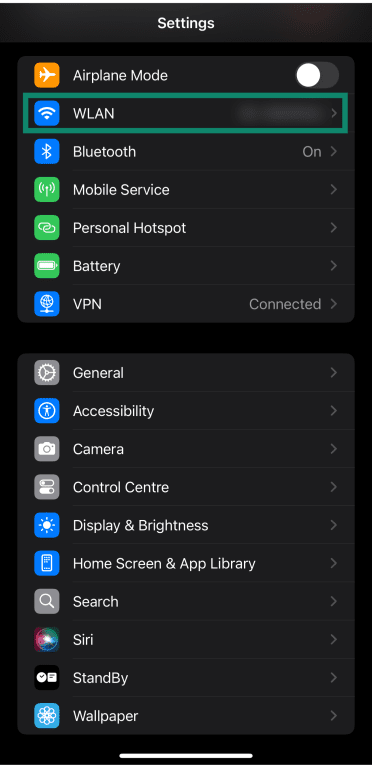
- Tap on WLAN or Wi-Fi to access additional network settings.
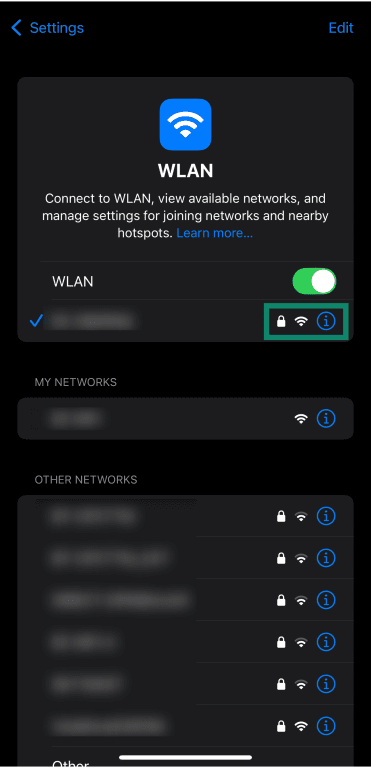
- Tap the ‘i’ (info) option next to your connected Wi-Fi network to access additional settings.
- Tap Configure DNS.
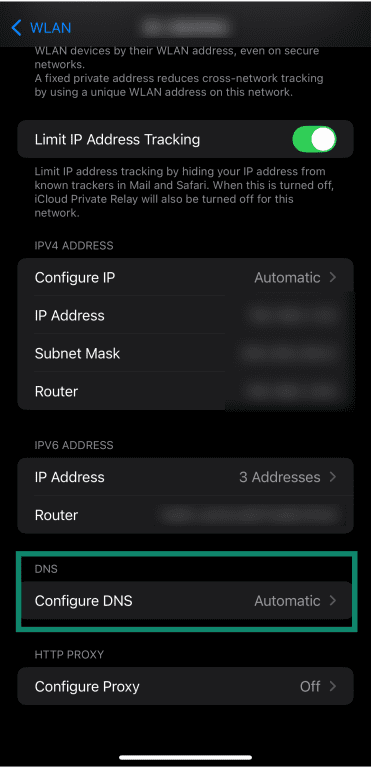
- Choose the Manual option in the Configure DNS menu and tap Add Server.
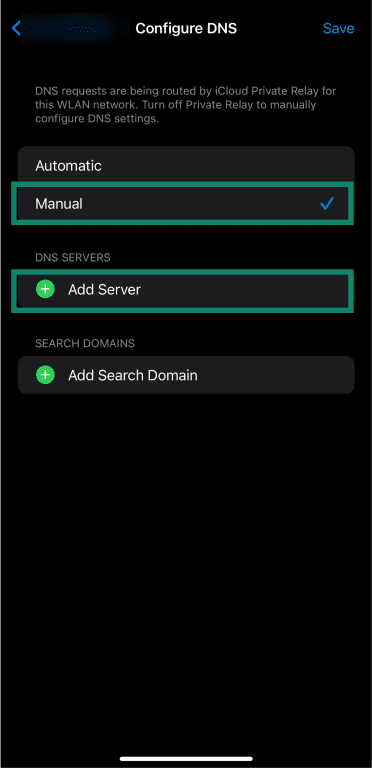
- Enter your DNS provider’s information and tap Save.
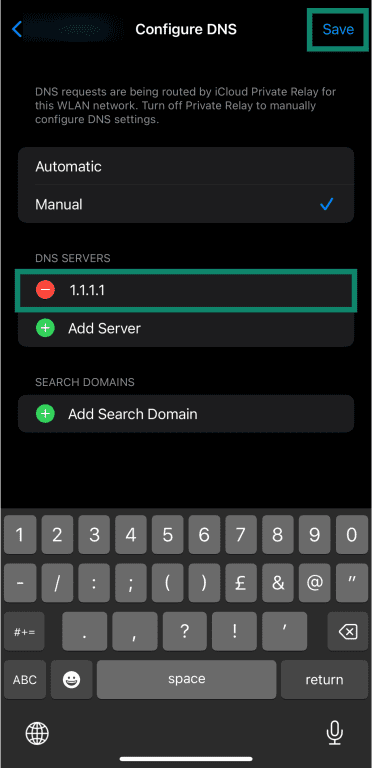
Note: These steps change the DNS for this Wi-Fi network. Unlike Android’s built-in Private DNS setting, iOS usually enables encrypted DNS (DoH/DoT) via a DNS profile in Settings > General > VPN & Device Management.
How to change DNS settings on macOS (private DNS)
- Click the Apple icon on your macOS device, then click System Settings.

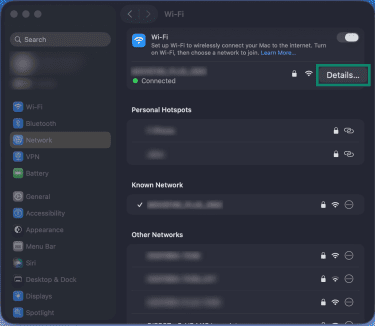
- Click Network in the sidebar, then select Wi-Fi.
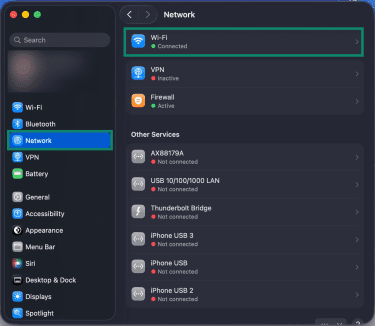
- Click the Details… button next to your Wi-Fi network.
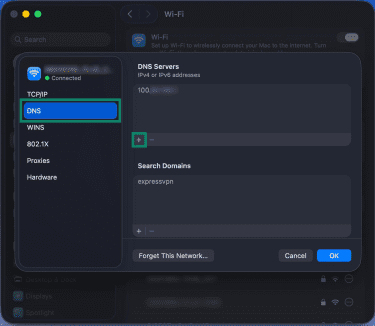
- Click DNS in the menu on the left-hand side, then click the Add (+) button and add your chosen DNS server IP address(es).
How to change DNS settings on Windows (private DNS)
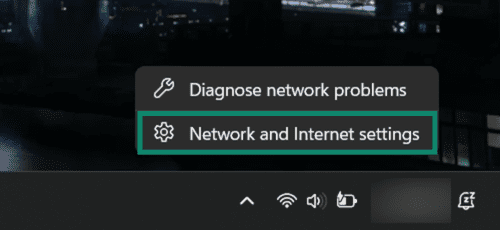
- Right-click your connected network icon in the system tray, then click Network and Internet settings.
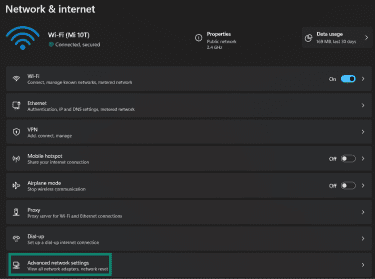
- Click on Advanced network settings.
- Click the downward arrow next to your network.
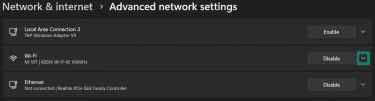
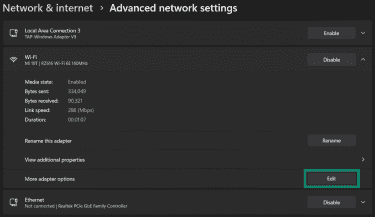
- Click the Edit button next to More adapter options. This opens the classic adapter list.
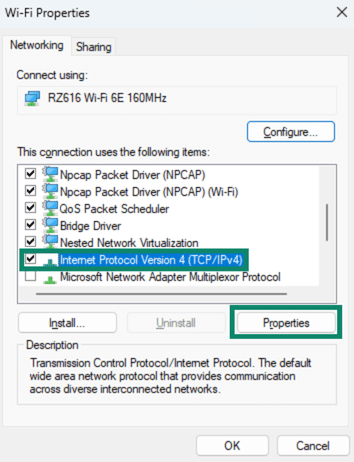
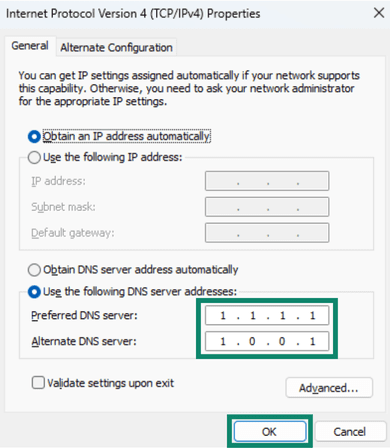
- Select Internet Protocol Version 4 (TCP/IPv4) and click Properties.
- Select Use the following DNS server addresses: to manually configure the DNS settings.
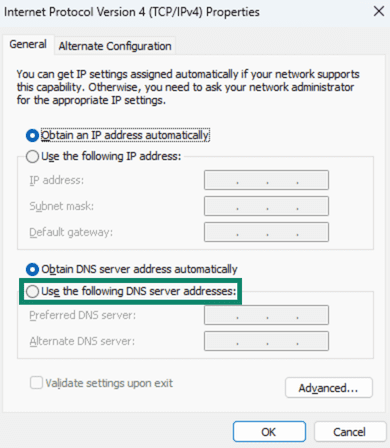
- Enter your DNS provider’s Preferred DNS server and Alternate DNS server and click OK to save.
Potential drawbacks and limitations
It’s worth noting that private DNS doesn’t stop all tracking. Even if your DNS queries are encrypted, ISPs can see which IP addresses you connect to, which can sometimes allow them to infer your browsing activity.
It’s also worth noting that while so-called private DNS hides queries from third-party observers in transit, it doesn’t stop the DNS resolver you choose from seeing your queries. This is why choosing a trustworthy resolver is essential.
When private DNS might not be ideal
Private DNS is not suitable for those seeking to maximize privacy. Because it only encrypts DNS queries, it offers a degree of privacy but is significantly less impactful than encrypting all of your device’s traffic.
Virtual private networks (VPNs) like ExpressVPN can also protect DNS requests by routing them through the VPN tunnel. If only private DNS is used, an ISP can still see destination IP addresses and traffic patterns, which may allow it to infer visited services even when DNS queries are encrypted. VPNs help close this gap by encrypting all traffic, including DNS requests, and masking destination IPs behind the VPN server.
Please note, however, that on some devices, setting a separate private DNS resolver can override the VPN’s own DNS settings. This might result in DNS queries leaving the VPN tunnel, depending on the platform. For the best results, it's usually preferable to let the VPN manage DNS unless you have a specific reason to configure it manually.
Common configuration issues
Configuration errors can prevent DNS resolution and disrupt your connectivity. A common issue is entering incorrect DNS settings (such as a wrong resolver address or an encrypted DNS hostname), which can lead to DNS errors or “server can’t be reached” messages. For example, Android may show “Private DNS server cannot be accessed.”
On some networks, like corporate or school networks, private DNS connections might be blocked. For instance, DNS resolution can fail if you’re using DoT for encrypted DNS and your network blocks port 853.
Some firewalls also block requests from local clients to DNS servers outside the local network, which can cause connectivity errors if your device is configured to use those servers.
Carrier Grade Network Address Translation (CGNAT) can also affect DNS providers, as it frequently updates public IP addresses. If you’re using a DNS-based filtering service that’s tied to your IP address, you might see inconsistent behavior due to this.
ISPs can sometimes enforce DNS redirection by intercepting unencrypted (port 53) DNS traffic and routing it through their own servers. If this is the case, an ISP network disruption can cause your DNS resolution to fail and prevent you from accessing the internet.
Some routers apply built-in DNS filtering or have parental control features that block requests to certain DNS servers, including private ones. If you have one of these routers, it’s possible that these settings are preventing you from connecting to private DNS servers.
Private DNS vs. VPN: Understanding the differences
Learning the differences between a VPN and a private DNS service can help you decide whether you need one or the other.
How VPNs provide more thorough privacy protection
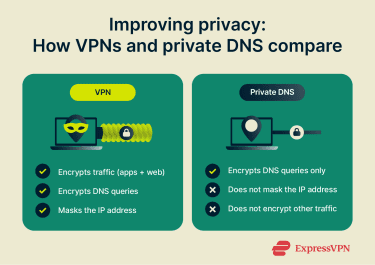 Private DNS focuses specifically on the requests your device makes to translate domain names into IP addresses. However, it does not hide your IP address from the sites you visit or encrypt the rest of your internet traffic.
A VPN provides broader protection by masking your real IP address and encrypting internet traffic through the VPN tunnel between your device and the VPN server, including DNS queries, web browsing, and application traffic.
Private DNS and VPNs both involve relying on a service provider, but a reputable VPN is typically designed with far stronger privacy safeguards. Modern VPN providers often have no-logs policies, and some use RAM-only servers that wipe data on reboot. Some providers also commission independent audits to assess aspects of their privacy claims and server technology. For example, ExpressVPN has had its TrustedServer technology and other privacy-related measures independently audited many times.
If you do opt for private DNS instead, try to find a provider that supplies evidence of their trustworthiness.
FAQs: Common questions about private DNS
Is private DNS safe to use?
Yes, a private Domain Name System (DNS) is generally safe to use and can prevent snoopers from intercepting your DNS queries in transit. It can also help protect against some forms of on-path DNS tampering. Just be sure to choose a reliable provider.
What happens if private DNS is turned off?
Turning off private Domain Name System (DNS) may cause your device to fall back to unencrypted DNS for name resolution, unless another feature, like a VPN or an app-level DNS over HTTPS (DoH) setting, handles DNS securely.
Does private DNS affect internet speed?
Somewhat. The Domain Name System (DNS) you use can affect lookup speed, which is essentially the time it takes to find the IP address for a website you want to visit. However, your actual bandwidth will remain the same regardless of which DNS server you use.
Can private DNS prevent online tracking?
Yes, to a degree. Private Domain Name System (DNS) helps prevent online tracking by encrypting your queries. This can make some tracking by on-path observers harder, but it doesn’t quite match VPNs, which encrypt your entire connection.
What is private DNS mode on my phone?
Private Domain Name System (DNS) mode on your phone lets you set the device to use a specific DNS service (the exact options vary by operating system).
Take the first step to protect yourself online. Try ExpressVPN risk-free.
Get ExpressVPN