How to clear cache on PS5 and improve performance



Is your PS5 console running slower than usual, freezing mid-game, or throwing random errors during updates? Small performance issues like these often come down to temporary system files building up in the background.
Clearing the cache is a simple troubleshooting step that can help smooth things out. In this guide, we’ll explain what cache means on PS5, when clearing the system cache makes sense, and how to do it safely without losing your saved games.
What clearing the cache does on PS5
A PS5’s cache is made up of temporary system and software files created automatically by the console and the games you play. These files store short-term data that the system often uses, so it doesn’t have to reload or process the same information every time.
For example, your PS5 may temporarily store recently used game assets or system data to help reduce loading times and keep things running smoothly in the background.
However, the PS5 doesn’t manage app-specific cache as your smartphone does. It doesn’t have a separate app-level cache that you can clear individually. Instead, the system software cache supports the console as a whole.
When you clear the cache, your PS5 deletes those temporary files and rebuilds them as needed the next time you use it. If any of that temporary data has become outdated or corrupted, clearing it can help resolve small performance issues.
Will clearing the cache delete saved data?
No, clearing the cache won’t delete your saved games.
Your PS5 stores game progress separately in console storage as dedicated save files. These files contain things like your campaign progress, unlocked levels, character stats, and in-game settings. They stay there unless you choose to delete them yourself.
Cache files hold short-term system data that help your PS5 run smoothly, such as loading menus, switching between games, or handling background tasks. Your console can rebuild that data at any time.
When you clear the cache, you’re only removing those temporary files so your PS5 can create fresh ones, not long-term data like game progress. If you want extra peace of mind, you can back up saved data to a USB drive or cloud storage first.
Learn more: Traveling to a hotel with your console? Learn how to connect your PS5 to hotel Wi-Fi.
When clearing the cache can help
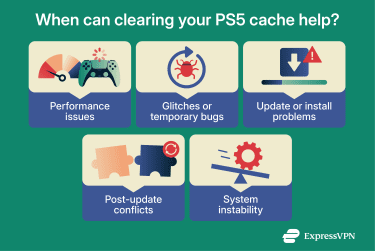 Clearing the cache can fix small issues caused by temporary system files. You might notice your PS5 feels slower than usual, with laggy menus, longer loading times, or minor stuttering during gameplay.
It can also help with random glitches. Maybe a game freezes once in a while, the interface doesn’t load properly, or you see small visual bugs that don’t seem tied to anything specific.
Update problems can be another sign. If a patch won’t install, a download keeps failing, or something feels off after a system update, outdated temporary files could be the reason.
You might also notice occasional interruptions, such as unexpected error messages or features that don't respond as they should. If the issue seems to happen randomly, clearing the cache can be a good first step.
However, if these issues only happen during online matches or multiplayer games, your internet connection may be part of the problem. In that case, fixing packet loss could help instead. It can also help to test your internet speed to see whether your network is the issue.
Learn more: What’s the best internet speed for gaming? Understand what speeds you need for your gameplay.
Before you start
Before you clear the cache, make sure you have the following:
- PS5 console (Standard or Digital Edition)
- DualSense controller
- USB cable to connect the controller to the console
- Access to the power button on the console
- USB drive, if you plan to back up saved data beforehand
How to back up PS5 data to a USB drive
Before you start the backup, keep these points in mind:
- Don’t turn off your PS5: Turning it off while backing up or restoring data can cause corruption, data loss, or damage to your console or USB drive.
- Remember, extended storage isn’t included: Games and apps stored on extended USB storage or an M.2 SSD aren’t part of the backup. Reconnect the drive or reinstall the SSD to access them again.
- Remember, trophies aren’t included: Trophy data isn’t part of the console backup.
- Sync your latest saves and trophies: Make sure your most recent game progress is saved and, if you use cloud storage, uploaded before creating the backup.
- Use the same PlayStation Network (PSN) account: Backups are linked to your account. To restore on another console, sign in with the same account you used to create the backup. If you’ve never signed into PSN, you can only restore to the original console.
- Remember, restoring will erase current data: When you restore a backup, your PS5 deletes everything currently saved on the console first. You can’t undo this.
To back up your data, you’ll need a USB drive formatted in exFAT or FAT32. Make sure you also have enough space on the drive for your saved data, then follow these steps:
- Connect your USB drive to your PS5.
- Go to Settings, then System.
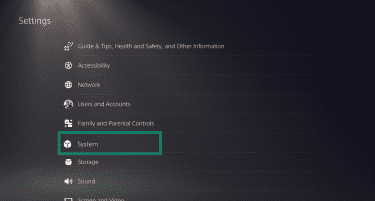
- Open System Software and select Back Up and Restore.
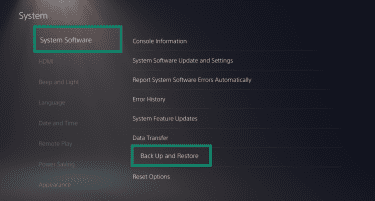
- Select Back Up Your PS5.

- If you have more than one USB drive connected, select the one you want to use.
- Choose the type of data you want to back up, then select Next.
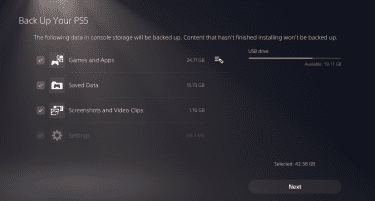
- Check the file name and file size. Add a description if you’d like.
- Select Back Up.
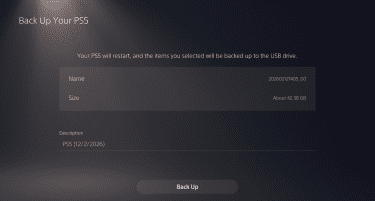
- Wait for your PS5 to restart and begin the backup.
- Wait for a screen that shows Backup complete. Your PS5 console will restart.
- Select OK and wait for your PS5 to return to the home screen.
Now that the backup is complete, you’re ready to clear the cache.
Method 1: Clear PS5 cache in Safe Mode
Safe Mode is a built-in diagnostic startup mode on your PS5. When you start the console this way, it loads only essential system functions in a minimal troubleshooting environment instead of the full user interface. Sony designed it specifically for troubleshooting corrupted data, system errors, and persistent performance problems.
How to start your PS5 in Safe Mode
To start your PS5 in Safe Mode, follow these steps:
- Hold the power button for about three seconds to turn off your PS5.
- The power indicator will blink briefly before turning off. Make sure the console is fully powered down, not in Rest Mode.
- Press and hold the power button again.
- You’ll hear one beep when you first press it and a second beep about seven seconds later. Release the button after the second beep.
- Connect your DualSense controller to the console using a USB cable.
- Press the PS button on the controller.
How to clear the cache on PS5 in Safe Mode
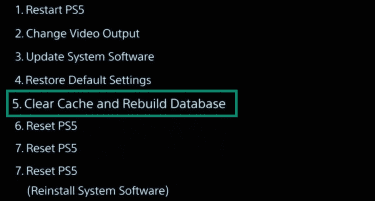
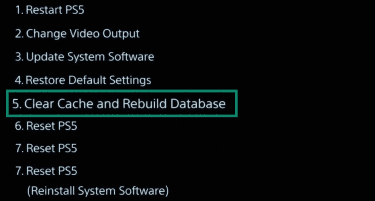
Once your PS5 starts in Safe Mode, you’ll see a list of troubleshooting options on a black screen. Then follow these steps:
- Select Clear Cache and Rebuild Database.
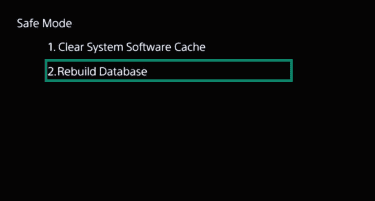
- On the next screen, choose Clear System Software Cache.
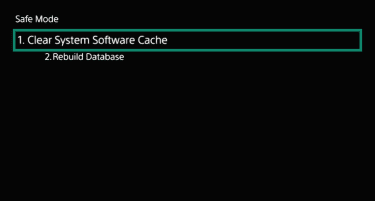
- Confirm your selection.
- Your PS5 will clear the cache and restart automatically.
Note that the first boot might take longer than usual, but that’s normal as your PS5 is rebuilding fresh temporary system files in the background.
Troubleshooting if you can’t start PS5 in Safe Mode
If Safe Mode doesn’t launch, make sure your PS5 is fully powered off before trying again. Hold the power button until the console shuts down completely, then press and hold it again until you hear the second beep. Releasing it after the first beep won’t start Safe Mode.
It could also be a wiring issue. If the PS5 can’t detect the USB cable, try a different one. If the screen still doesn’t appear, check your HDMI and power connections to make sure the cables are secure and working. You can also power cycle the console by turning it off, unplugging it for about 20 minutes, then reconnecting and trying again.
Method 2: Clear game cache and temporary data
The PS5 doesn’t include a per-game clear cache option in its settings because it clears the cache at the system level rather than the game level. However, if you’re only experiencing issues with one game, there are still things you can try to help fix it.
Hard reset your PS5
Sometimes the issue isn’t the system cache itself but temporary memory tied to your current session. A full restart can help, as it forces the PS5 to clear temporary session data and start fresh. Follow these steps:
- Press and hold the PS button on the controller.
- Select Turn Off PS5 from the Power menu.
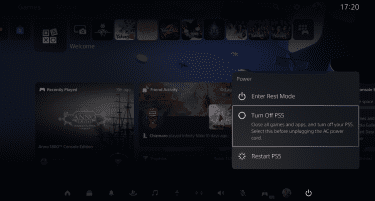
- Wait for the power light to turn off.
Delete and reinstall the game
If one game keeps crashing or won’t load properly, the installation files may be corrupted. Delete the game from your console storage, then reinstall it from your library or disc. Usually, reinstalling replaces the game’s local files and removes any damaged installation data.
Your saved progress is stored separately, so deleting and reinstalling the game shouldn’t remove your progress, unlocks, or settings.
How to reduce cache build-up in the future
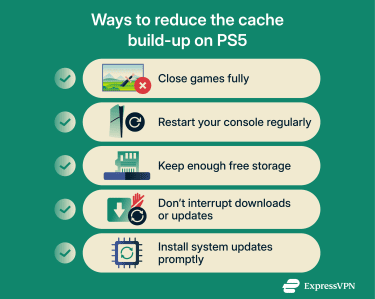
Your PS5 manages cache automatically, so you usually don’t need to clear it yourself. Still, a few simple habits can help prevent small issues from building up over time.
Try closing games fully once in a while instead of always leaving them suspended in Rest Mode. When a game remains suspended for long periods, the console keeps temporary session data active, which can sometimes cause minor glitches when you return.
Restarting your PS5 occasionally can help because a full restart clears temporary memory and resets background processes that may have been running for days. It’s also a good idea to check storage space. If it’s low, the system has less room to manage temporary files efficiently.
Avoid interrupting downloads or system updates as well, since incomplete installs can cause errors that appear to be cache problems. And make sure you install system updates when they’re available, as they often include stability and performance fixes.
Troubleshooting if cache clearing doesn’t help
If clearing the system cache didn’t fix the issue, the problem may be deeper than temporary files. Here are some steps to help you.
Rebuild the database on PS5
Rebuilding the system is different from clearing cache files. Instead of deleting temporary data, it reorganizes how everything is structured on your console’s internal storage. Your PS5 refreshes the system’s internal directory to find and load data more efficiently. This means it can also take longer than clearing the cache.
Usually, it’s only necessary to rebuild the database if you’re facing persistent UI lag, games that won’t launch properly, missing or corrupted game tiles, or issues that won’t go away even after clearing the cache.
To rebuild the database, follow these steps:
- Start your PS5 in Safe Mode.
- Select Clear Cache and Rebuild Database.
- Select Rebuild Database.
Update system software and games
Sometimes what looks like a cache problem is actually an outdated system or game version. Developers regularly release patches that fix stability issues, loading bugs, and performance problems, so you might be able to fix crashes or errors by installing the latest update.
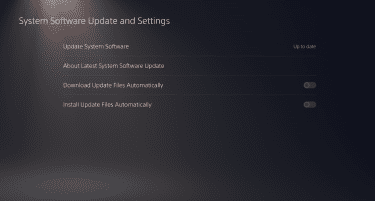
To check for a system software update, follow these steps:
- Go to Settings, then System.
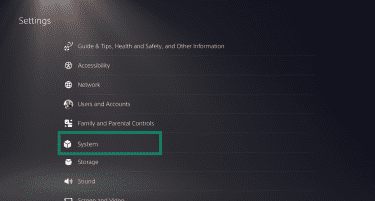
- Select System Software and System Software Update.
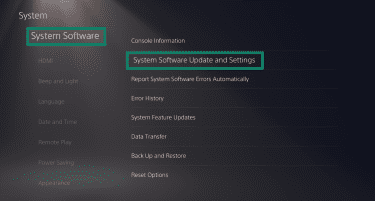
- If an update is available, install it and restart your console.
You can also check for game updates:
- Highlight the game on your home screen.
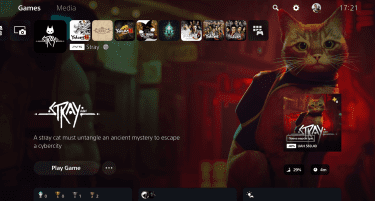
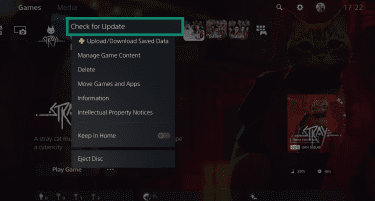
- Press the Options button on your controller.
- Select Check for Update on the screen.
When to contact PlayStation Support
If your PS5 still isn’t working properly after clearing the cache and rebuilding the database, it might be worth contacting PlayStation Support. For example, if your console won’t boot at all, repeatedly crashes after a rebuild, shows storage corruption errors, or freezes while in Safe Mode.
Sometimes, persistent errors may indicate an issue with the internal SSD or other hardware. At that point, it’s best to get official support rather than continue troubleshooting on your own.
FAQ: Common questions about clearing cache on PlayStation
How often should I clear the cache on my PS5?
What’s the difference between clearing the cache and rebuilding the database?
What do I do if the option to clear the cache is missing?
How do I know if the PS5 cache needs to be cleared?
Can I clear the cache without unplugging my PS5?
Take the first step to protect yourself online. Try ExpressVPN risk-free.
Get ExpressVPN