How to clear Outlook cache on Windows, Mac, and mobile



Microsoft Outlook stores some mailbox data locally so messages, calendars, contacts, and search results can load faster. On desktop versions of Outlook, this often includes an offline synchronized copy of mailbox data.
When that local data becomes outdated or corrupted, Outlook may behave unpredictably. Clearing or rebuilding the local cache can sometimes solve persistent glitches.
This guide explains how to clear Outlook's local data on Windows, macOS, iPhone, and Android devices. It also explains how cached data is rebuilt and how cache-related issues can affect Outlook performance and synchronization.
What is Outlook cache?
The Outlook cache is the local storage Outlook uses to keep temporary or synchronized mailbox data. Instead of requesting information from the mail server each time a folder opens, Outlook can use this local data to access content more quickly.
This cached data can include message previews, calendar entries, previously opened attachments, and synchronization metadata that helps Outlook track mailbox changes.
For some account types, including Microsoft 365, Exchange, and some Internet Message Access Protocol (IMAP) accounts in desktop Outlook, Outlook may also create an offline Outlook Data File (.ost). This file is a synchronized local copy of mailbox data stored on the server.
Why does Outlook use cached data?
Outlook can store some mailbox data locally to help everyday use stay responsive, especially when connectivity is unstable. In desktop Outlook, this is often handled through features such as Cached Exchange Mode, which keeps a synchronized local copy of mailbox data and updates it in the background.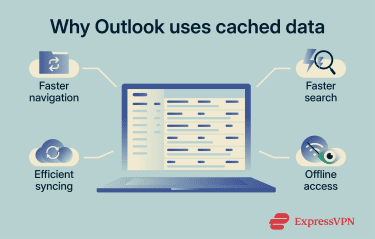
Cached data supports several core behaviors:
- Faster navigation: Folder switching and message previews can load from local storage instead of requiring the app to retrieve everything from the server.
- More efficient search: In cached configurations, Windows Search can query a local mailbox copy instead of searching mailbox content on the server, which can improve search speed and responsiveness.
- Limited offline access: Some messages, calendar items, and other mailbox data may remain available without an internet connection, depending on the Outlook version and account setup.
- Background synchronization: Outlook can update a local copy in the background while connected, improving responsiveness and reducing disruption when the server is slow or the connection is unstable.
The trade-off is that synchronization needs to complete cleanly. If Outlook’s local data or search indexing encounters issues, the app may show performance or search-related problems until the local data is rebuilt or refreshed.
What happens when you clear Outlook cache?
Clearing the cache removes local Outlook data used by the app without affecting mailbox data stored on Outlook’s servers. Outlook then re-downloads mailbox data and rebuilds its local copy. Performance may be temporarily affected while this process completes.
During this process, several background updates may occur:
- Folder resync: Folder contents are downloaded again and brought up to date.
- Local cache rebuild: Outlook rebuilds the local mailbox copy used for faster access.
- Mailbox state resynchronization: After syncing completes, the client reflects the server's current data.
Before clearing Outlook’s cache, it can be worth backing up Outlook data if any items may not be fully synchronized with the server. This caution is especially relevant for some Mac Exchange cache-clearing steps.
Signs you need to clear Outlook cache
Cache-related problems rarely present as a single obvious error. In most cases, Outlook will still work, but certain functions may behave inconsistently if local data, indexes, or synchronization processes encounter problems.
Common symptoms include slow performance, messages that fail to update, search results that miss recent emails, and folders that display incorrect information.
Slow performance and freezing
Outlook can use locally stored mailbox data to open folders, display conversations, and retrieve messages more quickly. When that local data becomes too large or encounters issues, Outlook may struggle to read and display mailbox content efficiently.
Opening the client may take longer than usual, or the interface may pause when opening emails or switching folders. In some cases, Outlook may appear stuck while background synchronization continues, or it may fail to complete properly.
Emails not syncing or updating
Another common symptom is a mailbox that appears functional but no longer reflects new activity. Messages may appear correctly in webmail or on another device, while the desktop client continues to show older content. Calendar updates made elsewhere may not appear, and the mailbox state can become inconsistent.
In these cases, Outlook’s local data or synchronization state may no longer match the current mailbox state on the server, causing the inbox to appear outdated even while the server continues to update normally.
Connection problems may also come from the OS or the network rather than Outlook itself. For example, Domain Name System (DNS) or other name resolution issues can prevent the client from reaching the mail server.
Search not working properly
In cached configurations, Outlook search can rely on locally stored mailbox data and indexing rather than querying mailbox content directly on the server. If that local data or index becomes incomplete, search results may no longer reflect the actual mailbox.
Recent messages may fail to appear in search results; older conversations may appear instead; and items that clearly exist may be difficult to find.
Corrupted or missing data errors
Sometimes Outlook shows unusual behavior, such as folders reporting zero messages, attachments refusing to open, or repeated send/receive errors without an obvious connection problem. These issues can occur when local Outlook data no longer matches what is stored on the server.
Resetting cached data can force Outlook to rebuild those records, which may resolve some errors caused by inconsistent local information.
How to clear Outlook cache on Windows
On Windows, Outlook stores different types of local data in hidden system folders. One commonly cleared cache in classic Outlook is the RoamCache folder, which stores items such as the AutoComplete list. Clearing it can help resolve some local Outlook glitches, but it doesn't remove mailbox data stored on the mail server
Before starting, close Outlook fully. If the program stays open in the system tray, the files may remain locked, and the reset may not work properly.
After the cache is cleared, Outlook recreates the necessary local files the next time it starts. Depending on what was removed, Outlook may take longer to load while local data is rebuilt.
Clear cache in classic Outlook
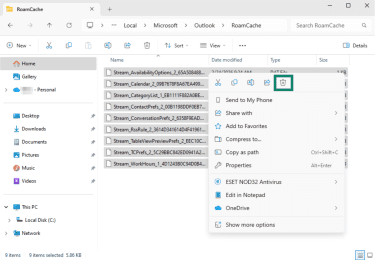
Classic Outlook stores some local cache files in a folder called RoamCache. To clear that cache:
- Exit Outlook.
- Press Windows + R.
- Enter the path: %localappdata%MicrosoftOutlook and press Enter.
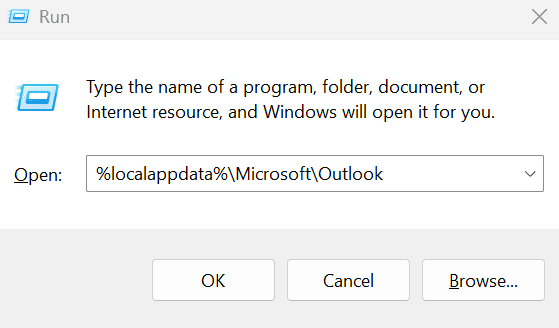
- Open the RoamCache folder.
- Select all files inside the folder and delete them by clicking the trash icon.
Clear cache in new Outlook
The newer Outlook for Windows stores local data differently from the classic desktop version. Instead of relying on the RoamCache folder, it uses a web-based app environment with browser-style local data, including cache and cookies, that can be cleared through Microsoft Edge DevTools.
Follow the steps below to clear the cache in the newer version of Outlook:
- Close Outlook.
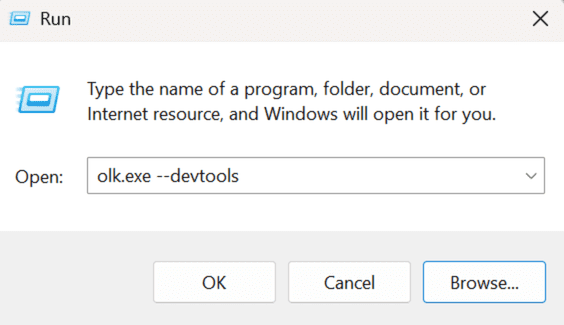
- Press Windows + R.
- Type olk.exe --devtools and press Enter (make sure to include a space before the two dashes). This opens Outlook together with a Microsoft Edge DevTools window.
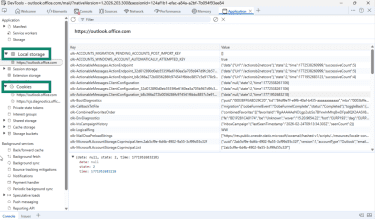
- In the DevTools window, select the Application tab from the top bar.
- Under Storage, locate https://outlook.office.com.
- In the left panel, find Local Storage and Cookies, select the https://outlook.office.com entry under each section, right-click it, and choose Clear or Clear browser cache. Alternatively, in the DevTools window, select the Network tab. Right-click anywhere in the Requests table, then choose Clear browser cache.
- Close and reopen Outlook to finish the process.
Clear Outlook cache on Windows 10/11
Windows 10 and 11 use the same folder structure described in the classic Outlook instructions. If clearing the RoamCache folder, keep in mind that this mainly affects certain local Outlook cache files, such as the AutoComplete list, rather than the full mailbox cache. Outlook recreates the necessary local files the next time it starts.
If the goal is to clear the mailbox cache, classic Outlook typically stores a local copy of the mailbox in an offline Outlook Data File (.ost) for supported account types. When that file is recreated, Outlook downloads a fresh copy of mailbox data from the server.
How to clear Outlook cache on Mac
On macOS, Outlook stores local mailbox data that can sometimes become outdated or corrupted.
Clear cache in legacy Outlook for Mac
For Exchange folders in legacy Outlook for Mac, Microsoft provides a built-in Empty Cache option. Before emptying the cache, it may be worth backing up Outlook information, because unsynchronized data can be deleted. When the cache is emptied, Outlook downloads the items again from the Exchange server.
To clear the cache in legacy Outlook for Mac:
- In the navigation pane, right-click the Exchange folder.
- Select Properties.
- On the General tab, click Empty Cache.
Optional workaround: Remove Outlook-related cache files manually
Some users prefer deleting Outlook-related cache files manually in the macOS Library folder.
- Exit Outlook and open Finder.
- Press Cmd + Shift + G.
- Enter ~/Library/Caches.
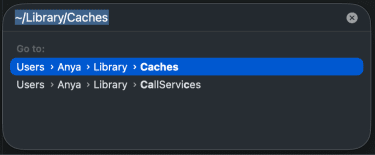
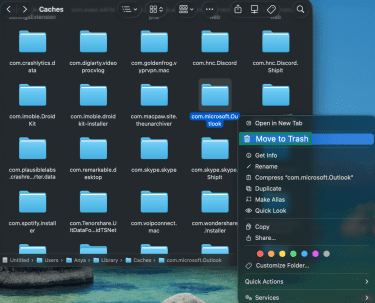
- Locate the folder named com.microsoft.Outlook. Right-click the folder and select Move to Trash.
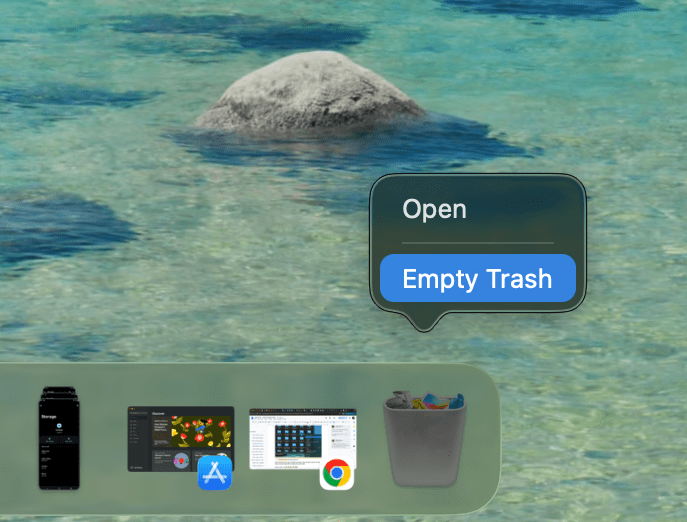
- In the Dock, right-click the Trash icon and select Empty Trash.
Clear cache in new Outlook for Mac
In Outlook on Mac, Microsoft documents the Reset Account option to refresh an account’s local data when syncing problems persist. Unlike the Empty Cache option in legacy Outlook for Mac, this method resets the selected account rather than clearing an Exchange folder cache directly.
To reset an account in Outlook for Mac:
- On the Outlook toolbar, go to Tools > Accounts.
- Select the affected account in the left pane.
- Click the three dots at the bottom left.
- Select Reset Account.
After the reset, Outlook refreshes the account’s local data. Depending on the mailbox size and connection speed, synchronization may take some time to complete. This may be more noticeable with larger Microsoft 365 mailboxes.
How to clear Outlook cache on mobile
Mobile versions of Outlook store some account data locally, but the apps rely more heavily on in-app refresh and account reset options than desktop versions do. Similar steps apply to clearing the caches of other mobile apps, such as Instagram and TikTok.
Because mobile OSs manage app storage differently, the steps vary depending on whether you use iOS or Android.
Clear cache in Outlook on iPhone
Microsoft’s recommended way to refresh Outlook on iPhone is to reset the affected account in the app rather than manually deleting cache files. If that doesn't resolve the issue, removing and re-adding the account is a more disruptive fallback that can also clear locally stored account data.
- Open Outlook on your iPhone.
- Tap the profile icon and select the gear icon to open Settings.
- Under General, choose Accounts.
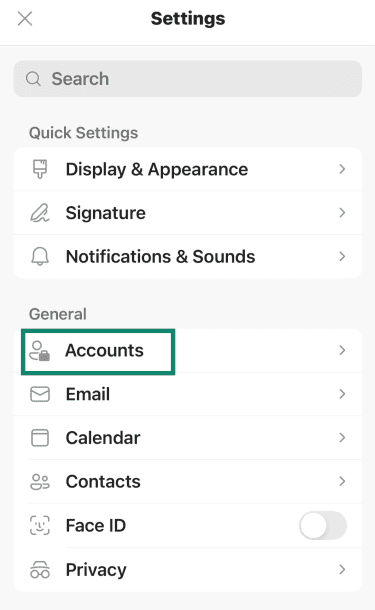
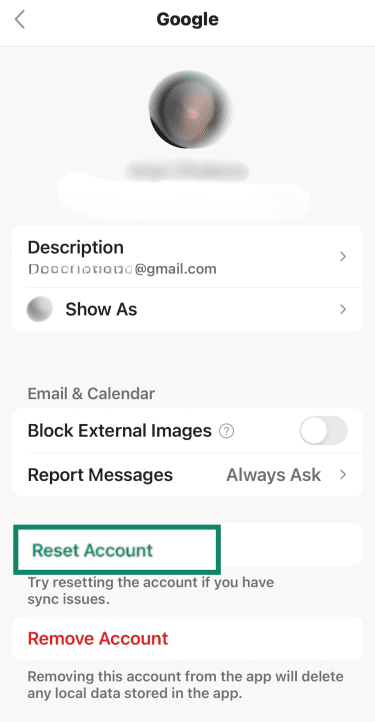
- Select the email account and choose Reset Account. If the issue continues, select the email account again and choose Remove Account.
- If you removed the account, add the account again and sign in.
Clear cache in Outlook on Android
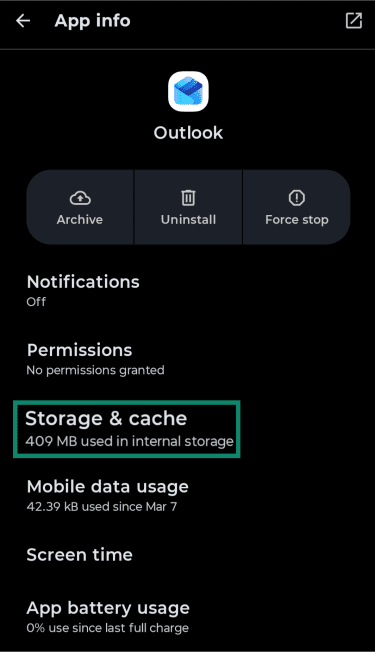
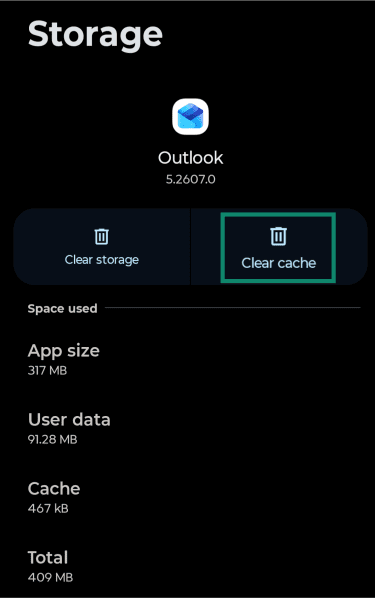
Like with iOS, on Android, Microsoft’s recommended way to refresh Outlook’s local data is to use Reset Account in the app. If the issue involves temporary app files more generally, Android may also offer a device-level Clear cache option for Outlook, though the exact steps can vary by phone model.
To clear cached app files through Android settings:
- Open the phone’s Settings.
- Go to Apps or Apps & notifications.
- Select Outlook from the list.
- Tap Storage or Storage & cache.
- Choose Clear Cache.
How to clear auto-complete cache in Outlook
Outlook remembers previous recipients and offers them as suggestions, which can save time but also cause problems if an outdated address keeps appearing. Resetting the AutoComplete cache removes those stored suggestions.
What is auto-complete cache?
As a user types in the To, Cc, or Bcc field, Outlook can suggest matching recipients based on previously used addresses and other suggestion sources, depending on the Outlook version. In some versions, these suggestions are stored separately from the main contact list.
Steps to clear auto-complete in Outlook
Outlook allows individual addresses to be removed directly from the suggestion list. Here's how to do it:
- Open Outlook and start a new email.
- Begin typing the recipient’s name or email address in the To field.
- When the suggestion appears, select the X next to it.
The selected address is immediately removed from the AutoComplete list. This action doesn't delete the contact or any existing emails.
When to reset auto-complete list
Resetting the list can be useful when incorrect addresses keep appearing. It may also help after mailbox changes or when Outlook continues suggesting an address that should no longer be used. Clearing the list can help reduce the chance of selecting the wrong recipient from saved suggestions.
Tips to manage Outlook cache effectively
Long-term Outlook stability often depends on the size of local data files and how well synchronization completes. Large Outlook data files, large folders, and large numbers of items can all affect performance.
Adjusting a few settings and usage habits can help reduce errors and keep Outlook stable.
How to reduce Outlook cache size
The following adjustments help control local data growth:
- Shorten the sync window: Configure Exchange or Microsoft 365 accounts to keep only recent months of email offline. Older messages can remain available on the server rather than being stored locally at all times.
- Reduce mailbox size: Use Mailbox Cleanup, delete unneeded messages, and review large folders to keep the mailbox and Outlook data files smaller. Large mailboxes and large .ost or .pst files can take longer to open and search.
- Archive older items: Move older messages out of the active mailbox. This can help reduce the size of the mailbox that Outlook handles day-to-day.
These adjustments reduce the amount of data Outlook handles, which may improve responsiveness.
When not to clear Outlook cache
Clearing the Outlook cache forces the app to rebuild its local mailbox data. For large accounts, this process can take time while messages are re-synced and search catches up.
Cache clearing is best avoided when Outlook needs to remain usable immediately, such as during slow internet connections or when uninterrupted access to recent email is important.
Best practices for preventing cache corruption
Problems with local Outlook data can sometimes appear after interrupted syncing or incomplete closure of Outlook data files. Allowing Outlook to finish any ongoing sync activity and closing the app cleanly may help reduce the risk of local data issues.
Keeping mailbox size manageable and avoiding very large folders can also help Outlook perform more consistently.
Read more: A step-by-step guide to protecting your email.
FAQ: Common questions about how to clear Outlook cache
Where is the cache setting in Outlook?
Is it safe to clear Outlook cache?
Can I recover data after clearing the Outlook cache?
Reopen Outlook and allow it to re-sync with the mail server. On Windows, Outlook can recreate the offline Outlook Data File (.ost) automatically for supported Exchange accounts. On Mac, emptied Exchange folders are downloaded again from the Exchange server. On iPhone and Android, use Reset Account if data does not return after reopening the app.
How often should I clear Outlook cache?
Take the first step to protect yourself online. Try ExpressVPN risk-free.
Get ExpressVPN