How to factory reset an iPhone: Step-by-step guide for every situation


A factory reset erases all photos, messages, files, contacts, and apps and restores system settings to their defaults. It’s an important step to take before trading in your iPhone or transferring it to another user, but it can also be helpful if you need to resolve persistent performance issues, frequent crashes, or malware infections.
This guide explains how to factory reset your device using the Settings app or using a Mac or Windows device, with additional options if your iPhone is unresponsive or you’ve forgotten the passcode. We also cover how to back up your data and restore it safely.
Before you reset: Back up your iPhone data
Before factory resetting your iPhone, it’s best to back up your data. A reset permanently deletes everything on the device, and backups are the only way to recover your photos, messages, apps, and settings.
iCloud backups save most essential data and settings, but they don’t include everything. Data that already syncs to iCloud (such as iCloud Photos, iCloud Drive files, and Messages in iCloud) is stored separately and not duplicated in the backup. This means restoring from iCloud relies partly on re-syncing data after setup.
Backups to a Mac or Windows PC (using Finder or iTunes) can store nearly all data on your iPhone in one place. If you enable encrypted backups, they also include sensitive data such as Health, Activity, and saved passwords. Encryption is required for this data and protects the backup with a password.
Here’s how to back up your iPhone data through iCloud, Mac, and Windows.
Using iCloud backup
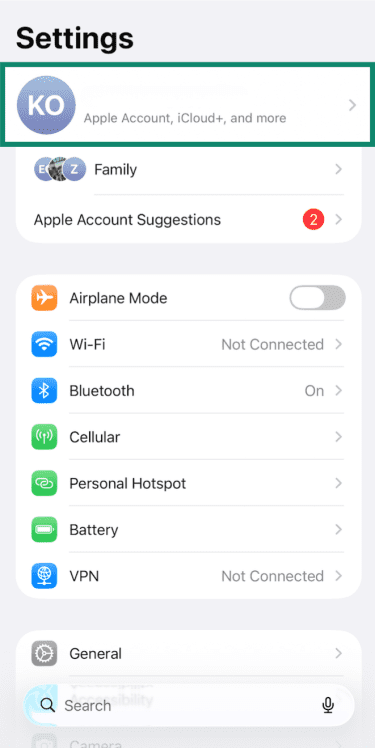
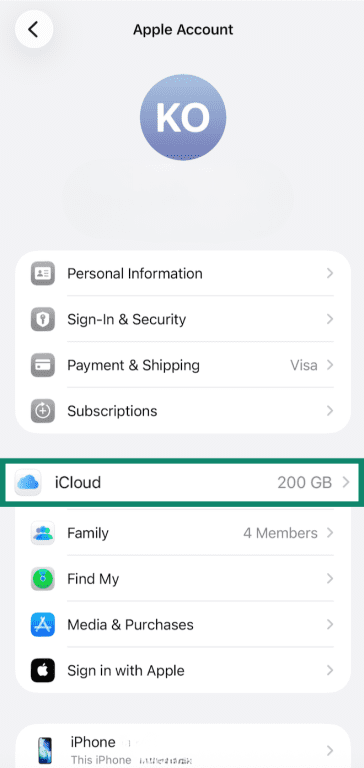
- Open the Settings app and tap on your Apple Account name at the top of the page.
- Tap iCloud.
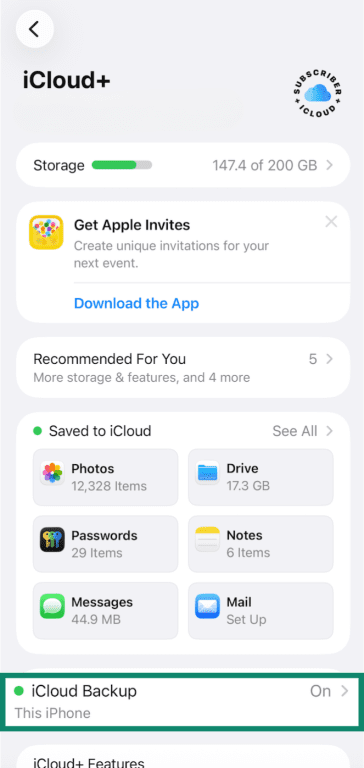
- Select iCloud Backup.
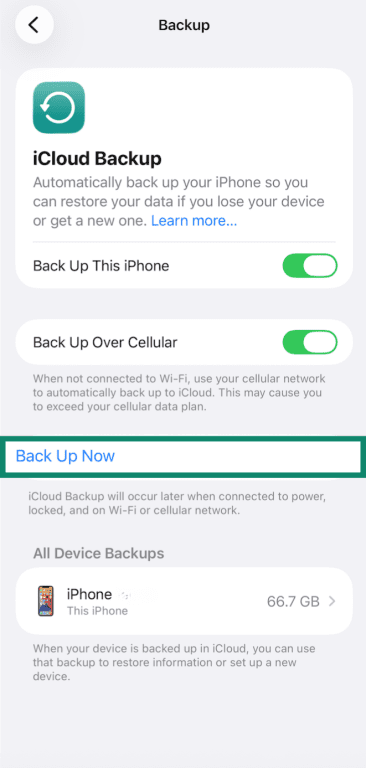
- Tap Back Up Now.
Using Finder (macOS Catalina and above)
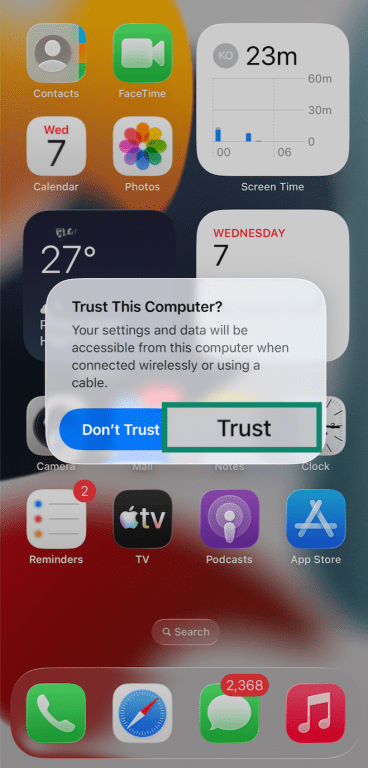
- Connect your iPhone to your Mac using the appropriate USB cable. If it’s the first connection between these devices, your phone will ask you if you trust the computer. Tap Trust.
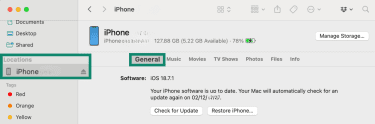
- On your Mac, open Finder and look for your iPhone in the Locations section on the left-hand menu. Click on it and ensure the General tab is open (it should be open by default).
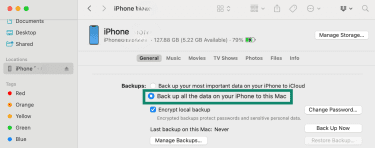
- Select Back up all of the data on your iPhone to this Mac. If you wish to encrypt your backup data and protect it with a password, check the Encrypt local backup option.
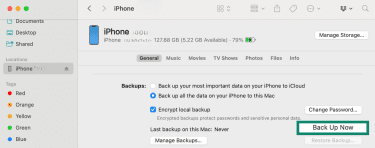
- Click Back Up Now to finish.
Using iTunes (Windows and macOS Mojave and below)
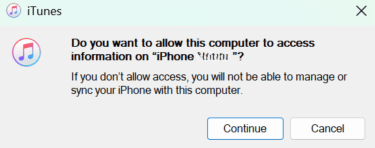
- First, download and install iTunes if it’s not already on your device. Then, connect your iPhone to your computer using the appropriate USB cable. If you’re connecting for the first time, tap Trust on your iPhone. If iTunes asks for permission to access your iPhone information, click Continue.
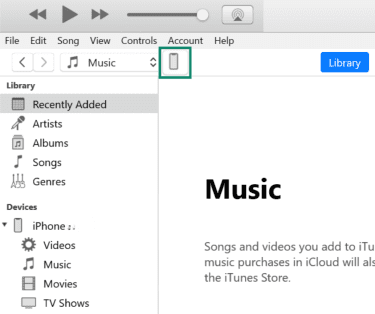
- Open iTunes and click the iPhone icon near the top-left corner.
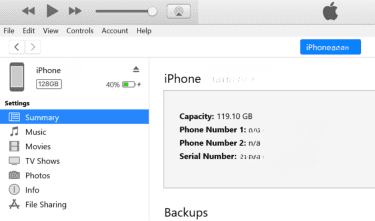
- Click Summary from the left-hand menu.
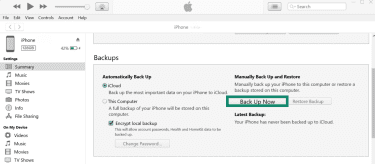
- Scroll down to the Backups section. To encrypt your backup data and protect it with a password, check the Encrypt local backup option. When you’re ready, click Back Up Now to manually back up your iPhone to the computer.
How to factory reset your iPhone
You can reset your iPhone directly from your iPhone’s settings or via a Mac or Windows device. Resetting from settings is the fastest option, but if your iPhone is frozen, won’t unlock, or isn’t responding to touch, you may need to use a computer-based method.
Reset using Settings
This method erases all content and settings on the device and automatically disables Find My and Activation Lock. It’s the easiest option and recommended when your iPhone is fully operational and you have access to its passcode. Here’s how to do it.
- Open Settings and tap General.
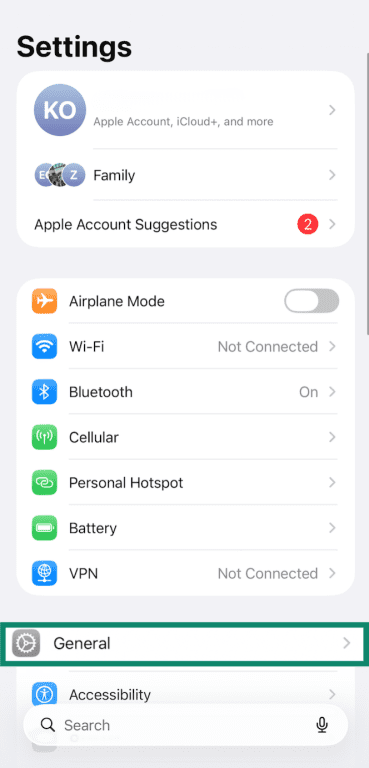
- Scroll all the way down and tap Transfer or Reset iPhone.
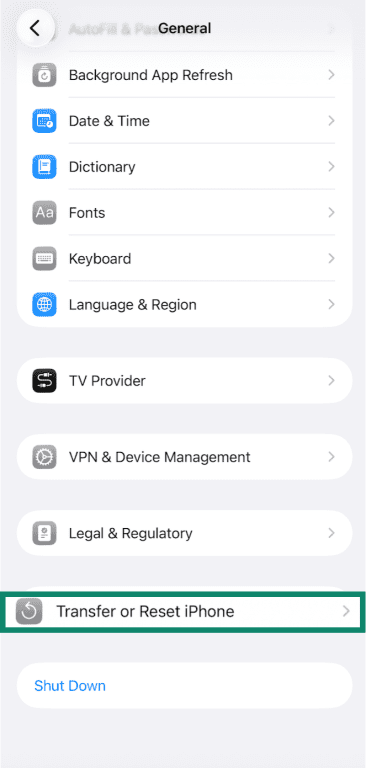
- Tap Erase All Content and Settings.
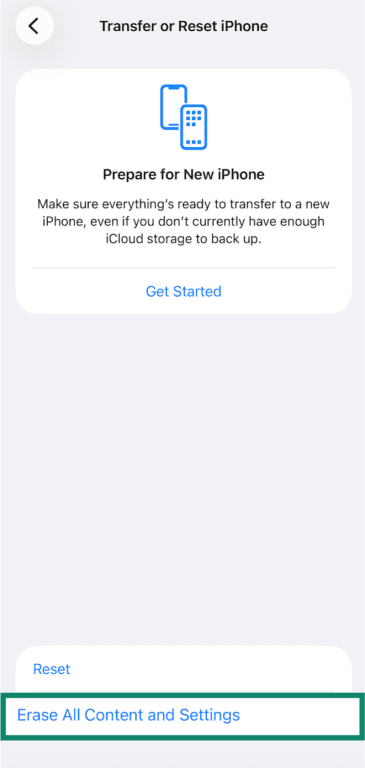
- Tap Continue.
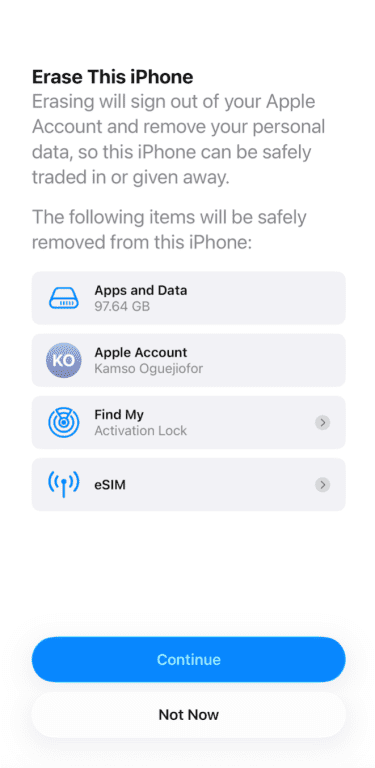
- Confirm that you want to erase the device.
Note: If you have an eSIM, you’ll be asked if you want to keep it. This determines whether your mobile plan will stay with the phone.
Reset using Finder (macOS Catalina and above)
This method restores your iPhone via Finder on macOS Catalina and above. You’ll need to unlock the device and trust the Mac (which requires your passcode), and you’ll also need to disable Find My iPhone before the restore can proceed.
- Connect the iPhone to your Mac using a USB cable. If it’s your first time connecting, your phone will ask if you trust the computer (tap Trust to continue).
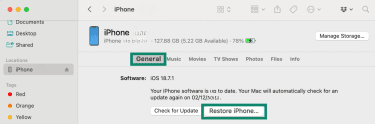
- Open Finder on your Mac, and under Locations, click on your iPhone.
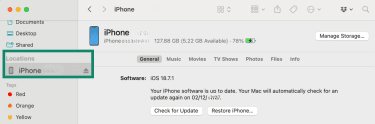
- At the top of the window, click General, then select Restore iPhone…
- The Mac will prompt you to turn off Find My before you can proceed.
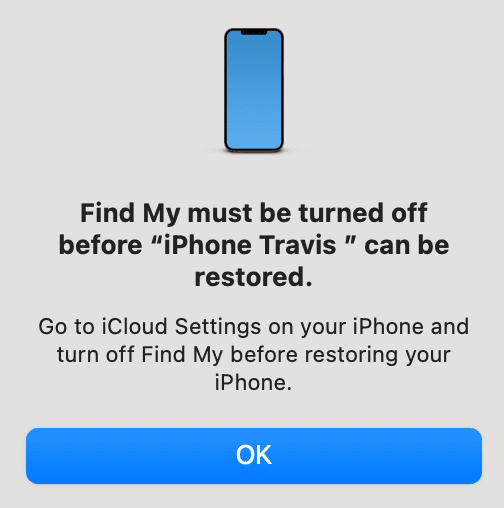
- After turning it off, click Restore iPhone… again.
Reset using iTunes (Windows and macOS Mojave and below)
This method requires you to unlock the iPhone and trust the computer (entering the passcode) and disable Find My iPhone before restoring.
- Connect your iPhone to your computer with the proper USB cable. You’ll be asked if you trust this device if it’s your first time connecting the iPhone (select Trust to proceed).
- Open iTunes. If it asks for permission to access your device, click Continue.
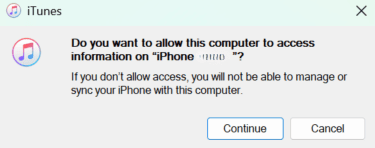
- Click the iPhone icon near the top-left corner.
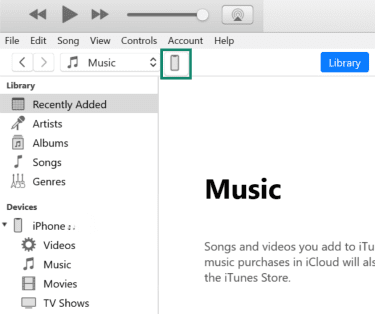
- Click Summary from the left-hand menu and tap Restore iPhone…
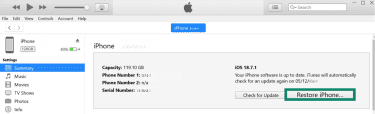
- The computer will prompt you to turn off Find My before you can proceed.
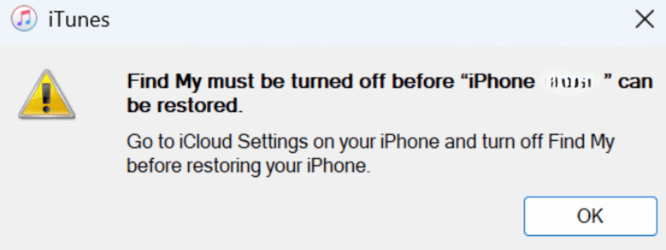
- After turning it off, click Restore iPhone… again.
How to factory reset an iPhone without the passcode
If you’re locked out of your iPhone and don’t know the passcode, factory resetting is still possible. Importantly, these methods won’t disable Find My if it was previously enabled, meaning Activation Lock will remain active after the reset, and you’ll need your Apple Account credentials to reactivate the device. Below are your available options for resetting a locked or unresponsive iPhone.
Using the security lockout screen
This option is only available if your device has an internet connection and the Find My feature is activated.
iOS 17 or later
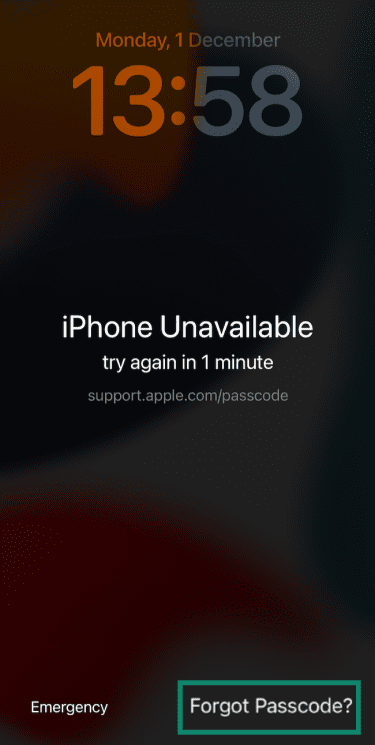
- On your iPhone’s Lock Screen, enter an incorrect passcode repeatedly until you see the iPhone Unavailable screen. Tap Forgot Passcode?
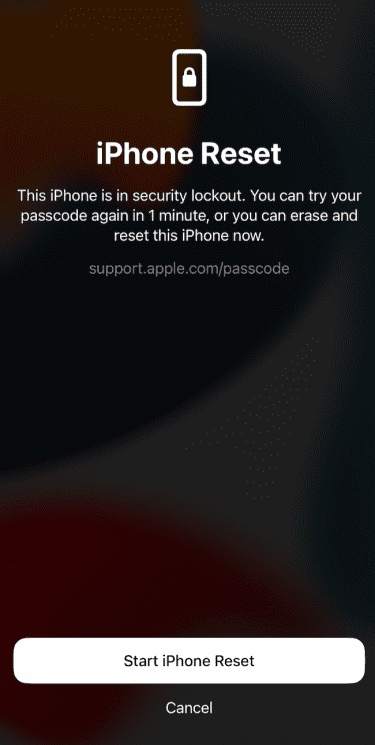
- On the security lockout screen, click Start iPhone Reset.
- Enter your Apple Account password, then hit Enter to sign out and erase your data.

- If you have an eSIM, you’ll be given the option to keep or erase it.
iOS 16 or earlier
- On your iPhone’s Lock Screen, enter an incorrect passcode repeatedly until you see the iPhone Unavailable screen. Click Erase iPhone.
- On the Security Lockout screen, click Start iPhone Reset.
- Enter your Apple Account password to sign out of your account.
- Select Erase iPhone to delete all of your data and settings. If you have an eSIM, you’ll be given the option to keep it. You can also choose to erase it.
Reset using recovery mode
Recovery mode forces your iPhone into a state where it can be restored even if it’s frozen or locked. You don’t need your passcode or Apple Account information to enter recovery mode or start the restore.
- Connect your iPhone to your Mac or PC using a USB cable.
- On a Mac, open the Finder app. With a Windows device, open your iTunes app.
- You can force your iPhone into recovery mode by following these steps:
- iPhone 8 or later: Quick-press the volume up button and release; quick-press the volume down button and release; long-press the side button until you see a connect-to-computer graphic (keep holding even when the Apple logo appears).
- iPhone 7 and iPhone 7 Plus: Press and hold the side and volume down buttons simultaneously. Keep holding them until you see a connect-to-computer graphic (don’t release it, even when the Apple logo appears).
- iPhone 6s or earlier: Press and hold both the home and side buttons simultaneously. Keep holding them until you see a connect-to-computer graphic (keep the buttons pressed when the Apple logo appears).
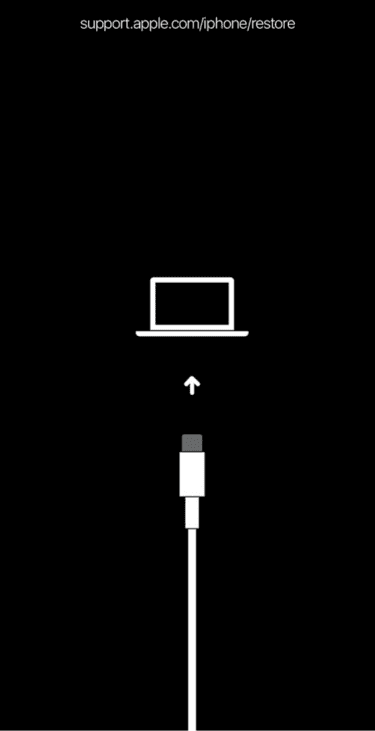
- Once the below graphic appears on your iPhone, recovery mode will activate on your Mac or PC (and you can release your buttons).
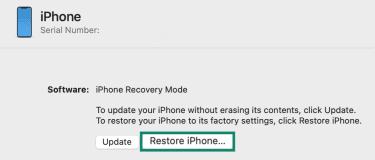
- On your desktop device, click Restore iPhone… to factory reset your device.
Troubleshooting issues during a factory reset
Here are some common problems you may face when resetting and how to fix them.
iPhone isn’t responding or is frozen
If your iPhone freezes or ignores taps when you try to reset, you may want to force a restart. The process is simple:
- Quick-press the volume up button and release.
- Quick-press the volume down button and release.
- Long-press the side button until the Apple logo appears.
If the device is unresponsive, connect it to a computer and put it into recovery mode to attempt a factory reset.
Stuck on the Apple logo or boot loop
If your iPhone is stuck on the Apple logo (or loading bar), you can attempt a forced restart. If that fails, you can try using recovery mode.
iPhone won’t connect to iTunes or iCloud
There are three main reasons your iPhone is unable to connect to iTunes or iCloud:
- Issues with cables, ports, or devices: You can try a different cable, USB port, or another computer.
- Hardware problems: A malfunctioning charging port or internal damage could require physical repair. While iPhones have internal diagnostic tools, they’re not directly available to consumers. So, you may need to visit an Apple Store to have a diagnostic run.
- Network or login malfunctions: If this issue appears after a reset or during an iCloud restore, it may be network or Apple Account related. In that case, reconnect to Wi-Fi, verify your Apple Account credentials, or retry the restore later.
Will a factory reset remove VPN settings?
A full factory reset generally removes all virtual private network (VPN) configurations installed directly on your iPhone. This includes any manual VPN setups or VPN apps you installed yourself.
However, if your iPhone is managed through Mobile Device Management (MDM), the VPN profile may be automatically restored after a reset. This happens because MDM profiles, including VPN configurations, are often reinstalled when the device is re-enrolled during setup or restored from a backup that contains these profiles.
How to manually delete persistent VPN configurations
If a VPN configuration remains after a reset, you might be able to remove it via the iPhone settings. However, administrators can make a profile non-removable. You can take these steps to see if the VPN configuration can be deleted:
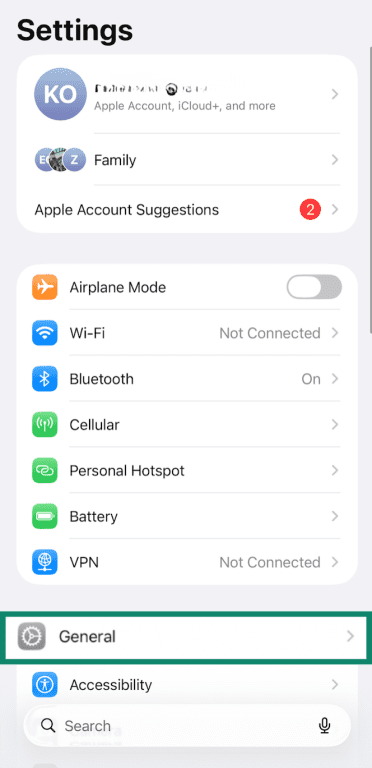
- Open Settings and tap General.
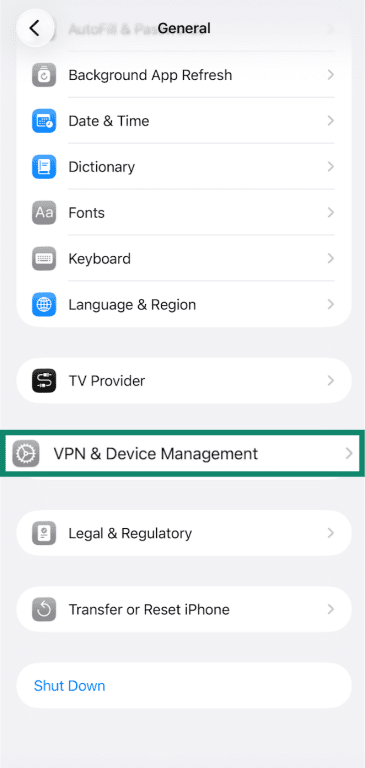
- Click VPN & Device Management.
- Find the VPN profile that you want to remove. Tap it and look for Delete Profile. If your administrators have removed this option, it will be grayed out, or it won’t be there. In that scenario, you’ll need to contact your IT department to resolve the issue.
After the reset: Setting up your iPhone
Once your iPhone reboots, the next step is to complete the setup.
Completing the initial setup
After resetting your iPhone, follow the on-screen prompts: choose your language and region, connect to Wi-Fi, and agree to Apple’s terms.
If you have another iPhone or iPad with a recent iOS version, you can use the “Quick Start” feature. Simply hold the two devices close together, then follow the on-screen prompts to transfer your settings and preferences automatically.
Alternatively, you can set up your iPhone manually, including configuring your Apple ID, Face ID or Touch ID, passcode, and privacy settings.
Restoring data from a backup
If you backed up your iPhone prior to resetting, you can restore your apps, photos, settings, and other data during the setup process.
Important: While restoring from backup is generally safe, there is a small risk that corrupted or problematic files may be reintroduced, potentially bringing back issues you hoped to resolve by resetting. If you suspect your backup may contain corrupted data, consider setting up the device as new instead.
From iCloud
- On the Transfer Your Apps & Data screen that appears during setup, choose From iCloud Backup.
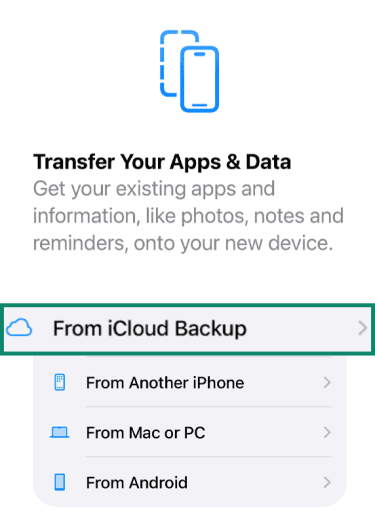
- Sign in with your Apple Account credentials, pick the backup file you want, and follow the on-screen prompts.
From Finder (Mac)
- Connect the iPhone to your Mac using a USB cable. Open the Finder app on the Mac and click the iPhone symbol in the Locations section on the left-hand menu.
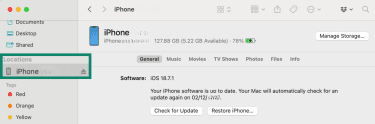
- In the General tab, scroll to Backups and select Restore Backup…
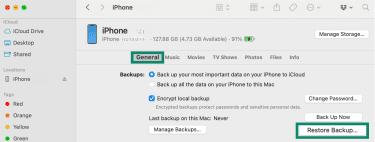
- If the backup is encrypted, enter the password you set when creating it. Your phone should now restart. Keep the phone connected to the computer while it syncs. The phone will indicate when the sync is complete, and you can disconnect.
From iTunes
- Connect the iPhone to your computer using the relevant USB cable.
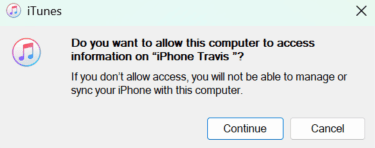
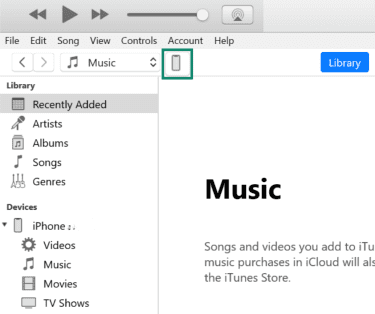
- Open your iTunes app and click the iPhone icon near the top-left corner.
- Click Summary from the left-hand menu and click the Restore Backup button.
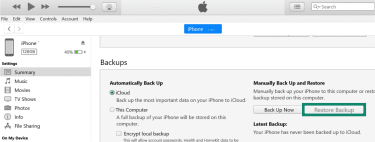
- If the backup is encrypted, enter the password you set when creating it. When your iPhone restarts, you’ll want to keep it connected to the computer for a proper sync. The phone will indicate when the sync is complete.
FAQ: Common questions about how to factory reset an iPhone
How do I reset an iPhone that is locked?
You can reset a locked iPhone via the security lockout screen or by putting it into recovery mode and restoring it with a Mac (Finder) or a Windows PC (iTunes). However, these options won’t disable Find My if it was previously activated, meaning that you’ll need to enter your Apple Account credentials to reactivate the device.
Will a factory reset remove iCloud or Apple ID?
Yes, a full factory reset using the “Erase All Content and Settings” feature removes your iCloud and Apple Account information from the device. The process also disables Find My and Activation Lock, allowing the device to be set up without requiring your Apple credentials afterward.
Can I recover photos after a factory reset?
Only if you previously backed up your photos with iCloud or on a computer. In those cases, you can restore the backup and retrieve your photos after the factory reset.
Does a factory reset delete VPN settings?
Yes. A factory reset deletes most VPN settings created directly in iOS. The only exception is if you have an iPhone with a Mobile Device Management (MDM) profile, which is typically issued by schools, businesses, police departments, etc. VPN settings that are a part of the organization’s configuration profiles may be restored after a reset.
You can attempt to delete the VPN profile, but the administrators have the ability to remove this option. In that case, you’ll need to contact your IT department to resolve the issue.
What’s the difference between a soft reset and a factory reset?
A soft reset simply restarts your iPhone and keeps all apps, photos, and settings intact. A factory reset erases all data and returns the device to its original system settings.
How do I factory reset my iPhone using buttons?
You can’t factory reset an iPhone using only its physical buttons. Buttons can only trigger a forced restart (reboot) when your phone is unresponsive. To perform a forced restart, press and quickly release volume up, then volume down, then press and hold the side button until the Apple logo appears.
Why is my Apple Account still linked to my iPhone after a factory reset?
This scenario can happen if you used a reset method, such as recovery mode, that doesn’t automatically sign you out of your Apple Account. In these cases, Activation Lock stays enabled as a security measure, requiring your device passcode or Apple Account email and password to reactivate the device. This prevents unauthorized access in case the device is lost or stolen. To avoid this, always erase your iPhone through Erase All Content and Settings, which disables Find My iPhone and removes your Apple Account from the device.
Take the first step to protect yourself online. Try ExpressVPN risk-free.
Get ExpressVPN