How to factory reset a PS5 and fix common issues



Performing a factory reset on your PlayStation 5 (PS5) may sometimes help resolve some software glitches, and it’s also recommended before you trade or sell the console. However, it’s important to understand what a factory reset involves before you start. Otherwise, it could lead to permanent data loss.
This guide explains what happens during a PS5 factory reset and what it doesn’t do, shows how to back up important data, and provides step-by-step instructions for completing the reset.
Before you factory reset your PS5
Resetting your PS5 deletes user accounts, game data, and personalized settings. This process is permanent and you can’t restore the data unless you back it up first.
At the same time, a factory reset doesn’t disable console sharing or fully disconnect it from your PlayStation Network (PSN) account. If you’re selling or giving it away, you’ll have to first deactivate it so it’s no longer tied to your account, then sign out to keep your games and purchases secure.
Note: Resetting your PS5 to factory settings and restoring default settings isn’t the same. Restoring default settings only returns the console’s visual and audio configuration to its original state and doesn’t affect user accounts or game data.
Back up your PS5 data
You can back up important data using PlayStation Plus cloud storage or removable media, such as a USB drive.
Back up with PlayStation Plus cloud
Backing up with PlayStation Plus cloud preserves your game progress before a reset. A PlayStation Plus subscription allows you to back up to 100GB of PS5 saved data to cloud storage. Here’s how to do this:
- Select the Settings option on the home screen.
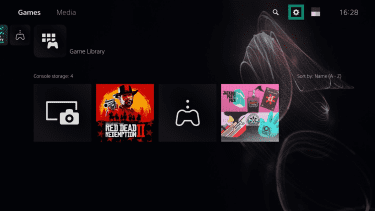
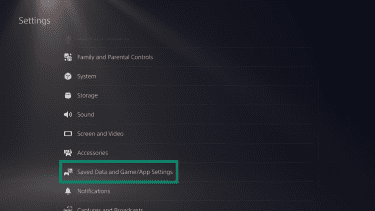
- Scroll down and choose Saved Data and Game/App Settings.
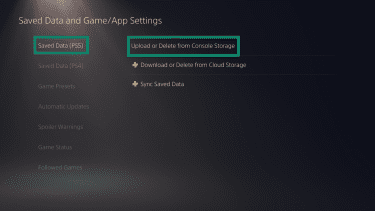
- Access the Saved Data (PS5) tab and select the Upload or Delete from Console Storage option.
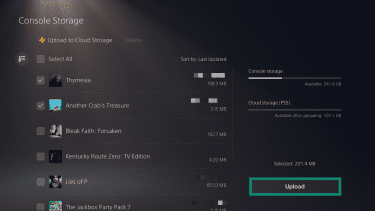
- Choose the desired game from the list and select the Upload button. To save data from all installed games, pick the Select All option.
Important: Cloud storage only backs up saved game data. It doesn’t save screenshots and video clips.
Back up to removable media
Moving your PS5 data to removable media creates a backup of your game save files, screenshots, video clips, and system settings. It’s ideal if you want a more complete backup or plan to restore everything later on the same or another PS5.
After you insert the removal media into your console, follow these steps:
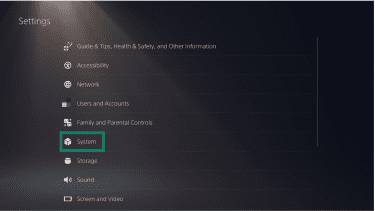
- Open the Settings menu, then select System.
- From the System Software tab, scroll over to the right and choose the Back Up and Restore option.
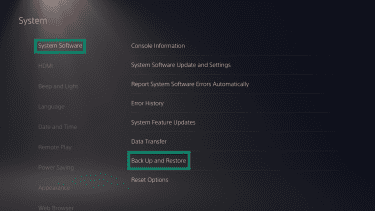
- Now, choose Back Up Your PS5.

- Wait until your data is ready for transfer, then pick the items you want to back up and select Next.
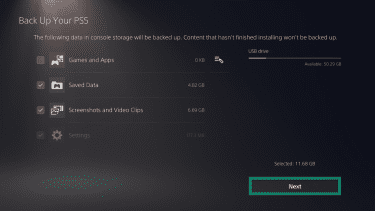
- Select Back Up to restart the console and begin the backup. Don’t turn off the console or remove the USB drive during the backup process, as this can cause data loss or corruption.
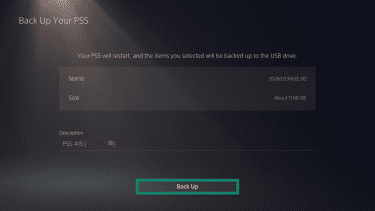
- When the backup is finished, you’ll see a screen saying the process is complete and that your console will restart. Select OK to finish.
Manually sync trophies
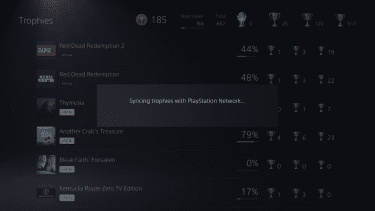
A manual sync ensures your trophy progress is safely stored on your PSN account. You’ll want to do this regardless of whether you opt for a PlayStation Plus cloud storage or removable media backup, as neither will save your trophy progress. Here’s how to do it:
- On your home screen, select your profile picture and choose Trophies.
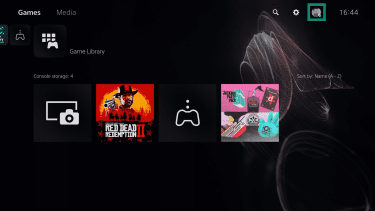
- After that, press the Options button on your controller and choose the Sync with PlayStation Network option.
Disable Console Sharing and Offline Play
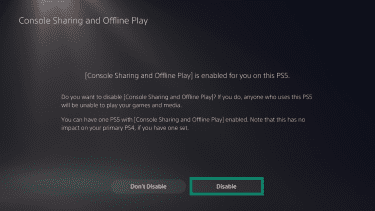
This step is necessary if you’re planning to sell, trade, or give it away. Disabling Console Sharing and Offline Play removes the console as your primary system, so it’s no longer linked to your account for game sharing and license access. If you skip this step, the console may still appear as your primary device, which can affect your ability to activate another PS5 later.
Follow these steps to deactivate it:
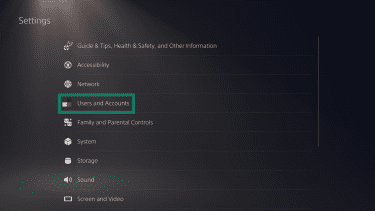
- Access Settings, then open Users and Accounts.
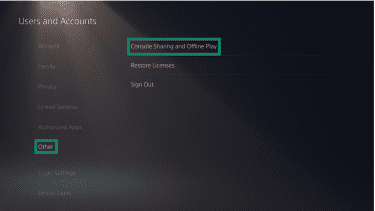
- After that, select the Other tab, then the Console Sharing and Offline Play option.
- Finally, select the Disable option.
Remove accounts and sign out
Just like deactivating your console, you mainly want to sign out of your account and remove it from your PS5 before a reset if you’re selling, trading, or giving away the console. This ensures the next owner can set up the console without issues and prevents anyone from accessing your PSN account.
To sign out and delete your user account on the console, do the following:
- Head to Settings > Users and Accounts > Other and select Sign Out.
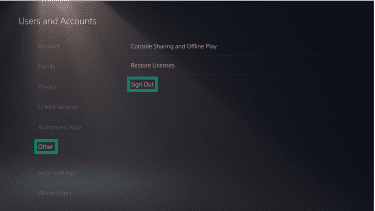
- Next, head back to Users and Accounts, scroll down to Delete Users, and pick the user profile to remove.
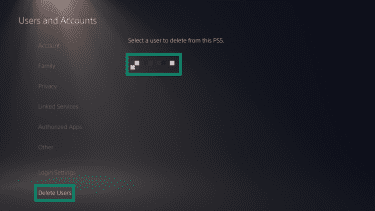
- Select the account and confirm the removal by selecting Yes.
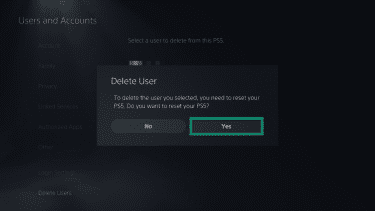
How to factory reset PS5 from settings
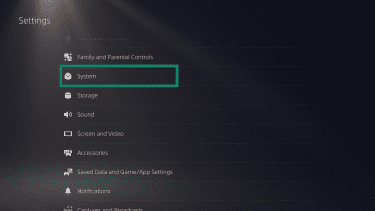
- Head to Settings from the home screen.
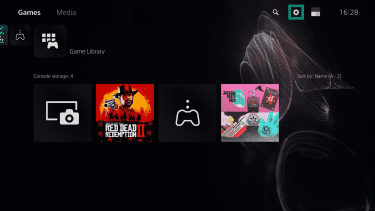
- Select System in the Settings menu.
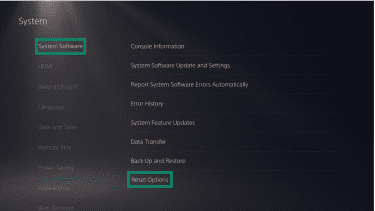
- Go to the System Software tab and select Reset Options.
- Choose the Reset Your Console option.
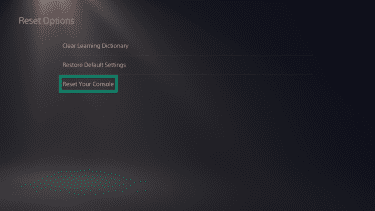
Note: Clear Learning Dictionary erases all the terms you entered on your PS5, but doesn’t affect any other console data. Doing this isn’t necessary to perform a factory reset.
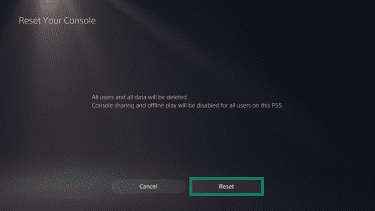
- Select the Reset button, then wait for your console to finish the factory reset.
Factory reset PS5 in Safe Mode
PS5 consoles include a feature called Safe Mode, which lets you start the system with only essential functions enabled. You would typically use Safe Mode to perform a factory reset if software issues disrupt normal operation or prevent a standard reset. Here’s how to do it:
- To start, press and hold the PS5 power button for three seconds to turn off the console. The power indicator will blink briefly before the system shuts down.
- After the console shuts down, press and hold the power button again until you hear a second beep. The first beep sounds when you press the button, and the second follows after about seven seconds.
- Now, connect your controller to the console using its USB cable. Wireless connections aren’t available in Safe Mode, so Bluetooth connections don’t work.
- Next, press the PS button on the controller to bring up the Safe Mode menu.
- From the Safe Mode menu, choose one of the reset options:
- Reset PS5: Deletes all user accounts, saved data, installed games, and settings, then restores the console to its factory state. This is the option most people should choose when selling or giving away the system.
- Reset PS5 (Reinstall System Software): Deletes all data and reinstalls the system software. Pick this option if the system software is corrupted or the console isn’t working properly.
After the factory reset
After the factory reset is complete, you’ll need to set up your PS5 again from scratch. This usually includes starting the console, connecting the controller, choosing a language, and adjusting display settings. Follow the on-screen instructions to finish the setup.
Once the PS5 is set up and connected to the internet, you may need to install the latest updates and sign into your PSN account. After that, you can redownload previously installed apps and restore your data from the cloud or from removable media.
Restoring console data from the cloud
To download saved game data using PlayStation Plus, follow these steps:
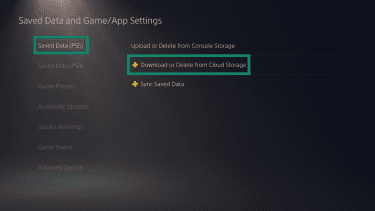
- Go to Settings > Saved Data and Game/App Settings > Saved Data (PS5) and select Download or Delete from Cloud Storage.
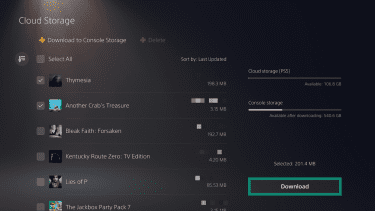
- Choose which saved data you want to restore or check the Select All option, then select Download.
Restoring console data from removable media
Insert the USB drive with your backed-up data into the PS5, then follow these steps:
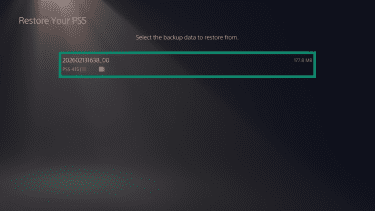
- Head to Settings > System > System Software > Back Up and Restore and select Restore Your PS5.

- Select the data you want to restore.
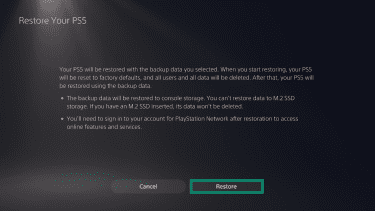
- Select Restore and confirm the decision if asked to. The console will restart and begin the restore process. When it finishes, the PS5 will restart again.
Note: When restoring your PS5 from a backup, make sure your system software version matches or is newer than the version used to create the backup.
Problems a PS5 factory reset won’t fix
A factory reset can help resolve some software or disc-reading issues, but it usually won’t fix hardware or network errors or repair damaged discs. The sections below explain why.
Hardware and overheating problems
A factory reset usually won’t fix PS5 overheating issues. Overheating is often caused by dust buildup, so the better option if you’re dealing with this type of problem is to turn off and unplug the console, then clean the area around the console and use a soft cloth and compressed air to clear dust from the vents.
A reset also won’t resolve hardware damage, such as a faulty solid-state drive (SSD), malfunctioning processor, or damaged ports. In these cases, you need to contact customer support for further assistance.
Internet and PSN outages
Performing a factory reset doesn’t fix online service disruptions or network instability. If your internet is down, it could be due to many reasons, including issues with your internet service provider (ISP), router, or cables. And if there’s a PSN outage, the only solution is to wait until the service is restored, since you have no control over this.
Damaged discs
As a last resort, a factory reset may help with disc-reading issues. However, if the disc doesn’t work after cleaning it with a lint-free cleaning cloth, it may simply be too damaged. In this case, you would need to get a replacement.
FAQ: Common questions about resetting your PS5
How long does a factory reset take?
The time it takes to factory reset a PS5 depends on how much user and saved game data the system needs to erase. The more data stored on the console, the longer the process will take.
Will a factory reset delete my PSN account?
No, a PS5 factory reset won’t delete your PlayStation Network (PSN) account. Your account is managed through PSN, while a factory reset only removes data stored on the console. However, if you plan to sell, trade, or give away your PS5, remove your PSN account from the console before performing the reset.
Will factory reset delete my games?
Yes, a PS5 factory reset removes all data stored on the console, including installed games and saved game data. That’s why you should back up your game data before performing a factory reset.
Is reset different from rebuild database?
Yes, as a PS5 factory reset removes all data stored on the console, including user accounts, saved games, videos, and screenshots, and you can access it from the standard settings menu. However, the option to rebuild the database is available only in Safe Mode. It scans the drive and creates a new database of all content, usually without affecting user accounts or game data.
What if my PS5 won’t boot?
If your PS5 has boot issues, try starting it in Safe Mode. This mode loads only essential functions and may help resolve startup problems. Once the console opens in Safe Mode, you can perform a factory reset by selecting Reset PS5 (Reinstall System Software) on the main screen. Just note that this option requires you to reinstall the system software from a USB drive using the official PlayStation reinstallation file.
Take the first step to protect yourself online. Try ExpressVPN risk-free.
Get ExpressVPN