Remove Search Baron from Mac: Simple step-by-step cleanup



Search Baron is a type of grayware that can change your browser settings and redirect your searches. It doesn’t typically damage your Mac, but it can be annoying and may affect your browsing experience and privacy.
In this guide, you’ll learn how it works and how to remove it from Chrome, Safari, and Firefox. We’ll also cover how to reset your browser, check for leftover files or settings, and reduce the chances of similar programs being installed again.
What is Search Baron?
Search Baron is a browser hijacker that primarily targets Mac devices. It interferes with normal browser behavior by intercepting the search requests you make and redirecting them through domains associated with the hijacker.
Search Baron typically reaches Mac systems through freeware downloads that include the hijacker as part of an application or browser extension.
Understanding browser hijackers
Browser hijackers are programs that modify browser settings to control how web searches and pages are handled. Typical behavior may include changes to: the default homepage, new tab page, or search engine to display ads, redirect traffic, or collect browsing data.
Because they typically don’t damage the operating system or exploit system vulnerabilities, browser hijackers are usually classified as grayware. However, their ability to alter browser behavior and track user activity still makes them intrusive.
How Search Baron affects your browser
Once Search Baron is installed, it changes certain browser settings, which results in searches being redirected through intermediary pages.
Normally, when you type a search into your browser’s address bar, the request is sent to your chosen search engine. With Search Baron installed, the query is routed through a domain associated with the hijacker.
This often involves setting its own website as the browser’s homepage or default search provider. The redirect chain routes queries through intermediary domains before sending them to a search engine like Bing. Along the way, queries can be used for traffic routing, advertising, or analytics, and sponsored results may be introduced before the final page loads.
To maintain these changes, the program may add browser extensions or modify browser settings, which can make it harder to restore the original configuration.
On Chrome, these changes can also trigger a “Managed by your organization” message, which limits the ability to modify certain browser settings.
Risks associated with Search Baron
Although Search Baron may initially appear to be a minor browser annoyance, it can introduce several privacy and browsing risks, including:
- Browsing data tracking: Because search queries pass through domains controlled by the hijacker, the operators may collect information such as search terms, visited websites, IP addresses, and other browsing-related data.
- Misleading advertising: The hijacker may prioritize sponsored links or route users through advertising networks, exposing them to aggressive ads or promotions for questionable software and services.
- Reduced browsing performance: The extra redirect steps inserted into search requests can slow down page loading and make searches feel less responsive.
- Exposure to unsafe websites: Redirect chains can lead users to phishing sites or other malicious pages designed to steal information, distribute unwanted software, or promote scams.
Signs your browser is affected
Common signs of Search Baron include:
- Unexpected search redirects: Searches entered in the browser’s address bar briefly pass through unfamiliar domains before displaying results.
- Changed browser settings: The default search engine, homepage, or new tab page has changed without user approval.
- Unfamiliar extensions: Unknown browser extensions or applications appear that weren’t intentionally installed.
- Frequent advertisements: There’s an increase in pop-ups, sponsored results, or intrusive ads appearing on previously ad-free pages.
- Slower browsing performance: Pages take longer to load due to additional redirect steps.
- “Managed by your organization” notice in Chrome: Chrome may display a message stating that the browser is managed by an organization, even on a personal profile.
How to remove Search Baron on Mac
Removing Search Baron involves identifying and deleting the extensions or browser components responsible for the redirects. Because browser hijackers may change multiple preferences at once, it’s important to review extensions, installed apps, login items, and browser settings.
Remove suspicious extensions
The first step in removing Search Baron is to identify and delete unfamiliar or suspicious extensions. If you see a “SearchBaron” extension or anything you don’t recognize, remove it.
Removing Search Baron from Chrome
- Launch Chrome and click the three-dot button (⋮) in the top-right corner.

- Pick Extensions, then click on Manage Extensions.
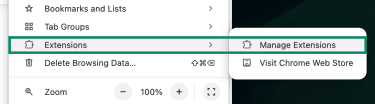
- A new tab will open, listing the extensions added to Chrome. Look through the list and delete anything you don’t recognize or that’s related to Search Baron, “Search Marquis,” “SafeFinder,” or generic names like “New Tab Search.” Click Remove.
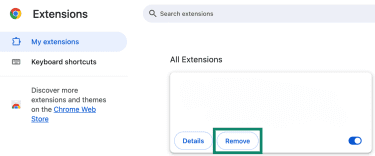
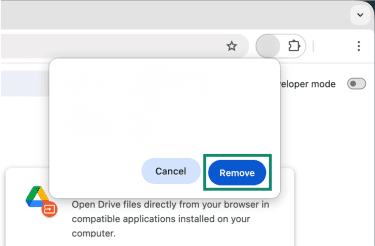
- A pop-up will appear asking you to confirm your decision; click Remove again.
Removing Search Baron from Safari
- Open Safari and click Safari in the menu bar, then pick Settings (or Preferences, if you have an older macOS version).
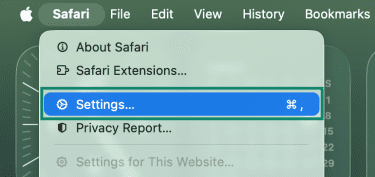
- Go to the Extensions tab to see the currently installed extensions.
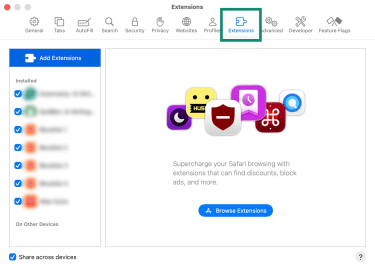
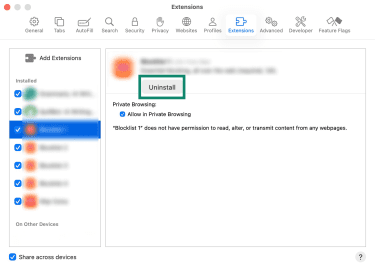
- Check any add-ons you didn’t install, or look suspicious, and click Uninstall. You might need to authenticate with your macOS password.
Removing Search Baron from Firefox
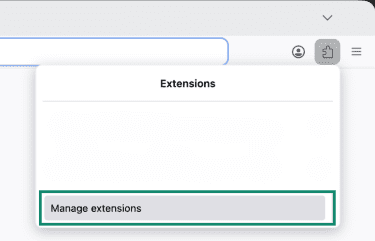
- Launch Firefox and click the Extensions button (top-right corner). Then, pick Manage extensions.
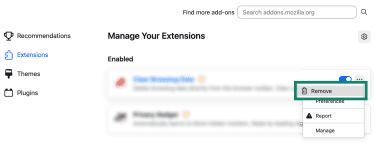
- Under Enabled, you’ll see the extensions currently installed. Look for extensions that you don’t remember installing. Then, click the three-dot button and click Remove.
Remove unwanted apps on Mac
Search Baron may arrive bundled with macOS applications that install browser components or extensions. Removing these apps helps prevent the hijacker from reinstalling itself after the browser extension is deleted.
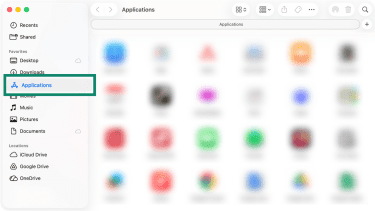
- Launch Finder and click Applications in the sidebar.
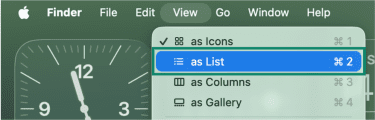
- To identify recently added apps, choose View in the menu bar and pick as List.
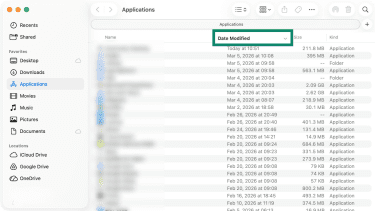
- Click the Date Modified column to sort by date. Look for unfamiliar programs installed around the time the hijacking began. If you see software you don’t recognize (for example, “Spaces,” “Search Utility,” “MyComputer,” or other generic names), drag it to the Trash.
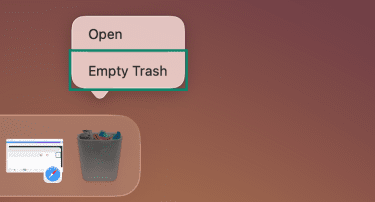
- Right-click the Trash icon and select Empty Trash. Enter your password if prompted. This removes the application.
Check login items and background activity
macOS allows applications to start automatically when a user logs in. Search Baron sometimes uses this mechanism to add suspicious startup entries or background helper apps that run at login and may trigger browser redirects. Reviewing and removing unknown login items can help prevent the hijacker from continuing to affect the browser.
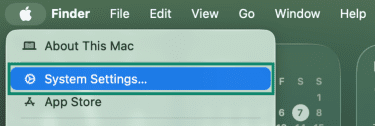
- Click the Apple menu and select System Settings (macOS Ventura and later) or System Preferences (earlier macOS versions).
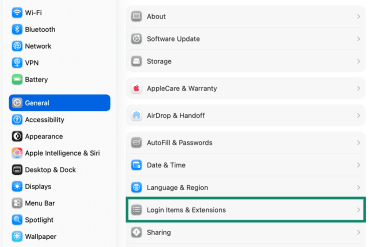
- Select General and then click Login Items & Extensions. This page shows applications and helper tools that start automatically when logging in.
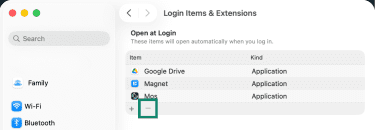
- Under Open at Login, review the list of apps that launch at startup. Select any suspicious entries (for example, “LaunchAgent,” “Search Extension,” “Spaces,” or other unfamiliar names) and click the – (minus) button to remove them.
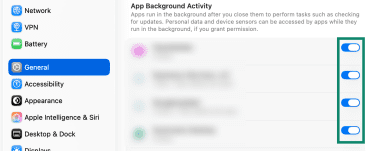
- Next, scroll down to the Allow in the Background section (sometimes labeled App Background Activity) that lists helper processes that run automatically in the background. Disable any unfamiliar entries by toggling the switch off.
- Reboot the system to apply the changes.
Remove leftover Search Baron files from macOS
In some cases, hijackers also place files in other directories. Here’s how to get remove related files:
- Click Go in the menu bar, then select Go to Folder.
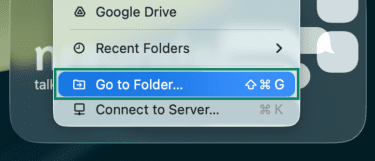
- Then, copy and paste the following paths one by one: ~/Library/LaunchAgents, /Library/LaunchAgents, /Library/LaunchDaemons, ~/Library/Application Support, and ~/Library/Application Support/Google/Chrome.
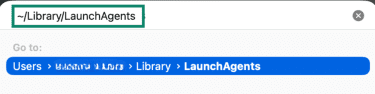
- Open each path and delete any files or folders that clearly match names such as “searchbaron,” “searchmarquis,” “safefinder,” or other suspicious keywords.
- After deleting suspicious applications and hidden files, restart your Mac to terminate any related processes.
Reset browser settings to default
If Search Baron has modified browser settings, removing extensions alone may not fully restore the original configuration. Resetting the browser to its default settings helps remove altered preferences and restore normal behavior.
Note: In Chrome, resetting the browser disables installed extensions and clears temporary data such as cookies and cached files. However, saved items like bookmarks, browsing history, and passwords remain intact.
The steps below demonstrate the process in Chrome. Other browsers, such as Safari or Firefox, follow similar steps, although the exact menu options may vary.
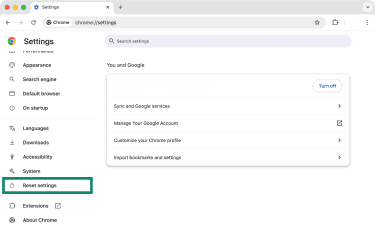
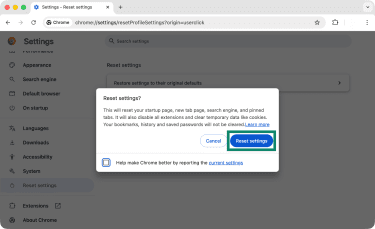
- Go to Settings and select Reset settings in the left-placed sidebar.
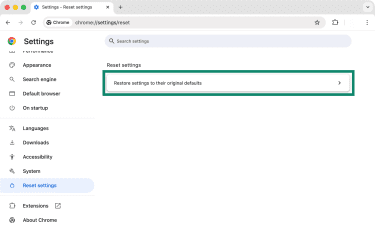
- Select Restore settings to their original defaults.
- Decide whether you’d like to send your current settings to Google (uncheck the tickbox below if you don’t wish to). Confirm your decision by clicking Reset settings.
Restore the default search engine
A browser reset usually restores the default search provider. However, unwanted search engines added by Search Baron may still remain in the browser’s list of search providers. Removing them helps prevent the browser from switching back to the unwanted search engine. Here’s how to do it in Chrome:
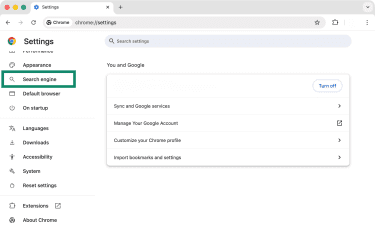
- In Chrome’s Settings, click Search engine on the left.
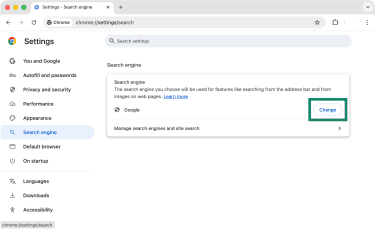
- Click Change.
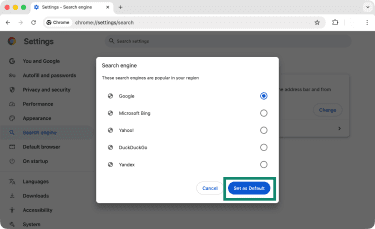
- Pick a new default search engine, then click Set as Default.
- Next, click on Manage search engines and site search.
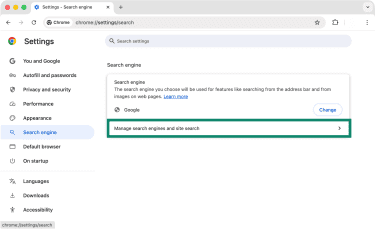
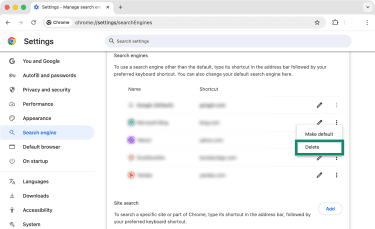
- Scroll down to Search engines and remove any mentions such as searchbaron.com, searchmarquis.com, or any other suspicious entry. You can remove entries by clicking the three-dot icon and choosing Delete.
Restoring the homepage and new tab settings
Resetting the browser normally restores the homepage and startup settings. However, it’s still worth verifying that no unfamiliar URLs remain configured, especially if Search Baron added additional startup pages:
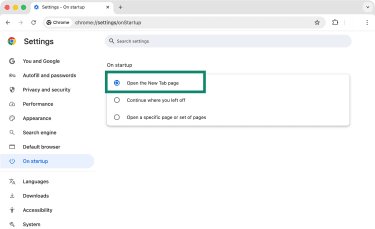
- Go to Chrome’s Settings and pick On startup.
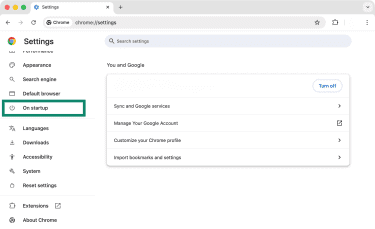
- If the option “Open a specific page or set of pages” is selected, click the three-dot menu next to any unfamiliar URL (like searchbaron.com) and choose Remove.
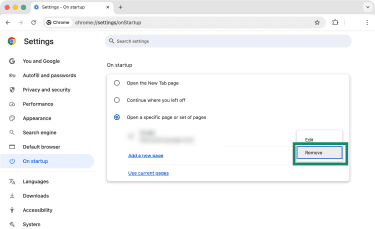
- You can now set a new page or use the Open the New Tab page option, which you can customize further.
Clear site data and cache
Clearing stored browser data removes cached files and cookies that may be linked to unwanted Search Baron redirects. Here’s how to do it:
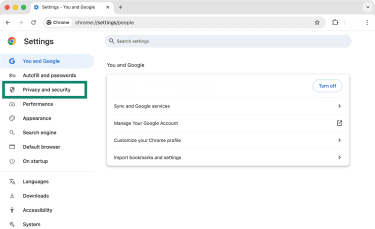
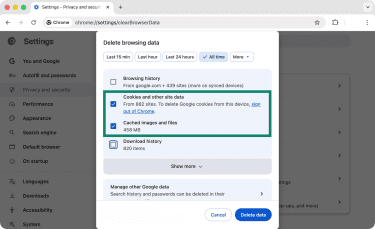
- In Chrome Settings, navigate to Privacy and Security.
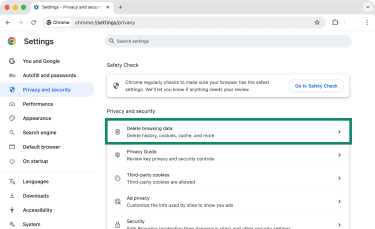
- Pick Delete browsing data.
- Select More and pick All Time to remove everything at once.
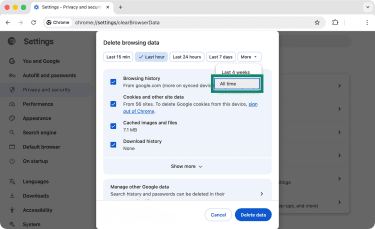
- Check the options for Cookies and other site data, as well as Cached images and files.
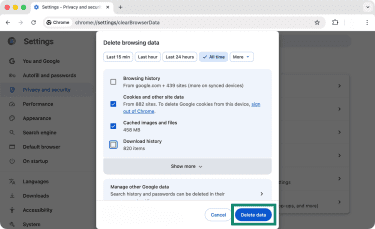
- Click Delete data.
If Search Baron keeps coming back
If Search Baron reappears after removal, it may mean that some system or browser settings are still be enforcing the redirects. This typically happens because of browser policies, configuration profiles, or synchronized settings that restore the unwanted changes. Here’s how to troubleshoot each:
Check for “managed” browser settings in Chrome (policies)
Some Search Baron versions attempt to enforce browser settings through Chrome Enterprise policies. When policies are active, they can lock certain settings, such as the default search engine, homepage, or installed extensions, which may cause unwanted changes to reappear after removal.
If that’s the case, Chrome may display a “Managed by your organization” message in the browser menu even on a personal device. To check and remove:
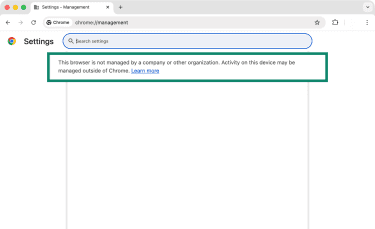
- Open Chrome and type in chrome://management in the Address bar. You’ll want to see the following message: This browser is not managed by a company or other organization. Even if you see this message, keep going to double-check everything.
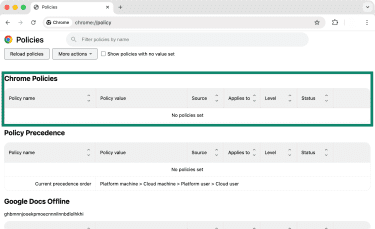
- Type chrome://policy into the address bar to see which policies are applied. Look for entries like “SearchProviderDefaultSearchProviderName,” “HomepageLocation,” or any that mention “searchbaron” or “searchmarquis.” If you find them, this indicates that policies are set and may need to be removed from the system or configuration files.
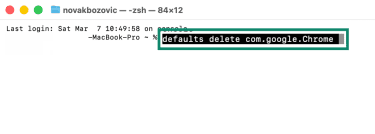
- You may also need to delete hidden files that store Chrome policies. In a Terminal window (click Command + Space and type in Terminal to open it), run the following command: defaults delete com.google.Chrome.
Remove suspicious configuration profiles
macOS configuration profiles can enforce system or browser settings at the operating-system level. While they are normally used by organizations to manage company devices, unwanted software can also install profiles to control browser behavior.
In the context of Search Baron, this can happen when the hijacker is bundled with other adware that installs a profile forcing specific browser settings. As long as the profile remains installed, the browser may continue reverting to those settings. To check and remove any:
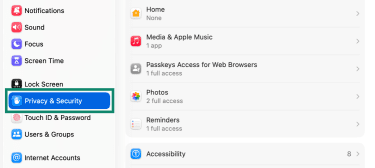
- In System Settings on Mac, go to Privacy & Security. If the Profiles section appears, open it and review installed profiles. If you see an unfamiliar profile, select it and click the – (minus) button.
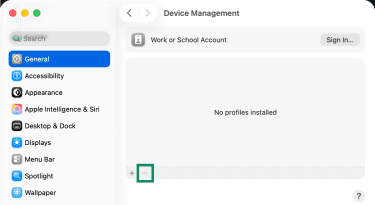
- Next, go to General, then select Device Management. If a management profile appears and the device is not part of a workplace or school network, review it carefully and remove it by clicking the – (minus) button.
Check account sync and cloud settings
If browser synchronization is enabled, Search Baron–related extensions or settings can sometimes be restored from the cloud after they are removed locally. Temporarily disabling sync and clearing stored data helps ensure those settings are not reapplied.
The steps below use Chrome as an example. Other browsers like Safari and Firefox also come with sync features that store settings in a similar way, although the exact menu options may differ.
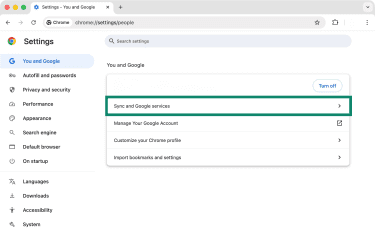
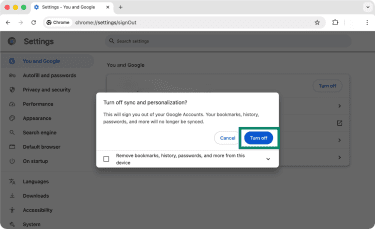
- Open Chrome and go to Settings > You and Google. Then, click on Sync and Google services.
- Next to your profile picture, click Turn Off.
- Visit Google’s sync dashboard in a browser where you’re signed in. Click Delete data to erase synced settings, including extensions and preferences.
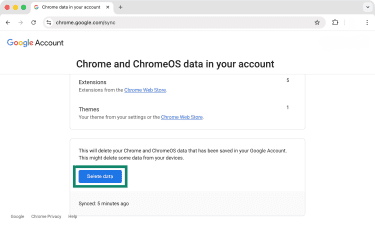
After disabling sync and resetting the server data, restart Chrome. You can then re-enable sync if needed, but only after verifying that the hijacker is gone.
How to avoid browser hijackers
After removing Search Baron, taking a few precautions can help prevent the hijacker from being reinstalled.
- Avoid installing software from unverified sources: Search Baron often spreads through bundled freeware that can include adware or third-party installers that include additional browser extensions or apps.
- Use custom installation options: When installing new software, choose Custom or Advanced setup to review optional components and deselect anything unfamiliar.
- Be cautious with browser extensions: Only install extensions from trusted developers and regularly review installed add-ons to remove anything suspicious.
- Download apps from trusted sources: Prefer the Mac App Store or official developer websites instead of download portals that may bundle unwanted software.
- Keep macOS and browsers updated: Security updates can fix vulnerabilities.
FAQ: Common questions about how to remove Search Baron
How do I remove Search Baron from Chrome on Mac?
Why is my Chrome search redirected to Bing or another engine?
How do I remove unwanted search engines from Chrome?
What does “Managed by your organization” mean in Chrome?
What are the signs of a browser hijacker?
How can I prevent browser hijackers in the future?
Take the first step to protect yourself online. Try ExpressVPN risk-free.
Get ExpressVPN