Unsubscribe from emails easily: A complete how-to guide


It’s easy for an email inbox to start filling up faster than you can manage it: store promotions, newsletters, account updates, and sometimes subscriptions you don’t even remember making. At some point, it’s a good idea to take a look and start unsubscribing from messages you don’t want.
In this article, we explain how to unsubscribe from emails safely and simply on Gmail, Outlook, Yahoo, and Apple Mail. We also discuss how to handle spam and what to do when messages don’t stop after you opt out.
Quick ways to unsubscribe
You don’t need advanced tools or technical knowledge to unsubscribe from emails safely. The process is usually straightforward, so long as you avoid suspicious links.
Use the unsubscribe link (only for legit emails)
If you’ve confirmed that the email is from a company you recognize and trust, the “unsubscribe” link in the footer is often the easiest option.
Legitimate companies are legally required in many regions (including the U.S., EU, and Canada) to provide a clear way to opt out of marketing emails.
To find the option:
- Open the email.
- Scroll to the bottom of the message.
- Look for a link that says “Unsubscribe,” “Manage preferences,” or “Opt out.”
In many cases, clicking the link takes you to a page where you confirm your request or adjust how often you receive emails. Some companies may also ask why you’re unsubscribing, but you don’t have to provide feedback unless you want to.
Use built-in “Unsubscribe” in your email app
Some email apps display an “Unsubscribe” option at the top of certain messages when they detect a subscription. Instead of scrolling through the email, you can select that button directly from the message header.
When you do this, the app sends an unsubscribe request to the sender or activates the opt-out process tied to that email. The exact result depends on the mailing list and how it’s set up.
Before you click unsubscribe: How to spot risky emails
If a message is malicious, clicking any link, including “Unsubscribe,” can create more problems than it solves. Some scam and spam emails use fake “Unsubscribe” buttons to confirm that your email address is active or to redirect you to a phishing page designed to collect personal information.
Before clicking, check a few basic signs:
- The sender’s address: Does the email come from the company’s official domain, or does it look slightly altered or misspelled? Even small spelling changes or extra characters can be a red flag.
- Unexpected urgency: Does the message pressure you to act immediately or threaten account suspension?
- Strange links: On desktop, hover over the unsubscribe link without clicking. If the URL looks unrelated to the company, don’t click it.
- Unusual formatting or errors: Poor grammar, odd layouts, or inconsistent branding can signal a scam.
If something feels off, don’t interact with the message, even to unsubscribe from it. Instead, mark it as spam or block the sender.
How to unsubscribe from different email providers
The steps look a little different depending on your provider, but the option is usually close to the top of the message or in your settings. We used a desktop PC for these instructions, but the process is similar on mobile.
Unsubscribing from Gmail
Gmail includes its own “Unsubscribe” option for many promotional emails, so you don’t have to scroll to the bottom of the message.
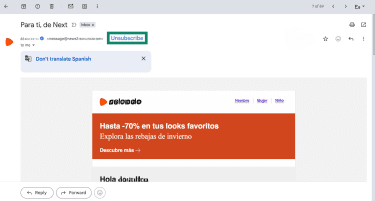
- Open the email you want to stop receiving. If Gmail detects a subscription email, it may display an Unsubscribe option near the top of the message. Select that option.
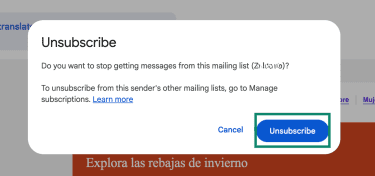
- Click Unsubscribe again to confirm.
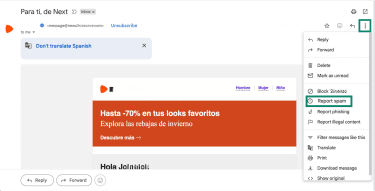
- If the Unsubscribe option doesn’t appear, click the three dots in the top-right corner of the message and click Report spam.
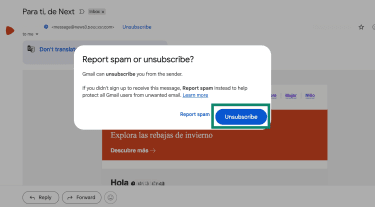
- In the pop-up, instead of selecting Report spam, simply click Unsubscribe.
Unsubscribing from Yahoo
To unsubscribe from emails in Yahoo Mail, you can use the unsubscribe option directly within the message.
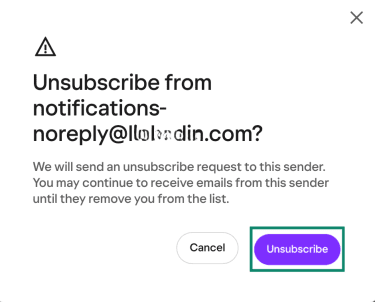
- Open the newsletter or promotional email. If Yahoo detects it as a mailing list, you’ll see an Unsubscribe option in the message header. Click Unsubscribe.
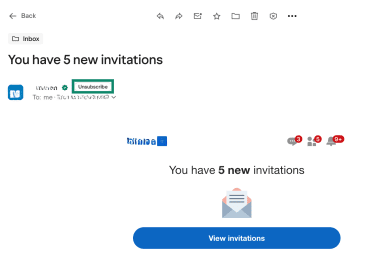
- Confirm your choice.
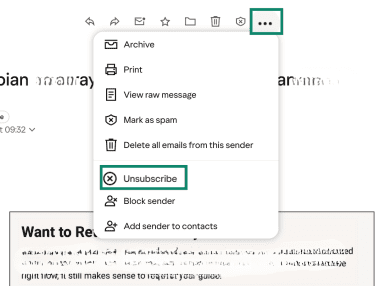
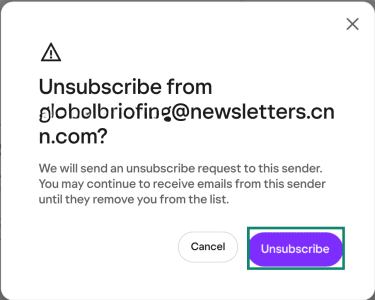
- If you don’t see the Unsubscribe option at the top of the message, you can use the menu instead. Open the email, click the three dots in the message toolbar, and select Unsubscribe.
- Confirm Unsubscribe on the next screen.
Unsubscribing from Outlook
Outlook lets you manage subscriptions in two ways: from your settings or directly from a promotional email.
Using the Subscriptions settings
- Sign in to Outlook.com and click the Settings gear icon in the top-right corner.
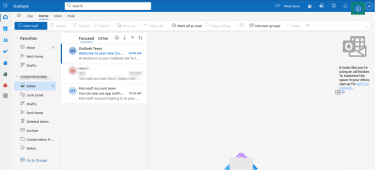
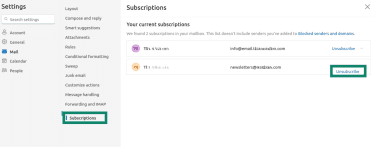
- Select Mail, then go to Subscriptions. You’ll see a list of recognized mailing lists. Click Unsubscribe next to the subscription you want to stop.
From inside a promotional email
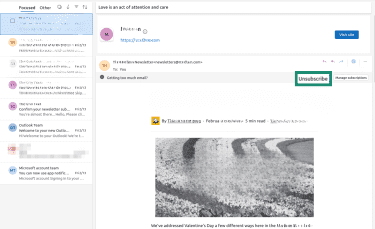
- Open the promotional email. If Outlook detects it as a subscription, you’ll see a message near the top that says “Getting too much email?" along with an Unsubscribe button. Click Unsubscribe.
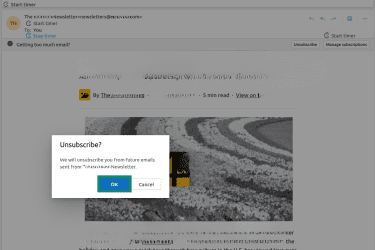
- Click OK to confirm.
Unsubscribing from Apple Mail (iCloud)
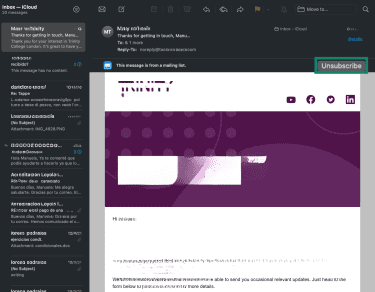
Apple Mail can detect certain mailing lists and display an unsubscribe option directly inside the message. Below we show how to use this feature on Mac, but the steps are very similar on iOS, too.
- Open the promotional email in the Mail app. If Mail recognizes it as a newsletter, you’ll see an Unsubscribe option near the top of the message. Click Unsubscribe.
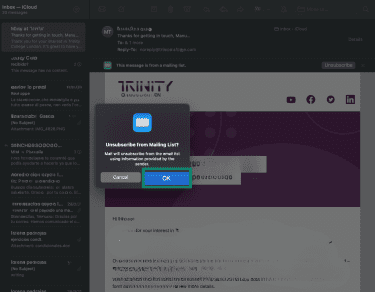
- Click OK to confirm your choice.
Mass unsubscribing techniques
When you have dozens or even hundreds of subscriptions, handling them one at a time isn’t practical. There are faster ways to reduce unwanted emails in batches, depending on the tools you use and the level of control you want.
Using unsubscribe links at scale
There isn’t a single button that removes you from every mailing list at once. But you can speed things up using your email search tool.
- Use your inbox search bar to find emails that contain words like “unsubscribe.”
- Review the results; you’ll often see newsletters and promotional emails.
- Open each message from trusted senders and use the unsubscribe option provided. If the email appears suspicious, avoid clicking any links and report it as spam instead.
Leveraging email client features
Some email apps include tools that help you manage repeated senders more efficiently, even if they don’t technically unsubscribe you.
Using Sweep in Outlook
Outlook lets you automatically remove emails from specific senders through automated cleanup.
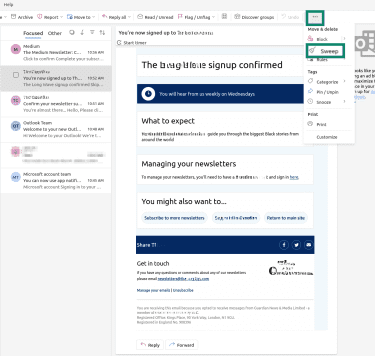
- Select a message from the sender you want to control. Click the three dots in the top toolbar and select Sweep.
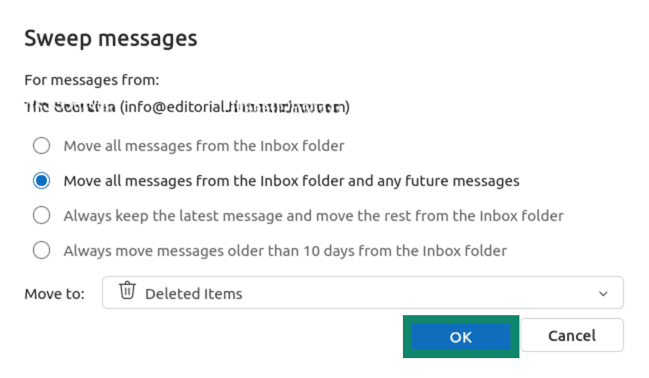
- Choose Move all messages from the Inbox folder and any future messages and Click OK to confirm. Outlook will remove all current emails from that sender and automatically send any future messages from them to the chosen folder (this can be Deleted Items, Archive, Junk, or any custom folder you’ve created), keeping your inbox clear.
Using filters in Gmail
Gmail allows you to create rules that automatically handle certain types of messages.
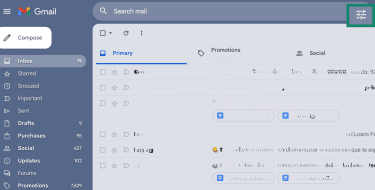
- Click the search bar at the top of Gmail, then the filter icon on the right side of the search bar (the small icon with slider lines).
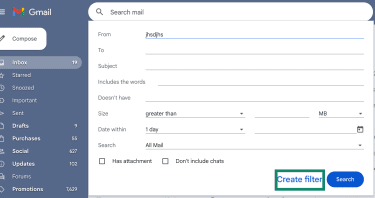
- In the search options window, enter the sender’s address in the From field. You can also add keywords like “unsubscribe” in Includes the words, but be careful: using only broad terms may capture emails you want to keep. Click Create filter.
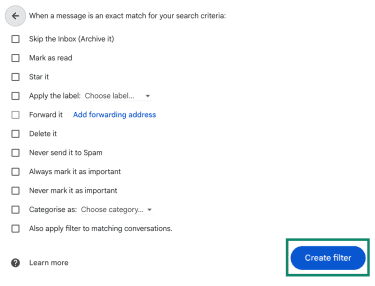
- You’ll then see a list of actions you can apply automatically, such as skipping the inbox or applying a label. Choose the option you prefer, and confirm.
Because filters run automatically, review the folder or label periodically to make sure no important messages are being redirected by mistake. You can edit or remove the filter at any time in Gmail settings.
Using filters in Yahoo
Yahoo Mail lets you create filters that automatically move or delete emails from specific senders.
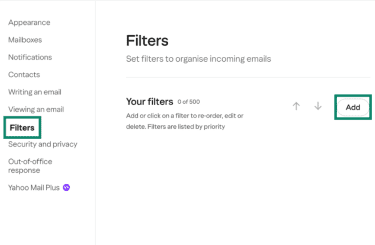
- In Yahoo Mail, click More at the bottom of the left-hand menu, then select Settings.
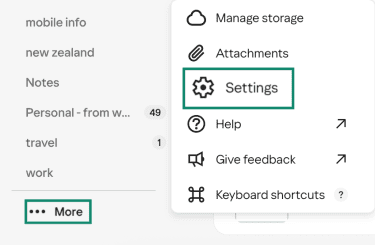
- Select Filters from the Settings menu, then click Add.
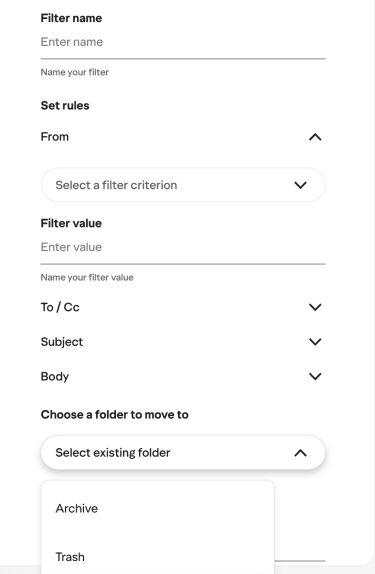
- Enter a filter name, choose the rule criteria, and select the folder where these emails should go. This can be an existing or new folder.
Using filters in Apple Mail
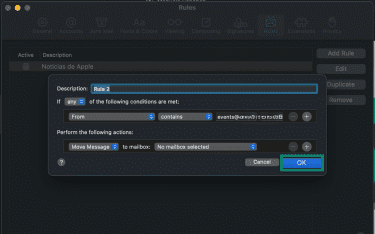
Apple Mail includes a Rules feature that automatically manages incoming emails based on conditions you set.
- Open Mail, then click Mail in the top menu and select Preferences.
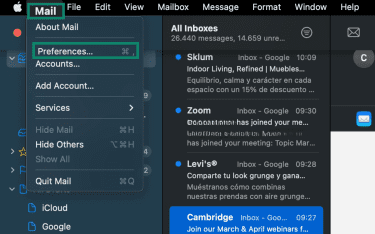
- In the window, select Rules. Then click Add Rule.
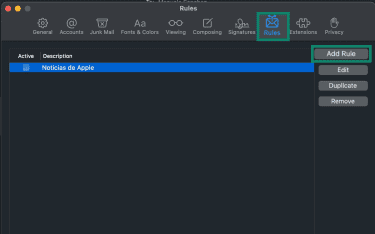
- Give the rule a name, set the conditions (for example, emails from a specific sender or domain), choose the action (such as moving the message to a folder or deleting it), and click OK.
Third-party services for unsubscribing
Some third-party services let you review multiple subscriptions from a single dashboard. These tools connect to your inbox and display mailing lists in one place, so you can opt out in batches.
However, in order to work, they require permission to access your email account. That access allows them to scan your messages and identify recurring senders. Before granting access, it’s important to review the company’s privacy policy and terms carefully. Check what data they collect, how it’s used, and whether it is stored or shared.
If you prefer not to share inbox access with external services, your email provider’s built-in tools remain a safe alternative.
Troubleshooting: Why you still get emails after unsubscribing
Emails may keep coming for a while after you unsubscribe. Understanding why this happens helps you decide what to do next.
Unsubscribing can take time
Unsubscribing doesn’t always stop emails immediately. Even when you receive a confirmation message, the change may not apply right away. Companies aren’t required to process unsubscribe requests instantly. In many cases, they can take several business days to update their systems. During that time, you might still receive a few marketing emails.
Some companies schedule campaigns in advance. If an email was already prepared or queued before you unsubscribed, it can still be sent while your request is being processed.
If messages continue beyond a reasonable period, that’s when it may be worth following up or blocking the sender.
You unsubscribed from one list, not all
Sometimes you stop one type of email, but not every email from that company. Many businesses separate their communications into different categories; when you click “Unsubscribe”, you may land on a preferences page instead of being removed from everything. If you only untick one category, like “Weekly deals”, you could still receive updates about product launches, events, or partner promotions.
For example, platforms like Quora let you manage multiple email categories separately (such as recommendations, digest emails, or topic updates). If you only untick one category, like “Weekly deals” or “Recommended questions,” you could still receive other updates, including product announcements, community highlights, or partner promotions.
This can also happen when companies operate under several brand names. If those brands manage their emails separately, you may need to unsubscribe from each one. If emails keep arriving, check whether you were taken to a preferences page and review all available categories before confirming your choice.
Transactional emails vs. marketing emails
Unsubscribing from marketing emails doesn’t stop everything a company might send you. There’s a difference between promotional messages and transactional emails; marketing emails include newsletters, sales, or special offers, while transactional emails are tied to something you’ve done, like placing an order, requesting a password reset, receiving a billing receipt, or being notified about changes to terms or security settings.
As long as you have an active account, companies can continue sending these messages because they’re considered necessary service communications.
What to do if the sender ignores unsubscribe requests
If you’ve waited more than a week or two and promotional emails are still arriving, it’s time to stop relying on the unsubscribe link.
First, mark the message as spam. Reporting an email as spam does more than move it out of sight. It signals to your email provider that the sender may be violating policies. Repeated reports from multiple users can affect the sender’s ability to reach inboxes at all.
Then, block the sender. Use your email app’s blocking feature to prevent future messages from reaching your inbox.
How to reduce unwanted emails long-term
Cleaning your inbox once helps, but preventing the same volume from building up again requires a few deliberate choices.
- Separate your inboxes: Keep your main address for essential accounts (banking and healthcare, for example). For shopping, newsletters, or one-off sign-ups, consider using a secondary address or an email relay service such as ExpressMailGuard so your primary email isn’t repeatedly shared with retailers, marketing partners, or data brokers. This reduces the chances it ends up on multiple mailing lists or is exposed in a breach.
- Review marketing permissions during sign-up: Many websites include optional marketing consent during account creation or checkout. Look closely at these sections before submitting your details. If promotional emails aren’t required, deselect them; this reduces the number of lists your email address is added to.
- Be cautious about sharing your email publicly: Posting your email address on public forums, social media profiles, or websites increases the chance it will be collected and reused.
- Limit automatic engagement signals: Some marketing emails include tracking technology that records when a message is opened. You can adjust your email app’s privacy settings to reduce automatic image loading and tracking.
FAQ: Common questions about unsubscribing from emails
Is it better to block or unsubscribe from unwanted emails?
Can you mass unsubscribe from emails on an iPhone?
How do I stop getting so many unwanted emails?
What are the risks of clicking unsubscribe links?
How long does it take to process an unsubscribe request?
Can you unsubscribe from multiple emails at the same time?
Take the first step to protect yourself online. Try ExpressVPN risk-free.
Get ExpressVPN