What is an open proxy, and why should you be cautious?


An open proxy is a proxy server that acts as an intermediary between you and the internet. It may be set up for public use intentionally or result from compromised systems or misconfigurations.
Open proxies provide no built-in privacy or security, and anyone can use them for any purpose, including malicious ones. When you use one, you're trusting an unknown, unauthenticated server with your traffic.
This article breaks down what an open proxy is, why it poses serious risks, and how you can protect yourself. You’ll learn how these servers work, how attackers abuse them, and what safer alternative you can use to stay private without sacrificing security. You'll also learn why your IP might be flagged as an open proxy and what to do if this happens.
What is an open proxy?
An open proxy is a type of proxy server that any internet user can access without any credentials or authentication. It sits between your device and the wider internet, so when you send a web request, it goes to the open proxy first before reaching the target site.
How open proxies work
When an open proxy receives a request from your device (for example, when your browser asks it to fetch a webpage), it forwards that request to the destination server using its own IP address. When the destination server replies, the proxy passes the reply back to you. Because the server only sees the proxy’s IP address, not your device’s, your real IP address and origin are hidden.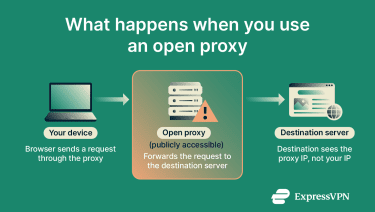
That said, because an open proxy is publicly accessible, you share its resources with unknown users and don’t have any insight into how it handles traffic. The operator may log your requests, inject content, or run a system already corrupted by attackers. Basically, you’re placing your trust in an unknown, unauthenticated server.
Open vs. anonymous proxies
An open proxy is one that anyone on the internet can use, with no login or permission required. The word “open” only describes access. It doesn’t tell you whether the proxy hides your identity, protects your data, or behaves safely. In other words, an open proxy can be anonymous, non-anonymous, or even malicious.
An anonymous proxy, on the other hand, focuses on what information reaches the website you visit. It hides some or all details about you, but the amount of protection depends on the proxy type and its configuration.
In short, “open” describes who can use the proxy, while “anonymous” describes what the destination website can learn about you.
It’s also worth noting that open proxies are different from reverse proxies. While open proxies forward outbound traffic for any client, reverse proxies sit in front of servers and handle inbound traffic to protect and manage a website’s infrastructure.
How open proxies are commonly used (and misused)
Here are some real-world scenarios where people use open proxies.
Development, testing, or monitoring tools
Developers, testers, and system administrators sometimes need to see how a website or service behaves from a different network location or IP address. By routing traffic through a proxy in another region or network environment, they can check geo-specific behavior and localization.
That said, because open proxies typically lack guarantees on uptime or consistency, developers relying on them may face unexpected failures or inaccurate results. Many professional teams opt for managed or private proxies instead.
Exploring proxy behavior in educational or research labs under supervision
In academic, cybersecurity, or network-research contexts, open proxies offer a controlled way to teach or explore how internet traffic routing, IP masking, and network restrictions work.
Researchers may set up open proxies or use test proxies to show how requests are redirected, how source IP addresses appear to destination servers, how applications or websites behave differently by country, and how region-based access controls or content variations are enforced.
Research into open proxies has shown how many act unreliably or maliciously, making them useful case studies. Even in research, however, caution is essential; researchers need to carefully manage legal and ethical considerations, user privacy, and the potential for exposure to harmful traffic.
Accessing region-locked content
Attempting to use an open proxy to get around geographic access restrictions often violates the terms of service of websites and online services and can carry legal or account-related consequences.
In practice, some users turn to open proxies in an effort to make their traffic appear as though it originates from a different location. This approach is generally unreliable and carries significant security and privacy risks. Because open proxies are typically operated by unknown third parties and are publicly accessible, traffic may be monitored, altered, or logged without the user’s knowledge.
Open proxies are also frequently unstable or poorly maintained, which can result in slow performance, dropped connections, and inconsistent access. In addition, many services actively detect and block proxy traffic altogether, making this method ineffective in many cases.
Accessing public websites blocked on school, work, or local networks
On networks at school, work, or in public spaces, certain websites may be blocked by a filter. Students, employees, or visitors of these spaces sometimes attempt to reach those sites by in ways that circumvent local network restrictions.
However, as with accessing region-locked content, this approach is generally not advisable due to substantial security and privacy risks. In school or workplace environments, attempting to bypass network restrictions can also violate acceptable use policies and lead to disciplinary consequences.
Major risks and downsides of open proxies
Open proxies lack encryption and oversight, creating significant security and privacy risks. Because they’re publicly accessible and uncontrolled, they can expose your data and create legal headaches, even if your intent is harmless.
No encryption leaves your data exposed
One of the major risks with proxy servers, including open ones, is that they lack encryption. If you send unencrypted traffic (such as HTTP requests) through an open proxy, anyone on the path (such as the proxy operator, someone on the same network, or an attacker in between) could intercept or modify your data. Because you can’t verify who controls an open proxy or how it treats your traffic, you should assume that anything sent in plain text can be logged, inspected, or altered.
Using encryption, such as HTTPS or a virtual private network (VPN), protects the contents of your communication, but it doesn’t make you invisible. The proxy still sees certain metadata, including the domain you’re connecting to, when you connect, and how much data you exchange. So even though encryption shields the message itself, an open proxy still exposes information you may not want to share with an unknown operator.
Open proxies can redirect you to fake sites
Malicious actors often exploit a proxy server vulnerability, like misconfiguration or lack of access controls, to distribute malware, inject spyware, or change the content you receive. For example, a proxy could redirect you to a fake website, insert tracking scripts into pages you visit, or deliver downloads that contain hidden threats.
While a proxy may seem to simply reroute your traffic, if it’s operated by an unknown party, it can expose your device to serious risks. The apparent convenience of unrestricted access can mask vulnerabilities that compromise your safety.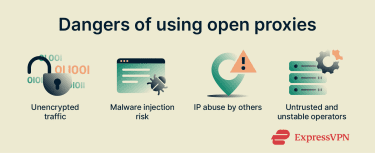
Your IP address may be used for malicious activities
When you connect to an open proxy, you let it route your internet traffic and act on your behalf, but you also inherit the risks tied to what other users do with that proxy. Malicious actors can use open proxies to mask their real IP addresses while launching attacks, distributing malware, scraping websites, or carrying out other unauthorized or abusive activities.
If those activities draw attention, the proxy’s IP address may develop a poor reputation, causing all traffic routed through it to be treated as suspicious. As a result, innocent users may find websites blocking their access, applying stricter security checks, or flagging their connections as risky. While responsibility typically falls on the proxy operator, using a proxy associated with abuse can still expose users to unwanted scrutiny or service disruptions.
No guarantees of uptime, privacy, or operator intent
Open proxies typically lack authentication, access controls, service-level guarantees, and meaningful oversight. As a result, their availability is unpredictable, many go offline without warning, and others are poorly configured or abandoned. Because the proxy operator is unknown and unaccountable, you have no visibility into how your traffic is handled. The operator may log requests, inspect or modify traffic, inject content, or retain data for later use, exposing you to privacy, security, and integrity risks.
Why is my IP address flagged as an open proxy?
Your IP address might get flagged as an open proxy even if you never intended to run one. This happens when your network, server, or device behavior matches what security tools associate with open proxy activity (for example, allowing unauthorized access, routing third-party traffic, or sharing an IP address with many users).
Proxy server misconfiguration
A misconfiguration happens when someone sets up proxy settings incorrectly; for example, by leaving a proxy server address and port open without restricting who can use it.
A user might configure a proxy for a company, school, or other managed network by entering a server address and a port number into network settings. If those settings remain active but the configuration lacks access controls or authentication, the server may start acting as a public proxy server.
When this kind of misconfigured proxy stays online without safeguards, it can unintentionally provide unfiltered proxy access to anyone on the internet. Security tools and websites may detect this and label your IP address as an open proxy because your network behaves like one.
Botnet or malware hijacking your connection
Malicious programs called proxy Trojans can turn your computer into a proxy server without your knowledge and route other people’s internet traffic through your address. They often arrive disguised as normal software or bundled with freeware or shady apps. Once installed, they open proxy services on your device and allow attackers to funnel traffic through your server.
When that happens, your IP address starts acting like a public proxy server. Security systems and websites may detect the unusual traffic and flag your IP as an open proxy, even though you never intentionally enabled it. This hijacking can make you an unwitting participant in attacks, spam, or other malicious activities.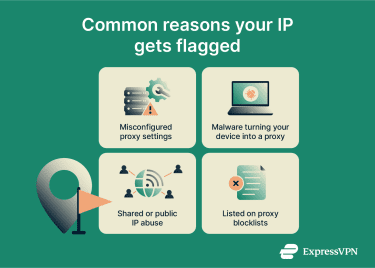
Abuse from shared or public IP pools
Many networks (like office buildings, public Wi-Fi, or internet service providers (ISPs) with shared IP pools) use a single public IP for many users. If one person misuses it, the whole IP can be flagged. Security tools may see high-traffic patterns, proxy-like access, or suspicious activity from the shared IP and treat it as an open proxy.
IP listed on open proxy blacklists
Many security systems, websites, and email services rely on blocklists (also called blacklists) of known open proxy IPs or abused addresses. If your IP is added to one of these free proxy lists, whether accurately or by mistake, it may be flagged, which can block you from accessing websites or online services that rely on that list.
How to detect if your IP is an open proxy
While you can’t always spot an open proxy at a glance, several simple tests and tools can reveal whether your connection behaves like one. These methods help you check your network and understand what’s really happening behind the scenes.
Use online proxy detection tools
You can start by entering your IP address into an online tool like ProxyRadar that tests for proxy or VPN usage. These tools usually show details like proxy/VPN indicators, reputation score, and whether your address is part of known anonymizing networks. They won’t catch everything, but they offer a quick, user-friendly first step.
Scan for open proxy ports
You can check whether your computer is running a proxy service by looking at which network ports are currently open and listening for connections. Proxy software often uses well-known ports, such as 8080 or 3128.
On Windows, you can do this by opening Command Prompt (Win + R, type cmd) and running the netstat -an command. On Linux, open Terminal and use netstat -tulpn. These commands list the network ports in use on your system and show which ports are accepting connections, which can help identify services that may be acting as a proxy.
Importantly, seeing a proxy-related port listening locally does not automatically mean your computer is functioning as an open proxy. In most home networks, the router’s Network Address Translation (NAT) blocks incoming connections from the internet, preventing outside users from reaching internal devices. A system only behaves as an open proxy if the proxy service is publicly reachable (for example, through a public IP address or explicit port forwarding) and is configured to accept connections from anyone.
Check network and device configuration
Inspect your device and router settings to see if you (or someone else) enabled proxy configuration by mistake. For example, check if the system or browser has a manual proxy address and port set. Disable any unexpected proxy settings you find. Many open proxies arise simply from accidental configuration.
Monitor outgoing traffic for anomalies
Use a packet analyzer or network monitoring tool to watch outgoing traffic from your device or server. A tool like Wireshark can help you spot whether your system is forwarding traffic for other users or if connections from unknown external IPs reach you.
If you see many outgoing connections that you didn’t initiate or traffic patterns that match proxy usage (such as forwarded HTTP requests or repeated connections from different sources), that’s a strong indicator your system is acting as an open proxy.
How to disable an open proxy on your system or server
If you find that your system or network is acting as an open proxy, you should disable it quickly. The following steps cover common operating systems and server setups.
Remove proxy via Windows system settings
- On your Windows computer, open Settings > Network & internet > Proxy.
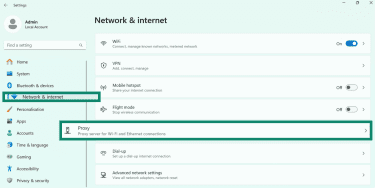
- Under Automatic proxy setup, toggle Automatically detect settings to Off.
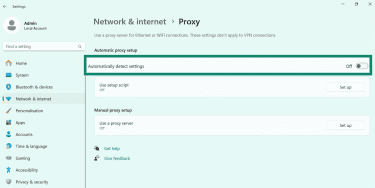
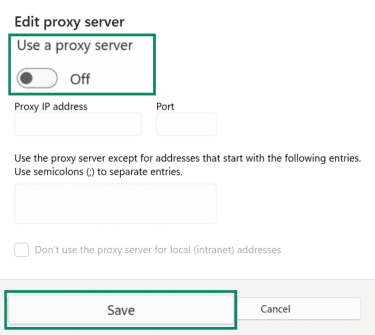
- On the same page, under Manual proxy setup, click Set up, and switch Use a proxy server to Off. Hit the Save button to save your changes.
Disable proxy via Windows registry or group policy (advanced users only)
For enterprise or advanced setups, you can enforce proxy removal via Group Policy or the Windows registry.
Group policy:
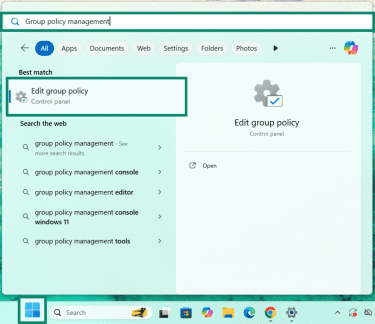
- Open the Group Policy Management Console (GPMC). To do this, click on the Start (Windows) button, type Group policy management in the search bar, and select Edit group policy from the results.
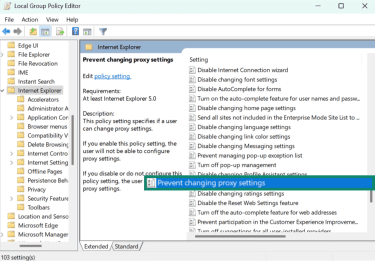
- Using the buttons on the left-hand menu, navigate to User Configuration > Administrative Templates > Windows Components > Internet Explorer.
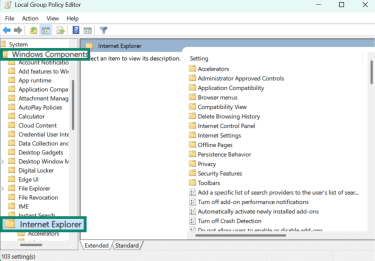
- Scroll down and double-click on Prevent changing proxy settings to enable this policy.
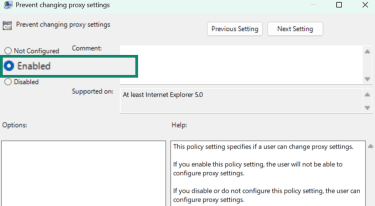
- Select Enabled to prevent proxy configuration.
Registry:
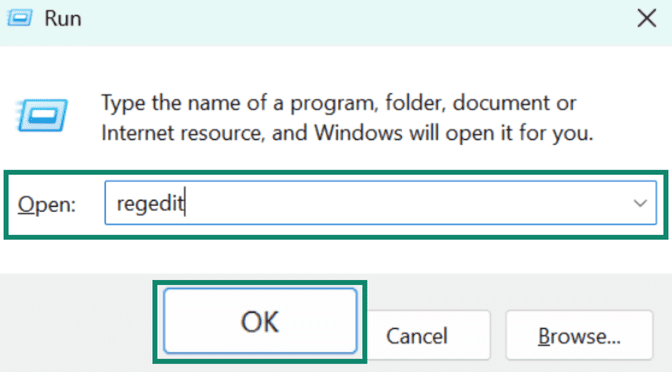
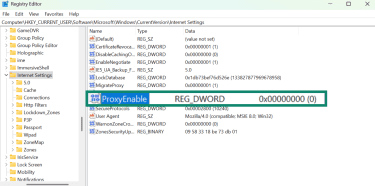
- Press Windows key + R key to open the Run window. Then type regedit in the search bar and hit OK to open the Registry Editor.
- Your system will prompt you to allow the Registry Editor to make changes to your device. Click Yes, and navigate to the following registry path: HKEY_CURRENT_USERSoftwareMicrosoftWindowsCurrentVersionInternet Settings.
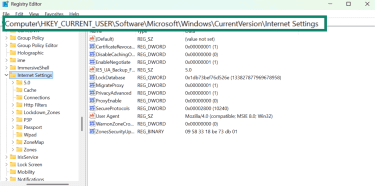
- Next, double-click on the ProxyEnable registry.
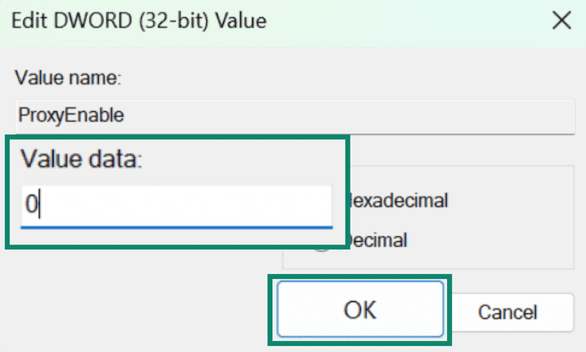
- Change the Value data to 0, so every time you log out, it turns off the proxy. Click OK.
Turn off proxy via network preferences on macOS
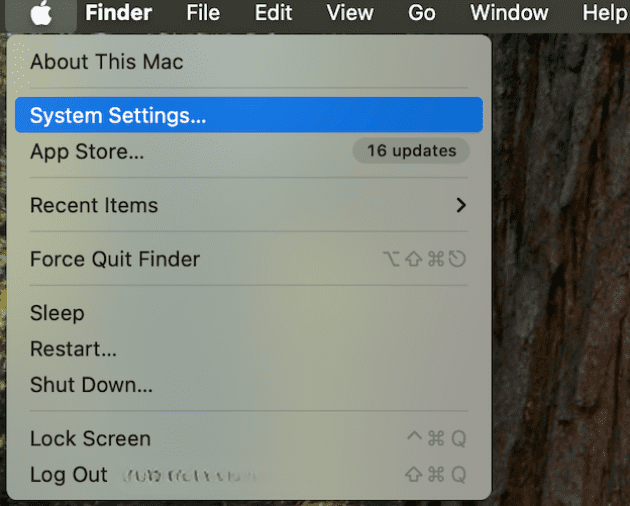
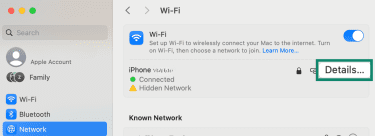
- On your Mac, click the Apple menu and go to System Settings.
- Navigate to Network and select your active Wi-Fi or Ethernet connection.
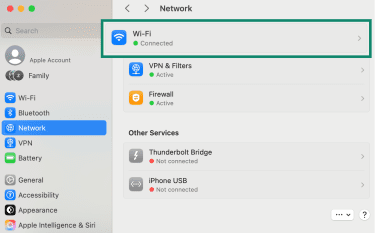
- Click Details… (or Advanced… on some macOS versions).
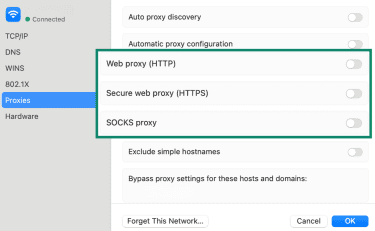
- Go to the Proxies tab, toggle off any protocol (like Web proxy (HTTP), Secure web proxy (HTTPS), and SOCKS proxy) that’s enabled, and click OK.
Stop proxy services (e.g., Squid, Tinyproxy) on Linux/Unix
On a Linux or Unix server, if you installed a proxy service like Squid, you need to stop it so it no longer listens for connections. Below are some popular proxy services on Linux/Unix and how you can stop them:
| Proxy server | Command to stop |
| Squid | sudo systemctl stop squid |
| Tinyproxy | sudo systemctl tinyproxy stop |
| Nginx | sudo systemctl stop nginx |
| HAProxy | sudo systemctl stop haproxy |
| Dante | sudo systemctl stop danted |
Block proxy ports with firewall rules
Even after disabling proxy services, open ports can allow someone else to use your system as a proxy.
Windows
On Windows, you can open Windows Firewall, create an inbound rule to block unwanted ports, and restrict connections from outside networks. Follow these steps:
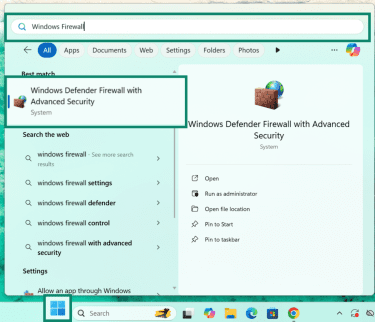
- Click on the Start (Windows) button, type Windows Firewall in the search bar, and select Windows Defender Firewall with Advanced Security from the results.
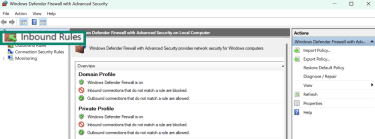
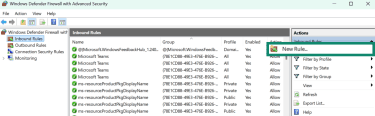
- Click on Inbound Rules in the left-hand menu of the firewall window.
- Click on New Rule… from the Actions tab on the right-hand side.
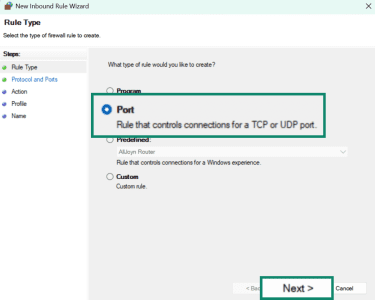
- Select the Port option from the Rule Type listing and click on Next.
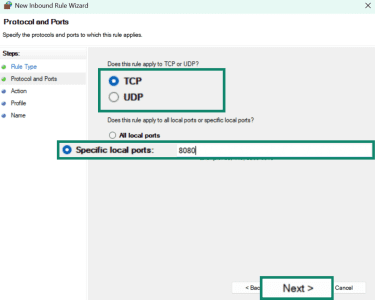
- Pick TCP or UDP. Only choose the protocol relevant to the proxy port (most proxies use TCP). Then, specify the ports or port range (e.g. 8080 or 9000–9010). Press Next.
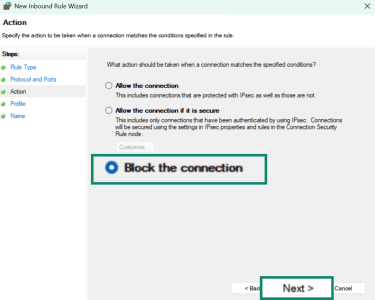
- Select Block the connection and click Next.
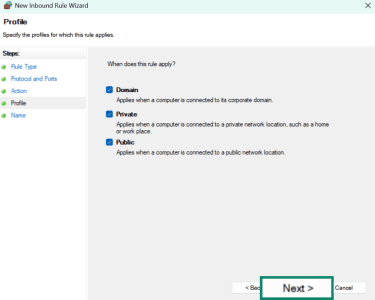
- Select when the rule applies: Domain, Private, Public, or all. Blocking all of them will ensure no external connections. Click on Next.
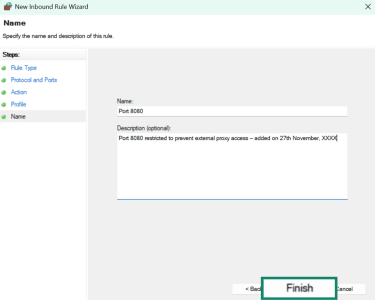
- Add a name (e.g., Port 8080) and a description (e.g., Port 8080 restricted to prevent external proxy access). Click on Finish.
Mac
On a Mac, you can use the built‑in packet filter to block incoming or outgoing connections on specific ports, since the standard application‑level firewall doesn’t offer per‑port blocking.
To block a port on macOS, open the Terminal. First, you need to edit the packet filter configuration file, /etc/pf.conf, using a text editor from within the Terminal (for example, by typing sudo nano /etc/pf.conf). Inside the file, add a rule such as block in proto tcp from any to any port 8080 (replacing 8080 with the port you want to block), then save and exit the editor.
After updating the file, still in the Terminal, type the following commands to reload the rules and enable pf: sudo pfctl -f /etc/pf.conf and sudo pfctl -e. Once completed, the specified port(s) will be blocked system-wide.
Linux
On Linux, you can block typical proxy ports like 8080, 3128, or 1080. For example, you can use the iptables firewall to block port 3128 with this command: sudo iptables -A INPUT -p tcp --dport 3128 -j DROP.
With Ubuntu, you can use the Uncomplicated Firewall (UFW) to deny proxy ports with this command: sudo ufw deny PORT/PROTOCOL.
Enforce authentication on a proxy server to restrict access
If you’re running a proxy server, you must ensure it doesn’t let just anyone use it. One of the most effective ways to do this is by requiring users to log in with a username and password before they can route traffic.
For example, popular proxy software like Squid supports built-in authentication. You can configure it to demand a username and password (or domain credentials) before allowing any web requests to pass through. If a client doesn’t supply valid credentials, Squid returns a “407 Proxy Authentication Required” error and denies access.
How to test open proxy behavior and anonymity
If you want to test the functionality of an open proxy you’re using, there are several ways to do so. However, note that none of these methods is foolproof, and using an open proxy remains dangerous. Using a reputable VPN is the recommended alternative.
Analyze anonymity with IP checking and DNS leak tools
Some open proxies are transparent, meaning they don’t hide your IP address. You can use online anonymity testing tools to see whether the proxy leaks your identity information. Simply connect through the proxy and visit an IP-checking page. If the site still shows your real IP address instead of the proxy’s, the proxy is most likely transparent.
You can also run a Domain Name System (DNS) leak testing tool while connected to the proxy. If the tool shows your real IP, your home ISP, or servers belonging to your ISP, the proxy may be leaking information.
Examine HTTP headers
HTTP headers are a means for a client or server to exchange information during an HTTP request or response. When your request passes through a proxy, the HTTP headers may carry identifiers like X-Forwarded-For (XFF), which can expose the original IP behind a proxy connection. You can use server header checkers like DNS Checker or command-line utilities like Curl to check the HTTP header.
IP geolocation verification
You can compare the proxy’s expected location with the IP geolocation returned by testing tools. If the reported region doesn’t match the proxy’s advertised location, or if DNS requests are still being resolved via your ISP, the proxy may be exposing identifiable details.
Use a secure VPN instead of an open proxy
Unlike an open proxy, a VPN encrypts all your traffic, reducing the risk of eavesdropping and data interception on untrusted networks. A good VPN is much safer and more reliable than an open proxy.
Open proxies only mask your IP address. They don’t encrypt your traffic, which leaves your browsing, login credentials, and data vulnerable to interception by third parties. By contrast, a VPN encrypts all of your internet traffic (in addition to masking your IP address), using a secure tunnel that closes off data from eavesdroppers.
What’s more, when you choose a reliable VPN like ExpressVPN, you're routing your traffic through a trusted provider whose policies and security practices have been independently verified, not through an unknown entity like you do with an open proxy.
FAQ: Common questions about open proxies
Are open proxies legal to use?
In most regions, open proxies are legal. However, using an open proxy does not make activities that violate local laws, service terms, or network usage policies legal. Even when the proxy itself is lawful, the legality depends on how it is used.
Can websites detect I’m using an open proxy?
Yes, websites can detect when you’re using a proxy by checking the reputation of the IP address you’re using and whether it belongs to known data center or proxy ranges. They can also review HTTP headers and look for unusual traffic patterns.
How do I check if I'm behind a proxy server?
The easiest way is to use an online proxy detection tool. Alternatively, you can visit an IP-checking site and compare the IP it shows to the one your internet service provider (ISP) normally assigns you; if it looks different or points to a data center location, you may be behind a proxy.
Take the first step to protect yourself online. Try ExpressVPN risk-free.
Get ExpressVPN