What is packet loss? Everything you need to know



If you’re experiencing disruptions in your online activity, such as persistent lag while gaming, video quality dropping on streaming services, or choppy audio on Wi-Fi calls, packet loss may be part of the problem.
The good news is that it’s usually straightforward to confirm whether packets are being dropped, and you can often narrow down where the loss is happening. In this guide, you’ll learn how to run a packet loss test, how to interpret the results, and what steps you can take to help more of your data reach its destination.
What is packet loss?
Packet loss occurs when some of the data sent across a network doesn’t arrive at its destination. Most information is broken into small units called packets. Each packet includes a payload (a piece of the original data) plus header information used for delivery, such as addressing and sequencing, as it moves through network equipment like routers and switches.
When packets are lost, what happens next depends on the protocol and the application. Some traffic can be retransmitted (which adds delay and reduces effective throughput), while real-time traffic often continues without the missing data. This is why packet loss can create visual artifacts in video, stuttering or robotic-sounding audio, and lag in interactive applications.
Packet loss is usually expressed as a percentage of packets lost out of the total sent. For example, 2% packet loss means roughly 2 packets out of every 100 don’t arrive. What counts as "high" depends on the use case, but a sustained loss of around 5% or more is generally considered high.
Even small amounts of packet loss can affect real-time applications. Many voice and video systems are designed to operate with less than 1% packet loss, as higher levels can quickly degrade quality.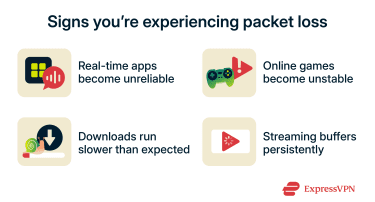
Learn more: Read our detailed guide on network connections.
Packet loss vs. lag: What’s the difference?
Lag is not a single network metric. It is a user-perceived symptom (slow response, rubber-banding, choppy calls, delayed actions) that can result from packet loss, higher delay, higher delay variation, limited capacity, or a combination of these.
Packet loss vs. latency (ping)
Latency is a measure of delay, often discussed as one-way delay or as round-trip time (RTT). Standards define one-way delay metrics and round-trip delay metrics, often summarized as RTT. Ping is commonly used as a practical RTT check and can also provide an estimate of packet loss from missing replies.
Packet loss vs. jitter
Jitter, more precisely, IP packet delay variation (IPDV), is the variation in packet delay within a flow. It’s defined as a delay-variation metric, separate from packet loss.
Packet loss vs. low bandwidth
Low bandwidth reduces performance by limiting the amount of data that can be delivered per second. When demand exceeds the link’s usable throughput, transfers slow down across the board: downloads take longer, video services downshift quality or buffer, and multiple apps compete for the same constrained rate.
The effect is often sustained and relatively predictable. Latency can rise during heavy use because packets spend longer waiting in queues, but the dominant symptom is sustained slowness rather than intermittent dropouts.
How packet loss happens
Packet loss occurs when one or more packets don’t successfully make it to the receiving endpoint. That can happen because the packet is dropped along the path, or because it arrives but can't be used, such as in real-time media, where packets that arrive too late may be discarded by a jitter (de-jitter) buffer and treated as “effective” loss.
Where packets get dropped across the connection
Drops can occur at multiple points between the sending application and the destination, and the same “loss” symptom can come from different drop behaviors:
- At network device queues (egress interfaces): Packets can be enqueued for transmission; if the queue is full, some are dropped (tail drop). Separately, some devices intentionally drop (or mark) packets before buffers overflow as part of active queue management (AQM).
- At interfaces during forwarding: Some platforms report output drops/queue drops when the interface can’t transmit packets fast enough.
- Inside the device pipeline (filters, policers, internal resources): Packets can be discarded by policy (e.g., firewall filter discard actions) or by enforcement mechanisms (e.g., policing). Operational counters often distinguish different discard classes (filter discards, fabric drops, invalid interface discards, and similar).
- At the receiver after arrival: Some packets arrive at the endpoint but are discarded before playout (for example, by a jitter buffer when packets are too late to be useful). From an application perspective, those discards can look similar to network loss even though the packets reached the host.
Bursty loss vs. consistent loss
Loss is often not evenly distributed. Standards for real-time monitoring explicitly track burst/gap behavior because burstiness changes user impact and has diagnostic value.
- Bursty loss: Loss concentrated into short runs (bursts) separated by periods with little or no loss (gaps). Bursty patterns tend to be more disruptive for real-time applications because several consecutive packets can be missing from a short time window.
- Consistent loss: A steadier loss rate over time with fewer long runs. This can be less noticeable for some media/codecs than bursty loss at the same average rate, even though overall loss is similar.
What causes packet loss?
Packet loss can come from several issues in modern networks. Among the most common causes are congestion, limited capacity, and short-lived demand spikes.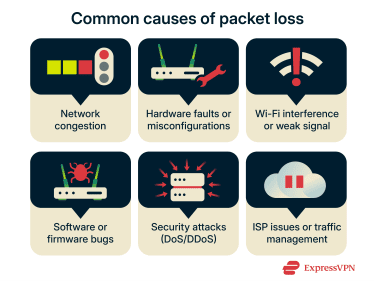
1. Network congestion
Network congestion is essentially a traffic jam for data. When more traffic tries to traverse a network device or link than the device or link can handle, packets may be dropped. Congestion is often most noticeable during peak usage periods and is commonly associated with higher latency, jitter, and loss.
- Bandwidth bottlenecks: A bottleneck happens when a specific link has less capacity than the traffic trying to pass through it. Packets can queue up, and if buffers fill, some packets are discarded.
- High traffic peaks: Sudden spikes in usage, such as large downloads, cloud backups, or multiple concurrent streams, can briefly overwhelm a router, access point, or uplink. During these bursts, packet loss can occur even if average usage seems reasonable.
2. Faulty hardware or configuration
Hardware problems and configuration issues can both lead to packet loss, either by disrupting packet forwarding or by causing packets to be dropped before they reach their destination.
- Router or switch problems: Routers and switches forward traffic between devices and networks. If they are overheating, underpowered, failing, or overloaded, they may drop packets or become unstable. Common symptoms include intermittent connection drops, sudden slowdowns, or brief outages.
- Misconfigured devices: Incorrect settings can cause packets to be dropped or mishandled. Examples include firewall rules that block legitimate traffic, Quality of Service (QoS) policies that unintentionally deprioritize critical traffic, incorrect maximum transmission unit (MTU) settings that prevent traffic from traversing the network reliably, or speed and duplex mismatches on wired links that increase errors and retransmissions.
3. Wireless and environmental interference
Wireless networks are more vulnerable to interference than wired connections. Nearby electronics and competing Wi-Fi networks can disrupt radio signals and increase retransmissions (and in worst cases, packet loss), especially in crowded areas.
- Signal degradation: As signal strength and quality drop, devices need more retransmissions to deliver the same data. If conditions are poor enough, some packets will not arrive in time or at all. Common causes include distance from the access point, interference, and obstacles that weaken the signal. On wired networks, damaged or low-quality cables, excessive cable length, or electromagnetic interference can increase errors and lead to dropped packets.
- Physical obstructions: Walls, floors, furniture, and certain building materials can absorb or reflect Wi-Fi signals. This reduces signal quality and increases packet loss, particularly when a device is far from the router or separated by multiple barriers.
- Overlapping Wi-Fi channels: In the 2.4GHz band, most channels partially overlap, increasing interference and retransmissions. Channel plans commonly rely on non-overlapping choices (such as 1, 6, and 11) to reduce disruption caused by overlap.
4. Software bugs or security threats
Software and security issues can also contribute to packet loss. Bugs in network drivers, operating systems, or router and modem firmware can cause unstable connections, packet-processing errors, or increased retransmissions and drops.
Security threats can produce similar symptoms by overwhelming the capacity. During denial-of-service (DoS) or distributed denial-of-service (DDoS) attacks, networks or services may be flooded with traffic, and once resources are exhausted, legitimate packets can be delayed or discarded.
5. ISP issues and throttling
Packet loss can also originate upstream, outside your home network. Congestion within your internet service provider's (ISP) network, problems with peering links, or routing issues along the path to a specific service can cause packets to be dropped even when your local setup is working normally. This often occurs at certain times of day or affects multiple devices simultaneously.
Throttling is different. It’s typically the deliberate slowing of certain types of traffic or speeds after a usage threshold, and it usually reduces throughput rather than directly causing packet loss, though some traffic-management methods (such as policing) can drop packets that exceed a configured rate. If problems appear only with specific services or at specific times, it may be due to congestion, routing, or traffic management on the ISP side.
Effects of packet loss on user experience
Packet loss can reduce perceived performance in two common ways. First, when applications rely on reliable delivery, lost packets trigger retransmissions and congestion control, which can lower throughput and increase delay. Second, in real-time traffic, missing packets often can’t be recovered quickly enough to be useful, so quality drops instead of “catching up."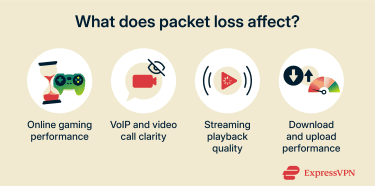
How packet loss affects online gaming
Online games depend on frequent, time-sensitive updates between the client and the game server. When packets go missing, the game may have to interpolate missing state or skip updates, which can make movement feel inconsistent and inputs feel delayed or ignored.
Many games use User Datagram Protocol (UDP) for gameplay updates because it prioritizes timeliness over guaranteed delivery. UDP itself does not guarantee delivery or duplicate protection, so games typically handle loss at the application level rather than waiting for transport-layer retransmissions.
Impact of packet loss on Voice over Internet Protocol (VoIP) and video calls
Voice and video calls are highly sensitive to packet loss because they are continuous, real-time streams. When packets arrive late or don’t arrive at all, there is often no time to retransmit them before playback. Instead, the receiving client may try to conceal the missing audio or video, which can produce effects like robotic-sounding speech, brief dropouts, or blocky video during periods of loss.
Streaming problems caused by packet loss
Most streaming and general web video delivery happens over HTTP-based transport, where reliability is handled through retransmissions by the underlying transport, for example, Transmission Control Protocol (TCP) or Quick UDP Internet Connections (QUIC) for HTTP/3. Packet loss can still degrade the viewing experience by reducing effective throughput and forcing the player to be more conservative.
In practice, this can lead to buffering or to adaptive bitrate streaming shifting down to a lower-quality stream to maintain playback. Even when buffering is avoided, persistent loss can cause quality to fluctuate and make streams feel unstable.
How to test for packet loss?
Testing for packet loss helps confirm whether dropped packets are contributing to slowdowns or poor call quality, and it can help narrow down where the loss is happening.
Best online tools to detect packet loss
Some sites can estimate packet loss from the browser. For example, Packet Loss Test uses Web Real-Time Communication (WebRTC) to measure packet loss, latency, and jitter between your device and its servers. Because WebRTC uses the Real-time Transport Protocol (RTP) for real-time media transport, this kind of test can serve as a useful proxy for how voice and video traffic behaves.
A result above 1% doesn’t automatically mean something is broken, but it can still degrade real-time apps, and what’s “acceptable” varies by application and network conditions.
How to test packet loss on Windows, Mac, and Linux
All major operating systems include command-line tools for basic packet loss checks. Screens shown are for Windows, but similar steps apply to macOS and Linux.
- Open a terminal or command prompt: On Windows, type Command Prompt into the search bar. On Mac or Linux, open the Terminal application.
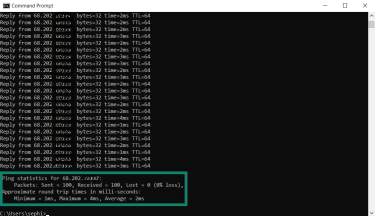
- Run a ping test: Type ping -n 100 <destination> on Windows or ping -c 100 <destination> on Mac and Linux, replacing <destination> with the domain or IP address you want to test. Send multiple packets and look at the output to see what percentage was lost.
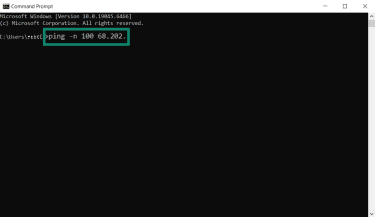
- Interpret the results: A 0% loss means no loss was observed in this ping sample. Any nonzero percentage indicates that some ping probes didn't receive replies (which can reflect loss, filtering, or rate limiting). Rates above ~1–2% may affect real‑time applications such as gaming and voice calls.
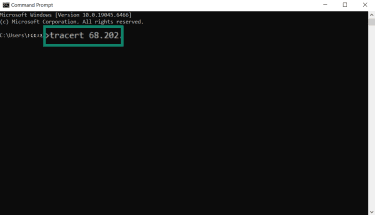
- Use traceroute for deeper analysis: Type tracert <destination> on Windows or traceroute <destination> on Mac and Linux to map the route your packets take. This command lists the intermediate routers and shows where delays or losses occur.
Note: Advanced Windows users can use Microsoft’s Packet Monitor (Pktmon) or Netsh trace tools to capture and analyze local packet drops in more detail.
How ping and traceroute help with diagnosis
The ping command sends Internet Control Message Protocol (ICMP) Echo Request messages to a target and counts the number of Echo Reply messages received. If fewer replies are received than requests sent, the results will show packet loss for that test window.
Traceroute can help map the path its probes take by sending probes with gradually increasing time-to-live (TTL) values. Each time a probe expires, an intermediate router may return a response, allowing traceroute to list each hop and its RTT. Repeated asterisks or timeouts can indicate a blocked or unreachable hop, but they can also happen when a router limits or deprioritizes these responses. A timeout at one hop does not always mean your real traffic is being dropped.
Used together, ping and traceroute can help narrow down where a problem likely starts.
Interpreting packet loss test results
Start with the loss percentage at the destination. Even small amounts of loss can be noticeable in real-time calls and gaming, while a higher loss tends to make problems more obvious. Then compare results across targets and over time. If loss appears even when pinging your router, the issue is likely local. If your router test is clean but loss appears beyond it, the problem is more likely upstream.
For traceroute, focus on patterns that continue through to the destination. A single intermediate hop showing timeouts or apparent loss that does not carry forward is often just that device limiting responses rather than dropping real traffic. If traceroute shows a large latency jump at a particular hop, and that pattern continues to the destination, it can point to congestion or a routing issue near that part of the path. Repeating tests at different times and with different tools helps confirm whether the issue is consistent.
How to prevent packet loss?
No network can eliminate packet loss entirely, but you can reduce it by improving link quality, managing congestion, and keeping equipment and configuration healthy.
Regular network maintenance
Regular network maintenance means keeping your network configuration and traffic behavior stable. In turn, this helps reduce packet loss.
- Check the speed and duplex settings: Ensure both ends of a wired link negotiate the same speed and duplex mode. Mismatches can increase errors and retransmissions, which can look like packet loss.
- Review firewall rules and filtering: Confirm your firewall is not blocking legitimate traffic or unintentionally rate-limiting the applications and services you rely on.
- Use traffic shaping and prioritization: If congestion is the problem, these tools control how bandwidth is shared. They can limit bulk traffic, such as downloads and backups, and prioritize latency-sensitive traffic, such as calls and gaming, reducing the chance that traffic is delayed or dropped when the connection is busy. Common examples include router features labeled QoS, Smart Queue Management (SQM), and bandwidth controls for specific devices or applications.
Packet loss prevention also includes basic stability steps. Reducing background downloads and updates can lower congestion on busy connections. Restarting the router can clear temporary issues.
When reliability matters, using Ethernet instead of Wi-Fi can reduce loss caused by interference or a weak signal. If loss persists, testing a different Ethernet port and swapping cables can help rule out worn cabling or failing ports. For service-specific problems, it’s also worth checking whether the issue lies with the provider before making local changes.
Monitoring tools for packet loss
Monitoring helps you catch issues early and confirm whether loss correlates with specific times, devices, or network changes. At a basic level, you can monitor packet loss with built-in tools like ping and run the test on a schedule. Traceroute is useful for mapping the path and spotting where delays or timeouts appear, but it isn’t a reliable hop-by-hop packet-loss monitor on its own. On Windows, you can also use pathping for hop-by-hop loss sampling over time.
If you want free, more automated monitoring, here are some examples that are widely used:
- WinMTR: Continuous ping and path tracking.
- My Traceroute (MTR) for Linux and macOS via package managers: Combines ping and traceroute-style path visibility.
- SmokePing: Open-source latency and loss monitoring with graphs.
Upgrading network equipment
Physical and hardware limitations can be common causes of loss. Damaged cables, worn ports, or aging routers and access points can introduce errors, instability, or capacity limits that show up as packet loss.
Replacing faulty cabling, upgrading outdated routers and switches, and improving Wi-Fi coverage can significantly reduce losses. When you upgrade, keep firmware and drivers up to date, since updates can fix bugs and improve stability.
VPNs and throttling
A virtual private network (VPN) can sometimes reduce activity-based throttling by encrypting your traffic, making it harder for an ISP to identify and selectively slow certain types of usage, though it won’t bypass every form of throttling, such as broad rate limits or congestion-based slowdowns. In some cases, it can also improve performance by taking a different network route.
That said, a VPN can’t fix packet loss caused by Wi-Fi interference, overloaded hardware, or congestion on the ISP’s network, and it may reduce speeds in some situations due to added overhead.
Learn more: Read our detailed guide on how to fix packet loss for a stable connection.
FAQ: Common questions about packet loss
What’s the difference between packet loss and jitter?
Packet loss refers to packets that fail to reach their destination or are not successfully delivered. Jitter describes variation in packet delay among packets that do arrive. In standards terms, jitter is often treated as IP packet delay variation (IPDV), a delay-variation metric rather than a loss metric.
Can packet loss happen only at certain times of day?
It’s not inherently time-based. If the underlying condition is always present, loss can be constant rather than time-dependent. However, peak-hour load can push parts of the path into congestion, increasing queueing and leading to more packet drops; off-peak, the same path may show little or no loss.
Why does packet loss affect gaming more than browsing?
Because games need updates immediately, while browsing can wait and retry. Online games are real-time, so lost or late packets show up right away as rubber-banding, missed inputs, or stutter.
Web browsing and downloads usually use Transmission Control Protocol (TCP), which recovers from loss by retransmitting missing data; that keeps pages and files correct, but it mainly adds delay. That delay is often less noticeable in browsing than in interactive gameplay.
Can packet loss be server-side (not my internet)?
Yes. Loss can occur anywhere along the end-to-end path, including inside the destination network or on links close to the server, and it can also be specific to a particular route between networks. Diagnostics such as My Traceroute (MTR) are commonly used to observe latency and probe loss along the route to the destination, which can help identify when a problem is likely upstream.
What does bursty packet loss feel like?
Bursty loss usually feels like brief episodes of disruption separated by normal operation: short freezes, momentary stutter, sudden rubber-banding, or quick audio/video breakup that then clears. Bursts can be treated as periods during which loss is high enough to cause noticeable quality degradation, and burstiness strongly affects the user experience.
Does packet loss affect download speed?
Yes. For reliable downloads, such as Transmission Control Protocol (TCP) transfers, lost packets must be retransmitted, and congestion control may reduce the sending rate, lowering overall throughput and increasing download times. Repeated losses further slow down the process.
Take the first step to protect yourself online. Try ExpressVPN risk-free.
Get ExpressVPN