



If your VPN unexpectedly disconnects, the ExpressVPN Android app’s Internet Kill Switch (or Network protection on Android TVs and boxes) will automatically block your internet. This keeps your data safe by preventing unencrypted data leaks.
Internet Kill Switch vs. Android system settings
On Android mobile devices, there are two ways to protect yourself when the VPN drops:
- ExpressVPN’s Internet Kill Switch: Blocks internet traffic if the VPN drops unexpectedly, while still allowing access to local devices.
- Android system settings:
- Always-on VPN: Automatically starts and reconnects the VPN.
- Block connections without VPN: Adds a system-level kill switch that prevents internet traffic from bypassing the VPN, including when ExpressVPN is manually disconnected.
Both options are explained in detail below.
Jump to…
How does ExpressVPN’s internet kill switch work?
How does Android system settings work?
How does ExpressVPN’s internet kill switch work?
If your VPN unexpectedly disconnects, your internet traffic and IP address could be exposed. ExpressVPN’s Internet Kill Switch blocks all internet traffic until your VPN connection is restored.
When enabled, the Internet Kill Switch does not disrupt split tunneling or access to local devices. Even if the VPN unexpectedly disconnects, you can still access the apps you selected to not use the VPN. However, you will not be able to access the apps you selected to use the VPN.
Note: The Internet Kill Switch will not block internet connectivity if the VPN is manually disconnected.
The Internet Kill Switch is available on the ExpressVPN app for Android version 7.0 and above.
When is the Internet Kill Switch active?
In the ExpressVPN Android app on mobile and tablet devices, the Internet Kill Switch is enabled by default. For Android TVs, the kill switch (Network protection) is enabled manually.
When enabled, the kill switch blocks internet access as soon as your VPN connection drops. You will then see a message that says “Unable to Connect,” “Connecting,” or “Reconnecting.”
For the ExpressVPN Android app on mobile or tablet devices, you may also see this system notification: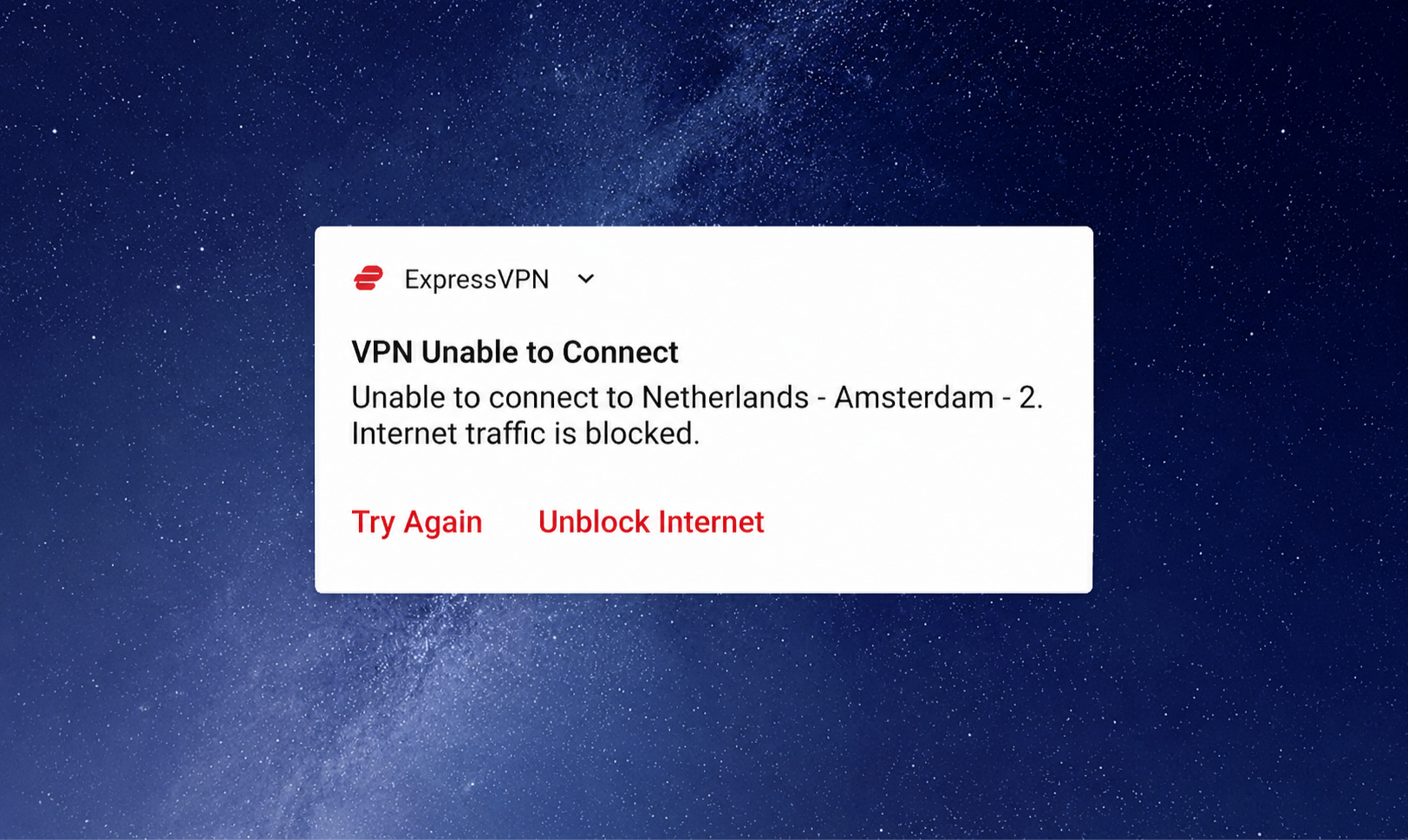
You have the following options:
- Try Again: The VPN will try reconnecting again.
- Unblock internet: You will access the internet without using the VPN.
Android TVs do not support system notifications. For Android TVs, you can check whether the kill switch is enabled and whether the ExpressVPN app is blocking internet access in the app’s settings.
Enable or disable the Internet Kill Switch
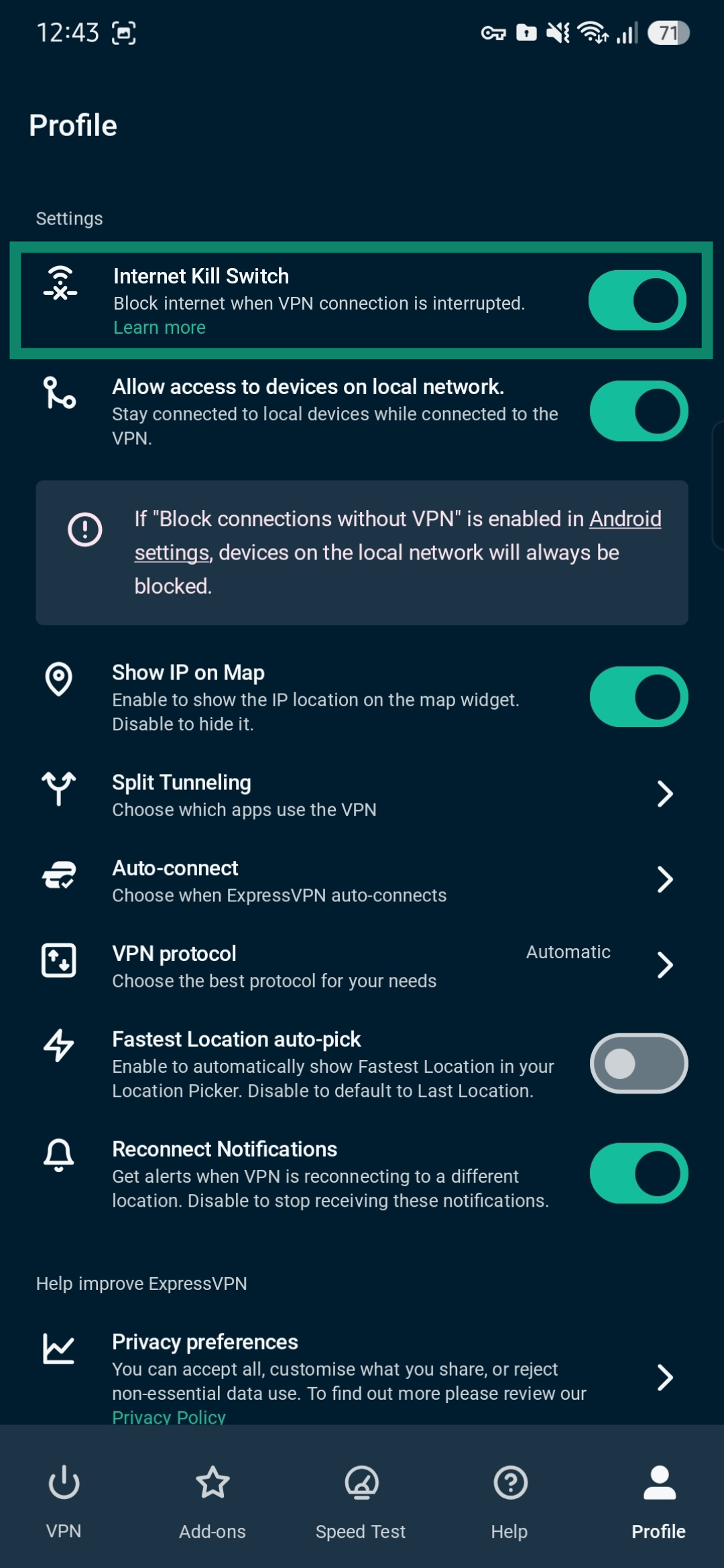
To enable or disable the Internet Kill Switch on an Android phone:
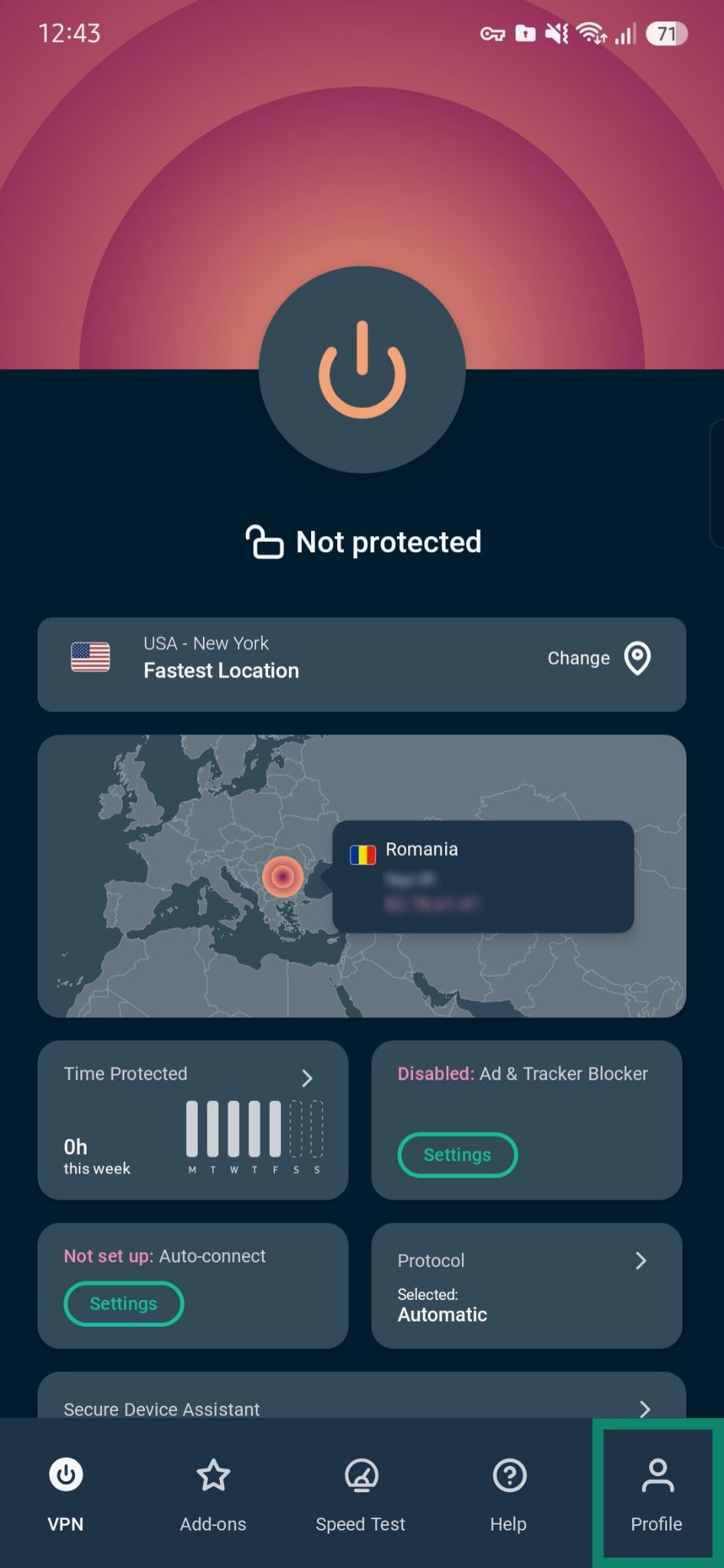
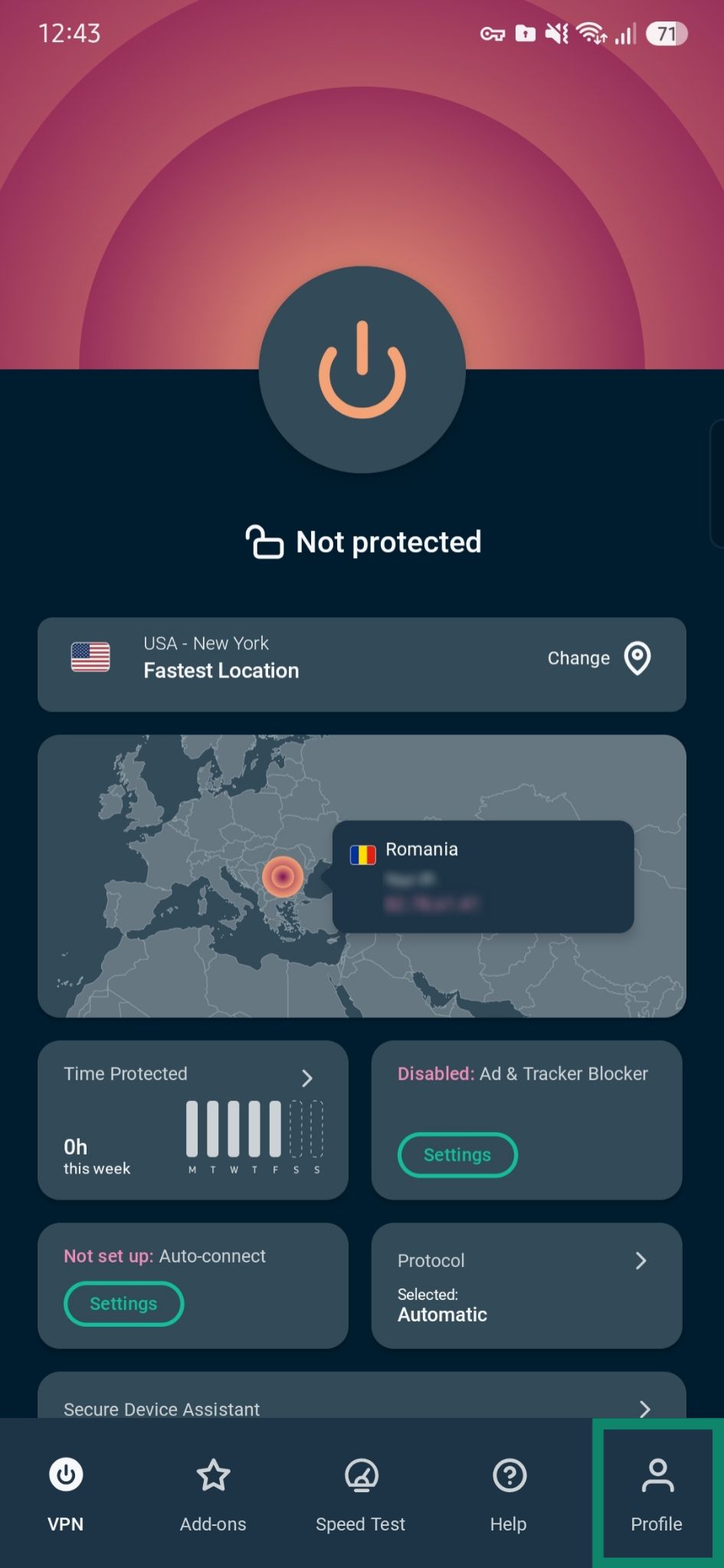
- In the app, select Profile.
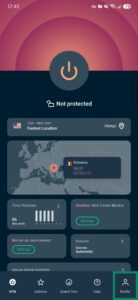

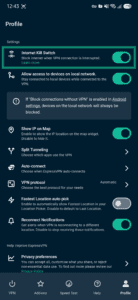
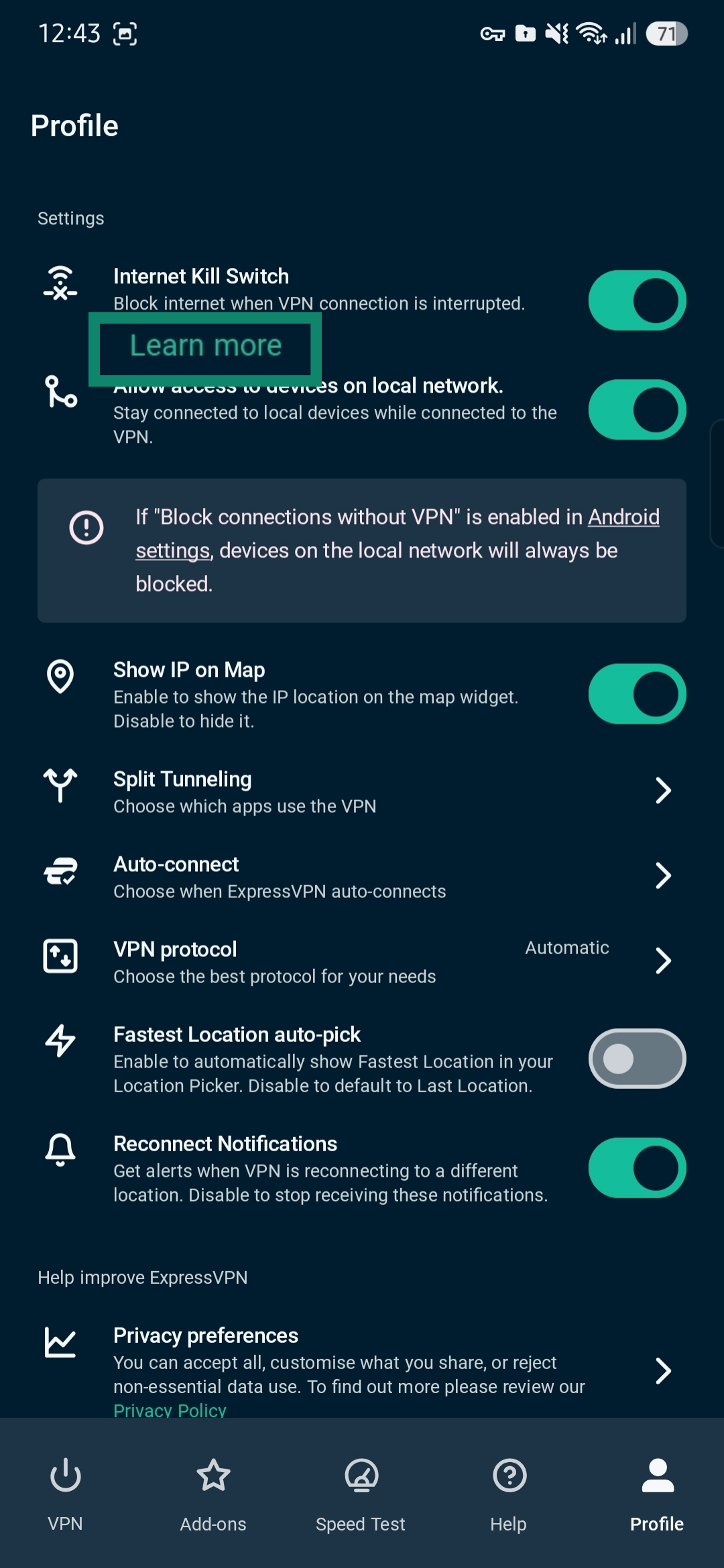
- Under Settings, toggle Internet Kill Switch on or off.
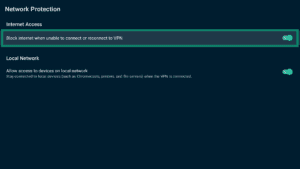
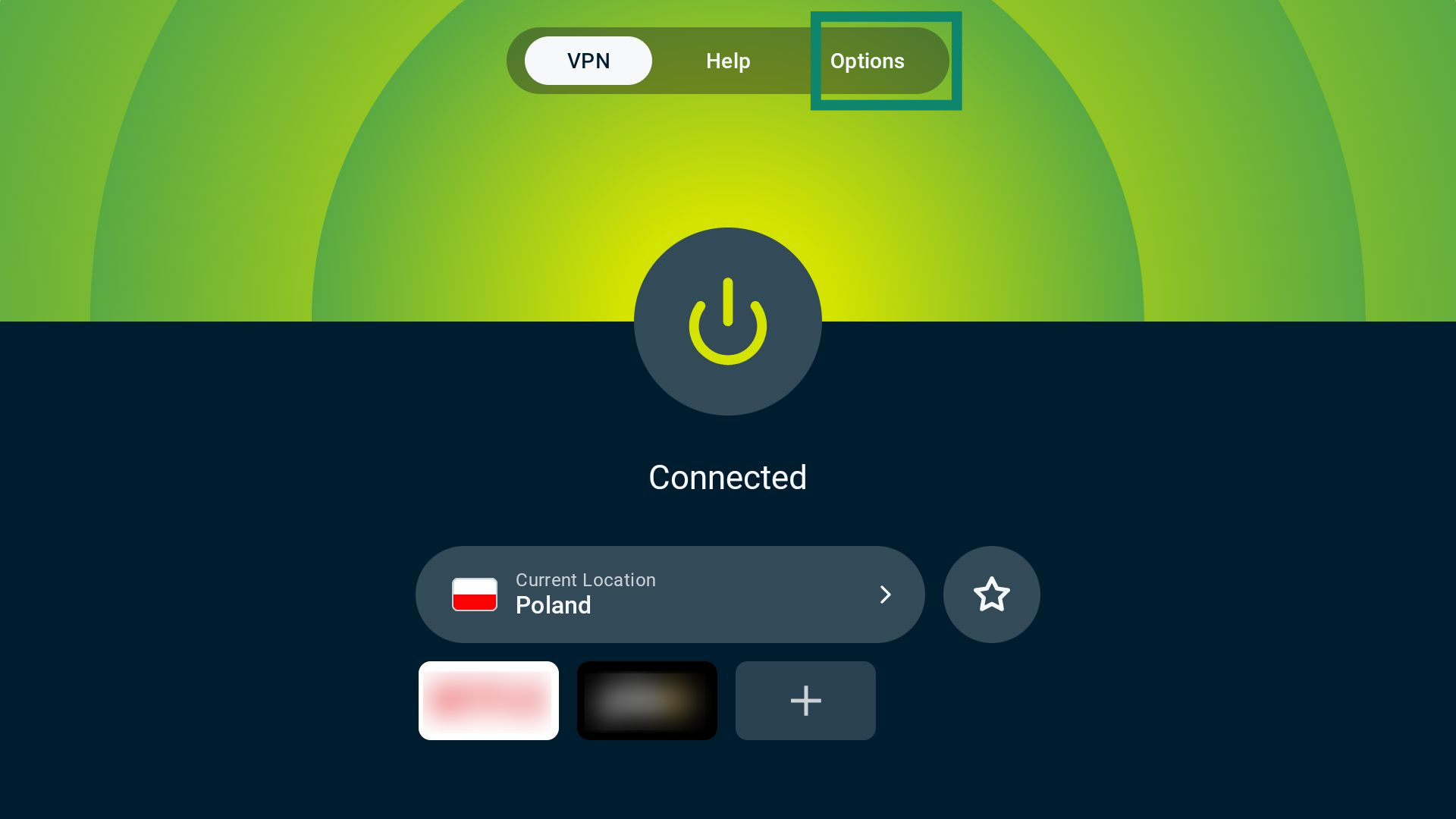
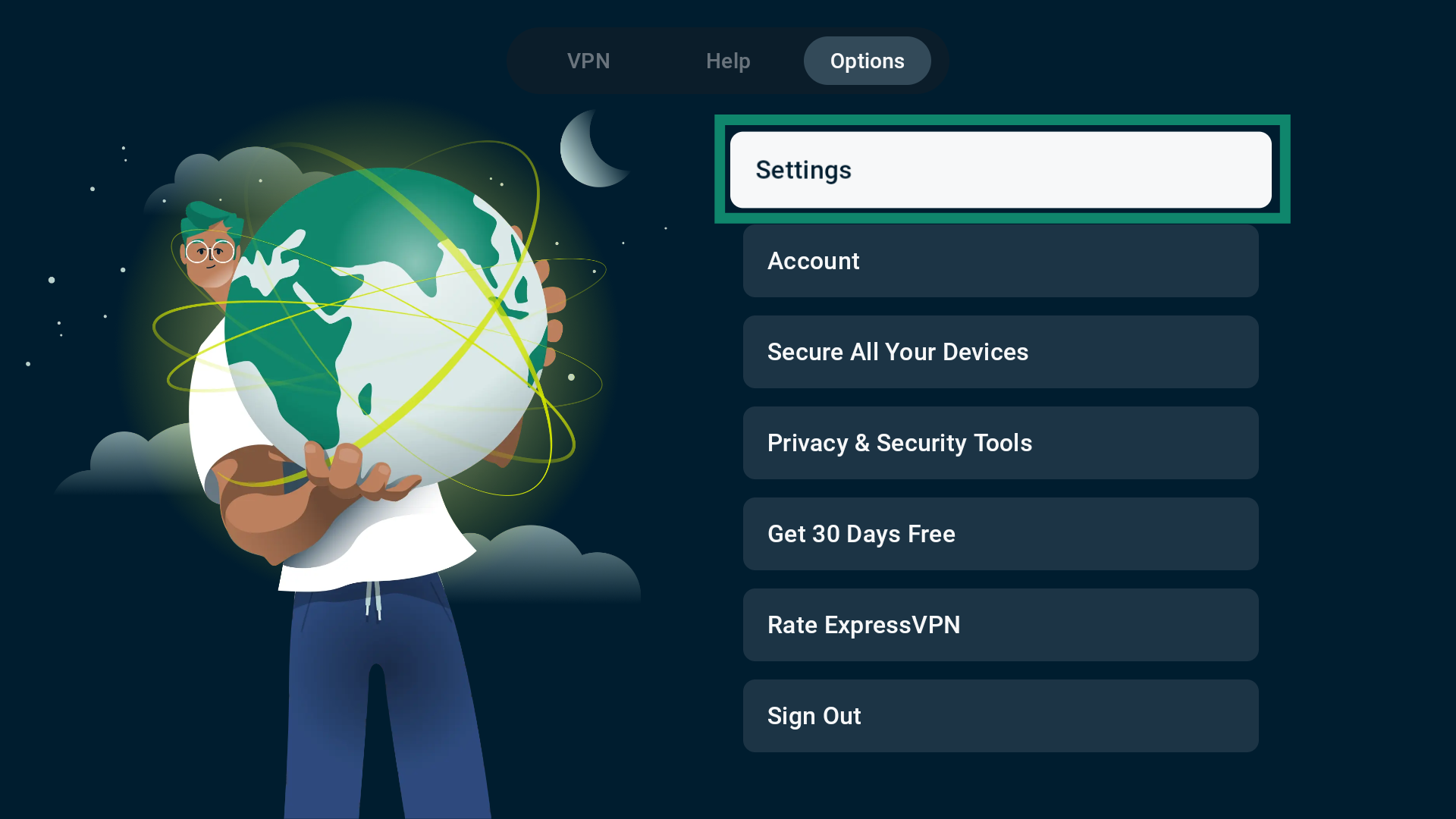
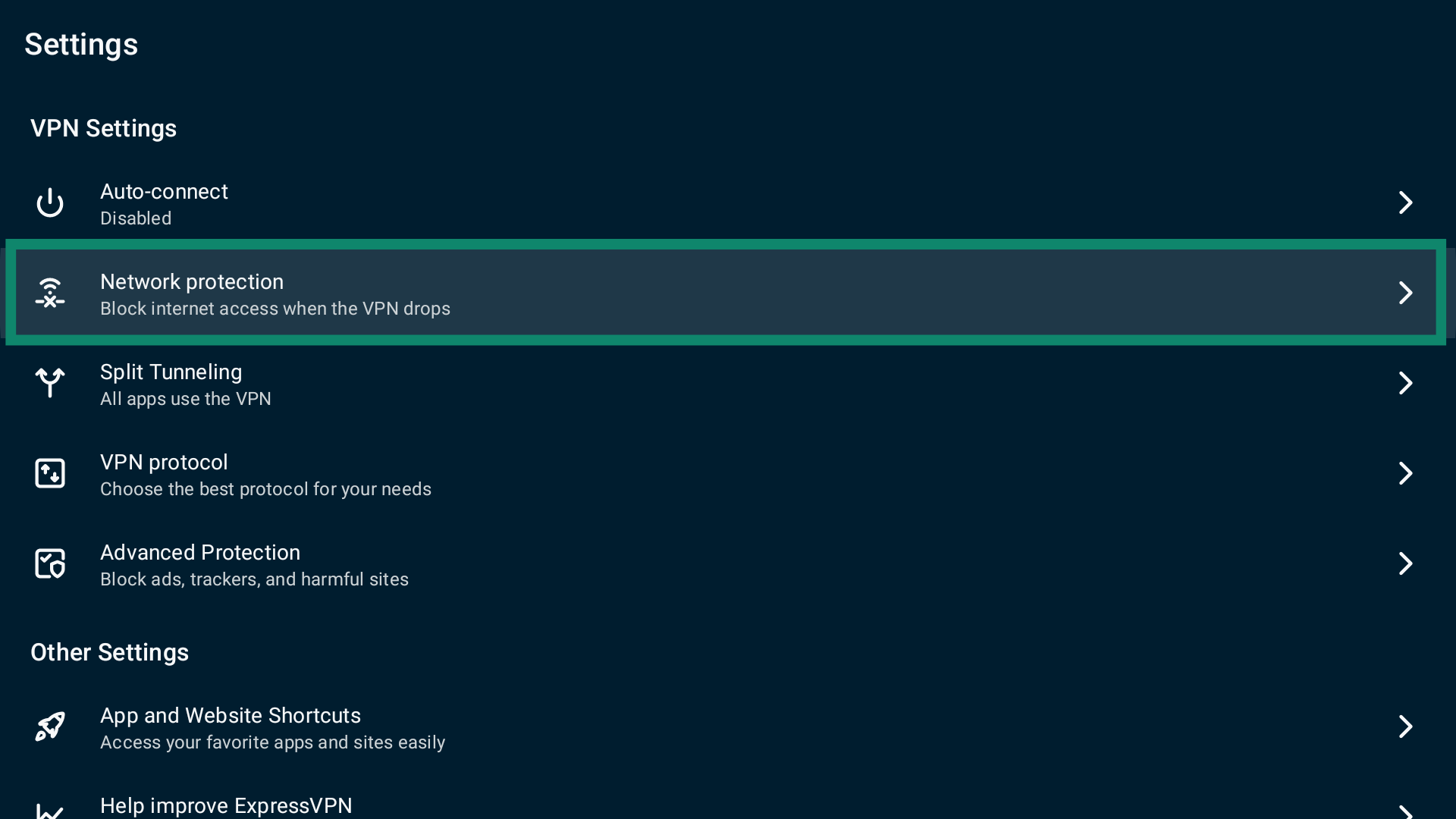
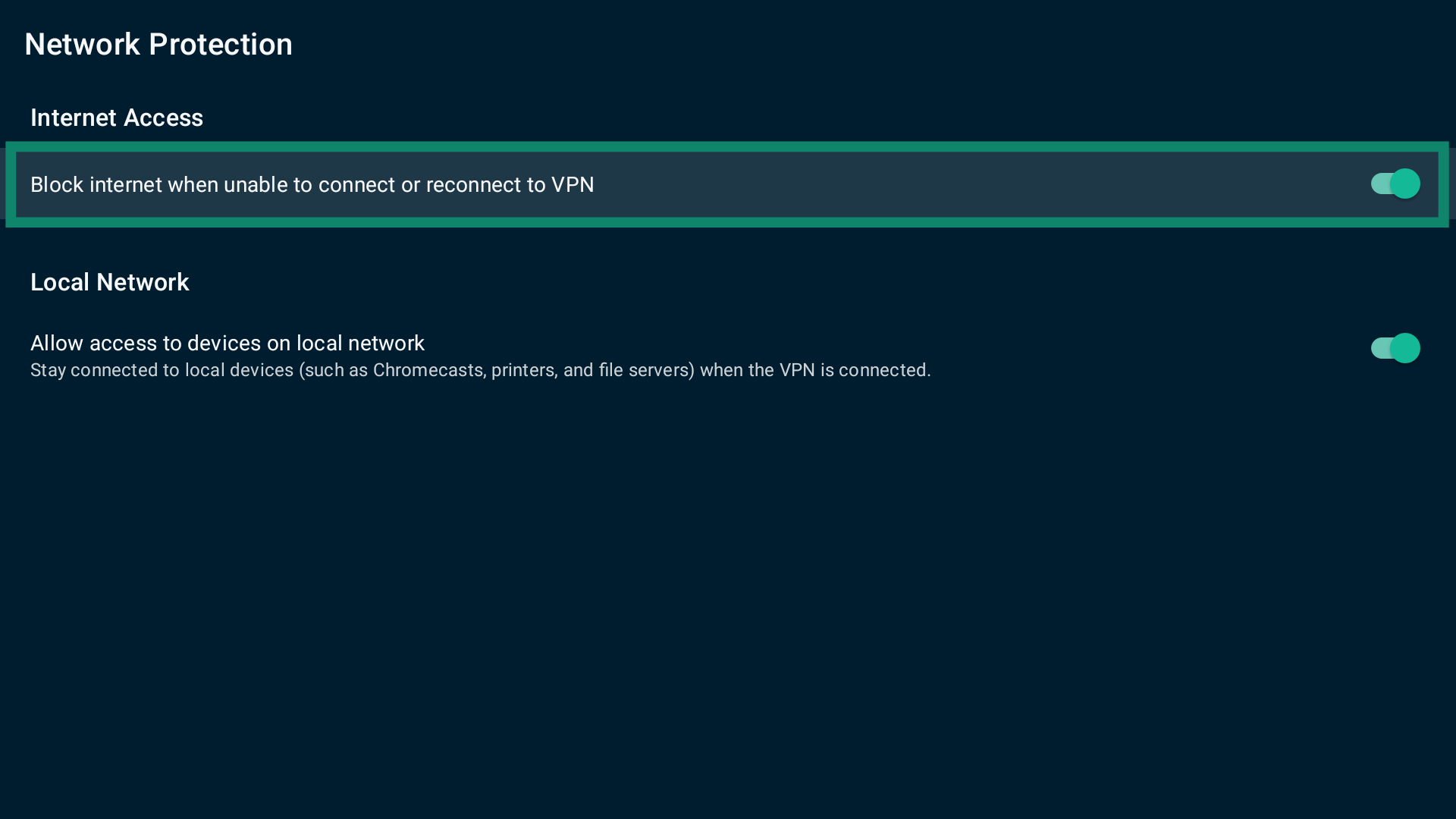
To enable or disable the Internet Kill Switch on Android TV or Android TV boxes:
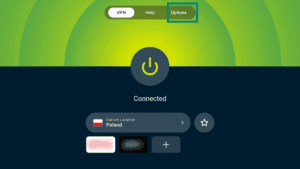
- In the app, select Options.

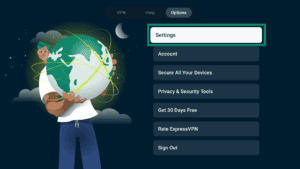
- Select Settings.
- Select Network protection.
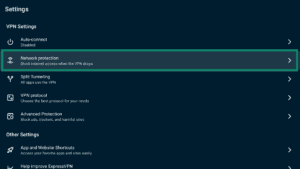
- Toggle Block internet when unable to connect or reconnect to VPN on or off.
Need help? Contact the ExpressVPN Support Team for immediate assistance.
How does Android system settings work?
ExpressVPN also supports Android’s built-in system-level option that forces all traffic through the VPN at all times, including on startup and after a reboot. This is available on Android 8.0 and above.
On most Android phones, it’s called Block connections without VPN, but some label it as Only allow connections through VPN. This setting blocks all internet traffic completely whenever the VPN is not active, even if it was manually disconnected, meaning no data can leave your device unless it is going through the VPN tunnel.
This option is found within the Always-on VPN feature of the Android system settings. When enabled, it automatically reconnects ExpressVPN if the connection drops or the device restarts.
Important limitations of this feature include:
- It disables split tunneling and blocks access to local devices such as printers and smart TVs.
- It is not available on Android TVs or Fire TVs.
- It may not be available on some manufacturer versions of Android.
Enable or disable Android system settings
To enable or disable the feature in your Android system settings (applicable to most Android devices):
- In the app, tap Profile.
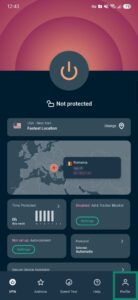
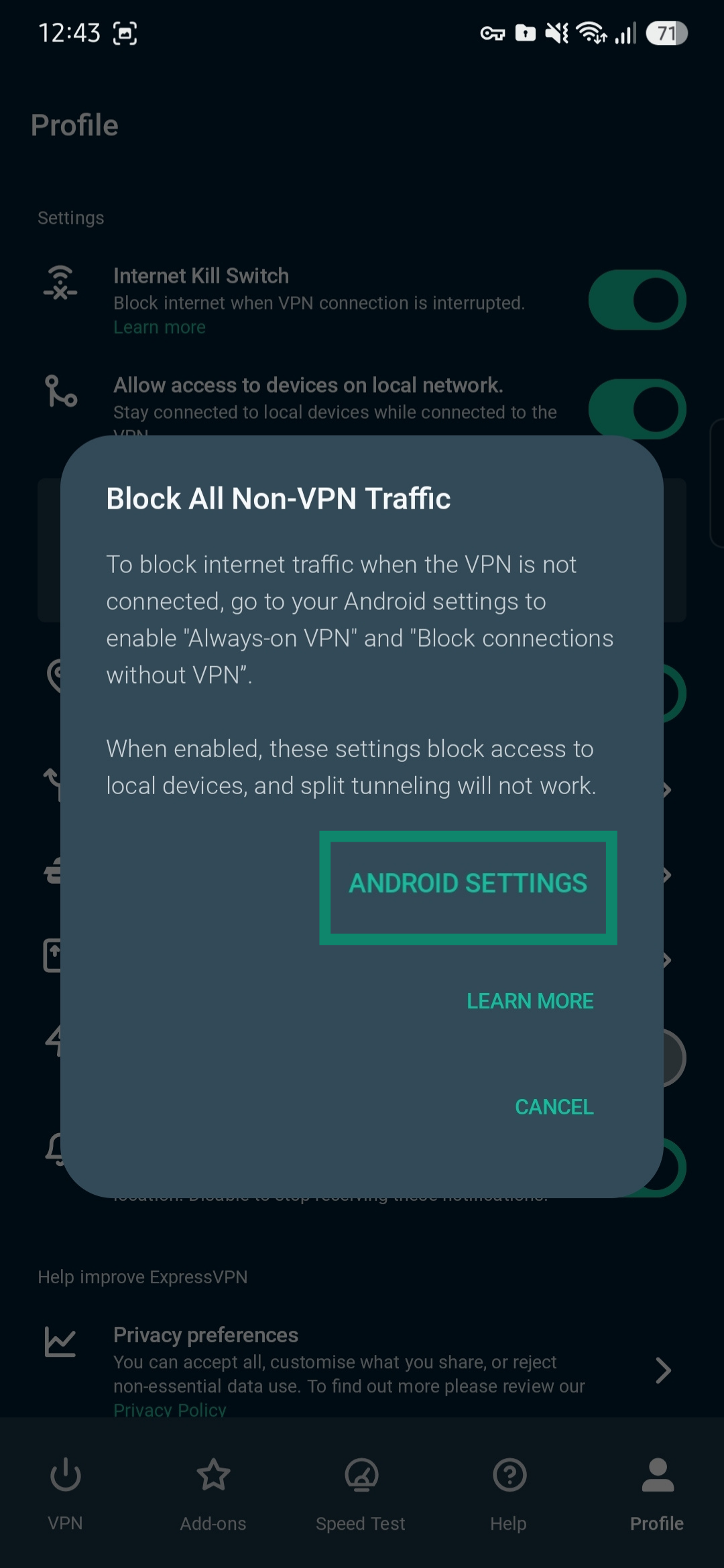
- Under Internet Kill Switch, tap Learn more.
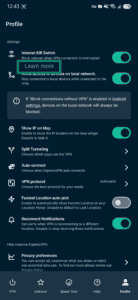
- In the prompt, tap ANDROID SETTINGS.
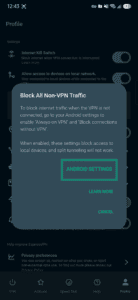
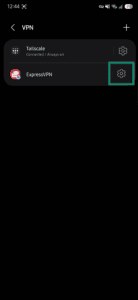
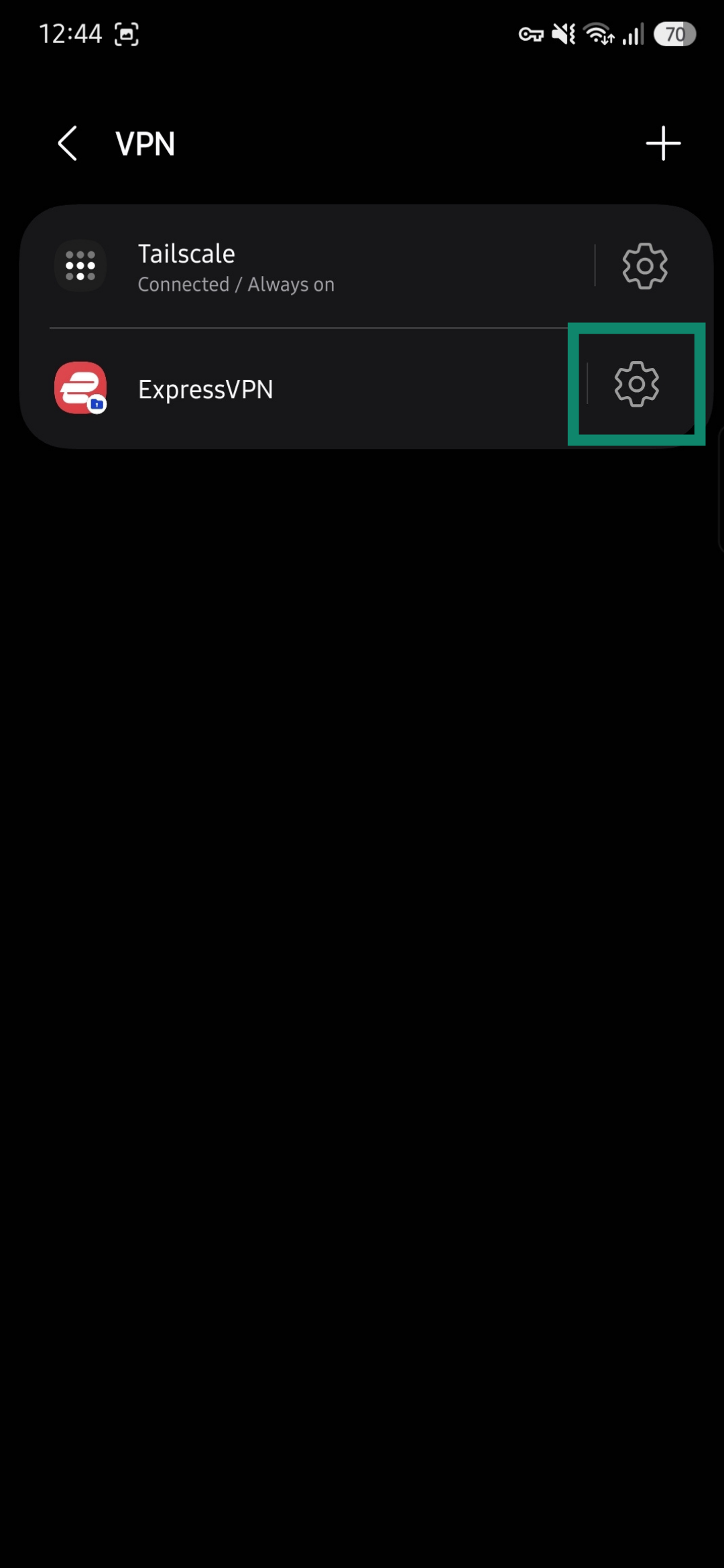
- Tap

 next to ExpressVPN. If there’ no settings option, long-press the ExpressVPN option.
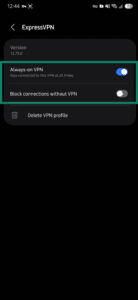
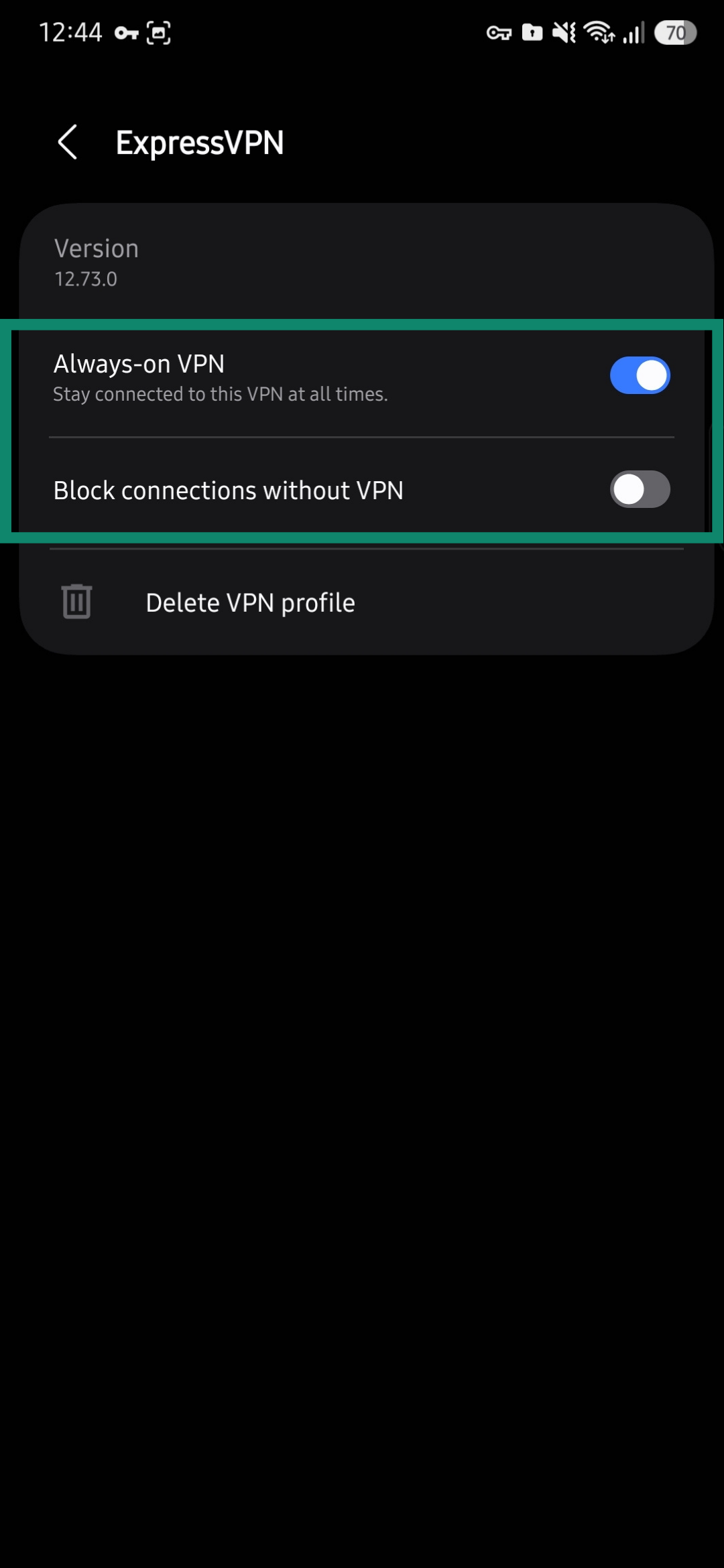
- Toggle Always-on VPN and Block connections without VPN on or off. (If you have toggled Block connections without VPN on, tap Turn on.)
Need help? Contact the ExpressVPN Support Team for immediate assistance.