This guide will show you how to use autofill. Autofill saves you time and effort by automatically filling your logins and other data (such as credit or debit cards) on sites and services. You can sign in to your accounts or make payments more easily, with just a click or tap—without having to manually enter your data.
ExpressKeys Chrome extension:
- Go to the login screen or page for which you saved a login.
- Click the username or password field.
- Click the login you want to fill.
Need help? Contact our Support Team for immediate assistance.
ExpressKeys for Android:
You will first have to enable Android’s autofill service by following these steps:
- Open the ExpressKeys app.
- Tap the Profile icon in the top-right.


- Tap AutoFill. (If you do not see this option, you have already chosen ExpressKeys to use Android’s autofill service.)

- Tap Open AutoFill Service.


- Tap ExpressKeys.

- Tap Change.
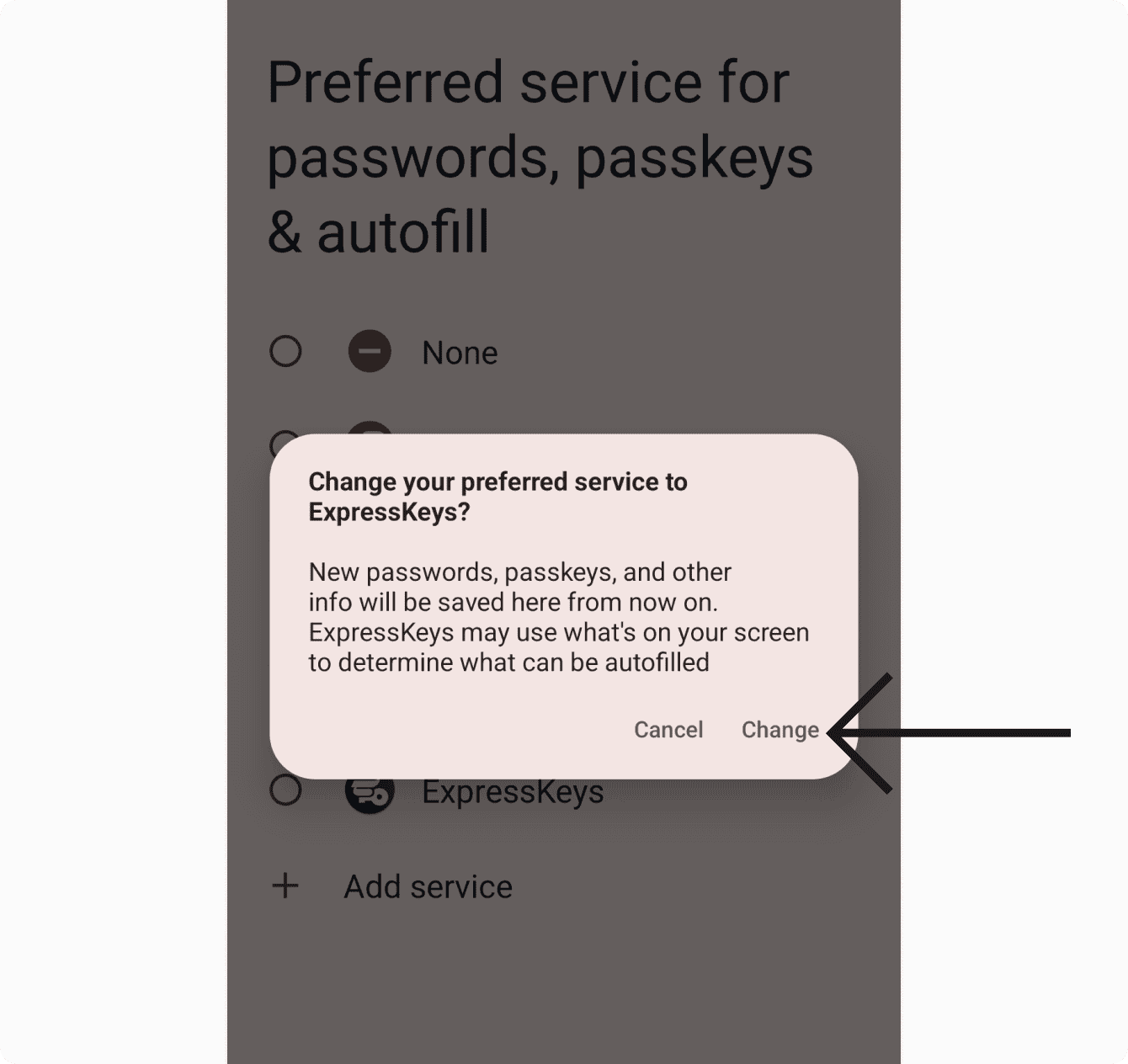
Once set up, you can autofill your logins or credit or debit cards by following these steps:
- Go to the login screen or page for which you saved a login, or go to a payment screen.
- Tap the username or password field, or the card fields.
- Tap to unlock or tap the ExpressKeys icon to use a different login or card.
Need help? Contact our Support Team for immediate assistance.
ExpressKeys for iOS:
You will first have to enable iOS’s autofill by following these steps:
- Open the ExpressKeys app.
- Tap the Profile icon in the top-right.
- Tap AutoFill.

- Tap Enable AutoFill.

- Navigate to AutoFill and enable ExpressKeys.
Once set up, you can use autofill by following these steps:
- Go to the login screen or page for which you saved a login.
- Tap the username or password field.
- Tap the login above the keyboard, or the ExpressKeys icon to use a different login.
Need help? Contact our Support Team for immediate assistance.