You can import your logins and other data (secure notes and credit/debit cards) from these password services into ExpressKeys.
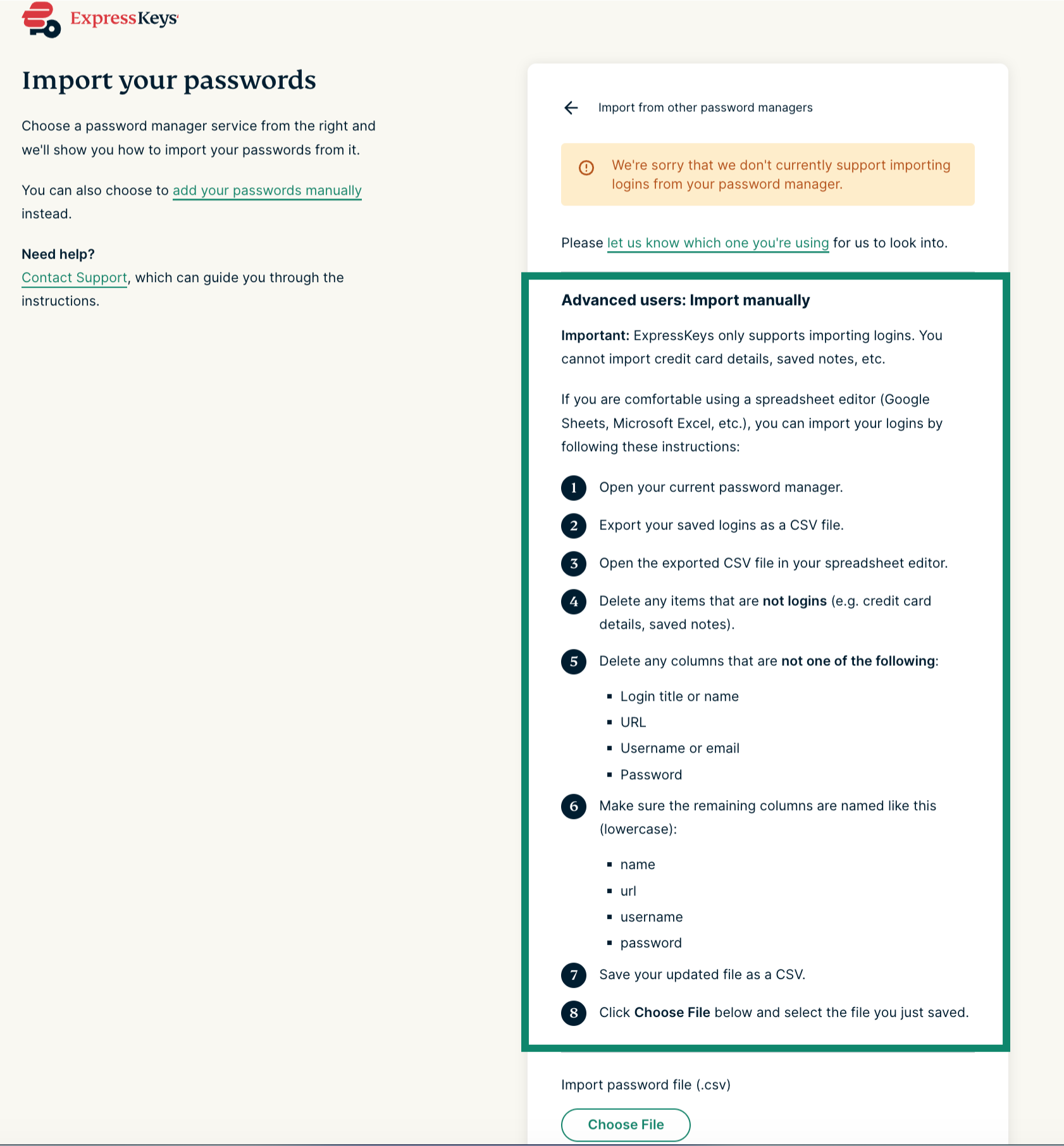
If you want to import your logins and other data (secure notes and credit/debit cards) into ExpressKeys from a password manager service which is not listed above, follow these steps instead:
- In Chrome, Opera, Edge, Vivaldi, or Brave, install the ExpressKeys browser extension for Chrome.
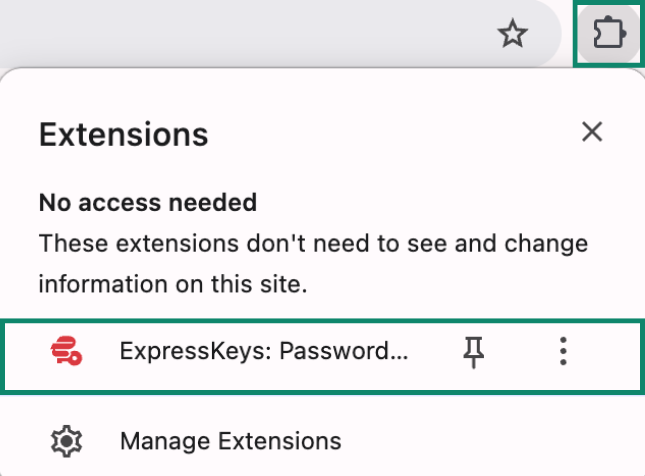
- Click the ExpressKeys browser extension.


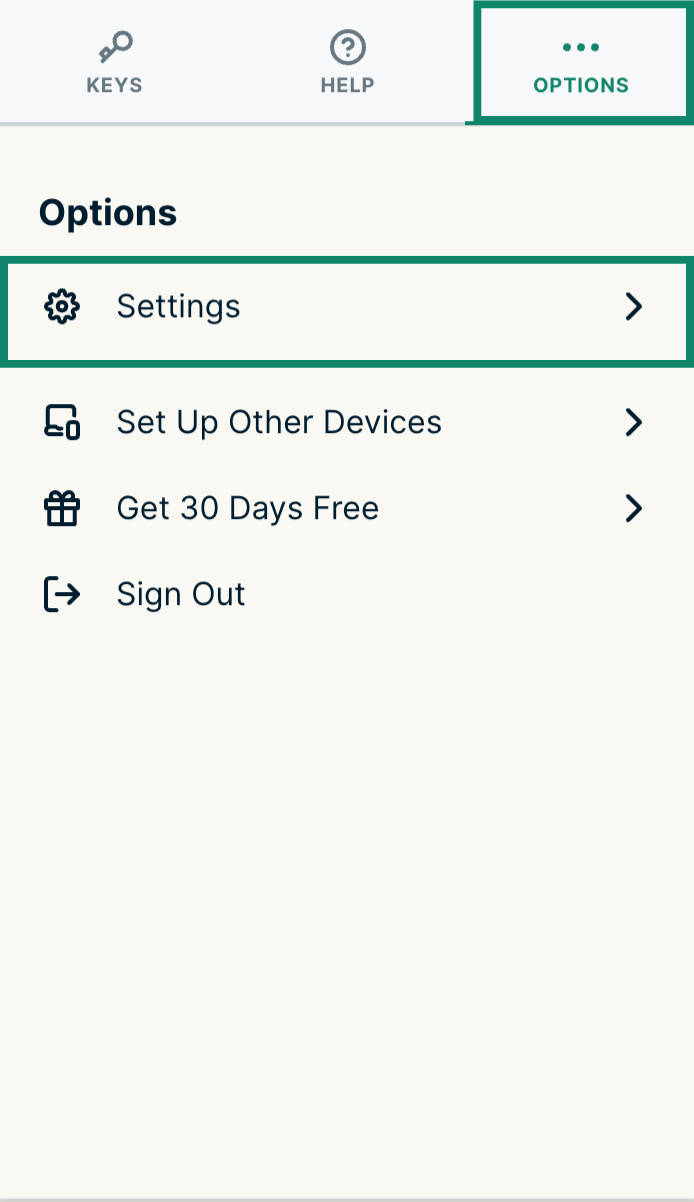
- Click the Options tab > Settings.


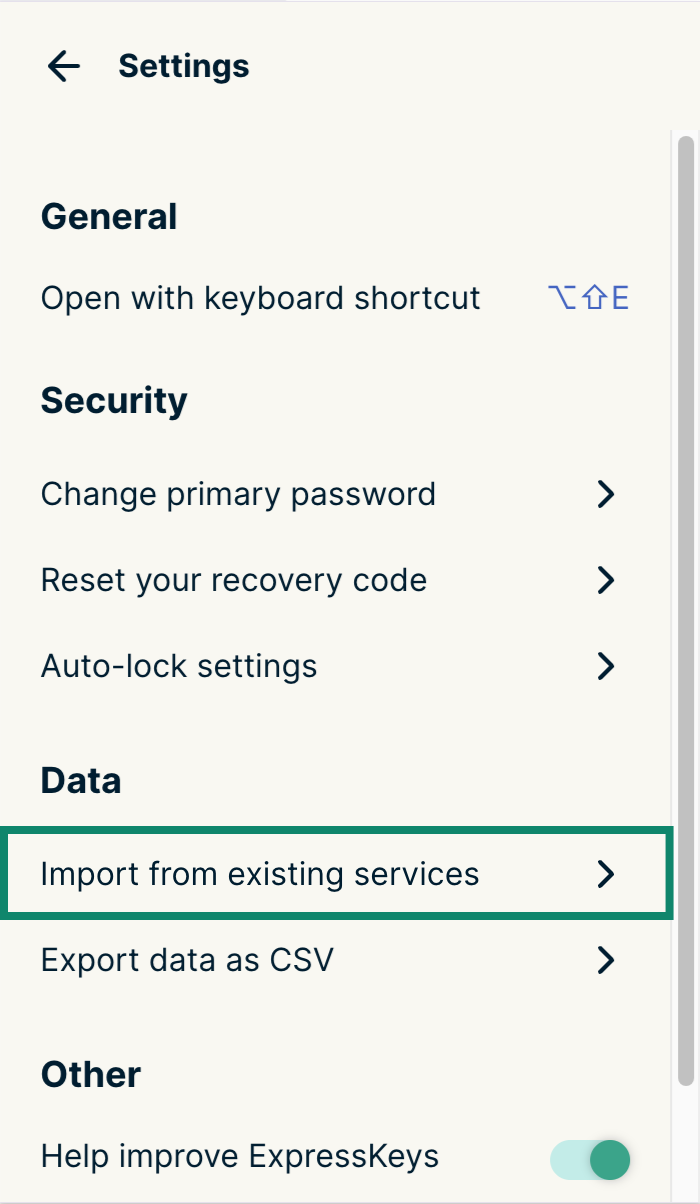
- Click Import from existing services.


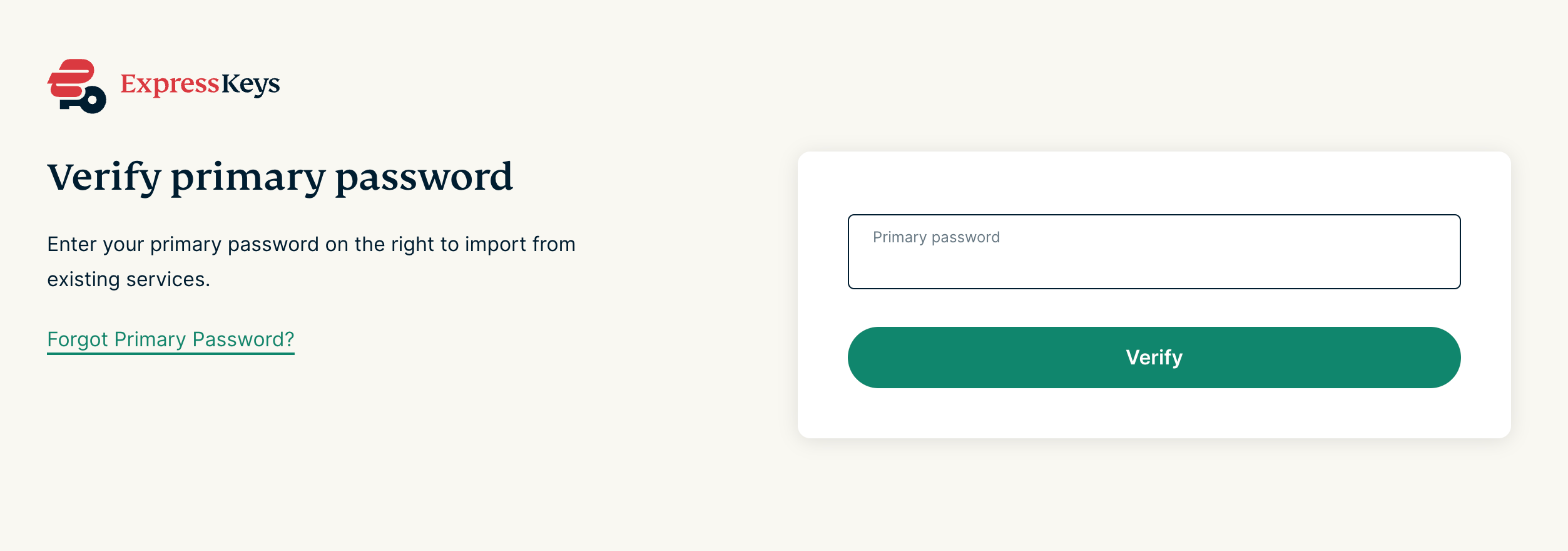
- Enter your primary password.


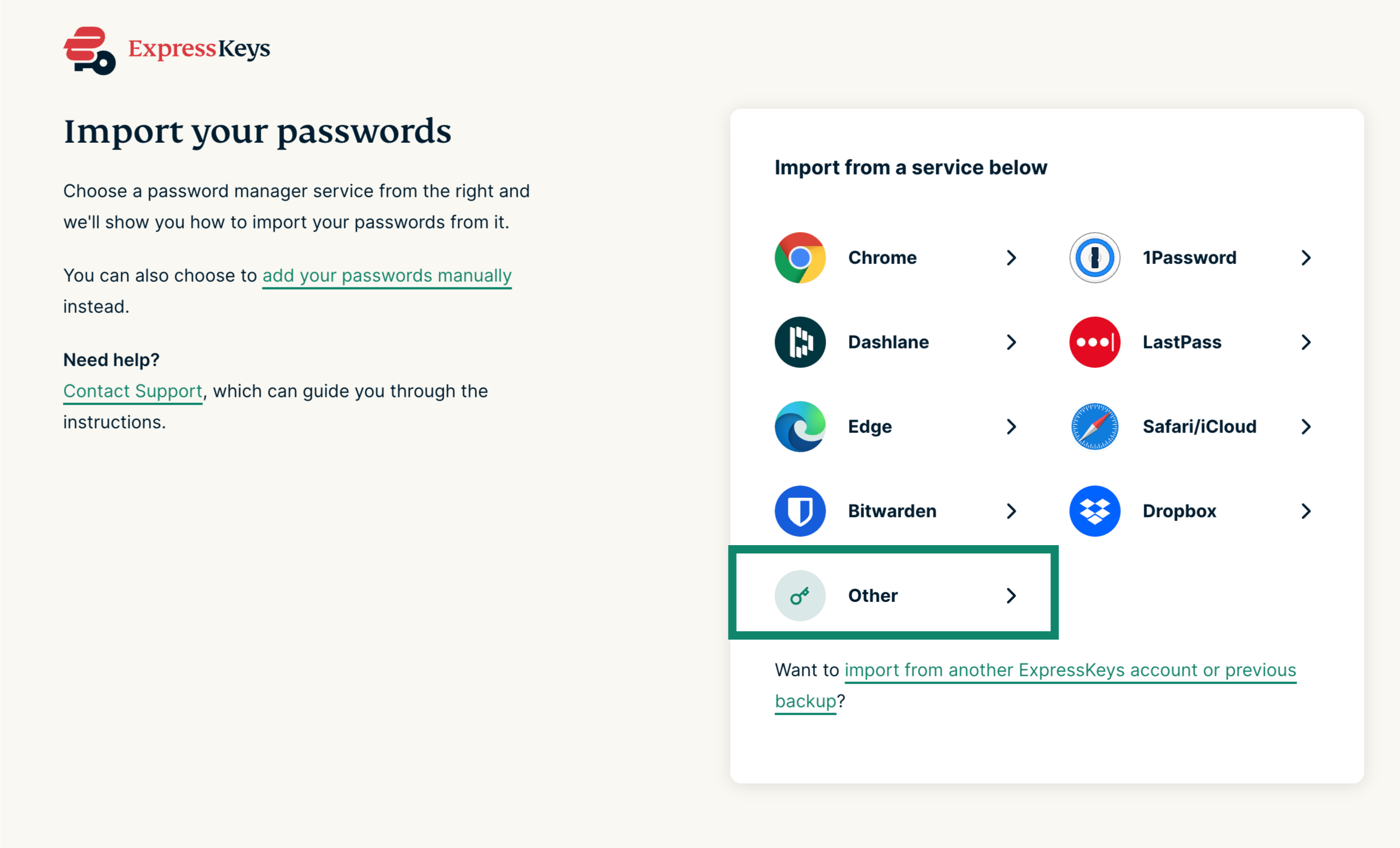
- Select Other.


- Follow the on-screen instructions.


Need help? Click here to contact the ExpressVPN Support Team via Live Chat