




Need a VPN for your router?
Get ExpressVPN Now
Love ExpressVPN? Want a free month?
Refer a Friend NowThis tutorial will show you how to set up ExpressVPN on your Tomato router, using the OpenVPN protocol.
Not all ExpressVPN locations may be available for manually configured connections.
Tomato is a custom firmware that offers advanced networking features and OpenVPN protocol support. The steps below were tested on AdvancedTomato Version 3.5-140. See a list of AdvancedTomato supported routers.
Before you proceed, make sure you have set up the Tomato firmware on your router.
Jump to…
1. Find your ExpressVPN account credentials
2. Configure your Tomato router
3. Connect to a VPN server location
Disconnect from a VPN server location
1. Find your ExpressVPN account credentials
Go to the ExpressVPN+ setup page. If prompted, log into your account.
Click Advanced setup under Applications (or Show other devices).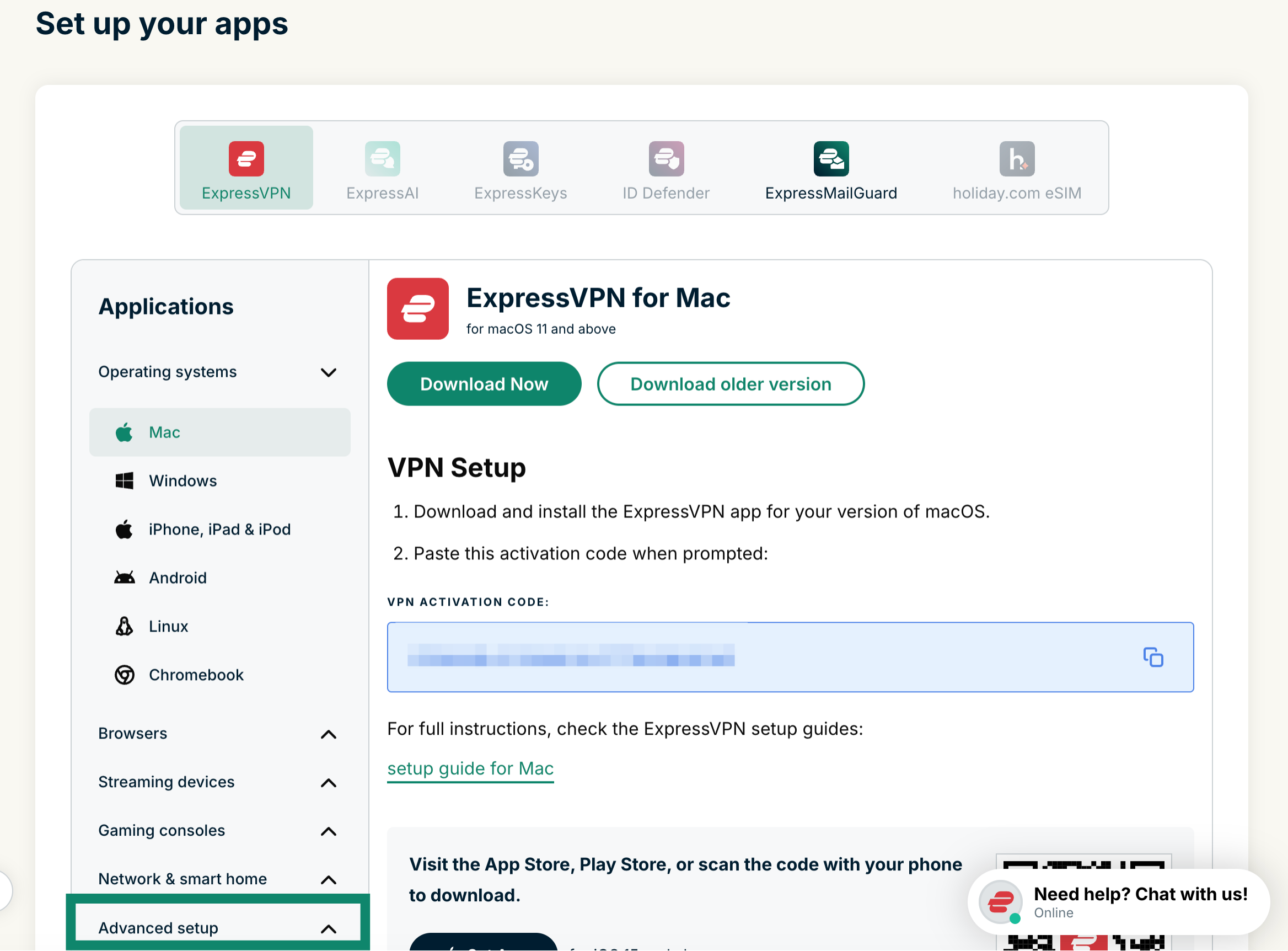 Click Manual configuration.
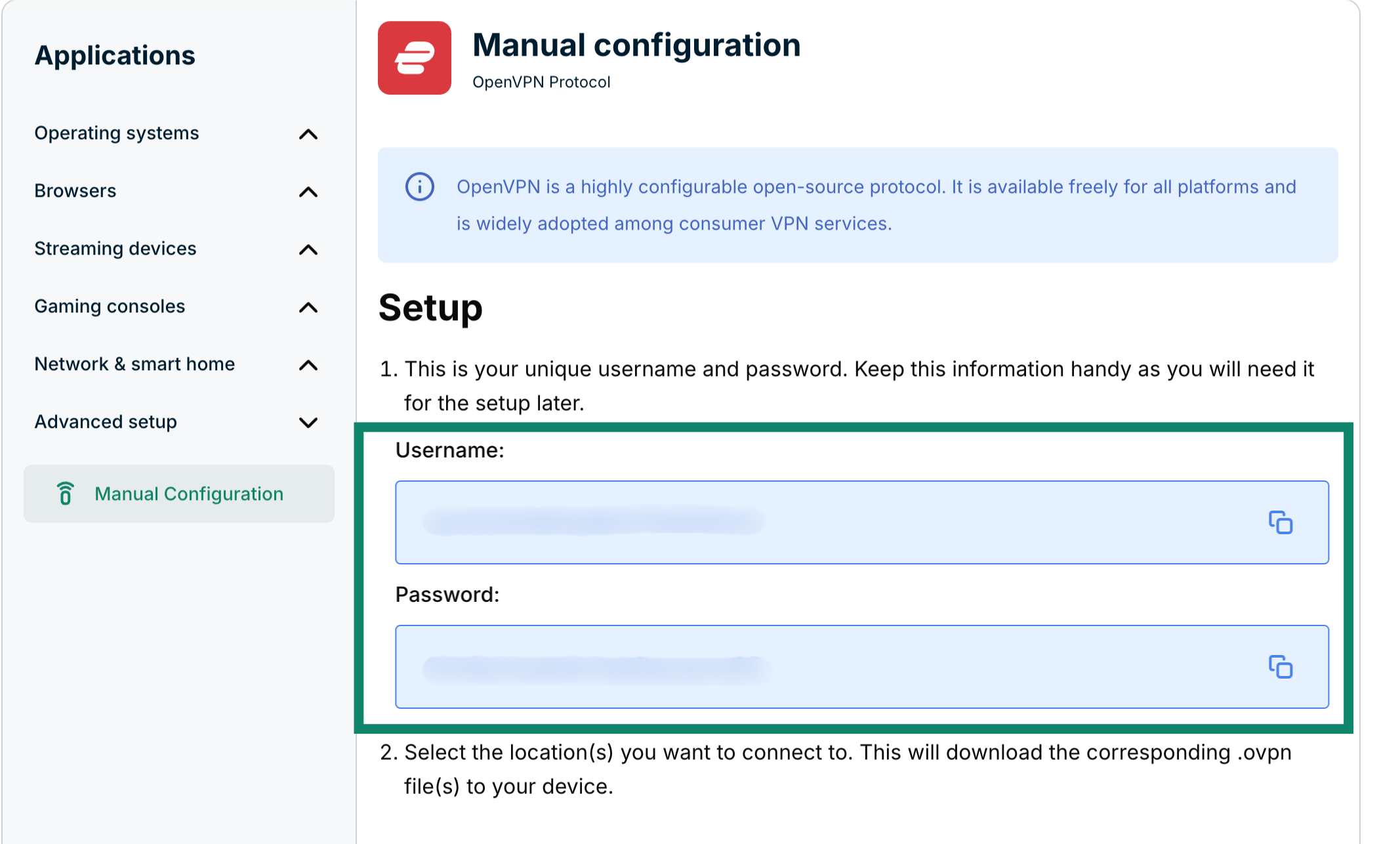
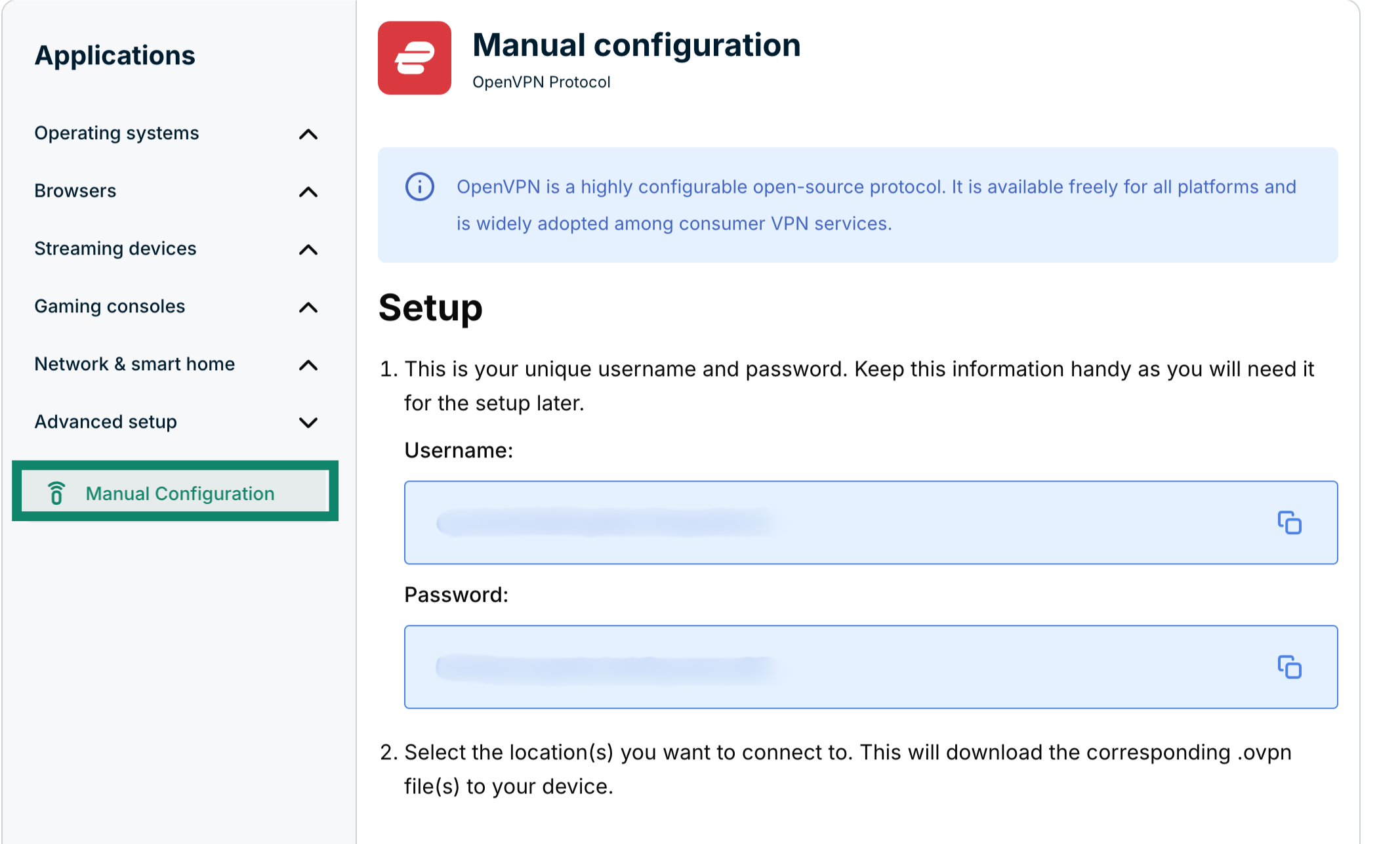 You’ll see your username and password on the right side under Setup in step 1.
 Scroll down to step 2 to see the available regions. Click a region to open a dropdown menu and see the available locations.
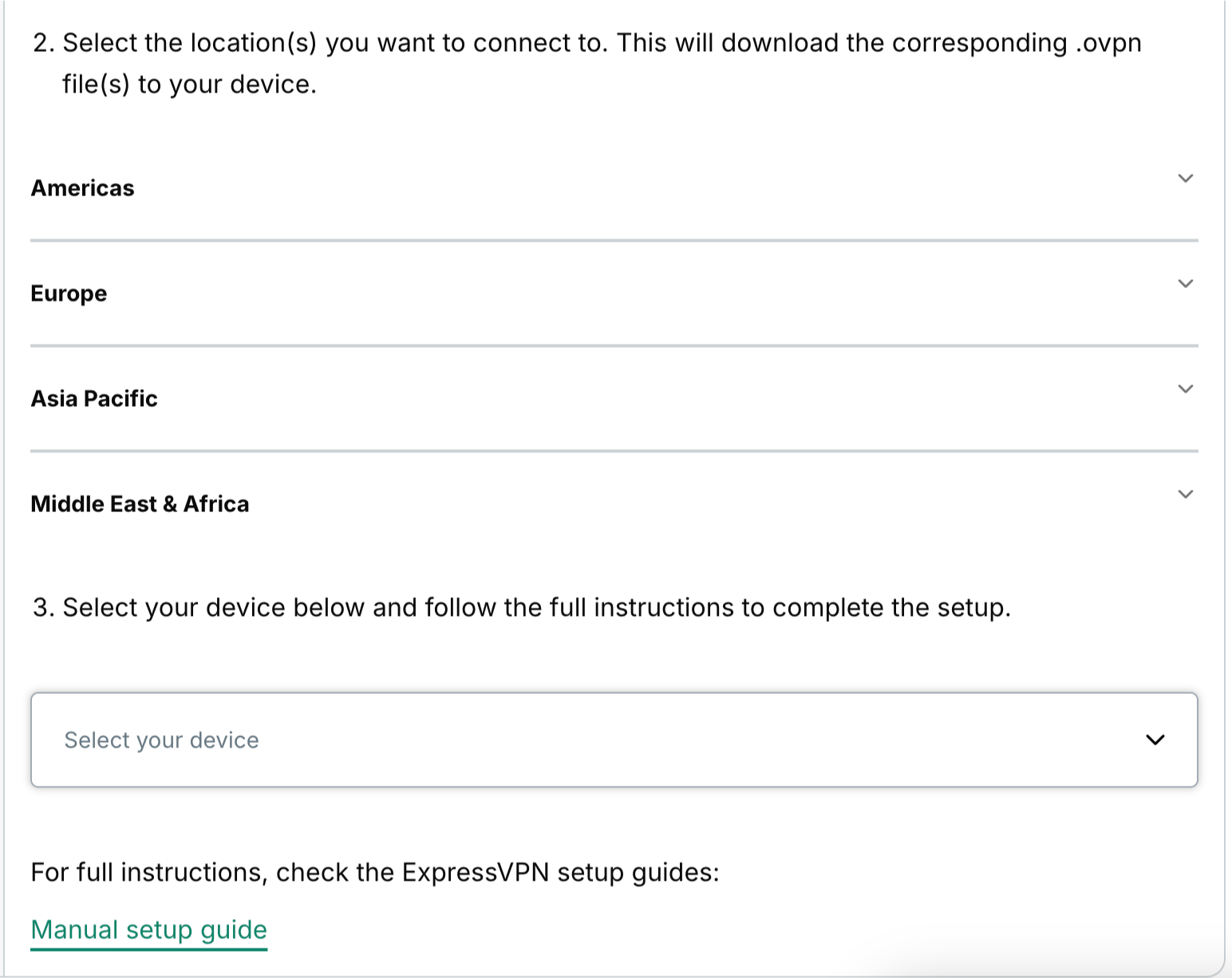 Click the location(s) you want in order to download the .ovpn file(s).
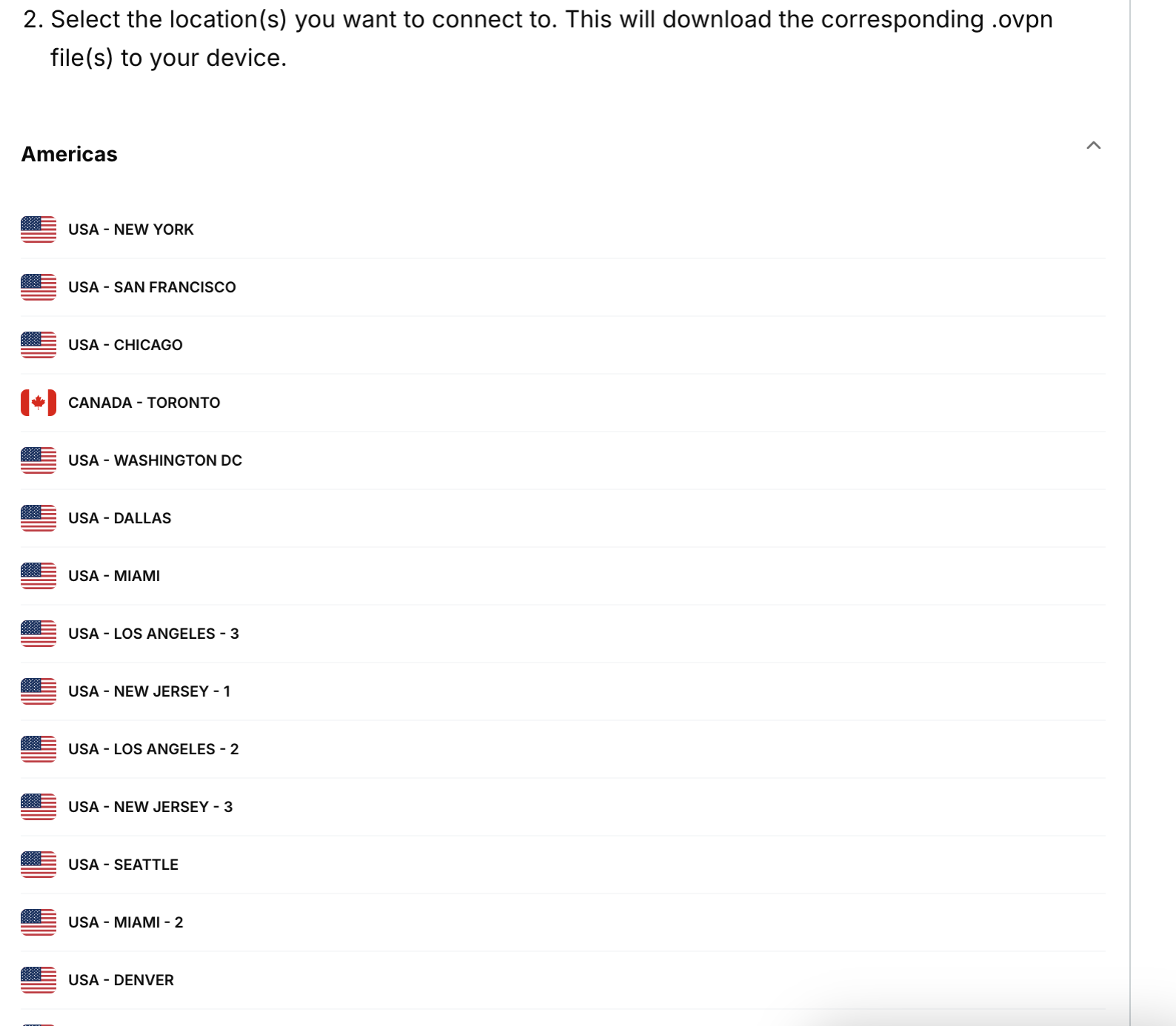 Keep this browser window open. You will need this information for the setup later.
Need help? Contact the ExpressVPN Support Team for immediate assistance.
2. Configure your Tomato router
In your browser’s address bar, enter your router’s IP address.
Enter the username and password. (By default, they are root and admin.) Click Sign In.
Once in the admin settings, in the left sidebar, click VPN > OpenVPN Client.
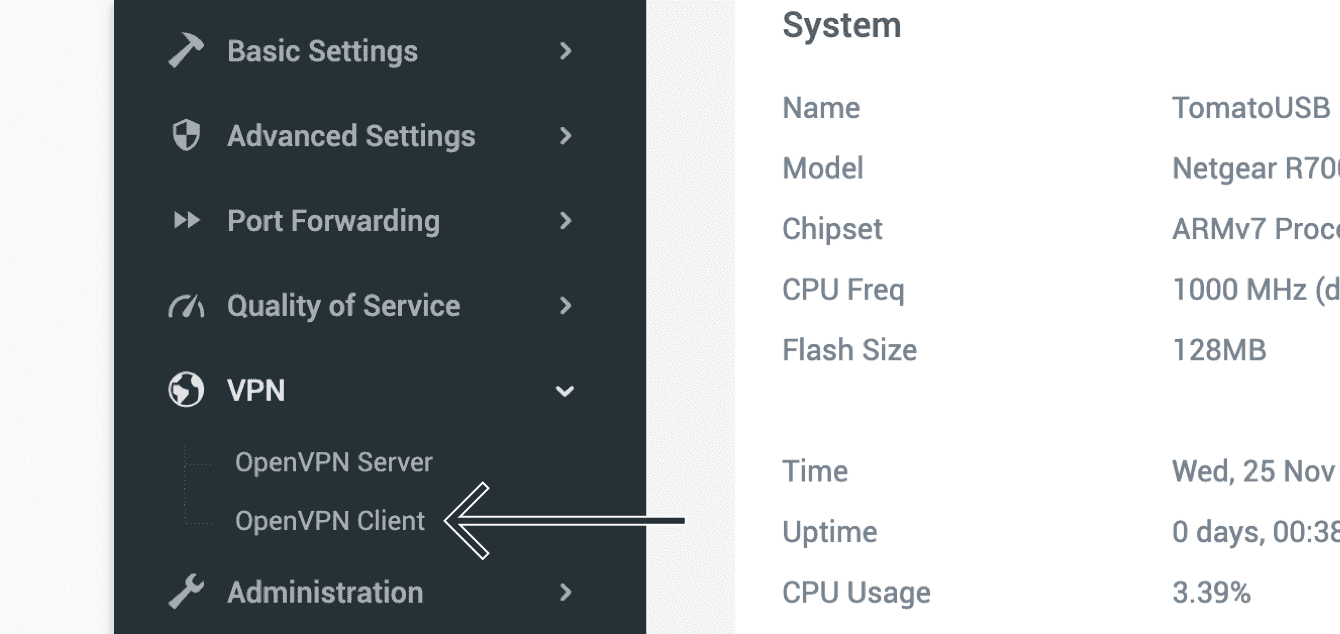
In the Basic tab, enter the following information:
- Start with WAN: Check this box.
- Interface Type: Select TUN.
- Protocol: Select UDP.
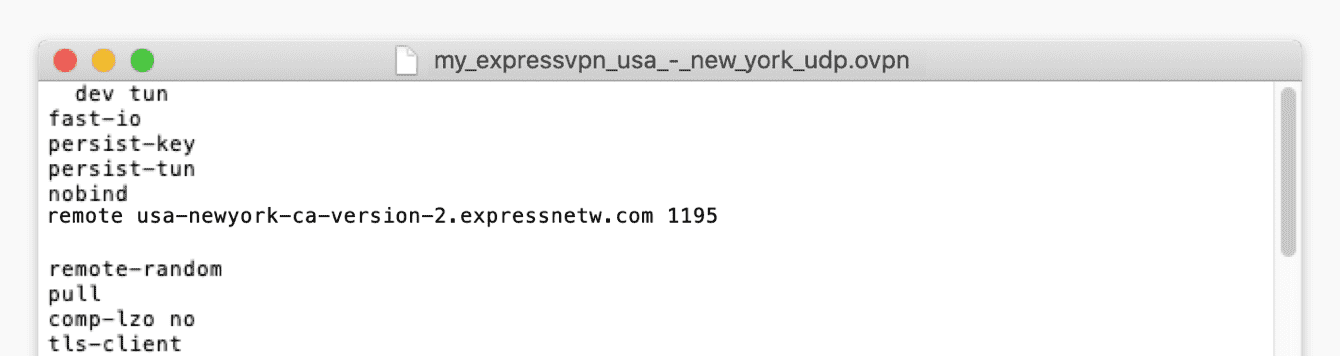
- Server Address/ Port: To get this information, right-click the .ovpn config file you downloaded earlier and open it with any text editor. For the first field, enter the server address listed between the word “remote” and the 4-digit number in the first field. For the second field, enter the 4-digit number at the end of this line.


- Firewall: Select Automatic.
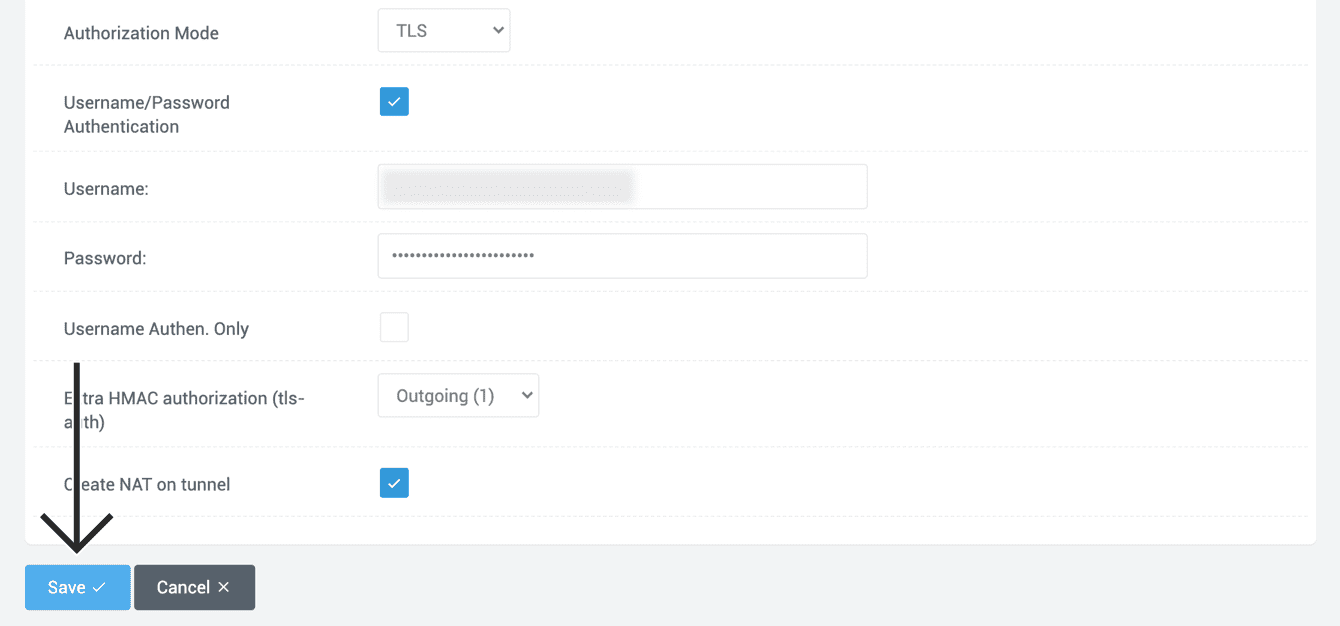
- Authorization Mode: Select TLS.
- Username/ Password Authentication: Check this box.
- Username: Enter the OpenVPN username found earlier.
- Password: Enter the OpenVPN password found earlier.
- Username Authen. Only: Leave unchecked.
- Extra HMAC authorization (tls-auth): Select Outgoing (1).
- Create NAT on tunnel: Check this box.
Click Save.
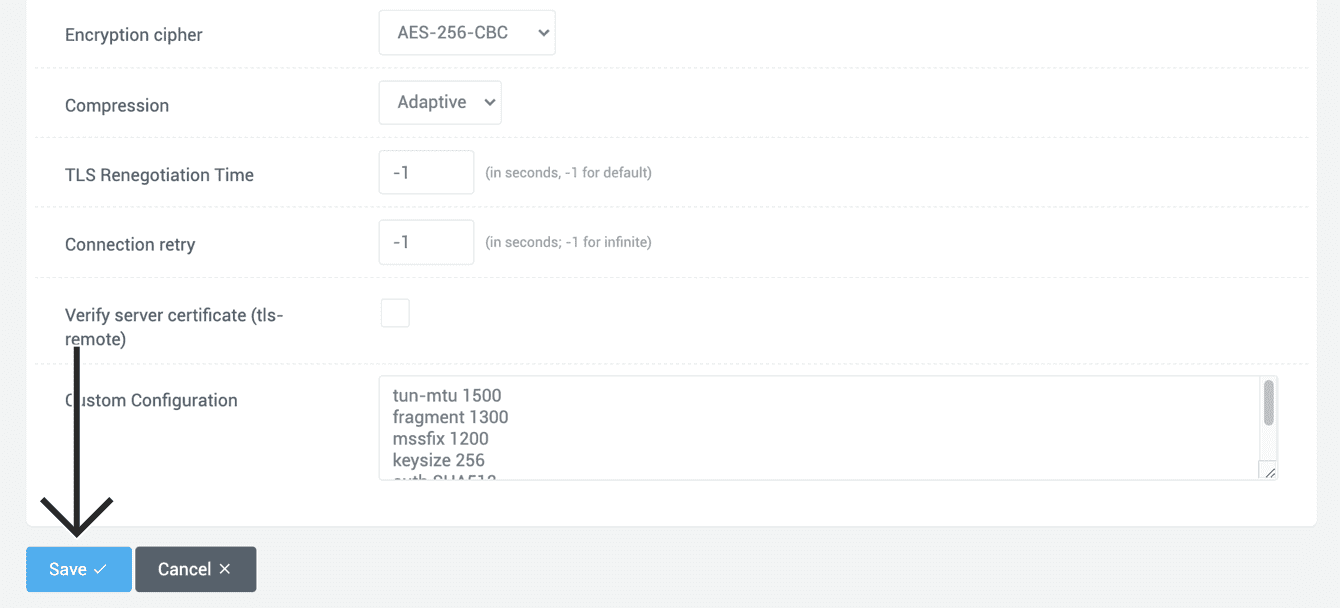
Click the Advanced tab. Enter the following information:
- Poll Interval: Leave this as is.
- Redirect Internet traffic: Check this box.
- Accept DNS configuration: Select Exclusive.
- Encryption cipher: Select AES-256 CBC.
- Compression: Select Adaptive.
- TLS Renegotiation Time: Enter -1.
- Connection retry: Enter -1.
- Verify server certificate (tls-remote): Uncheck this box.
For Custom Configuration, in the same text editor that you opened earlier, find and paste the values for the following items into this field:
- tun-mtu
- fragment
- mssfix
- keysize
- auth
- sndbuf
- rcvbuf
For example, if you are using the.ovpn configuration file for USA – New York, paste:
tun-mtu 1500
 fragment 1300
 mssfix 1200
 keysize 256
 auth SHA512
 sndbuf 524288
 rcvbuf 524288
Click Save.
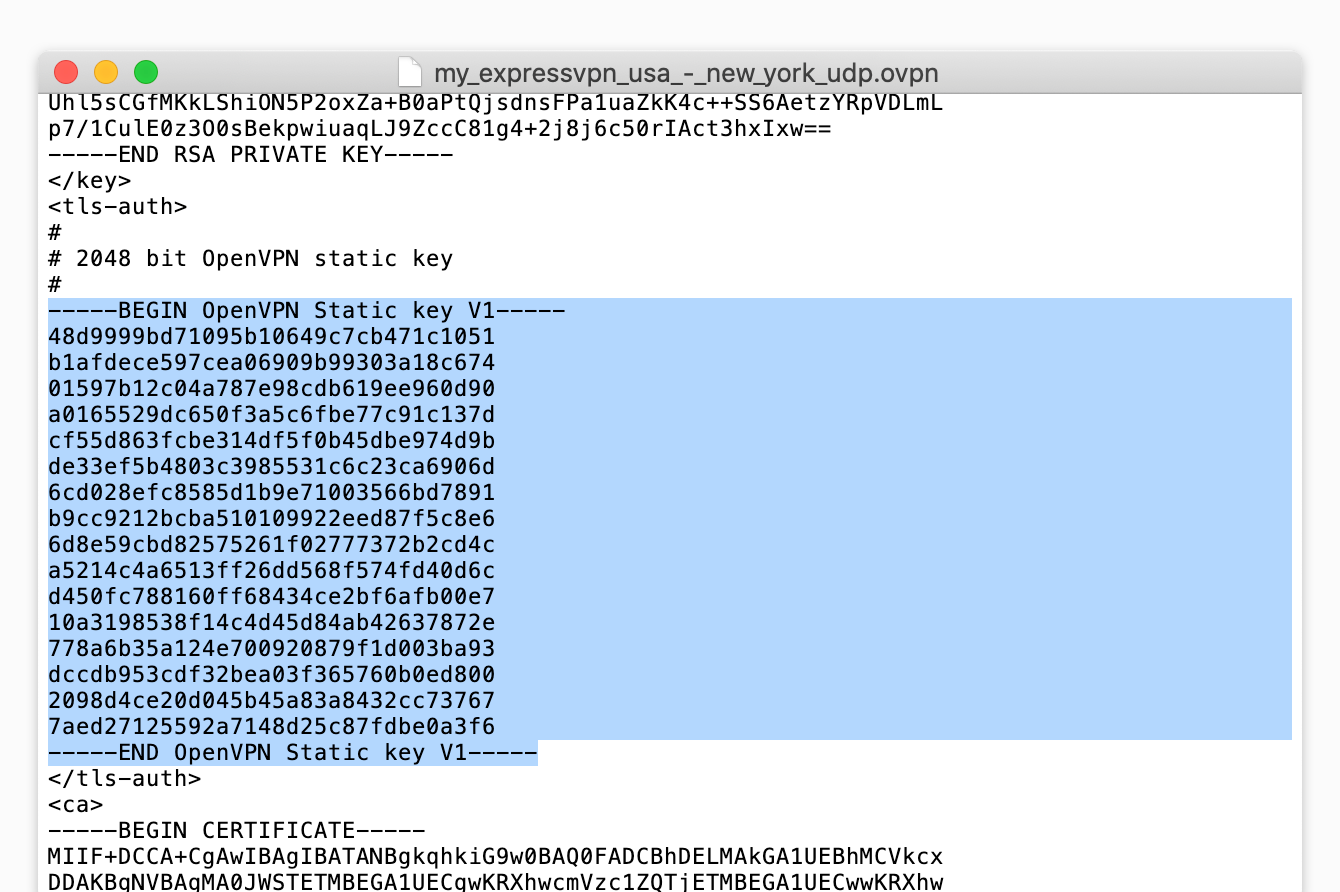
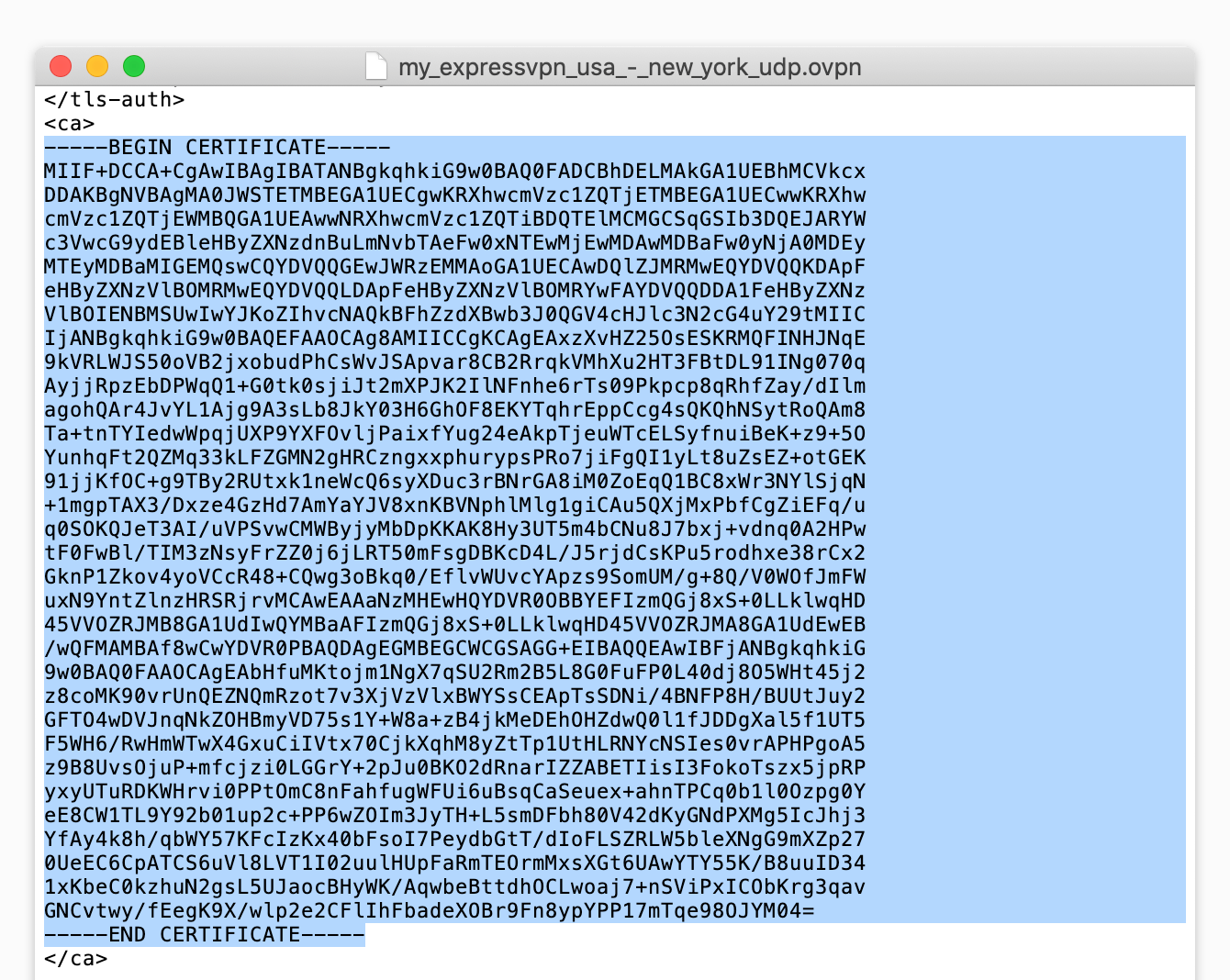
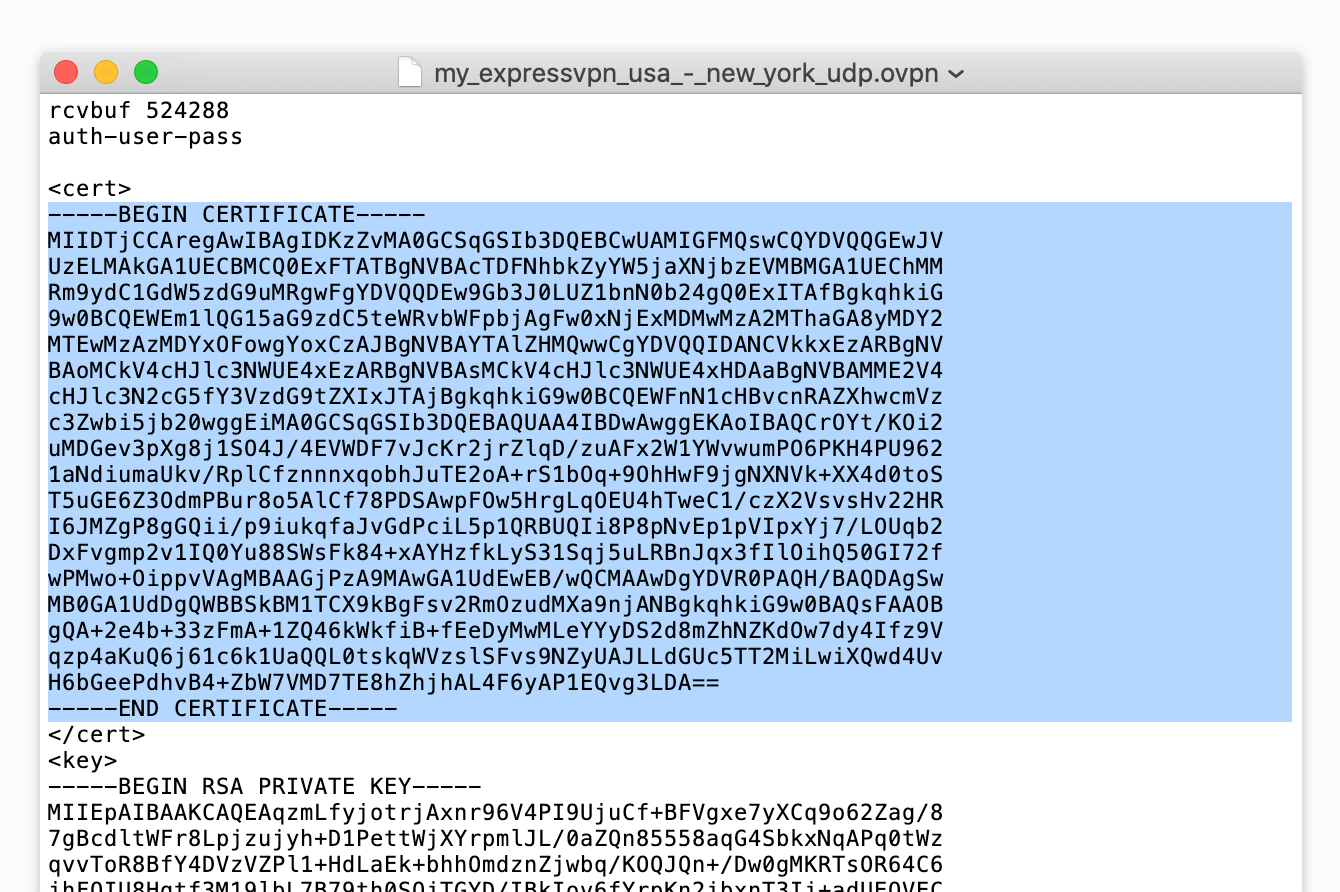
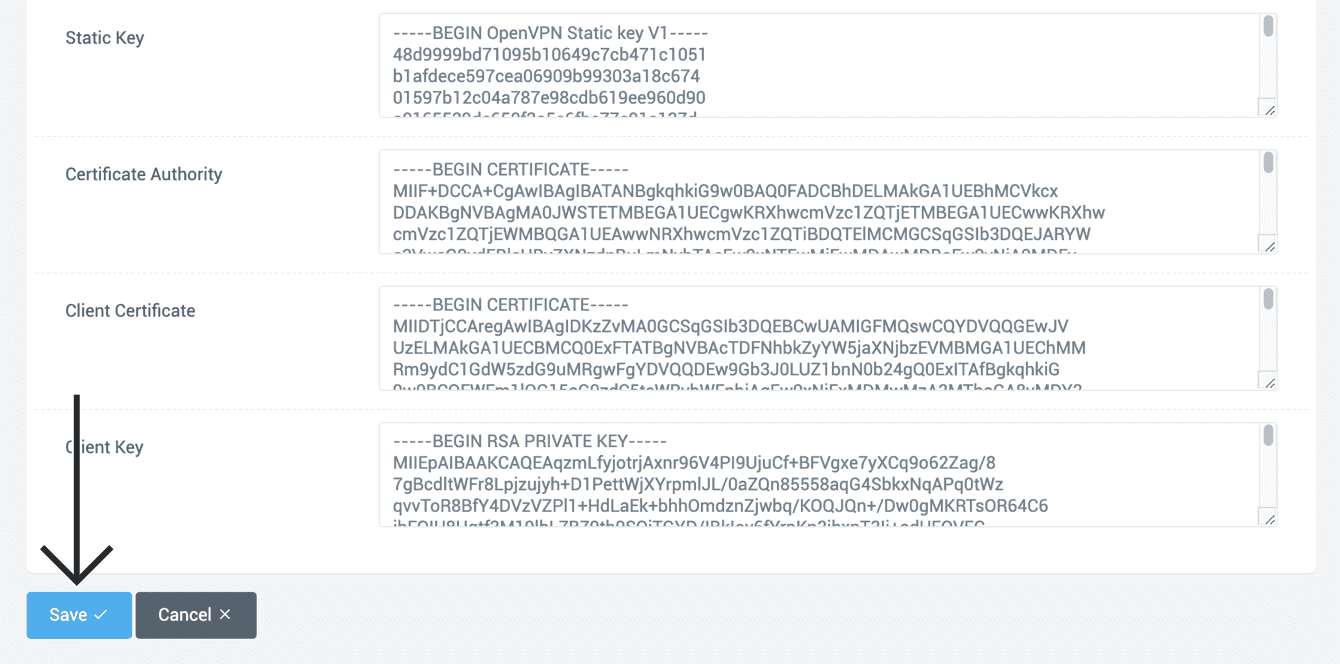
At the top, click the Keys tab, copy and paste the text from the .ovpn configuration file into the following fields:
- Static Key: Copy the text between <tls-auth> and </tls-auth> tags in the .ovpn file and paste it in this field.


- Certificate Authority: Copy the text in between <ca> and </ca> tags in the .ovpn file and paste it in this field.


- Client Certificate: Copy the text between <cert> and </cert> tags in the .ovpn file and paste it in this field.

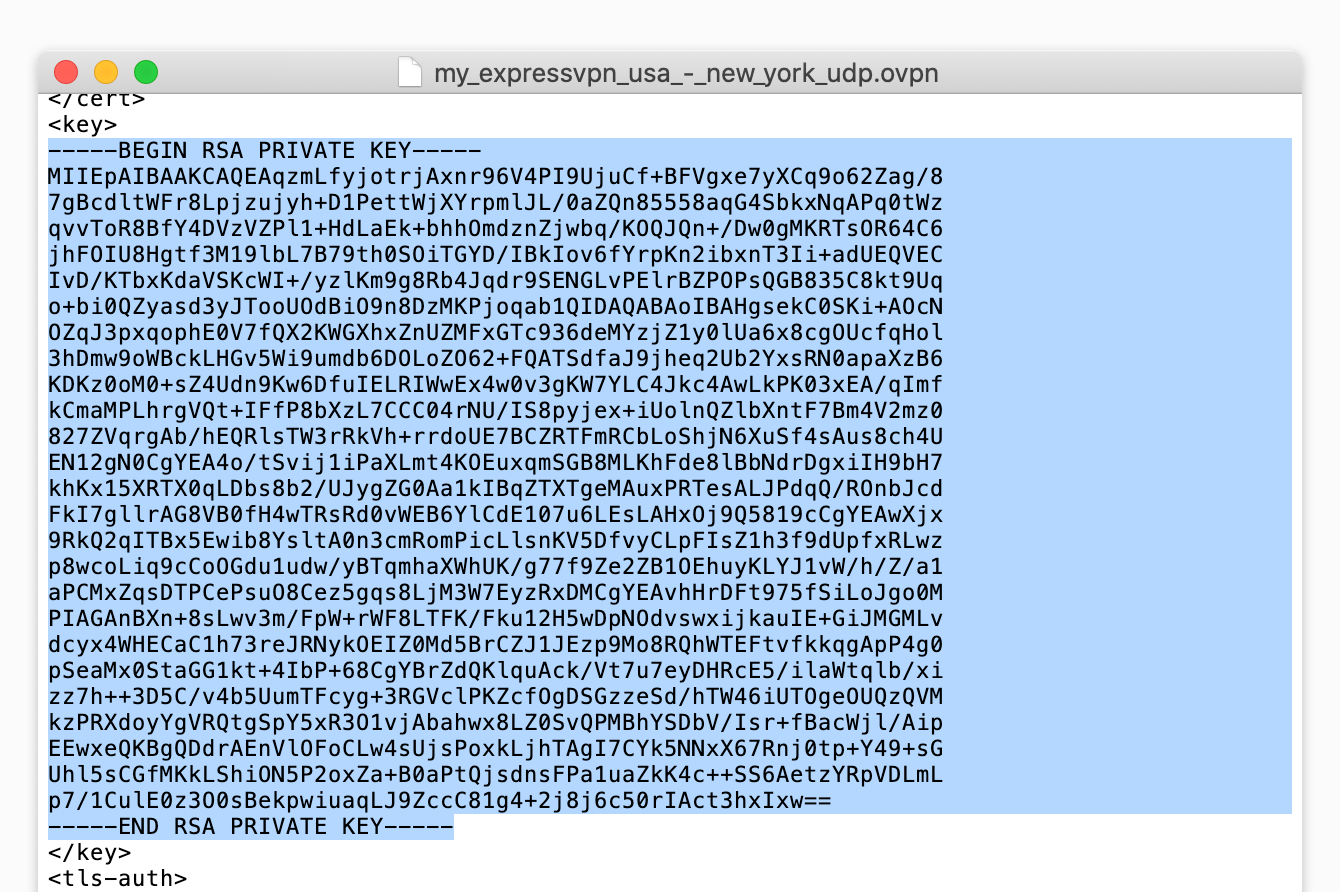
- Client Key: Copy the text between the <key> and </key> tags in the .ovpn file and paste it in this field.

Click Save.
Need help? Click here to contact the ExpressVPN Support Team via Live Chat
3. Connect to a VPN server location
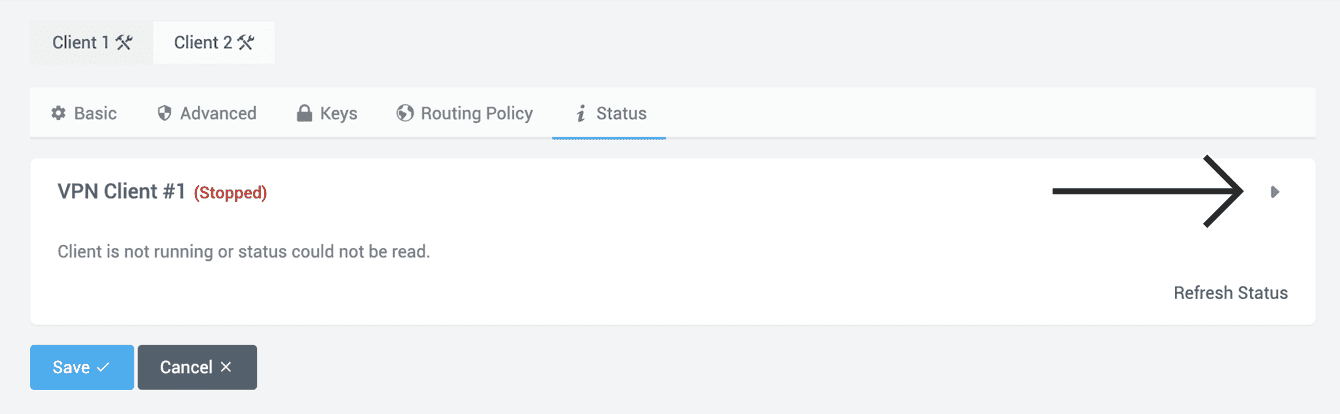
At the top, click the Status tab. Then click ►.
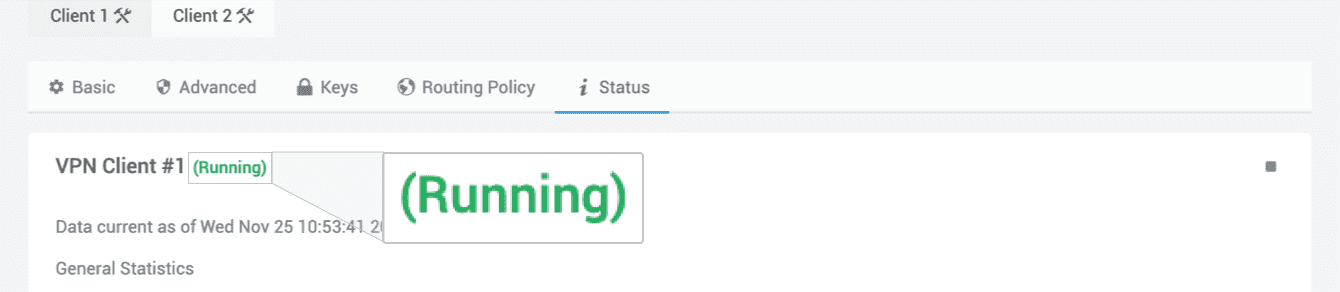
Once you are successfully connected, you will see the word “Running.”
To verify your connection, you can use ExpressVPN’s IP Address Checker to check your IP address. If you are connected properly, the IP address shown will correlate to the location you are connected to via the VPN.
Need help? Click here to contact the ExpressVPN Support Team via Live Chat
Disconnect from a VPN server location
To disconnect, go to VPN > OpenVPN Client > Status. Click ■ . You will be disconnected from the VPN.
Need help? Click here to contact the ExpressVPN Support Team via Live Chat