How to prevent the download of malicious code? Top strategies to consider


Most people don’t intentionally download malicious code. Instead, it slips through routine actions like browsing, opening online documents, or installing software. Malware can target many devices, including smartphones, computers, routers, and smart home gadgets.
In this guide, we’ll explore what malicious code is, how it spreads, and what to do if it infects your device. We’ll also share best practices to keep your system safe.
What is malicious code?
Malicious code (malware) is software designed to disrupt a system's normal operation. Once on a device, it can steal information, damage files, or enable unauthorized access.
Malware is widespread. For example, SonicWall Capture Labs reported 6.06 billion malware attacks in 2023, an 11% year-over-year increase.
Not all malicious code causes obvious problems right away. Some types avoid detection by running quietly in the background while collecting data or waiting for instructions.
Some of the most common types of malware categories include:
- Virus: Malicious code that attaches itself to legitimate files and spreads when those files run.
- Worms: Malware that spreads automatically across systems or networks without user action.
- Trojan: Malware disguised as legitimate software or files to trick users into installing it.
- Spyware: Software that secretly monitors activity and collects sensitive information. Keyloggers are a common type that records keystrokes to steal credentials.
- Adware: Software that shows unwanted ads and may track browsing behavior. Some security providers also classify much of it as a potentially unwanted program/app (PUP/PUA), depending on how it’s installed and what it does.
- Ransomware: Malware that encrypts files or systems and demands payment to restore access.
- Fileless malware: Malicious activity that runs primarily in memory and often abuses legitimate built-in tools, which can make it harder to detect.
- Bots: Malware that lets attackers remotely control an infected device; large collections of bots are often called botnets.
Malware often works in combination. Rootkits, for instance, are designed to hide malware and maintain long-term system access without detection.
How malicious code spreads
Malicious code often spreads through seemingly legitimate channels, making compromise easier to miss. It can also spread through exploited software vulnerabilities or compromised software downloads.
Phishing and spoofing are the most reported cybercrime types in the U.S. In 2024, the FBI’s Internet Crime Complaint Center (IC3) received 193,407 phishing/spoofing complaints, the highest complaint count among tracked cybercrime categories.
However, malicious code may also be delivered through compromised websites (including drive-by downloads) and infected removable media such as USB drives.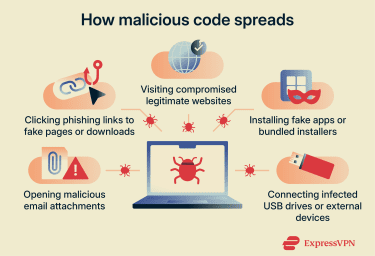
Email attachments
Malicious emails are a common way to deliver malware. Malicious code often arrives in email attachments, such as PDFs, Word documents, spreadsheets, or compressed files that contain hidden scripts, exploits, or macros.
Usually, messages don’t seem suspicious. An attachment that appears to be a routine invoice, receipt, or shared document can be easy to open without a second thought.
Phishing links
Phishing links usually arrive through email, messaging apps, or social platforms. They often use persuasive language to prompt a click. For example, they might claim there’s a problem with an account, offer a prize or refund, or ask the user to verify information.
Clicking the link usually leads to a fake login page designed to capture personal information, such as usernames and passwords. In some cases, links can also lead to malware downloads.
Compromised websites and drive-by downloads
Attackers can compromise legitimate websites by injecting malicious code into pages that visitors already trust, such as news sites or popular blogs. Malware downloads may start automatically or disguise themselves as update prompts for browsers, plugins, or software.
In some cases, simply visiting the page is enough to trigger an unintentional download, often through the exploitation of vulnerabilities. This is commonly known as a drive-by download, and it can be difficult to detect because the site appears normal and doesn’t require obvious interaction.
Fake apps and software bundles
Some malware spreads through apps that copy well-known tools or services. They use similar names, icons, and descriptions to appear legitimate.
Fake apps are more common outside official app stores, particularly on third-party download sites that don’t thoroughly screen apps. However, fake apps can also slip into official stores occasionally and are removed when detected.
Malicious code can also hide inside software installers that bundle extra programs alongside the main (often legitimate) download. These additional components aren’t always disclosed during setup, so they can be installed without the user realizing.
Removable media
Malicious code can spread through infected physical devices, such as USB drives or external hard drives. While modern systems often restrict automatic execution from removable media, malware can still run when files are opened, or via tricks that exploit system behavior.
Because removable media doesn’t depend on an internet connection, it can bypass some network-based defenses at the point of introduction. For example, a firewall may not see malware being introduced via a USB device, since no network traffic is involved at that stage.
How malicious code affects systems
Malicious code doesn’t always cause immediate or obvious problems. However, it can disrupt performance, expose data, and enable further attacks.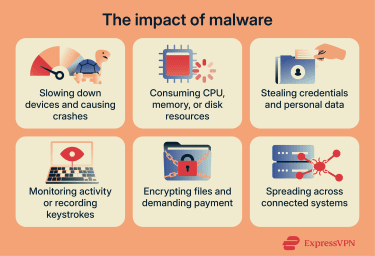
Performance issues
One common effect of malicious code is degraded system performance. As malware consumes system resources in the background, this may show as unusually high CPU, memory, or disk usage.
Applications may freeze, crash, or take longer to open. Over time, the operating system can become unstable, leading to repeated errors or unexpected restarts.
Data theft and privacy risks
Some malware targets information instead of system performance. Attackers might steal login credentials, personal data, and sensitive files, often without detection. They can then use this information for identity theft and fraud.
Once installed, some malware (such as spyware or remote-access malware) may monitor activity in the background. It can record keystrokes to capture passwords and messages, track browsing behavior, and, in some cases, access the camera or microphone without permission.
Attackers commonly use malware, such as stealers and loaders, for this purpose. Info stealers are designed to collect sensitive data, including credentials and browser data such as session cookies and autofill information.
Loaders help attackers maintain access by downloading additional malware as needed, allowing attackers to expand or change over time.
Financial damage
Attackers can use malware for financial gain in several ways. For example, ransomware encrypts files or systems to render them unusable, then demands payment to restore access.
Cybercriminals may also use stolen credentials to make unauthorized purchases, drain bank accounts, or access payment services. Cryptocurrency wallets are also frequent targets since on-chain transactions are generally irreversible.
Even if attackers don’t steal money outright, infections can still be costly, especially for businesses, because of downtime and recovery efforts.
In some cases, malware can render systems unusable. For example, the 2017 WannaCry attack exploited a vulnerability in unpatched Windows systems and spread rapidly across networks, encrypting files and locking people out of their systems.
Microsoft had already released a fix as part of MS17-010 and later issued emergency/out-of-band updates for some out-of-support versions (including Windows XP and Windows Server 2003) to help customers patch affected machines.
Malware spread
After infecting a system, malware often becomes persistent to support future attacks. Attackers can install hidden backdoors that allow them to regain access.
Malware can also move across connected systems within a network (lateral movement). It often uses shared credentials or existing trust between devices to spread beyond the original entry point.
Signs of malicious code
Many signs of malware are subtle and easy to dismiss as everyday glitches. Look out for:
- Slower system performance or frequent freezing.
- High CPU, memory, or unusual network usage without a clear cause.
- Devices are overheating, or fans are running constantly for no clear reason.
- Unexpected crashes or system restarts.
- Programs opening, closing, or behaving unpredictably.
- Unexpected pop-ups, redirects, or ads (including on sites you wouldn’t expect).
- New apps, extensions, or settings changes that weren't made.
- Disabled security tools or blocked system updates.
- Unusual login alerts or unfamiliar account activity.
- Suddenly inaccessible, encrypted, or renamed files.
Learn more: Suspect malware on your computer? Find out how to check for a virus.
What to do if you suspect malicious code
Acting quickly can limit long-term damage. Here are the steps you can take if you suspect malicious code might be on your device.
- Disconnect the device: Turn off Wi-Fi and unplug the Ethernet cable to limit remote access and reduce the risk of spreading across a network.
- Avoid suspicious interactions: Don't open unknown files, click unexpected links, or respond to pop-ups that could trigger additional malicious activity.
- Run a full malware scan: Use trusted security software to scan the entire system. Don’t rely on quick or partial checks.
- Review scan results: Check what was detected and how threats were classified, not just the final “clean” message.
- Remove or quarantine threats: Follow the security tool's recommended steps to contain or delete detected malware.
- Restart and re-scan: Reboot and run another scan to help catch anything that may have been missed.
- Use Safe Mode if needed: If malware interferes with removal tools, starting the device in Safe Mode can help.
- Check for unauthorized changes: Review installed apps, extensions, and key settings for anything you didn’t add or change.
- Back up only after cleanup: Once the system seems clean, back up important files, and avoid restoring from backups created after the infection.
- Change important passwords: Update passwords for email, banking, and other sensitive accounts, and enable two-factor authentication (2FA) where possible.
- Monitor for ongoing issues: Keep an eye on accounts and devices for any unusual activity over the next few weeks.
Learn more: Suspect malware on your Android? Learn how to remove it safely.
How to protect your system from malicious code
Reducing the risk of downloading malicious code comes down to a mix of tools, habits, and awareness.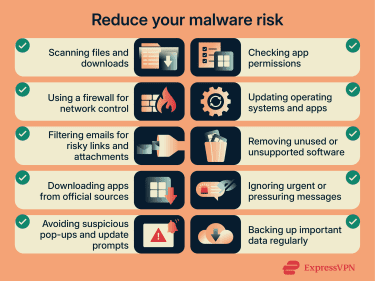
Use security software
Security software can block many threats before they reach your system. Consider using these tools together for a layered threat detection system:
- Antivirus software: Scans files and downloads to detect known threats and suspicious behavior.
- Firewall: Controls which connections can enter or leave your device, helping block unauthorized access.
- Email filtering: Helps keep malicious attachments and links out of your inbox.
Practice safe browsing and downloads
Many infections occur during routine browsing. A few simple precautions can lower your risk:
- Download from trusted sources: Stick to official app stores and developer websites whenever possible. Check URLs carefully to confirm they point to the real site.
- Watch for warning signs: Reputable sites generally don’t rely on deceptive “download” buttons, aggressive pop-ups, or unexpected bundled installers.
- Review app permissions: If a request doesn’t align with the app’s purpose (e.g., a game requesting camera access), treat it as a red flag.
- Use browser protections: Ad blockers and security extensions can help block known malicious sites and reduce exposure to risky scripts and malvertising. Some services also offer tools for broader, device-wide blocking of known malicious domains and trackers, such as ExpressVPN Threat Manager.
Keep software updated and back up files
Outdated software creates easy entry points for attackers. Install operating systems and app updates promptly to close known security gaps. Turning on automatic updates helps you avoid falling behind.
It’s also worth removing software you no longer use, especially apps that are no longer supported, since they may not receive fixes even when serious vulnerabilities are found.
Regular backups are equally important. If ransomware encrypts files, recent backups make recovery much easier. Protect your backups (for example, keep an offline or otherwise isolated copy) and test restores occasionally, since some ransomware tries to delete or encrypt accessible backups.
Build security awareness
No tool catches everything. You can further reduce your risk by identifying situations where malware relies on social engineering rather than technical exploits.
Be cautious of messages or emails that create urgency, offer rewards, or apply pressure. These are common red flags, even when the message appears to come from someone you know or a brand you trust.
FAQ: Common questions about malicious code
How can I protect myself from malicious code?
Good rules are to use antivirus software and a firewall, keep operating systems and apps updated, and only download software from legitimate sources, such as official app stores. Treat unexpected messages and prompts with caution, and review app permissions before installing or updating anything.
Can a VPN protect me against malicious code?
Not on its own. A virtual private network (VPN) encrypts your internet traffic in transit and can hide your IP address, but it doesn’t scan downloads or attachments for malware, and it won’t remove malware from your device.
Some VPN apps include optional features that block connections to known malicious domains, which can reduce the chance of landing on harmful sites, but this is not a replacement for safe browsing habits and reputable security software.
What should you do if you download a malicious app?
If you think you’ve downloaded malware, disconnect the device from the internet, uninstall the app, and run a full malware scan. If the app changed settings or requested broad permissions, review those changes. After the cleanup, change passwords for important accounts and monitor for unusual activity.
How can I scan for malware?
Use trusted security software, such as an antivirus, to run a full system scan. Review the results carefully and remove or quarantine detected threats. If malware interferes with removal, restart in Safe Mode and scan again.
How can I identify if a link is safe?
Look for warning signs such as misspelled domains, unexpected prompts, or pressure to act quickly. Be cautious with links that ask you to log in, claim a prize, or verify your identity. On a desktop, hover over the link to preview the destination URL. On mobile, press and hold to preview it. If the address looks unrelated, shortened, or slightly misspelled, avoid clicking. When in doubt, go to the site directly by typing the address or using a saved bookmark, rather than clicking the link.
Can malware infect mobile devices?
Yes. Mobile malware can spread through malicious apps, links, or compromised websites. To protect your device, keep it updated, install apps from official stores, and review permissions regularly. Also, watch for signs of malware such as a slow device, unusual login requests, or strange app behavior.
What software should I use for malware protection?
Use reputable security software with real-time protection, along with a firewall and email filtering where available. A layered approach helps because combining controls (like antivirus and firewalls) can prevent threats from successfully attacking hosts and networks.
Browser protections also help by warning about unsafe websites and blocking known malicious destinations.
Take the first step to protect yourself online. Try ExpressVPN risk-free.
Get ExpressVPN