How to perform a factory reset on your Oculus Quest


Common Oculus Quest issues, like buggy apps, slow performance, connectivity issues, or freezes, are often easy to fix. However, if these issues persist, a factory reset may help.
This guide explains how to factory reset a Meta Quest headset (steps focus on Meta Quest 3, but are similar on other models). We also provide troubleshooting tips to fix most basic issues without resorting to a full reset.
Note that the original Oculus Quest line has been rebranded, and current devices are officially sold as Meta Quest headsets.
Before you factory reset your Oculus Quest
Here are a few quick checks to run before a factory reset:
- Changing ownership: If you plan to sell or give away your Quest, remove it from your Meta account. To do this, log into your account, go to your device list, and select Delete device data for the headset. This helps disassociate the device from the account before handing it over.
- Battery level: Ensure the device is sufficiently charged to complete the factory reset. Meta recommends having at least 50% battery life.
- Troubleshooting: If you're dealing with performance issues, app hangs, or controller tracking problems, try simpler fixes first. Factory resets are irreversible; it wipes local data, which can take time to set up again.
What a factory reset will delete
A factory reset removes all account information, installed apps or games, and content from the Quest headset. After rebooting, it will start up like a new device.
However, a factory reset doesn’t remove content purchased on the Meta account. Quest may also back up some app data to the cloud (if Cloud Backup is enabled and the app supports it). Cloud backups generally restore when apps are reinstalled after setup, and the headset is online.
Back up your data (if possible)
There isn't a way to create a full manual backup of a Quest headset. However, with Cloud Backup enabled, participating apps can automatically back up applicable data (such as progress and settings), and backups can also be triggered manually from the Cloud Backup panel in headset settings.
It’s up to individual app developers whether their apps support Cloud Backup, so it isn’t universal. You can check which apps have cloud backups (and see timestamps/sizes) in the Cloud Backups section on the Meta Quest website.
Data that may get backed up to the cloud includes:
- Individual app settings.
- App/game progress and save files.
Data that you back up to the cloud is transferable to other Quest devices, which can help restore supported app data when setting up a new headset.
With backups enabled, supported apps may back up automatically under certain conditions, including:
- Overnight, when the headset isn’t in use, it's plugged in and has an active Wi-Fi connection.
- After an app is closed (exited), though backus are limited, typically no more than once within a six-hour window.
Before proceeding with a reset, check the Cloud Backups page to confirm recent backups for any apps where progress matters.
To turn on cloud backups:
- Power on the Quest headset.
- Press the Meta or Oculus button on the Touch controller.
- In the universal menu, tap the clock icon, then select Quick settings.
- Select Settings, then General from the left-hand menu, and locate Cloud backup.
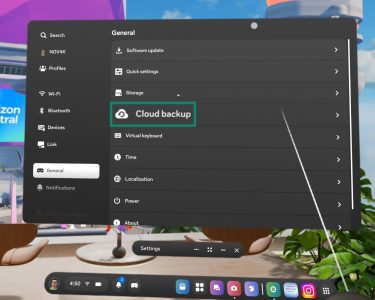
- Toggle it to On.
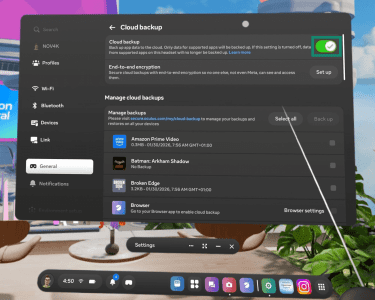
- Confirm backups for supported apps have run via the Cloud Backups page or the Cloud Backup panel.
Note: Meta’s Horizon OS updates regularly (often every couple of months), so menu labels and screen layouts can change.
Quick troubleshooting to try before resetting
These quick fixes may address a variety of performance, responsiveness, or other unexpected issues. In general, they shouldn’t delete your installed apps or saved data, but software updates can change system behavior and menus.
- Restart device: Power the headset off and on again, or choose Restart from the power menu.
- Update the headset: Make sure the headset software and apps are up to date. You can check for updates in Settings → General → Software update.
- Hard reboot: Press and hold down the power button for at least 30 seconds to power it off. Power the headset back on if it doesn’t restart automatically.
If the problem persists, the tips below cover common issues and what to try next.
Unresponsive device or performance issues
If the headset freezes during startup (e.g., stuck on the Meta logo) or becomes unresponsive, try a normal restart first, then a hard reboot. A hard reboot forces a restart and doesn’t factory reset the headset or remove installed content.
If storage is nearly full, lag and slow loading may occur more often. Check available storage and remove unused apps or media.
Device not updating
Meta provides a browser-based Meta Quest Software Update tool that may help with software-related update problems. It typically involves entering the headset’s boot/update menu, selecting Sideload update, then connecting the headset to a computer and following Meta’s on-screen instructions.
Wi-Fi or internet connection problems
Meta’s own troubleshooting includes rebooting the headset and trying a different network.
If the headset works on another network (or a phone hotspot), the issue may be router- or network-related. If the issue seems headset-specific, try forgetting the network and reconnecting.
Controller pairing, tracking, and boundary issues
Meta recommends unpairing/re-pairing controllers for tracking issues. Also consider:
- Cleaning the tracking cameras.
- Testing in evenly lit conditions and reducing reflective surfaces.
- Temporarily removing accessories that may block cameras/sensors.
- Replace batteries and ensure controllers are charged.
- Clearing physical space/boundary history (menu names vary by OS).
App-specific issues
If problems only happen in one app, check for app updates, then uninstall/reinstall. If the app supports Cloud Backup, progress may be restored when you reinstall.
If the problem persists, check the app’s developer notes or community forums. It may be a known issue that requires a specialized fix.
When a factory reset is the right fix
Meta recommends a factory reset as a last resort to fix device issues, so it’s best used only after other troubleshooting steps don’t work.
That said, here are some situations where a factory reset may be necessary:
- Device doesn’t fully boot: Most troubleshooting steps require access to the main Quest interface. If the headset gets stuck during startup, a factory reset may be required to restore it.
- Before selling the headset: A factory reset removes account information, downloaded games/apps, and content from the headset. Purchases remain tied to the Meta account, but resetting before selling helps protect data stored on the device.
- Quest is stolen or lost: It may be possible to initiate a factory reset remotely from the device management page, even without physical access, though this option may not be available on all software versions.
Steps to factory reset your Oculus Quest via headset
The simplest way to factory reset a Quest device is to use the headset buttons.
Step 1: Power off your device
Turn the headset fully off. If it’s responsive, use a normal shutdown. If it’s unresponsive, force it to power off.
Step 2: Access the boot menu
With the device powered off, hold the power and volume down (-) buttons until the boot screen (sometimes labeled USB Update Mode) appears. Use the volume buttons to navigate to Factory Reset, then press the power button to select it.
Step 3: Perform the factory reset
On the confirmation screen (it might appear as a message that reads Are you sure?), use the volume buttons to highlight Yes (or similar wording), then press the power button to start the reset.
During the reset, you might see a Meta symbol flash on the screen, along with a circle with the word "Erasing" underneath it. When the process is complete, the headset will restart and launch the setup process.
Steps to factory reset your Oculus Quest via the mobile app
This process involves using the Meta Horizon mobile app (formerly the Oculus/Meta Quest app)
Step 1: Install and set up the Meta Horizon app
If your headset is already linked to the app, you can skip to step 2. Otherwise, install Meta Horizon from the Google Play Store or Apple App Store, then sign in with the same Meta account used on the headset. Once the app is installed, log into it with the same Meta account you use for your Quest.
Next, pair the headset with the app. To do this, you must have Bluetooth and sharing with nearby devices turned on. In the app, go to Menu (headset icon) → Devices → Pair new headset or Add device, then follow the on-screen steps.
Step 2: Start the factory reset from the app
- Open the Meta Horizon app and tap the headset icon (Menu) in the main navigation area.
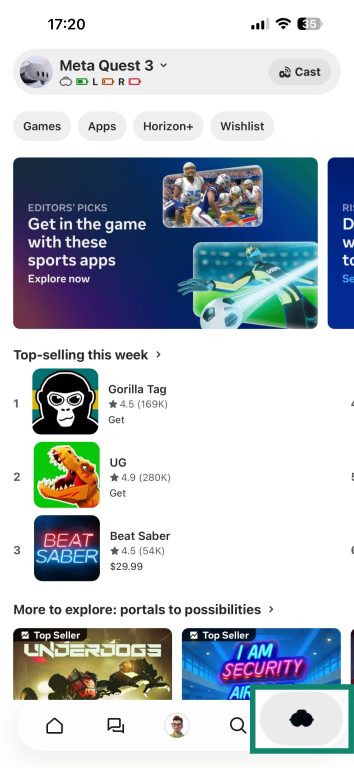
- Tap Headset settings.
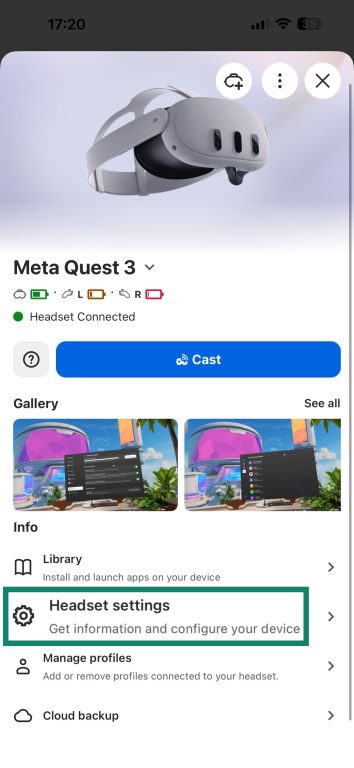
- Select Advanced Settings.
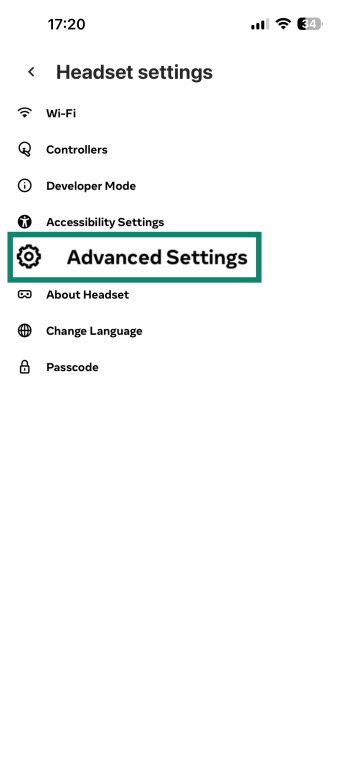
- Tap Factory Reset.
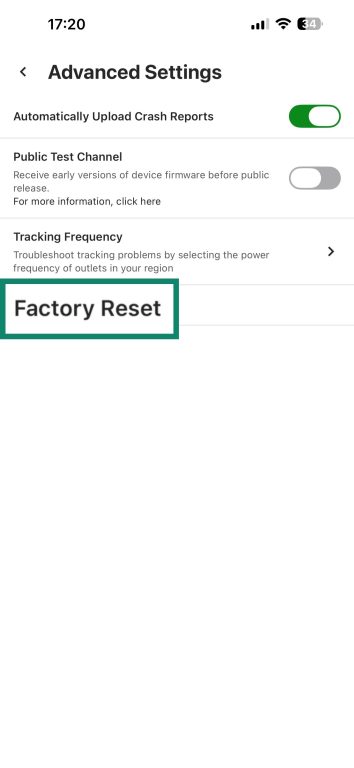
- Tap Reset to confirm.
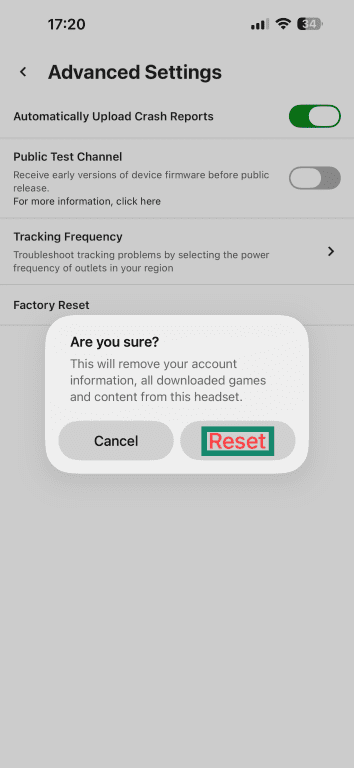
- Wait for the factory reset to complete.
Steps to factory reset your Oculus Quest remotely via the website
Meta offers the option to remotely wipe/reset a Quest. However, if you don’t see this option, the headset’s software version may not support it.
Step 1: Log into Meta account
Go to the device management dashboard and sign in.
Step 2: Find and reset the Quest
Select your headset from the list of devices, then choose Delete device data (or Factory reset, if shown). Follow the on-screen prompts to confirm and start the process.
After the reset: Set up your Oculus Quest again
After a factory reset, the Meta Quest will be wiped of account information, downloaded apps/games, and content stored on the headset. Follow the steps below to reconfigure the headset.
Initial setup checklist (Wi-Fi, Meta account, pairing)
After booting a device that has been reset, it should start setup like a new device. This typically includes connecting to Wi-Fi, signing into your Meta account, and pairing the headset with the Horizon app. You may also be prompted to configure device settings and pair controllers.
Reinstalling apps and restoring cloud saves
- Reinstall apps and games: During the initial setup, the Quest may offer to reinstall previously used apps. If not, open the App Library from the main dashboard menu and select all the games, apps, and other tools you’d like to reinstall.
- Restore cloud backups: Check Settings > General > Cloud backups to confirm it’s enabled. There isn’t a manual “restore now” button; instead, for supported apps, cloud-saved data typically restores after you reinstall the app and the headset is online.
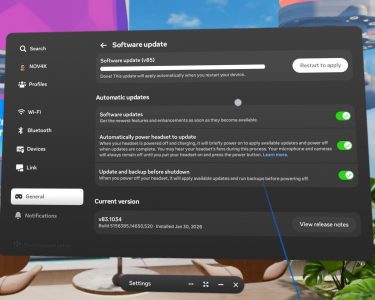
- Update system software: Automatic updates are usually enabled by default after a factory reset. However, you can make sure by going to Settings > General > Software update and turning on Automatically power headset to update. It’s also possible to trigger updates here manually.
Read more: Protect data on Meta Quest with ExpressVPN’s Meta Quest app (hybrid extension).
What to do if you can’t log in after a reset
First, confirm that the same Meta account is used across the headset, the Meta website, and the Meta Horizon mobile app, and make sure the headset is connected to Wi-Fi. If the headset’s time/time zone looks incorrect, adjust it in settings before trying again.
If it’s still not possible to sign in, try restarting, performing a hard reboot, or updating the software. Another option is to complete login through the Meta Horizon mobile app pairing/setup flow instead of signing in directly on the headset.
If login still fails, check for Meta account issues (for example, whether the account is suspended/disabled), and use Meta’s account recovery resources to reset your password or recover access. Meta support may also request the headset serial number during recovery.
FAQs: Common questions about resetting Oculus Quest
How to do a hard factory reset?
Does a factory reset on Oculus delete everything?
How do I reset an Oculus Quest to factory settings?
Can I perform a factory reset without a working phone?
How can I back up my data before a factory reset?
What should I do if my Oculus Quest isn’t resetting properly?
Take the first step to protect yourself online. Try ExpressVPN risk-free.
Get ExpressVPN