How to block a number on iPhone: A complete guide


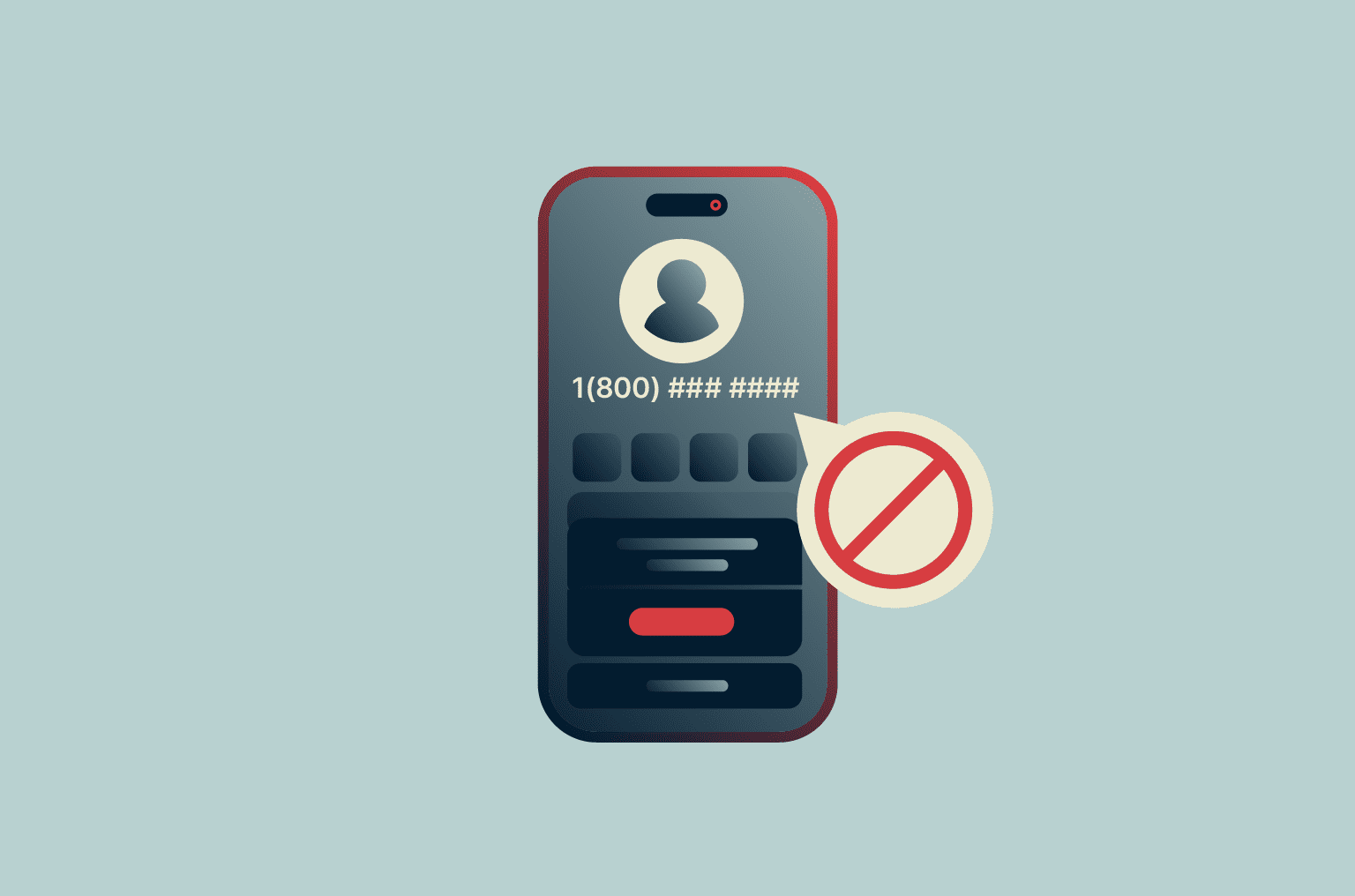
Spam phone calls and messages on your iPhone are more than just annoying. They can also be risky, especially if a message includes links designed to trick you into sharing personal information or account details, or a scam call impersonates a trusted organization to get you to reveal sensitive data.
Blocking a phone number can help you take back control and reduce unwanted calls or messages. iOS makes it easy to block unwanted callers and messages, and you can undo the blocks at any time.
In this guide, we’ll explain how to block numbers on iOS, including calls and messages, what happens when you block a number on iPhone, and how to view your list of blocked contacts.
How to block a number on iPhone
iPhones provide several ways to block phone numbers, but they all have the same effect (blocking a contact from calling or messaging you). The only difference is which app you use to carry out the blocking process.
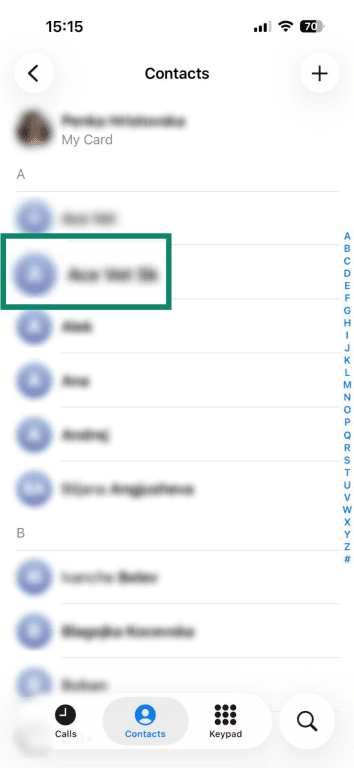
Block a number using the Phone app
- Open your Phone app and tap on the contact you want to block.
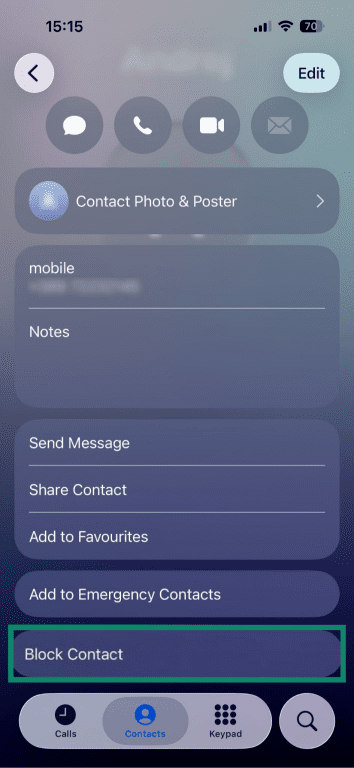
- Select Block Contact.
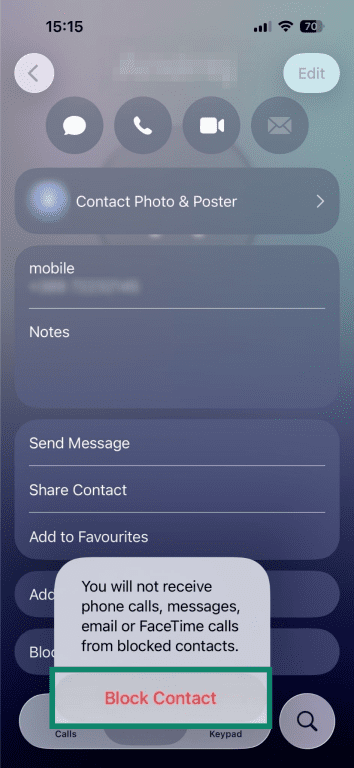
- Confirm by tapping Block Contact.
Block a number from recent calls
If the number you want to block isn’t saved in your contacts, you can find it in Calls.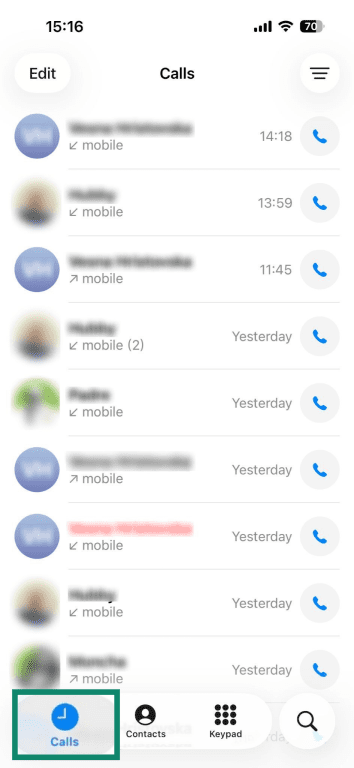
Tap on the caller you want to block, and follow the same steps detailed above to block them.
Block a number from the Messages app
Here’s how to block a number on iPhone from texting or calling you using the Messages app.
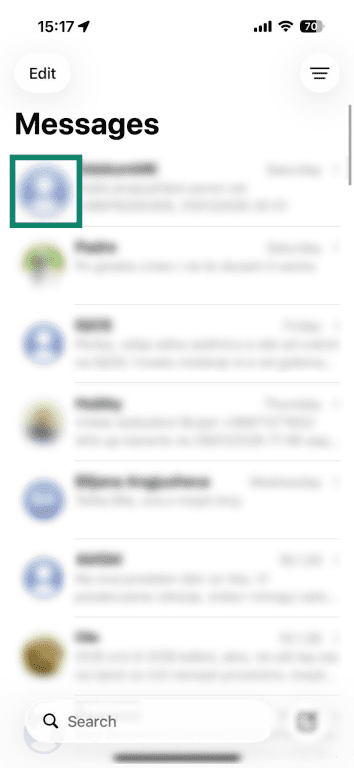
- Go to Messages, find the last message of the person you want to block, and select their profile picture.
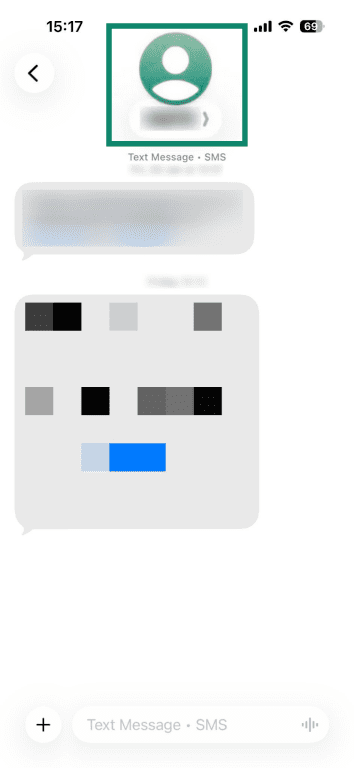
- Tap on their name at the top of the page.
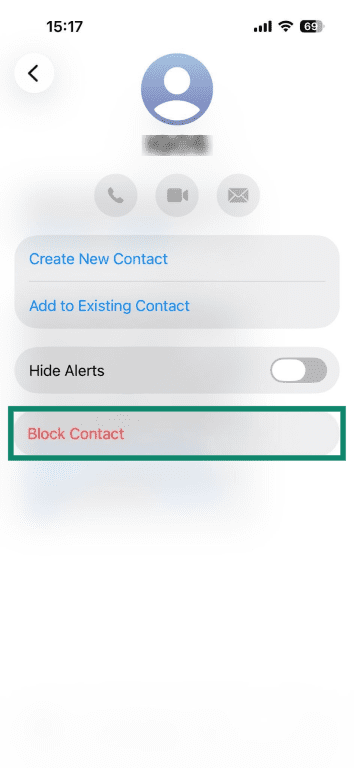
- Select Block Contact.
Block a number using FaceTime
- Find the contact you want to block and tap their profile picture or the info (ⓘ) button next to their name or number (this may appear if the caller isn’t a saved contact).
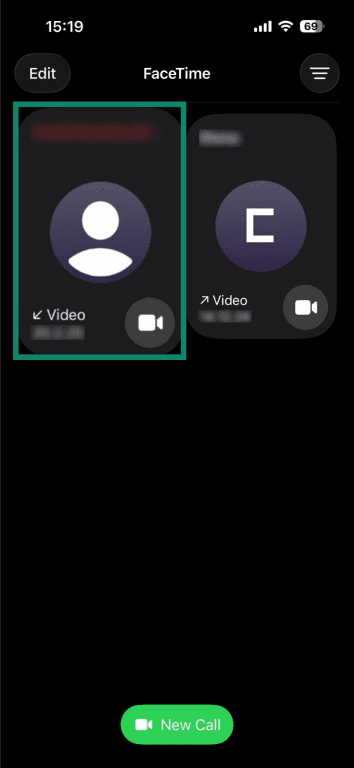
- Scroll down and tap on Block Contact.
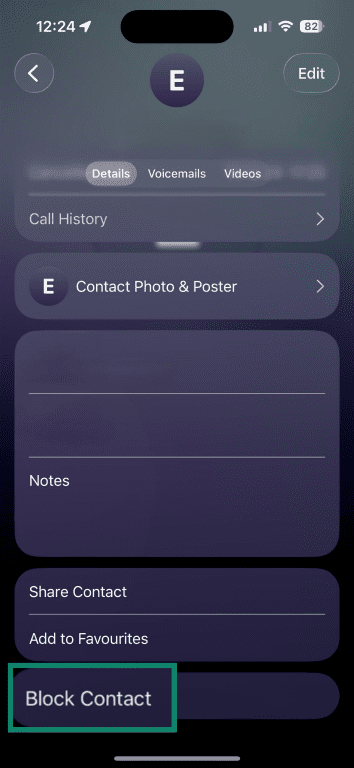
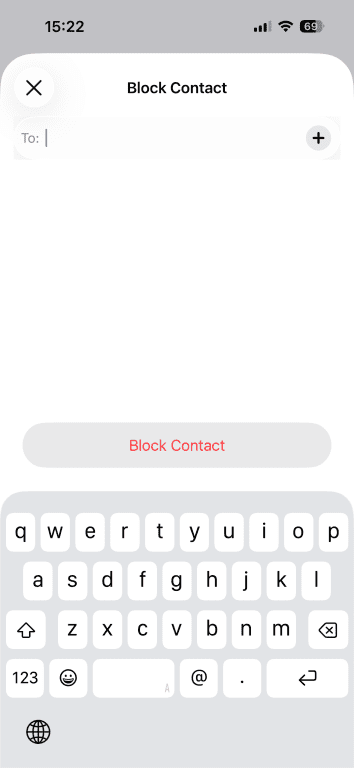
Add a contact directly to your block list
- Open your iPhone settings and select Privacy & Security (for iOS 26) or Phone on older iOS versions.
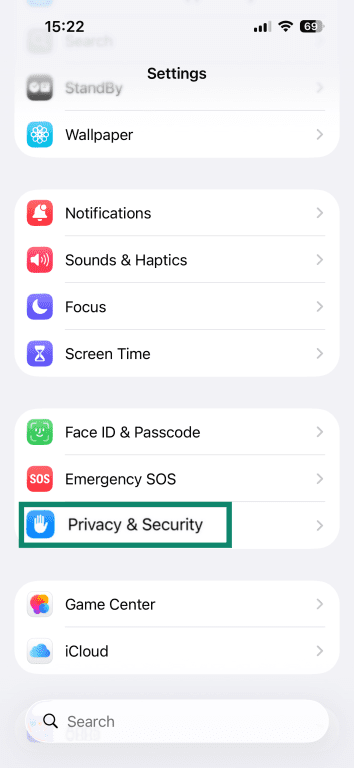
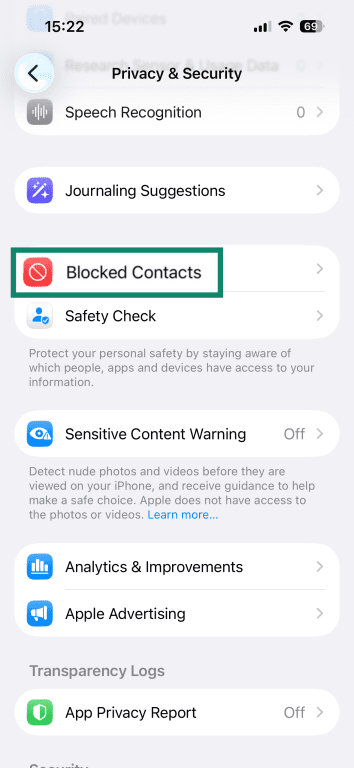
- Tap Blocked Contacts.
- Select Add Blocked Contact.
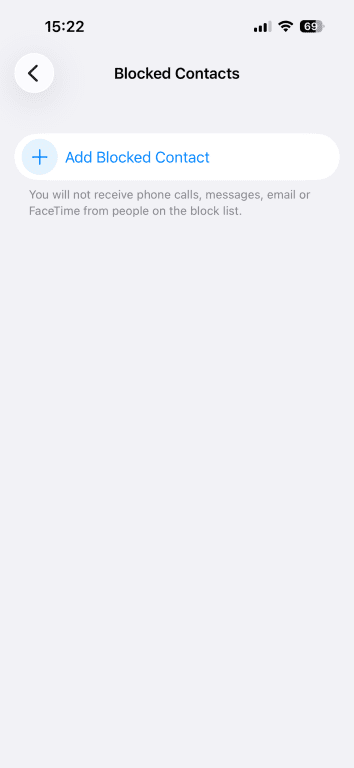
- Use the search bar to find a contact and hit Block Contact.
How to confirm the block
If a contact is in your Blocked Contacts list under the Phone settings app, it’s a confirmation that you’ve successfully blocked them. You won’t receive phone calls, messages, or FaceTime calls from them anymore.
Use Silence Unknown Callers to reduce spam
To reduce spam calls or phishing attempts from new or unknown numbers, iPhones include a Silence Unknown Callers feature. This feature lets you avoid interruptions without blocking legitimate callers permanently.
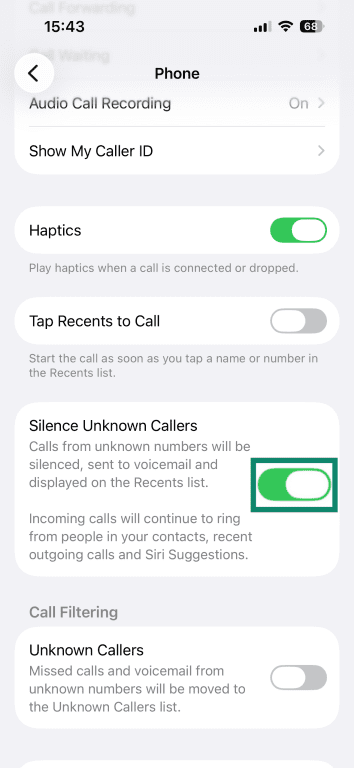
When enabled, the Silence Unknown Callers feature will silence calls from numbers not in your contacts and send them directly to voicemail. These calls will still appear in your call history, and you’ll be able to find these calls in your Recents list.
How to turn on Silence Unknown Callers
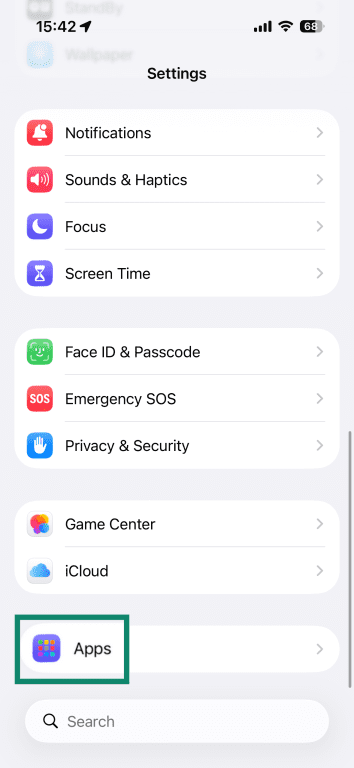
- On iOS 26, open your phone settings and select Apps. On older iOS versions, you should go directly to Phone.
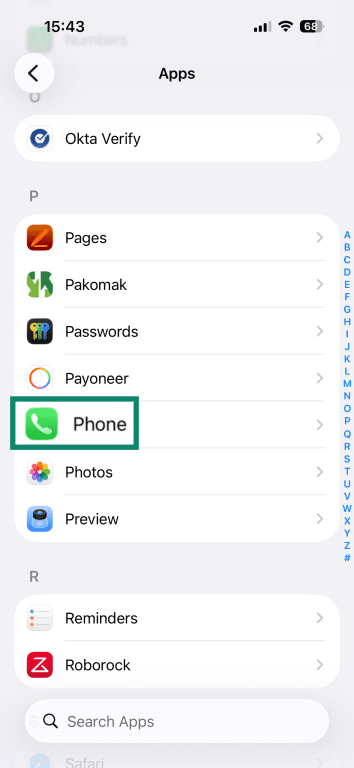
- Tap on Phone.
- Toggle Silence Unknown Callers on.
Additional filtering: Unknown or spam calls
On iOS 26, you can go one step further by filtering unknown and spam calls via the “Unknown Callers” feature, so you can further reduce unwanted communication and increase security on your iPhone. With this feature, you can remove calls from your “Recents” list and move them to the “Unknown Callers” list. It also helps organize calls you might want to review later.
On older iOS versions, similar filtering may still occur automatically, but without a dedicated toggle.
To enable this feature in iOS 26, from your Phone settings (Settings > Apps), simply toggle on Unknown Callers.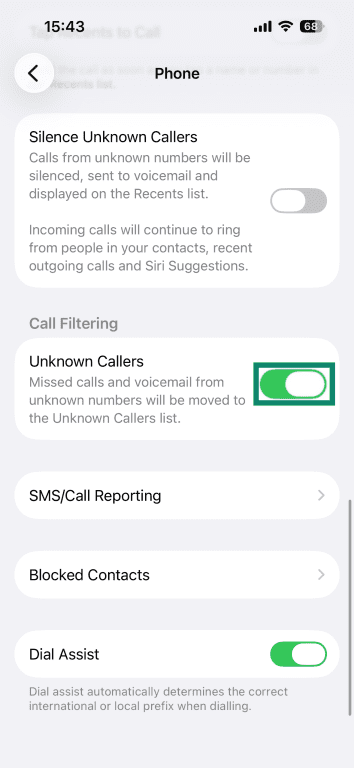
It’s best to add trusted numbers to your Contacts list to avoid them being silenced:
- In your Phone app, tap on Calls or Recents, depending on your iOS version.
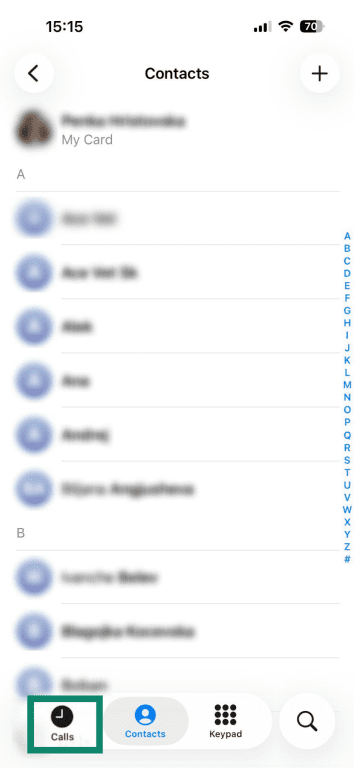
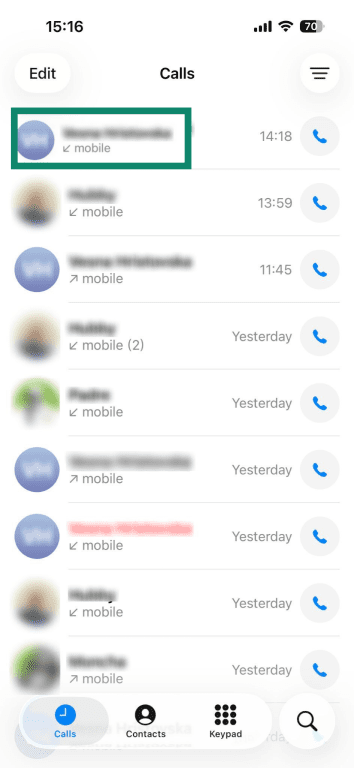
- Select the number you want to add to your Contacts.
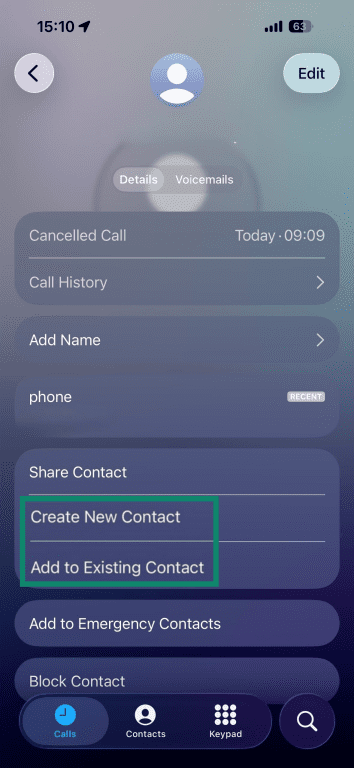
- Select Create New Contact or Add to Existing Contact, depending on the context. Fill out the details and tap Done to add the number to your Contacts.
You can consult your voicemails, Recents, and Unknown Callers lists at any time, and combining these features reduces the risk of accidentally engaging with scams while also giving you control over your other communication.
What happens when you block numbers on iPhone?
When you block a caller on your iPhone, iOS prevents that person from contacting you through Apple’s built-in communication apps. This means they can’t reach you by:
- Phone calls
- Text messages (iMessage and SMS/MMS)
- FaceTime calls
While this can help you avoid scam calls, the blocking applies only to Apple apps. It doesn’t prevent someone from contacting you through third-party apps like WhatsApp, so you’ll need to block them separately on those platforms if you want to stop contact there as well.
A contact block also doesn’t prevent callers from leaving behind voicemails, but they’ll be hidden from your main voicemail inbox.
Blocking vs. silencing vs. filtering
iPhone lets you deal with troublesome or risky contacts in several ways. Here they are, listed from least to most restrictive:
- Silencing: Mutes incoming calls from numbers not in your contacts, sending them straight to voicemail without ringing. The caller can still leave a voicemail, and you’ll see the call in your Recents list, but your phone won’t alert you audibly. This is useful for reducing interruptions without completely stopping communication.
- Filtering: Lets you separate unknown and carrier‑identified spam calls and sort them into separate lists (like “Unknown Callers” or “Spam”) rather than using your main Recents list. This helps keep unwanted calls out of sight while still letting you review them later. Filtering doesn’t block the call; it organizes calls you might want to check later.
- Blocking: Completely stops a number from making contact with you via regular calls, messages, or FaceTime calls.
Instead of over-blocking contacts, using the other two features can give you more flexible protection without permanently restricting communication.
What iPhone blocking doesn’t protect you from
While blocking contacts offers a measure of security, it doesn’t offer comprehensive protection against elements like:
- Third-party apps: Blocking only helps with Apple built-in apps like Phone, Messages, or FaceTime; it’s ineffective on apps like WhatsApp, Telegram, or Instagram.
- Spoofed numbers calling again: Blocking only stops a specific phone number; scammers often use different spoofed numbers to call again.
- Voicemails: While blocking hides voicemails, it doesn’t stop them entirely; blocked contacts can still leave voicemails, which iOS may place in a separate Blocked Messages section rather than your main voicemail inbox.
How scammers get around blocks (and what to do instead)
Determined scammers often find ways around blocked phone numbers, such as rotating (switching) numbers or spoofing local numbers. Because iPhone blocking works on a per-number basis, blocking individual numbers can be ineffective against large-scale campaigns. Here’s what can help in these situations:
- Screening calls: Features like “Silence Unknown Callers” or filtering can handle phone numbers that aren’t in your contacts, silencing the calls and sending them to a hidden voicemail for later review. Since scammers often rely on volume, screening catches an entire category of risky calls.
- Reporting spam: Flagging scam calls through your carrier or Apple’s built-in reporting options can help identify scam patterns, improve detection, and enhance filtering features on iPhones.
- Using filtering instead of blocking numbers: Filtering potentially scam calls is a catch-all solution that focuses on risky behavior and origin instead of blocking individual numbers. It also keeps legitimate contacts reachable while reducing exposure to scam calls.
Will the other person know you blocked them?
Your iPhone won’t notify the other person that you’ve blocked them, and they won’t receive an alert, notification, message, or any system signal that mentions they’ve been blocked. That said, they may realize you’ve blocked them when their calls go unanswered or messages aren’t responded to.
Unblocking contacts on iPhone
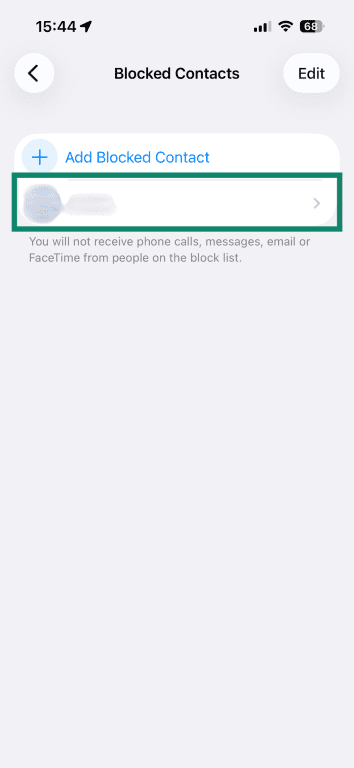
Your iPhone lets you see and manage your blocked contacts from the Blocked Contacts list in your phone’s Privacy & Security settings. If you accidentally blocked a number that you didn’t want to block, the block can be easily reverted.
- From your Blocked Contacts list (Privacy & Security settings), select the contact you want to unblock.
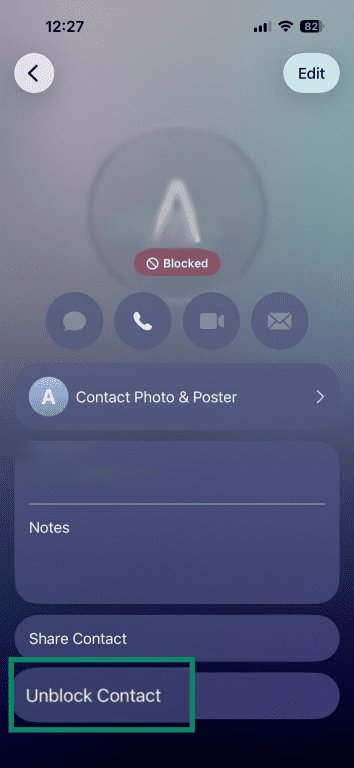
- Tap on Unblock Contact for iOS 26. On older versions, you may have to tap Edit first to reach the Unblock Contact button.
- To ensure the unblocking was successful, scroll through your Blocked Contacts list to confirm the number has been removed. You may also test by having the other person call or message you to ensure the communication goes through.
FAQ: Common questions about blocking a number on iPhone
How do I block a number from calling and texting my iPhone?
You can block a number from calling and texting your iPhone through the Phone, Messages, or FaceTime apps. All three methods will block the other person from calling and sending you messages across all Apple built-in communication apps, so it doesn’t matter which method or app you use.
How do I completely block a number on my iPhone?
To completely block a number on your iPhone, it’s enough to block them from your Phone app. This will stop calls, messages, FaceTime calls, and notifications and also silence voicemails from the blocked person, which will be sent to the Blocked Voicemail section instead of your main inbox.
What happens when a blocked number tries to contact you?
When a blocked number tries to contact you, you won’t receive the call or message or notifications, and they won’t know they’ve been blocked. They won’t notice anything off except that you’re not replying to their calls and messages.
Can you see blocked numbers on iPhone?
Yes, you can see blocked numbers on your iPhone by accessing your Settings, opening the Phone option, and going to Blocked Contacts. You can unblock phone numbers from there if you blocked the wrong person.
How do I manage my blocked contact list?
To manage your blocked contact list, open your phone settings, select Phone, and then go to Blocked Contacts. You’ll see a list of all the contacts you’ve blocked across your Messages, Phone, and FaceTime apps.
What should I do if I blocked the wrong number?
If you blocked the wrong number, you can unblock it from your Blocked Contacts list in your phone settings. This will unblock the number across all Apple built-in apps like Phone, Messages, and FaceTime, so you don’t have to unblock a contact from each of these apps.
Take the first step to protect yourself online. Try ExpressVPN risk-free.
Get ExpressVPN