How to find your Xbox One IP address: A step-by-step guide



Finding your Xbox One’s IP address helps with port forwarding to improve connectivity, resolve Network Address Translation (NAT)-related issues, and troubleshoot network problems. This guide covers how to quickly find it and assign a static IP address. We also cover concepts such as NAT and offer tips to fix common problems.
Methods to find your Xbox One IP address
There are several ways you can find your Xbox One’s IP address, including via the console itself or through your router.
Using Xbox settings
As long as you have access to your Xbox, this is the simplest and fastest way to find your console’s IP address.
- Press the Xbox button on your controller.
- Open Settings and select Network settings from the General tab.
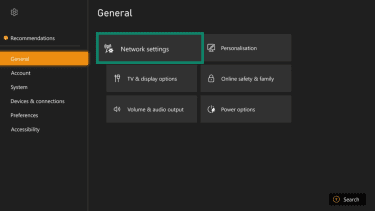
- Go to Advanced settings.
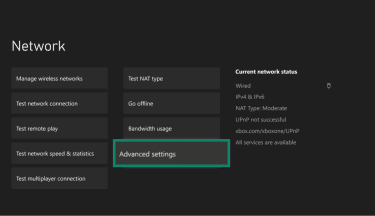
- On the next screen, you’ll see various pieces of information about your Xbox, including its IP address.
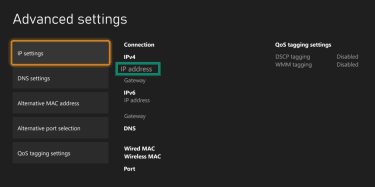
Using your router
If you can’t use your console, you can access your router’s control panel to see your Xbox’s private IP address.
- Open a web browser and enter your router's IP address (commonly 192.168.1.1 or 192.168.0.1, but this may vary by router).
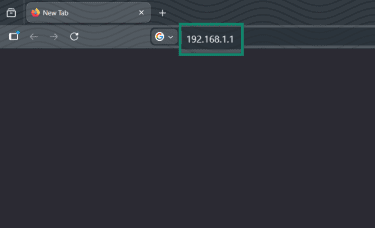
- Log into the router control panel.
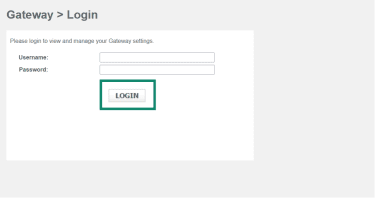
- The next step will vary, depending on your router's interface. You should look for a section labeled "Connected Devices," “Wi-Fi Devices," or “Client List.”
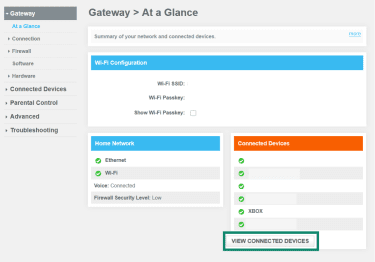
- Find your Xbox in the list of connected devices (the IP address should be listed next to it or may appear in a drop-down menu).
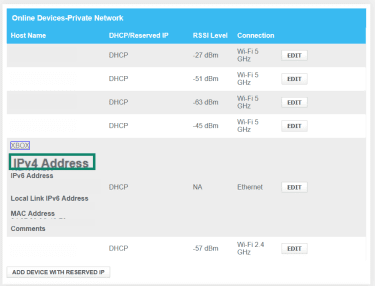
Using network scanning tools
You can also use network scanning tools, such as Nmap or Advanced IP Scanner. These show you the hostnames, IP addresses, and Media Access Control (MAC) addresses of all devices on your network, including your console.
Why use a static IP on Xbox
A static IP ensures your Xbox keeps the same local address on your network, so router settings like port forwarding always point to the correct device. This helps maintain consistent connectivity for multiplayer and avoids issues caused by your IP changing.
Tip: Instead of manually setting a static IP on the console (which can cause conflicts if not configured correctly), you can use Dynamic Host Configuration Protocol (DHCP) or IP reservation in your router’s admin panel. This assigns a permanent IP based on your Xbox’s MAC address without the need for any manual changes. It’s usually a safer and easier process.
That said, both methods provide the same end result: a fixed IP for your console.
How to set a static IP address on Xbox One
If your router doesn’t support reservations, here's how to do it manually:
- Press the Xbox button on your controller.
- Open Settings and select Network settings in the General tab.
- Go to Advanced settings to view your console’s network information, and note down its subnet mask, gateway, and the primary and secondary Domain Name System (DNS) addresses.
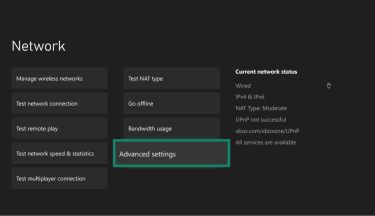
- Select IP settings.
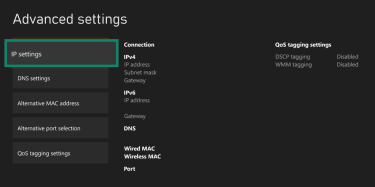
- Choose Manual, then enter the IP address you wish to use, followed by the information you noted down earlier (subnet mask, gateway, etc.). The IP address you choose should be within your network’s range and not already in use. An easy way to do this is to change the last two numbers, for example, from 192.168.1.15 to 192.168.1.50.
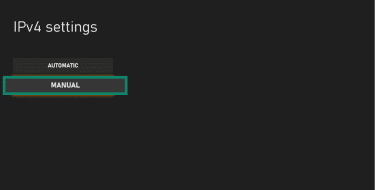
Once this is complete, you can run a network connection test via the network settings menu to ensure the connection remains functional and strong.
Troubleshooting IP and connectivity issues
If you modify your Xbox’s network settings, you might encounter errors or connectivity issues, including the common problems listed below. Here are some fixes to try:
Why does my Xbox keep saying it can't find an IP address?
This error message appears when your console can’t communicate with the router’s DHCP server. It can happen due to IP address conflicts, misconfigurations, weak Wi-Fi signals, or glitches with the router. Some things that might help include:
- Rebooting your console and router.
- Moving your console closer to the router.
- Switching to a wired connection.
- Setting a static IP address on your Xbox manually.
How do I retry entering an IP address?
If your console repeatedly fails to obtain an IP address, try:
- Power cycle your console and router; unplug them, wait a minute, and then turn them back on.
- Assign a static IP to your Xbox.
- Check your router settings to ensure MAC filtering isn't enabled.
How do I fix NAT issues for better connectivity?
If you’re stuck with a Strict or Moderate NAT and want to obtain an Open NAT, here’s what to do:
- Either enable UPnP, if available, via your router’s admin controls, or set up port forwarding for your Xbox.
- Switch to a wired connection.
- If you have multiple routers, put one or more into bridge mode to prevent double-NAT conditions.
Learn more: What is UPnP, and should you turn it on?
What is an IP address?
An IP address is a numerical identifier assigned to every device that connects to a network or the internet. They allow devices to identify and communicate with one another, ensuring that data is delivered to the correct destination.
An Xbox’s IP address, therefore, allows it to send and receive the data needed to play games online, connect with other players, download files, and access Xbox Live services.
Local IP address vs. public IP address
- Private (local): Used to identify specific devices on your home network, such as your Xbox console. It's assigned by your router and used for internal communications.
- Public: Assigned by your internet service provider (ISP) and covers your whole network, allowing it to connect to the internet.
Port forwarding and Universal Plug and Play (UPnP) allow traffic from the internet to reach your device on your local network. So, you’ll need to know your local IP address to set them up.
If you're aiming for the best online multiplayer experience (especially with Open NAT), start by ensuring your Xbox has a consistent private IP (via reservation or static assignment), then apply port forwarding or enable UPnP on your router using the relevant Xbox Live ports.
IPv4 vs. IPv6 on Xbox
There are also two IP address standards: IPv4 (the older protocol that uses 32-bit addresses) and IPv6 (the newer protocol that uses 128-bit addresses).
IPv6 may perform better for Xbox Live gamers, as it can reduce NAT-related issues. This is because it enables better direct end-to-end connectivity, lowering latency and simplifying multiplayer without relying on NAT as much as IPv4.
Your router and ISP must support IPv6 for Xbox to use it; otherwise, it falls back to IPv4. It’s also worth noting that, while IPv6 is preferred, it isn’t a guaranteed fix for all NAT problems.
Learn more: IPv4 vs IPv6 – A full guide
Static vs. dynamic IPs
- Static IP: A fixed, permanent address that won't change.
- Dynamic IP: Changes periodically, which may break port forwarding rules.
Learn more: Static vs dynamic IP addresses explained
What NAT types mean for Xbox connectivity
There are three NAT types that influence how your console communicates online (e.g., joining multiplayer games, voice chat, or hosting sessions):
- Open NAT: Offers the best player-to-player connectivity and matchmaking compatibility.
- Moderate: Allows connections but may limit who you can connect to or cause connection issues.
- Strict: Limits connections; may prevent joining games, hosting, or using voice chat.
If you have Moderate or Strict, see the troubleshooting section.
FAQ: Common questions about Xbox One IP addresses
How do I find my Xbox One IP address?
What is the difference between my Xbox IP and my public IP?
Does Xbox have both IPv4 and IPv6 addresses?
Can I change my Xbox IP address?
Should I use a static IP or a router reservation?
What is a NAT type, and why does it matter?
Take the first step to protect yourself online. Try ExpressVPN risk-free.
Get ExpressVPN