Ransomware removal: How to remove ransomware step by step


If you turn on your device and find that you can’t access your system, or your files suddenly won’t open, your device may have been affected by ransomware. Ransomware is a type of malicious software (malware) that aims to extort payment by encrypting files, blocking access, or, in some cases, stealing sensitive data with the threat of leaking it.
In this situation, it’s important to remain calm and avoid acting impulsively. Rushing to pay the ransom or following the attacker's instructions may only make things worse.
This article provides a step-by-step guide on what to do if your system is compromised, including recovery options and proactive measures to reduce the risk of future ransomware threats.
How to remove ransomware: Step-by-step guide
The steps below explain how to remove ransomware safely and begin recovery. Keep in mind, though, that while removing ransomware prevents further damage, there’s no guarantee of file recovery. Whether that’s possible at all depends on the availability of decryption tools or clean backups.
If you’re not confident performing advanced system recovery steps (such as booting from recovery media or reinstalling your OS), consider contacting a qualified IT professional. Incorrect removal attempts can result in permanent data loss or further system damage.
If the affected device is part of a workplace or business network, notify your IT or security team immediately rather than attempting to remove it yourself.
Learn more: What is ransomware? How it works and how to prevent attacks
Step 1: Immediately isolate the infected device
Before beginning ransomware removal, disconnect the affected device from all networks. This includes unplugging Ethernet cables and disabling Wi-Fi. Also, disconnect any external drives, such as USBs or network-attached storage (NAS), and pause or sign out of cloud sync services to prevent encrypted files from spreading.
Isolation limits the damage the ransomware can cause. Some variants try to spread to other systems, while others connect to attacker-controlled servers to steal data or install additional malware.
Step 2: Boot the device in safe mode
Restart the device in safe mode. This starts the system with only essential programs and drivers. Many types of malware won’t run in safe mode, so they're less likely to interfere with the removal process.
Windows 11
- Open the Start menu and click Power.
- Hold Shift and click Restart.
- After reboot: Troubleshoot > Advanced options > Startup Settings > Restart > Enable Safe Mode.
macOS
For Apple silicon Macs:
- Shut down your Mac.
- Turn it on, then hold the power button until the startup options appear.
- Select your startup disk, hold Shift, and click Continue in Safe Mode.
For Intel-based Macs:
- Shut down your Mac.
- Turn it on and immediately hold the Shift key until the login screen appears.
- Log into your Mac. Your device is now in safe mode.
Android
The steps required to boot into safe mode on an Android device may vary by manufacturer and OS version. If the following steps don't work for you, check your manufacturer’s support site or search online for instructions specific to your model and OS version.
- Hold the power and volume down buttons.
- Tap and hold Power off until the Safe Mode prompt appears.
- Tap the Safe Mode icon.
Step 3: Remove ransomware safely
In ransomware cases, relying on antivirus software alone is risky. Even reputable security tools can produce false positives during cleanup, leading to the mistaken impression that the threat has been removed when hidden components may still remain. For that reason, it’s safest to treat the device as fully compromised.
The safest approach is to boot the device from trusted recovery media (such as a clean USB installer or rescue disk) created on an uncompromised system. Then:
- Back up all files to external storage, including encrypted files. Even if you can’t access them now, a decryptor may become available in the future.
- Wipe the device completely and reinstall the OS to remove any remaining malicious code.
Do not reconnect the device until the reinstallation steps are completed.
Step 4: Recover data and restore systems
Even after removing the ransomware, files that it encrypted may remain inaccessible. There are two potential options for recovery: using a compatible decryption tool or restoring files from clean backups.
Use legitimate decryption tools when available
Ransomware decryption tools are designed to unlock encrypted files. Each tool is specific to a particular ransomware strain. Many of these tools are available for free online, but beware of fakes. Some bad actors distribute malware disguised as free decryptors.
A reputable source for legitimate ransomware decryption tools is the No More Ransom project website. The project is a collaborative effort between the Netherlands’s National High Tech Crime Unit, the European Union Agency for Law Enforcement Cooperation (Europol), and the cybersecurity companies Kaspersky and McAfee.
Some cybersecurity companies offer paid ransomware recovery services that include proprietary decryption tools for certain ransomware strains. However, it’s important to be cautious, as some of these services are scams that exploit victims’ desperation. Warning signs include claims of guaranteed recovery, pressure to pay immediately to avoid permanent data loss, and requests for unconventional payment methods (e.g., gift cards or cryptocurrency).
If the specific ransomware strain is unknown, ID Ransomware is a free online tool that may help identify it.
Restore from backups
Not every ransomware-encrypted file is decryptable. For example, the No More Ransom website offers tools for decrypting files locked by the REvil ransomware and some strains in the Locky ransomware family, but not for NetWalker or PYSA.
If a compatible decryption tool isn’t available or only partially restores files, recovering data from a clean backup created before the infection may be the only solution.
Before connecting the backup, ensure the device has been fully wiped and the OS reinstalled. Running a system scan can help check for lingering threats, but a clean reinstall provides stronger assurance. If the malware is still present, it could re-encrypt the restored files or spread to the backup.
After restoration, run another system scan to ensure that the ransomware wasn't reintroduced during the process. Then verify that all files are intact and up-to-date, and reinstall any applications if necessary.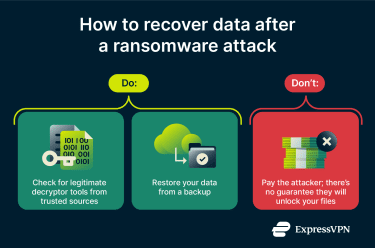
Should you pay the ransom?
It’s generally not advised to pay ransomware. Most cybersecurity experts and authorities, including the FBI and the U.S. Cybersecurity and Infrastructure Security Agency (CISA), say no. It may be tempting if decryption isn’t an option and no usable backups are available. But there are several good reasons why paying the ransom is a bad idea:
- The attacker may refuse to provide the decryption key even once they receive payment.
- There may be no reliable way to decrypt the files in the first place.
- It encourages further ransomware attacks by proving the tactic is profitable.
Finally, many ransomware groups use a tactic called “double extortion,” stealing sensitive data in addition to encrypting files and threatening to leak the data unless the ransom is paid. The problem is that there’s no way of knowing whether the group will honor its agreement. In one notable case, Change Healthcare paid its attackers $22 million in Bitcoin, yet some of its affected data still ended up on the dark web.
Ransomware prevention best practices
The following steps can help reduce the risk of ransomware infections and improve your chances of recovery if your system is affected.
Regular updates and patching
Keeping your software and OS up to date is one of the simplest yet most effective ways to prevent ransomware (and other types of malware, such as Trojans and viruses). Updates and security patches fix known vulnerabilities that attackers can exploit to gain access to a system and install malware.
For example, WannaCry is an infamous ransomware that exploited the EternalBlue vulnerability. Microsoft had actually released a patch for this vulnerability almost two months before the attacks began, but many users and organizations had not applied the security update, allowing the ransomware to infect hundreds of thousands of computers worldwide.
To keep your system up to date:
- Enable automatic updates whenever possible.
- Stay informed about security risks by following news from trusted sources, such as government cybersecurity agencies like CISA.
- Regularly check for and apply patches to any software that doesn’t update automatically.
Email and download safety habits
Ransomware can spread via malicious email attachments, links to compromised websites, or software downloads disguised as legitimate files. For this reason, being cautious with emails and downloads is an essential part of ransomware protection.
Avoid opening attachments or clicking links from unknown sources. When in doubt, verify the source’s authenticity through trusted channels. It’s also safest to only download software from official websites or app stores.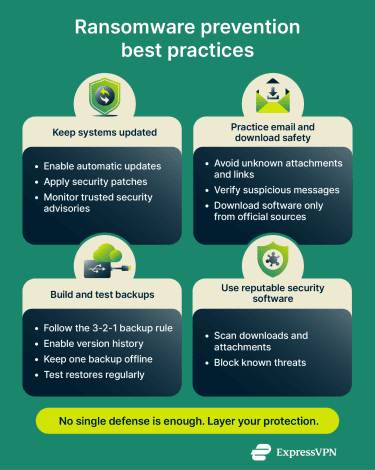
Backup strategy and testing
In general, making regular backups of important files is a good habit, but it’s especially important for protecting against ransomware. If files are encrypted or lost, a recent, clean backup can make recovery significantly easier.
A widely recommended approach to creating backups is the 3-2-1 strategy:
- Keep three copies of important data.
- Store them on two different types of media (e.g., a local hard drive and an external hard drive).
- Maintain at least one copy in a remote location or on a cloud-based service (e.g., OneDrive, Google Drive, or Dropbox).
This approach ensures that even if one copy is lost or compromised, you have backups for your backups.
Note that some cloud services act as file syncing tools rather than true backups. If ransomware encrypts files on your device, those encrypted versions may also sync to the cloud and replace the clean copies. To reduce this risk, enable version history or file recovery features, where available, so you can roll back to earlier, unencrypted versions.
It’s also a good idea to keep at least one backup offline or otherwise isolated from your computer and network. Backups stored this way are much less likely to be affected if ransomware spreads.
Finally, as part of a comprehensive backup strategy, it’s important to periodically test your backups. Files can become corrupted, backups may be incomplete, or errors in the backup process might prevent successful restoration. Regular testing ensures that data can actually be recovered when needed.
To test your backups, try restoring a small sample of files to a separate location and check that they open properly and contain the expected, up-to-date content.
Use a reputable security solution
Antiviruses and other endpoint protection solutions can detect and block known threats, scan downloads and attachments, and alert you to malicious activity before it causes damage.
However, be mindful that no security solution is infallible. Newly developed ransomware and zero-day exploits may bypass detection. For this reason, antiviruses and similar tools should not be relied on as your sole defense. They work best when combined with other ransomware prevention best practices, such as maintaining regular backups and following safe computing habits.
FAQ: Common questions about removing ransomware
Can antivirus remove ransomware completely?
Antiviruses are designed to detect and remove malware (including ransomware) from a system, but no security solution can guarantee perfect detection rates or complete removal. A safer approach is generally to boot the device using trusted recovery media, create a backup, wipe the device, and reinstall the OS. Note that neither approach alone will restore encrypted files. Once the ransomware is removed, you may still need decryption tools or backups to recover your data.
How long does ransomware removal take?
The time required can vary widely depending on factors such as the ransomware strain, the size of the system, and the tools used. A full system scan can take anywhere from minutes to several hours, and additional recovery steps, like restoring files from backups, can add more time. In general, large systems or business networks take significantly longer to scan and restore than personal devices.
What should I do first after a ransomware attack?
The first thing you should do is to isolate the infected device by disconnecting it from all networks. This helps prevent the ransomware from spreading to other devices or communicating with attacker-controlled servers, limiting the damage.
Are ransomware decryption tools safe to use?
Whether a ransomware decryption tool is safe depends on its source. A tool provided by an authoritative cybersecurity organization or reputable cybersecurity vendor is far more trustworthy than one from an unverified source.
It’s important to do your research because scammers often take advantage of users or organizations affected by ransomware by offering fake or ineffective recovery tools or services. Be especially cautious of sources that claim to have 100% recovery success rates, pressure you to act quickly, or ask for unusual payment methods (e.g., gift cards or cryptocurrency).
How do I know ransomware is fully removed?
Regaining access to your files doesn’t guarantee the ransomware is gone. Antivirus scans can miss hidden components or produce false positives. The safest way to be sure is to wipe the device completely and reinstall the OS from trusted recovery media. Only after rebuilding the system should you restore files from a known clean backup or use a legitimate decryptor released by a trusted cybersecurity organization or law enforcement.
How can I prevent ransomware in the future?
You can reduce the risk of ransomware infections by keeping your software and OS up to date, practicing safe email and download habits, and maintaining regular backups. You can also install a reputable security solution for an extra layer of defense. Antiviruses and similar tools are designed to detect and block malicious files or activity on your device.
Take the first step to protect yourself online. Try ExpressVPN risk-free.
Get ExpressVPN