
App permissions explained: What they are, why they matter, and how to manage them safely



You’ve probably tapped “Allow” on an app permission request dozens of times without thinking about it. Every time you do, you’re deciding what personal data an app can access and, in some cases, what it can collect, store, or share.
Some app permissions are essential. A navigation app needs your location to give directions. Others support extra features. But in many cases, apps request more access than they strictly need, increasing your exposure if that data is misused or shared.
What are app permissions?
App permissions are system-level controls your phone uses to determine what each app is allowed to access. Modern operating systems, such as iOS and Android, isolate apps from each other and block access to sensitive data by default.
If an app wants to use your camera, read your contacts, or track your location, it has to ask you first.
Not every app needs the same level of access. A navigation app genuinely needs your location, while a recipe app almost certainly doesn’t.
Why apps ask for permissions
There are three main reasons apps request access to a feature.
The feature genuinely requires it
Apps request permissions when they need access to certain data or device features to function. A camera app needs camera access to take photos or record video. A navigation app needs your location to give you directions. Without this access, the core feature simply doesn’t work.
It’s optional but useful
Some apps use permissions to improve your experience and support extra features. A food delivery app might request location access to auto-fill your address, but you could also type it in manually.
A note-taking app might ask for microphone access for voice dictation. The app works without it; the permission just unlocks an extra feature.
Analytics or advertising
Some apps, especially free ones, request access to data for ad targeting or analytics. This is often unrelated to anything you’re doing in the app. A free game, for example, might ask for access to your device’s advertising ID or other identifiers.
This information can be used to track behavior across apps and build user profiles. While this is usually disclosed in privacy policies, it’s worth being aware of as it increases how much of your data is collected and shared.
How app permissions work
Here’s the basic sequence. You open an app and try to use a feature; for example, you tap the camera button in a messaging app. The app signals to your phone that it needs camera access. Your phone’s OS intercepts that request and shows you a prompt: "Allow [app] to use your camera?”
Depending on your choice, the app either gets access or doesn’t.
On both Android and iOS, some permissions (called runtime permissions) are requested the first time they’re needed, while some are requested when you first install an app.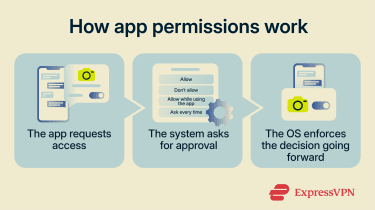
Once you’ve made a choice, the OS applies that decision every time the app tries to use that resource. If you allow camera access today, that app can continue using it until you change the settings. The app won’t ask you again unless you’ve chosen “ask every time.”
Permission options: What you’ll be asked
When an app asks for access, your device offers a few choices. The exact wording differs between Android and iOS, but generally, you’ll see the following:
- Allow: The app can use the feature or data.
- Don’t allow: The app can’t access it.
- Allow while using the app: Access is limited to when the app is open.
- Ask every time: You’re prompted each time the app tries to use the feature.
Not every permission offers all these options. Location usually gives you the most control, while simpler permissions like calendar access may only offer “Allow” or “Don’t allow.”
Types of app permissions
Different permissions control access to different kinds of data. Some relate to physical features on your device, like the camera or microphone, while others involve accessing personal information, like your location, contacts, or messages.
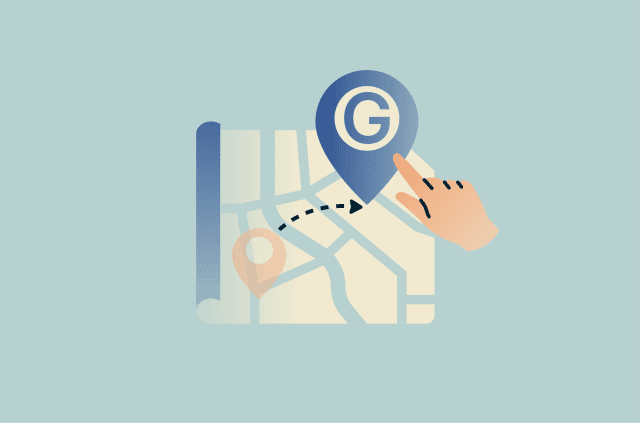
Location permissions
Location is one of the most sensitive permissions. It can reveal where you live, your workplace, where you spend your free time, and your regular routes. That’s useful for navigation, but it’s also the kind of data that gets used for ad profiling and, in some cases, sold to data brokers.
Both iOS and Android let you choose between two levels of access:
- Precise location: Uses GPS to pinpoint your position to within meters.
- Approximate location: Gives the app a general area, usually a region of a few square kilometers.
For most apps, such as weather and local searches, the approximate location is enough. However, navigation apps like Google Maps or Apple Maps genuinely need your precise location to give accurate turn-by-turn directions.
Then there’s the question of when the app can access your location: only while you're using it or all the time.
Background location (“always on”) is one of the most invasive permissions you can grant. It lets an app build a continuous record of your movements. Navigation apps need it if you want your route to update while the screen is off; most others don't.
Camera and microphone permissions
These permissions allow apps to record video or audio. Modern devices now have visible indicators to show when they’re in use.
On iPhone (iOS 14 and later), an orange dot appears when the microphone is in use without the camera, and a green dot appears when the camera is in use, including when the camera and the microphone are both active. On Android 12 and later, a green indicator appears in the top-right corner when the camera or microphone is active.
On Android, swipe down and tap the indicator to see which app or service is using it. On iPhone, open Control Center to see that an app recently used the camera or microphone.
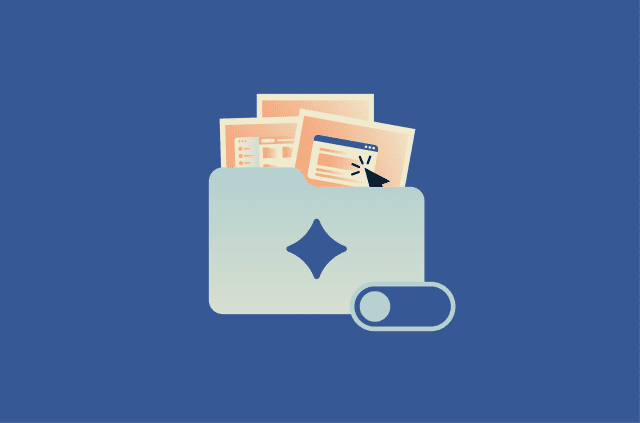
Photos, files, and media permissions
These permissions allow apps to access content you’ve stored on your device, such as photos, videos, or documents.
Newer versions of iOS and Android now offer partial access for photos, which is more useful than you might think. Instead of giving an app access to your entire library, you may be able to share only selected photos and videos. For example, if a photo-editing app asks for photo access and you only want it to see the picture you’re working on, you can limit it to just that.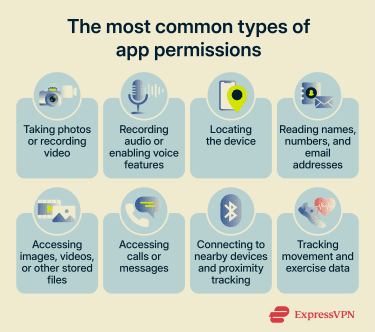
Contacts permissions
Contacts access lets an app read everything in your address book: names, phone numbers, email addresses, and sometimes notes and birthdays. That’s a lot of personal data about other people, not just you.
Messaging and phone apps obviously need this information. But a Contacts request from a fitness app or a game is unusual. Once an app has read your contacts, it can store that data on its servers, use it to build social graphs, or, in some cases, share it with third parties.
SMS, calendar, and activity permissions
These permissions give access to personal data.
- SMS access: Lets an app read every text message on your phone, including one-time codes sent by your bank or other services when you log in. If a malicious app has SMS access, it can intercept those codes.
- Calendar access: Lets an app view or add events. Scheduling and productivity apps have a clear reason to use this feature.
- Sensors and physical activity: Physical activity permissions let an app access motion or activity data, such as step counts or movement patterns. Fitness apps and health trackers need this. Most other apps don’t.
Phone and call log permissions
Phone and call log permissions let apps see your call history or, in some cases, make calls on your behalf. Like SMS, it’s sensitive personal data. Your call history can reveal who you talk to, how often, and for how long.
Bluetooth permissions
Bluetooth is mainly used to connect to devices like speakers, headphones, or fitness trackers. But Bluetooth signals, especially Bluetooth Low Energy (BLE) beacons, can also be used for proximity detection. In retail and similar indoor spaces, apps may use nearby Bluetooth beacons to estimate where you are inside a venue, sometimes even when your phone’s location permission is off.
Risks of allowing too many app permissions
Allowing too many app permissions can expose far more of a person’s life than most people realize. As we’ve seen above, permissions can give apps access to sensitive data such as location, contacts, messages, photos, nearby devices, and other signals that help build a detailed picture of who the phone owner is and how they live. On their own, some of these data points may seem harmless. Combined, they can reveal where a person lives and works, who they talk to, where they go, what they buy, etc.
This is not always intentional. Some apps request broad permissions because of poorly designed features, careless development practices, or third-party libraries built into the app. That does not automatically make an app malicious, but it still means the app may be able to collect data that has little or nothing to do with its core purpose. In 2025, Google said it prevented over 250,000 apps from using unnecessary sensitive permissions, which shows how common overpermissioning can be.
Another concern is that data collection may not be obvious. Some permissions allow continued access in the background, which can make tracking less visible and more persistent. While apps usually describe how the collected data is used in their privacy policies, in practice, most people have far too many apps on their phones to be able to fully review the policy for each, which means they often end up using apps without assessing the privacy trade-offs.
This is why being more intentional about app permissions is essential. Users don’t need to read every privacy policy for every app to make better decisions. Simply paying attention to which permissions an app asks for, considering whether that access makes sense for its function, and reviewing permissions from time to time can go a long way.
How to manage app permissions
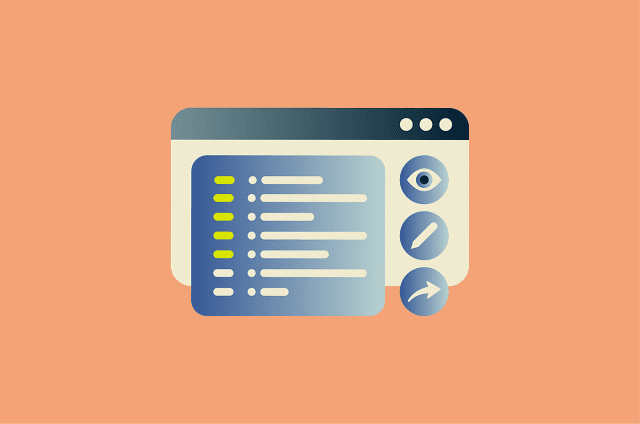
Both Android and iOS let you review access either by permission type (for example, which apps can use the camera) or by individual app (what a specific app can access).
How to change app permissions on Android
These steps apply to recent Android versions, though the exact wording and layout may vary depending on your device manufacturer.
To manage permissions by type
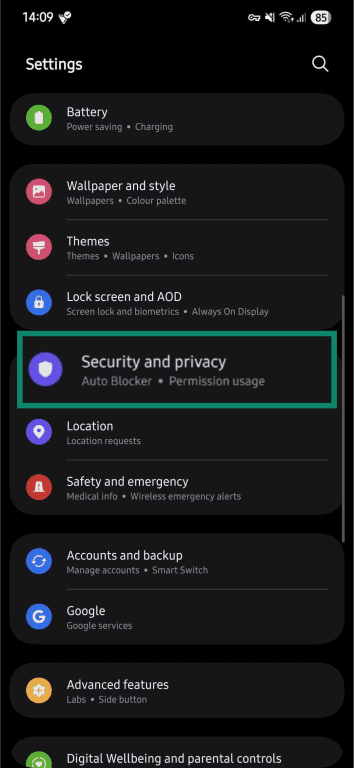
- Open Settings and tap Security & Privacy.
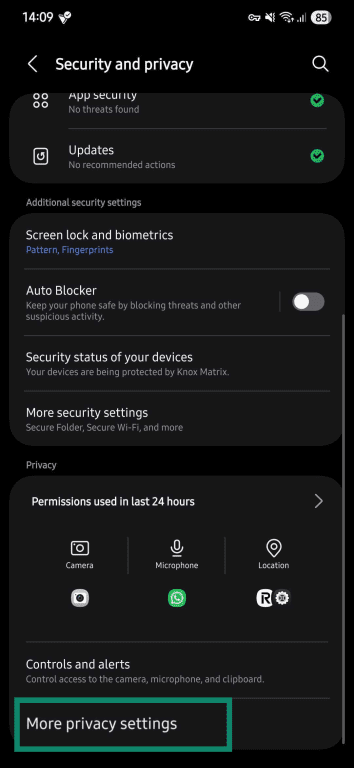
- Tap More privacy settings (or Privacy on some devices).
- Then Permission manager.
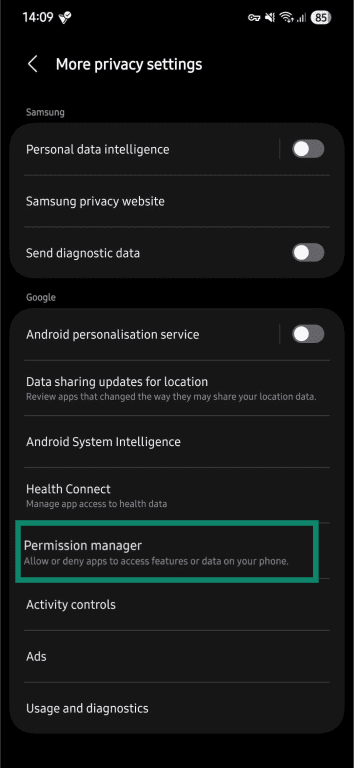
- Select the permission type you want to review, for example, Location.
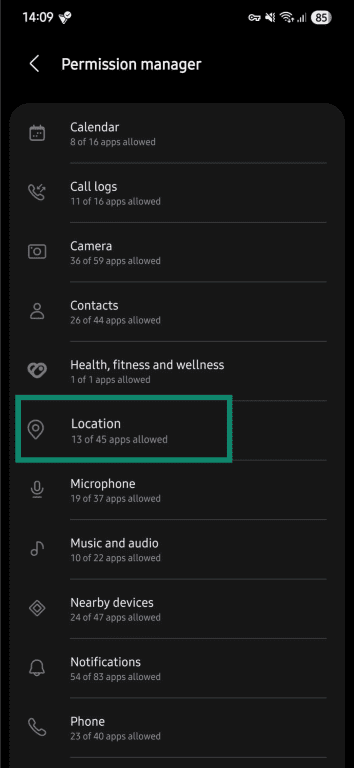
- You’ll see apps grouped by access level: Allowed all the time, Allowed only while in use, or Not allowed.
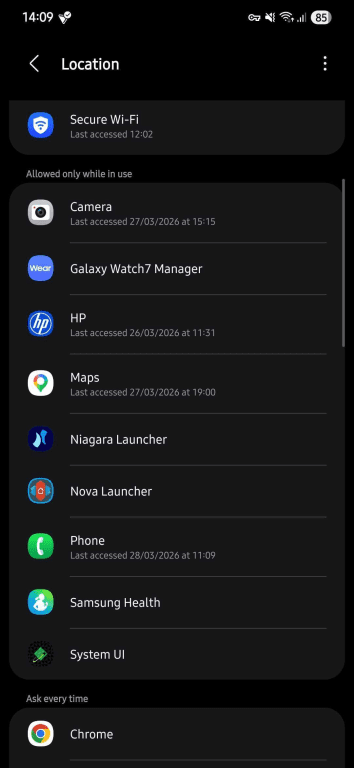
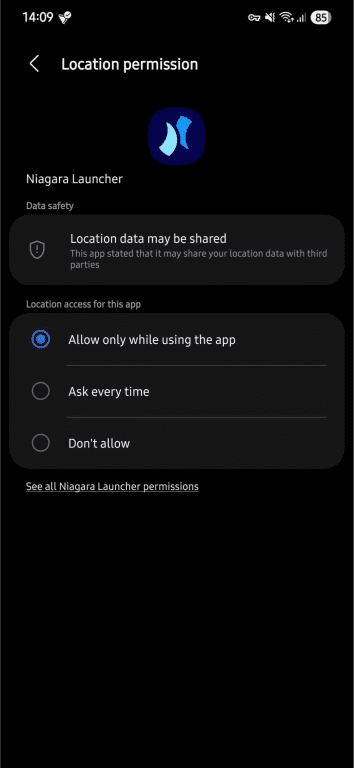
- Tap any app to adjust its access. Depending on the app, you may see options like Allow only while using the app, Ask every time, or Don’t allow.
To manage permissions for a specific app
- Open Settings and go to Apps.
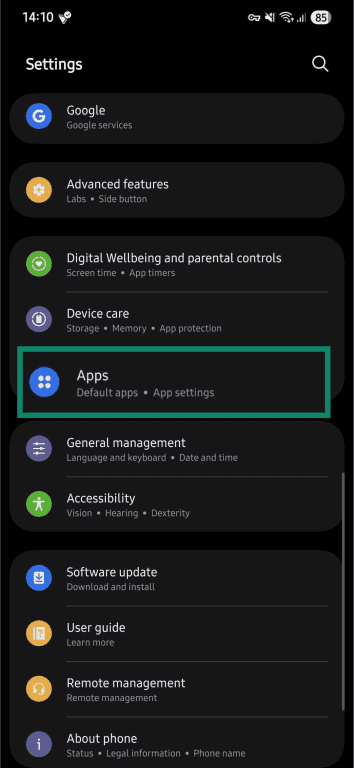
- Select the app you want to check.
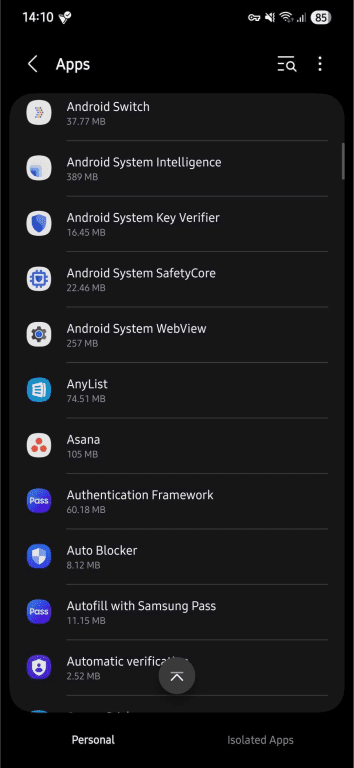
- Tap Permissions.
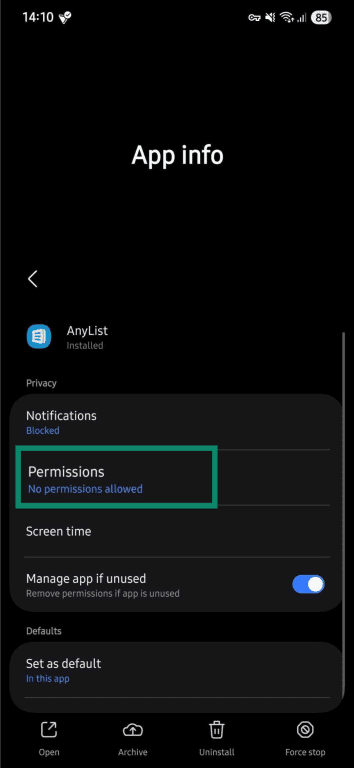
- Adjust each permission individually.
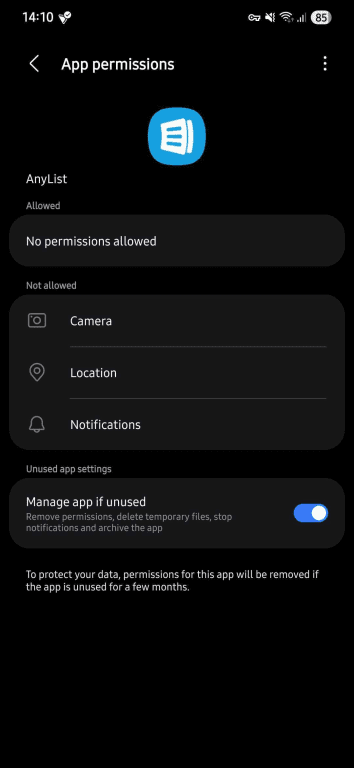
How to change app permissions on iOS
On an iPhone, you can manage permissions either through the Privacy & Security menu or within each app’s individual settings.
To manage permissions by category
- Go to Settings and tap Privacy & Security.
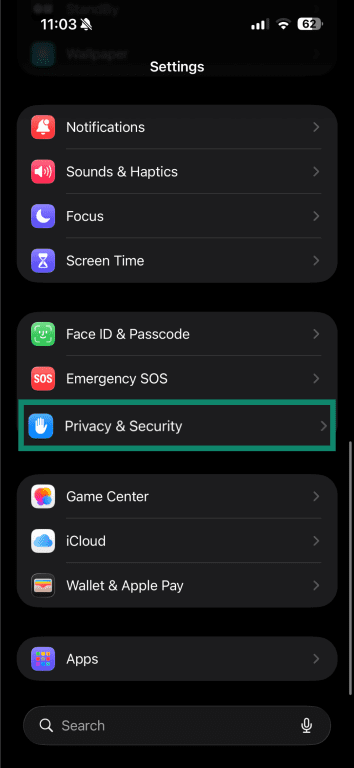
- Tap a category, for example, Microphone.
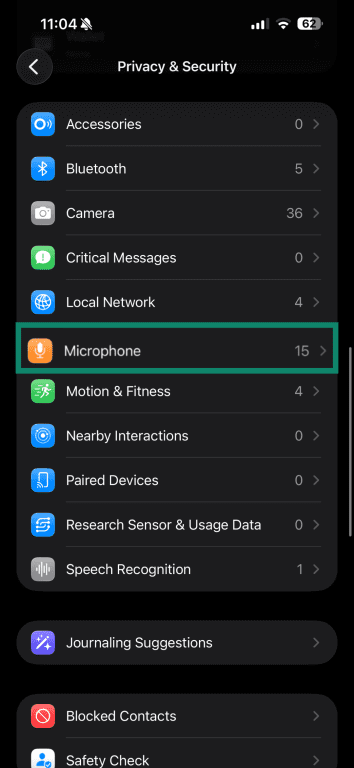
- Review and toggle access on or off for each app listed.
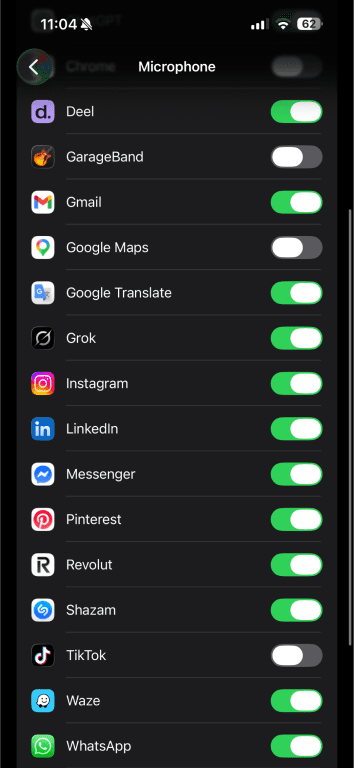
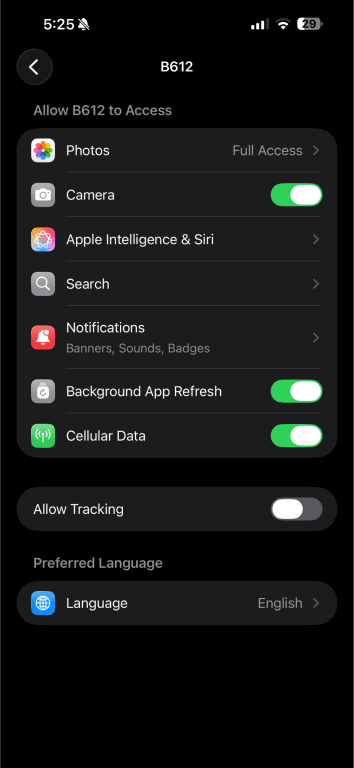
To manage permissions for a specific app
- Open Settings and scroll down to find Apps.
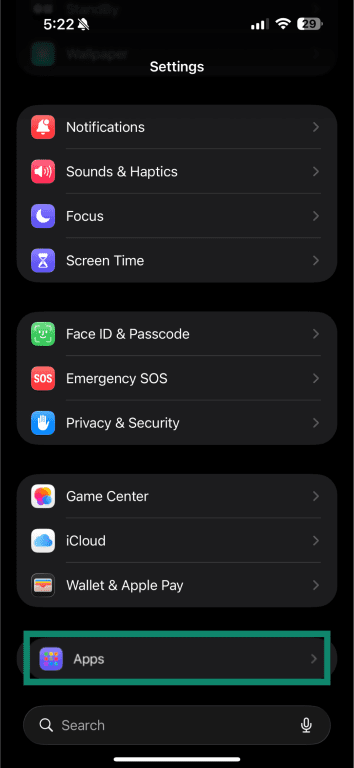
- Tap the app you want to review.
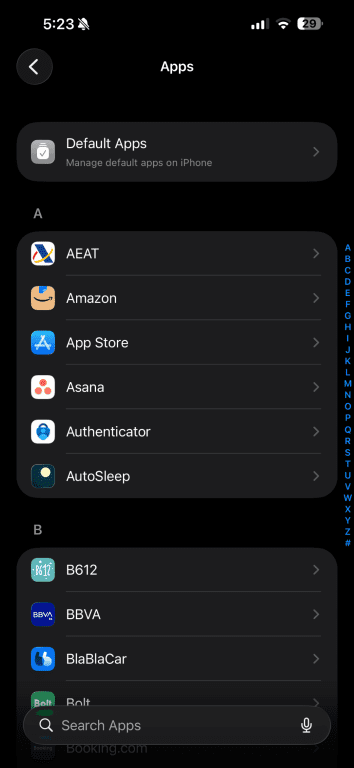
- Tap each feature (such as Camera, Photos, or Location) to personalize its access level.
Best practices for managing app permissions
These tips will help you manage your data access over time:
- Check permissions before you install: Both the App Store and Google Play provide details such as what data an app collects and shares with third parties and security practices like encryption before you download it. On the App Store, scroll to the App Privacy section on any app’s listing. On Google Play, look at the Data Safety section.
- Grant only what is necessary: Give apps access to what they actually need for the feature you’re using. If a permission doesn’t clearly support what you’re doing, don’t allow it.
- Limit background access: Where possible, choose “While using the app,” especially for location. Most apps only need to know where you are when you’re actively using them.
- Review permissions regularly: It’s easy to lose track of what you’ve allowed over time. A quick check every few months or so can reveal apps that have more access than they need.
- Remove unused apps: An app you installed and haven’t used in months is still sitting there with whatever permission you gave it. Deleting apps reduces unnecessary data access.
- Be cautious with sensitive permissions: Location, camera, microphone, SMS, and contacts are the ones that carry the most risk if misused.
FAQ
Why does an app ask for the same permission more than once?
Can apps still access data without asking for permission?
What happens if I deny a permission?
Do app permissions reset after an update?
Are app permissions the same on Android and iOS?
Can I change app permissions later?
How do I know which app permissions to deny?



















Comments
aasdasd
Show more Show lessamansdajsdkamansdajsdkamansdajsdkamansdajsdkamansdajsdkamansdajsdkamansdajsdkamansdajsdkamansdajsdkamansdajsdkamansdajsdk
Show more Show lesswhy
Show more Show lessIs there a way to make the apps that require contacts permission think that my contacts list is empty? That way we can use these apps without giving them contacts access.
Show more Show less