 Celebrate with up to 80% off
Fix “This network is blocking encrypted DNS traffic” on iPhone


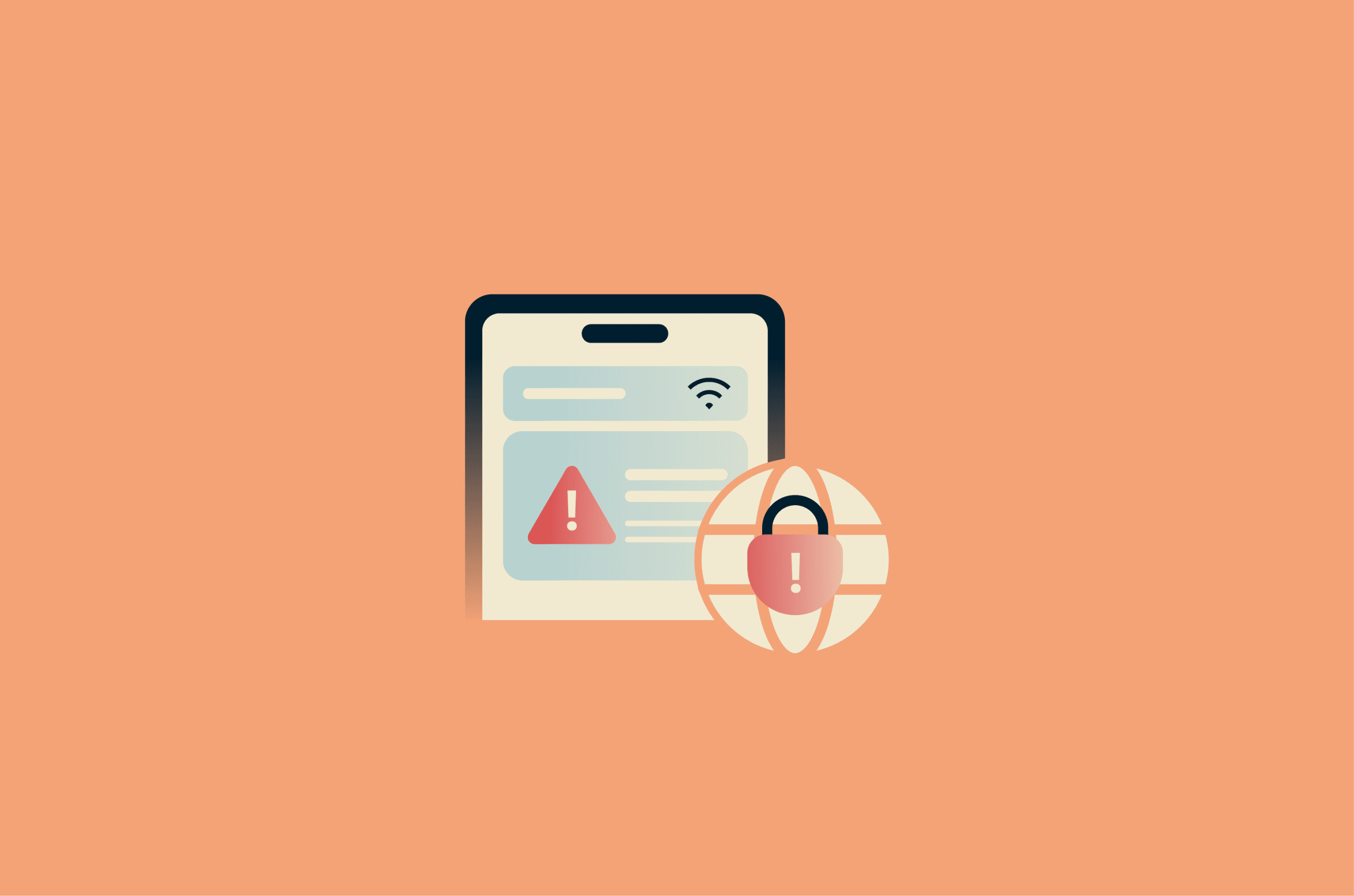
If you see a system warning on your iPhone stating that “This network is blocking encrypted DNS traffic,” don’t worry: in most cases, it doesn’t indicate an active security threat.
The Domain Name System (DNS) handles the domain lookups your device makes when you visit websites, and when it’s encrypted, your browsing activity is more private.
The warning lets you know that the network you’re connected to is preventing DNS encryption from working properly, which means it may be able to see the websites you visit.
What the warning message means
The message “This network is blocking encrypted DNS traffic” is a warning iOS attaches to networks in your Wi-Fi settings. It lets you know that the relevant network either doesn’t allow encrypted DNS or doesn't work with it. Your DNS requests may revert to unencrypted while you’re connected to that network.
This doesn’t necessarily mean the network is unsafe, just that one layer of privacy protections isn’t active.
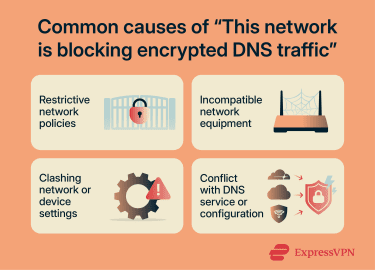
You might see this warning for several reasons, including:
- Network restrictions: Your workplace, school, internet service provider (ISP), or a public hotspot has policies that block encrypted DNS.
- Network equipment limitations: Older routers, Wi‑Fi access points, or other infrastructure may not support encrypted DNS protocols.
- Temporary conflict or misconfiguration: Your network or device settings are interfering with encrypted DNS.
- An app or configuration that changes DNS handling: iCloud’s Private Relay feature, manually installed DNS configuration profiles, or third-party DNS encryption could be causing the network to trigger the warning.
What is encrypted DNS?
Whenever you visit a website in your browser, your device uses the Domain Name System (DNS) to look up the IP address for the domain you entered, so it can connect you.
These lookups are traditionally unencrypted (they’re sent over the internet in plain text). That means the domains you’re visiting may be visible to your ISP or network administrator. On shared networks (like public Wi-Fi hotspots), cybercriminals with the right tools may also be able to intercept your DNS requests and see which sites you’re trying to reach.
Encrypted DNS is one part of DNS security. It protects DNS lookups by encrypting them, helping to keep the websites or services you use private. There are a few encryption methods used, including DNS over HTTPS (DoH), DNS over TLS (DoT), and DNS over QUIC (DoQ).
Most modern browsers support encrypted DNS, while some operating systems or third-party apps give you the option to configure DNS encryption yourself.
Why your network might block encrypted DNS
There are many legitimate reasons why your network might block encrypted DNS traffic:
- Interference with enterprise security tools: Many workplaces and organizations use firewalls, monitoring tools, or other traffic management systems as part of their network security setup. Encrypted DNS can conflict with these tools, so the network may block it to ensure compatibility and network safety.
- Interference with content filters: Some ISPs, schools, or shared networks use filtering tools to prevent access to inappropriate or unsafe sites. These systems may block encrypted DNS traffic because it prevents them from inspecting DNS lookups.
Quick fix checklist
iOS’s “This network is blocking encrypted DNS traffic” warning can sometimes pop up because of simple compatibility or connectivity issues. Before diving into more advanced troubleshooting, try these quick fixes.
Try another network to compare results
Connecting to a different network can help you determine whether the issue is specific to your current Wi‑Fi network or if it’s a problem with your device’s settings.
Restart your iPhone and router
This can resolve temporary conflicts, such as stored network settings or connection issues, that may prevent encrypted DNS from working.
Update iOS and your router firmware
Updates often include fixes and improvements for network compatibility that may resolve the issue.
The process for updating your router’s firmware varies by model. Generally, it involves signing into your router’s admin interface through a web browser or app and checking for available updates. For detailed instructions, refer to your router’s manual or the manufacturer’s support website.
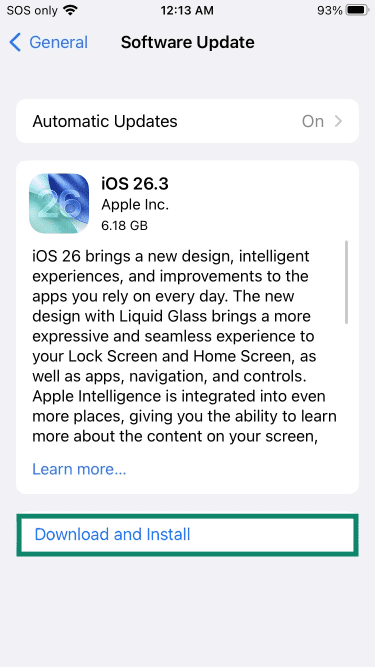
To update your iPhone:
- Open the Settings app.
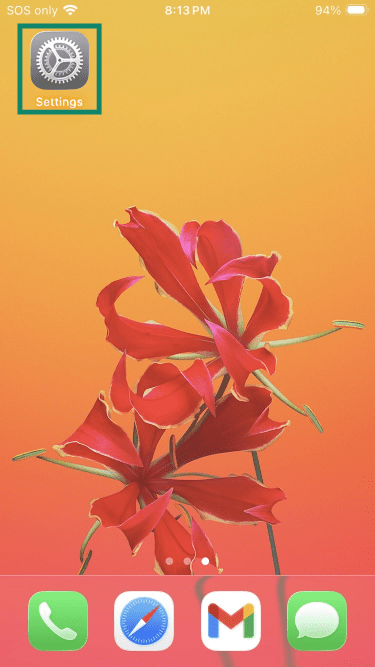
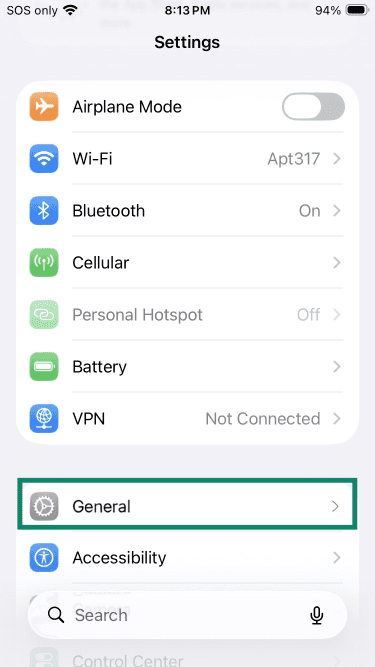
- Tap General.
- Tap Software Update.
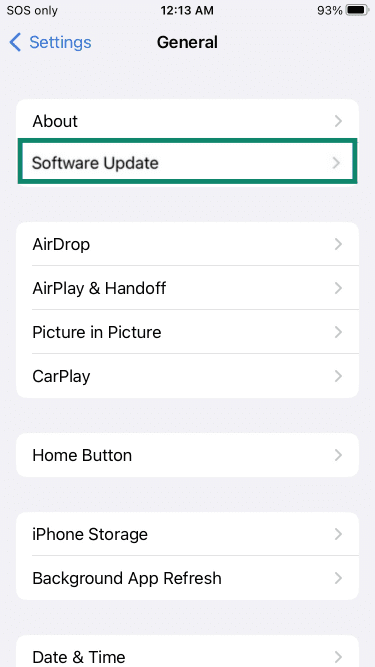
- If there is an available update, it should appear on the screen. Tap Download and install to install the update.
Forget and reconnect to your Wi-Fi network
If you’ve changed any network settings or updated your router, you might need to forget the network on your device and then rejoin it. This ensures your iPhone receives the router’s latest configuration.
To forget a network:
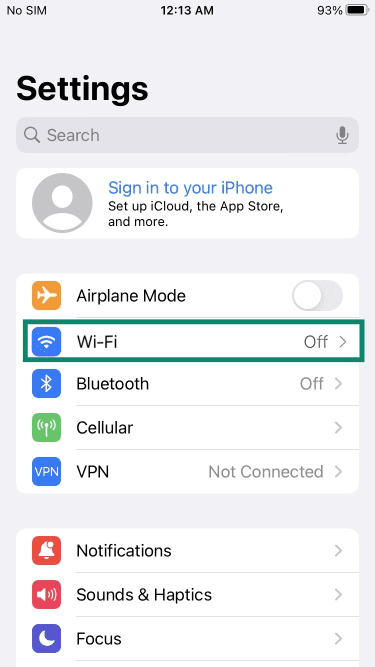
- Open the Settings app and tap Wi-Fi.
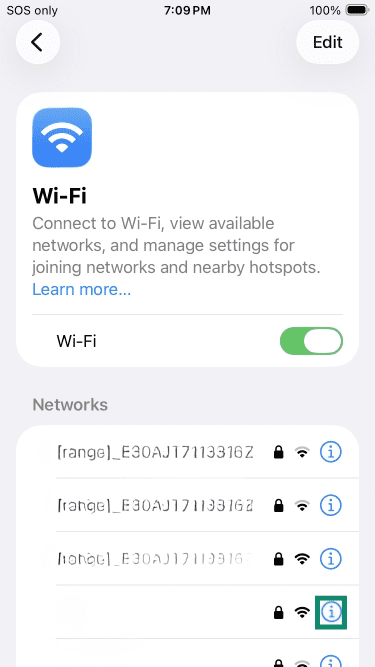
- Tap the i next to your connected Wi‑Fi network.
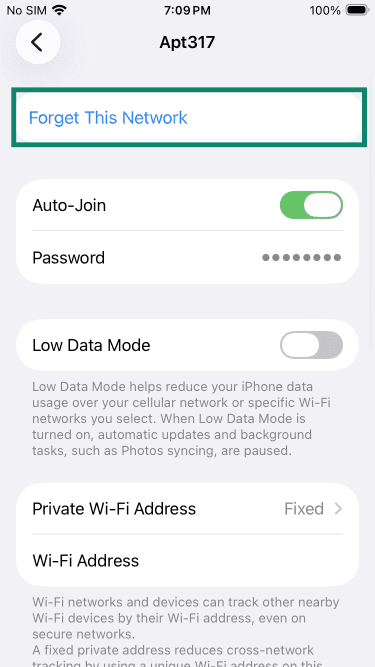
- Select Forget This Network and confirm.
Step-by-step iOS fixes
Sometimes, the “This network is blocking encrypted DNS traffic” warning can be resolved by adjusting settings on the device itself.
Reset network settings on iPhone
Refreshing network settings clears saved Wi‑Fi networks, virtual private networks (VPNs), and related configurations, which can resolve conflicts that prevent encrypted DNS from working.
Note that resetting network settings removes all saved Wi-Fi networks and passwords, resets cellular and VPN/APN settings, and returns network configurations to their defaults. You’ll need to reconnect to Wi-Fi and re-enter passwords afterward, but your personal data (like photos, apps, and messages) isn’t affected.
To do so:
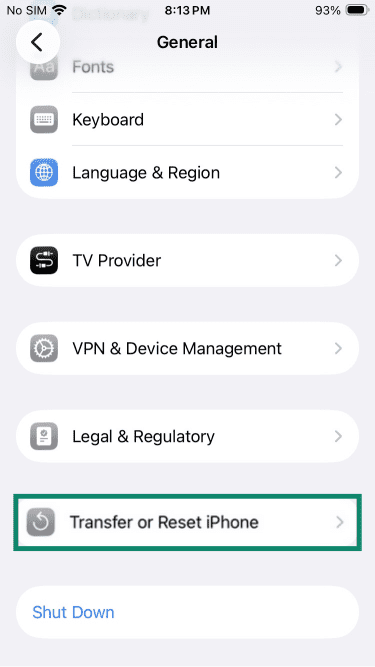
- Open the Settings app, tap General, and select Transfer or Reset iPhone.
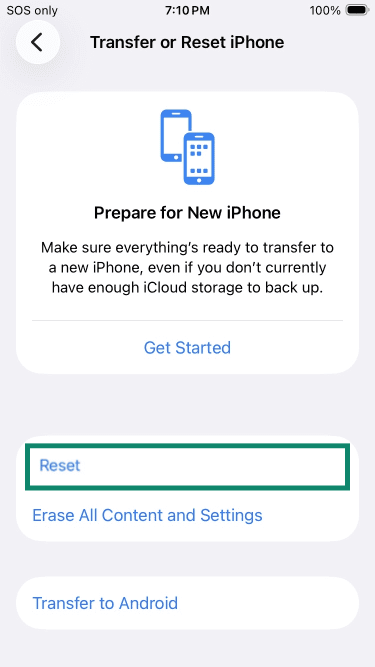
- Tap Reset.
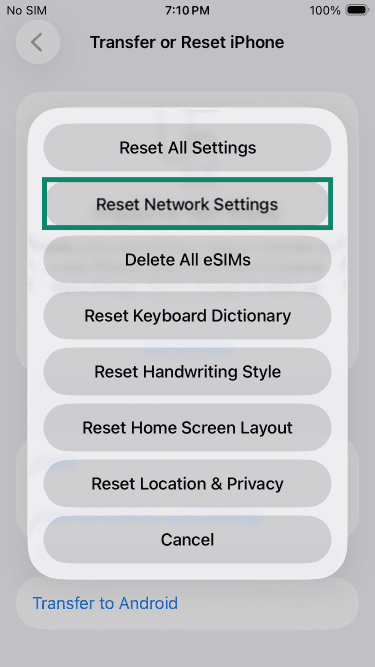
- Choose Reset Network Settings and confirm.
Remove or disable configuration profiles
Configuration profiles can override network settings and interfere with encrypted DNS, so removing or disabling profiles on your device could solve the problem.
Note that some configuration profiles may have been installed by an organization like your school or workplace to manage the device. If you think this might be the case for you, ask your system administrator for help instead. The configuration profile might have key settings that ensure your device works with the network.
To check for unwanted configuration profiles:
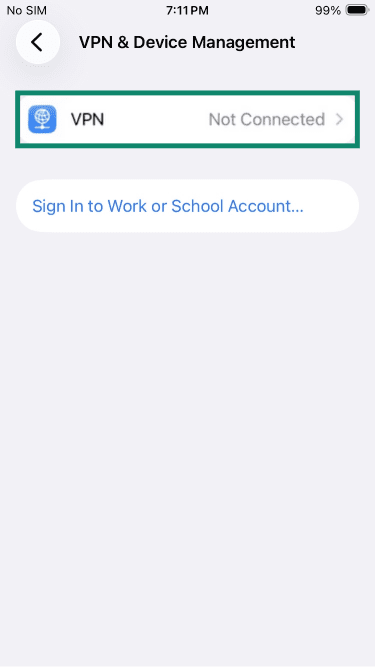
- Go to Settings > General > VPN & Device Management.
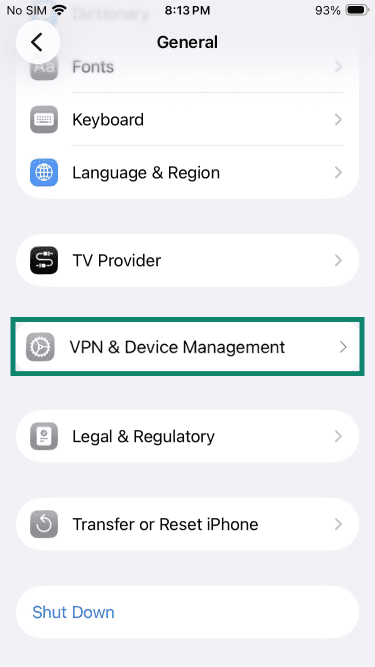
- Select the unwanted profile and tap Delete Profile. If you don’t have any configuration profiles on the device, the screen should look like this:
Manually configure DNS on iOS
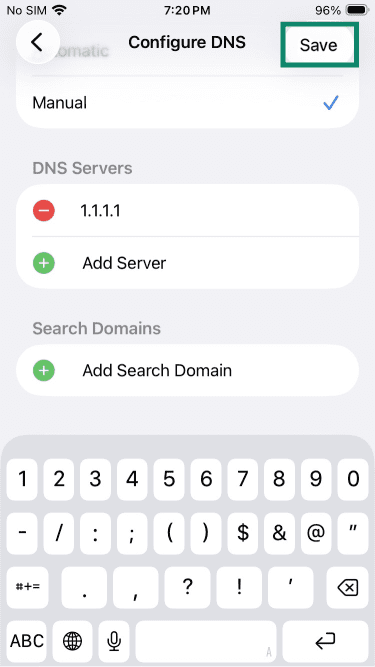
Sometimes the network you’re using has a DNS server that doesn’t support encrypted DNS. Changing to a DNS server that does support it may stop the warning from appearing.
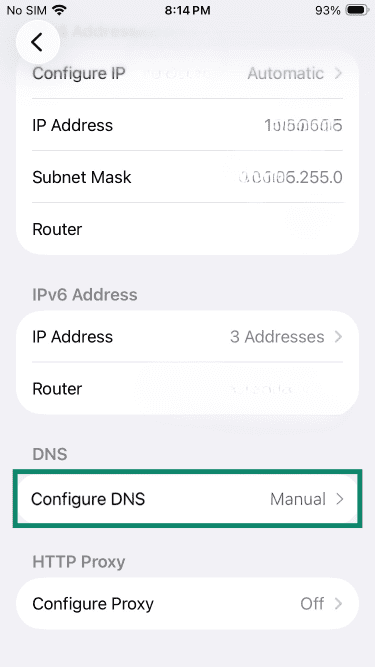
- Open the Settings app, tap Wi‑Fi, tap the i next to your connected Wi‑Fi network, and scroll to Configure DNS.
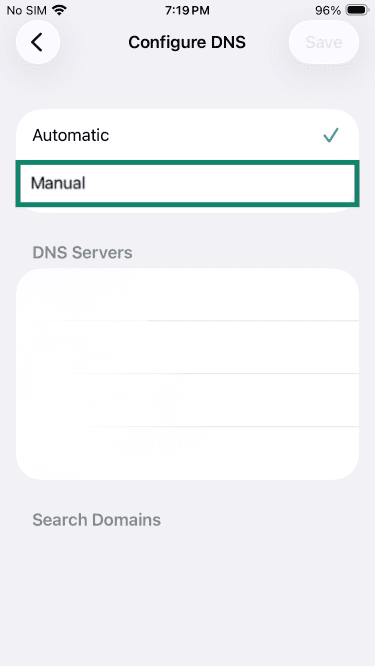
- Select Manual.
- Tap Add Server and enter the address of a trusted public DNS that supports secure DNS protocols (DoQ, DoH, or DoT), such as:
-
- Cloudflare: 1.1.1.1
- Google: 8.8.8.8
- OpenDNS: 208.67.222.222
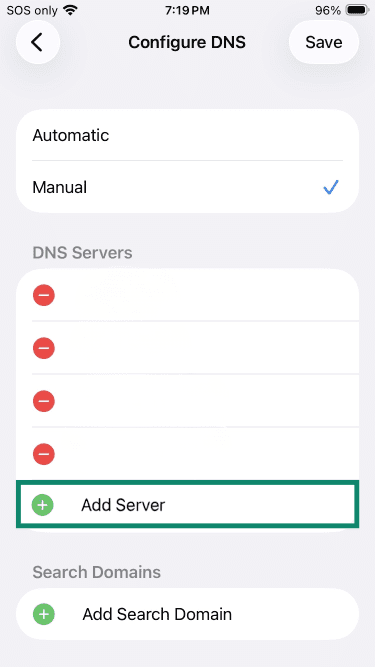
- Tap Save.
Disable iCloud Private Relay
iCloud’s Private Relay feature relies on DNS encryption and other privacy features that may conflict with some networks. The “This network is blocking encrypted DNS traffic" message can sometimes appear if Private Relay is enabled. Although there are some privacy tradeoffs, disabling it might get rid of the warning.
Here’s how to turn Private Relay off:
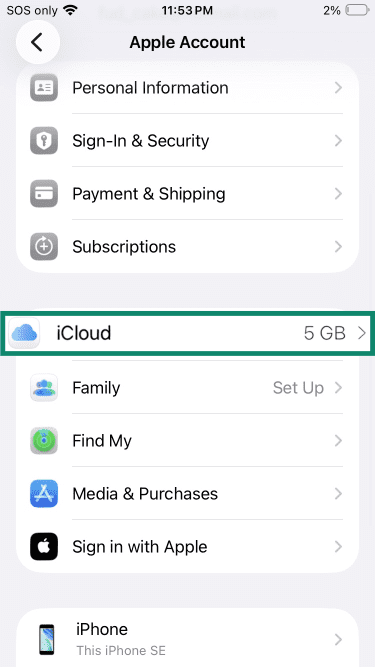
- Open the Settings app, tap your name, and tap iCloud.
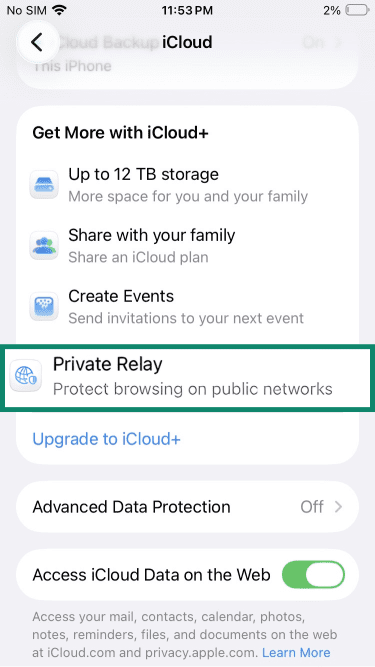
- Tap Private Relay > Private Relay > Turn off iCloud Private Relay.
Router and Wi-Fi fixes
If you’ve completed all the device-level fixes and the warning still appears, the issue may be caused by network-level restrictions or your router’s configuration. Below are some solutions you can try.
Note that if you’re on a managed network, such as at work, school, or a shared environment, you may not have control over some of these settings. In that case, contact your network administrator for help.
Disable security and content filtering rules
If your router has DNS-based filters, parental controls, or firewall rules, these may interfere with encrypted DNS lookups and trigger the warning. You can try temporarily disabling them in your router’s settings to test whether they’re affecting DNS behavior.
Enable WPA3 security when available
Wi‑Fi Protected Access 3 (WPA3) is the latest Wi‑Fi security standard. It protects the connection between your devices and the router using data encryption, which scrambles your internet traffic to maintain internet privacy.
While this doesn’t directly control encrypted DNS, Apple recommends using WPA3-secured Wi-Fi networks (i.e., enabling WPA3 on the router or connecting to networks that use it). This can help improve your network’s compatibility with modern features like encrypted DNS.
The exact steps to enable WPA3 security vary depending on your router model. As a general guide, you’ll need to sign into your router’s admin interface and find the wireless or security settings.
Note that older routers may not support WPA3 at all. In that case, use WPA2 Personal (AES) for the strongest security available on your device and consider updating your router to a newer model.
If you’ve tried all of the above steps on a personal network and the warning still appears, your ISP or DNS provider may be restricting encrypted DNS traffic. Contact them for guidance.
What unencrypted DNS means for your privacy
When encrypted DNS isn’t active, the network you’re connected to may be able to see the domains you access, especially on shared or public Wi-Fi. These environments can be less controlled, which may increase the chances of monitoring, depending on how the network is configured.
One solution is to use a Wi-Fi VPN. A VPN routes your internet traffic, including DNS requests, through an encrypted connection to a remote server. This can help limit what the local network can see and add an extra layer of protection, particularly on untrusted networks.
FAQ
Is blocking encrypted DNS traffic good or bad?
Encrypted DNS improves online privacy by hiding your Domain Name System (DNS) requests. However, some networks have legitimate reasons for blocking encrypted DNS traffic. For example, organizations sometimes block encrypted DNS because it conflicts with enterprise security tools that need to check traffic for malware or other threats.
How do I remove encrypted DNS blocking?
If the blocking is caused by a managed network (like at work or school) or by your internet service provider (ISP), contact your network administrator or ISP for guidance.
What are the benefits of encrypted DNS?
How can I check if my Domain Name System (DNS) is encrypted?
What should I do if a public network blocks encrypted DNS?
Are there risks of using public DNS servers?