 Celebrate with up to 80% off
Are there parental controls on TikTok? A privacy and safety guide for parents


TikTok includes parental controls, but they require active parental involvement to be truly effective. The good news is it’s relatively straightforward to optimize TikTok safety controls. There are also ways to strengthen privacy settings to better protect your kids.
The short answer: TikTok has parental controls
TikTok mainly offers protection for children through a feature called Family Pairing. This tool lets parents link their own account to their child's account to customize safety boundaries.
However, it's vital to understand that parental controls alone don't make the app safe. Limiting DMs and comment sections helps, but it isn't a substitute for open communication. These tools serve as a helpful safety net, but they aren't a guarantee of a perfectly clean digital environment.
What parents should check before changing settings
Before diving into the settings menu, running through a quick pre-change checklist ensures the right foundational protections are active.
TikTok account age and default protections
TikTok applies automatic safety rules based on the birthdate entered during setup.
- Ages 13 to 15: Accounts are private by default. These users can't receive DMs, and others can't download their videos.
- Ages 16 and 17: Accounts are set to private by default when users sign up, although teens can switch them to public in their privacy settings. Direct messaging is available and can be managed through privacy controls.
The main risk stems from the fact that if a child enters a fake birthdate to look older, they lose these built-in shields entirely.
Private vs. public account settings
The main difference between public and private accounts is that it determines who can see and interact with the child's profile.
- Private: Only approved followers can view posted videos and follower/following lists. This helps limit interactions from strangers and restricts who can engage with the account's content. Some profile information, like the username, nickname, and profile photo, may still be visible to others.
- Public: Anyone may be able to view and share the account’s public content, and downloads may be possible depending on the account’s age and download settings. The content can also show up in public web search engines.
What TikTok may collect about your child
Social media platforms collect certain information to operate their services, maintain account functionality, and provide a tailored in-app experience. Namely:
- Account information: When a child registers for TikTok, the platform collects basic details such as username, password, and birthday to create and maintain the account.
- Device and network information: The app may automatically collect information from the device or network, including IP address, web browser type and version, and country-level location, along with usage data like videos watched and time spent in the app.
- User activity: TikTok may collect information about how the account is used, including interactions with content, searches, and engagement with features on the platform.
- Support communications: If a child contacts TikTok through an in-app feedback form, the platform collects the email address provided to respond to the inquiry.
How to set up parental controls on TikTok
Setting up parental controls typically takes a few minutes and requires access to both the parent’s device and the child’s device.
Step-by-step guide to enable parental controls
Family Pairing bridges the parent's app with the teen's app using a secure link. This setup gives the parent remote control over specific safety settings from their own phone.
The teen can see which settings the parent manages, but they can't reduce or remove restrictions set by the parent or guardian. They can, however, choose more restrictive settings. If the accounts get unlinked, TikTok can notify the parent, depending on notification settings.
Here’s how to pair your account with your teen’s account:
- Open TikTok on both devices and sign in to separate accounts. Then tap the profile icon in the bottom-right corner of the screen.
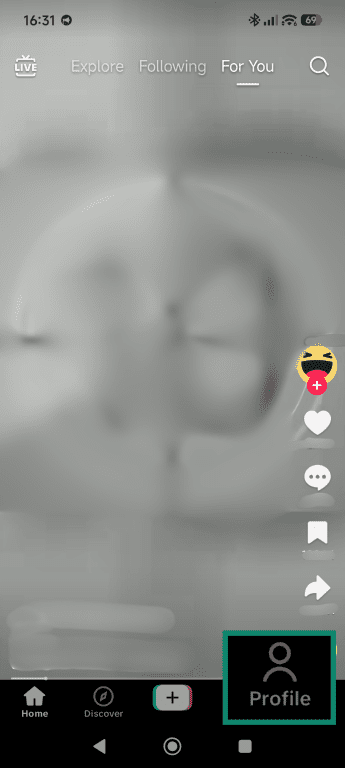
- Tap on the hamburger icon.
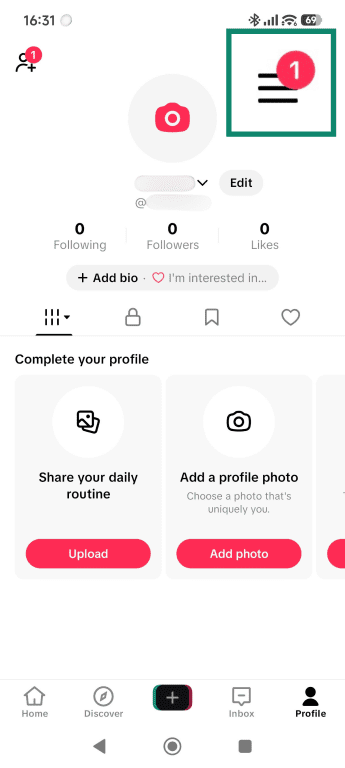
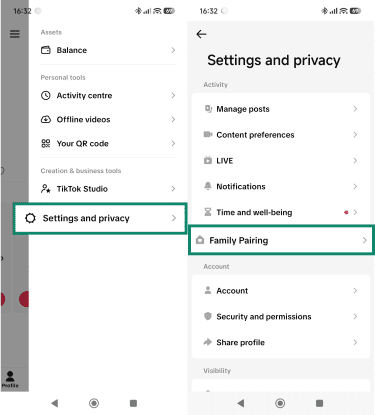
- Tap Settings and privacy > Family Pairing > Continue.
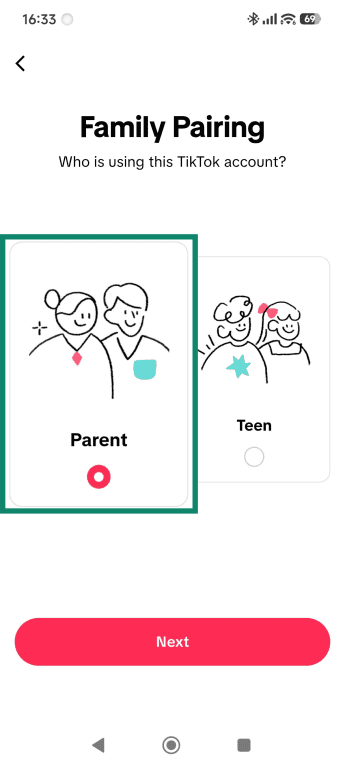
- Select account type. Choose Parent on your device and Teen on your child’s device.
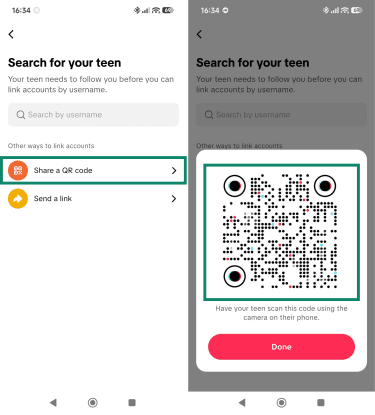
- Press the Share a QR code option and scan the QR code shown on your device using your child’s phone.
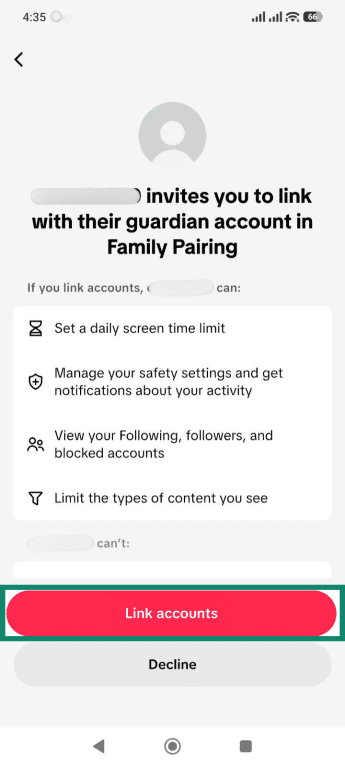
- On the child device, select Link accounts.
Setting screen time limits
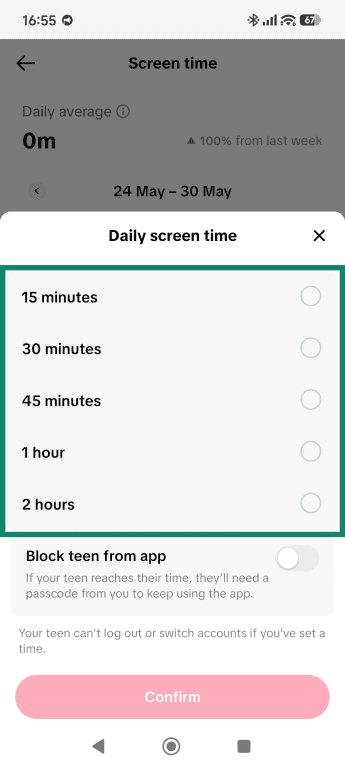
By default, TikTok applies a 60-minute daily screen time limit for teens aged 13–17. When the limit is reached, the app prompts the user to take action to continue using the app. Parents can set a passcode through Family Pairing, which is required to extend screen time beyond the limit. You can also change the daily screen time limit by following this guide:
- Tap on the profile icon in the bottom-right corner, and select Settings and privacy.
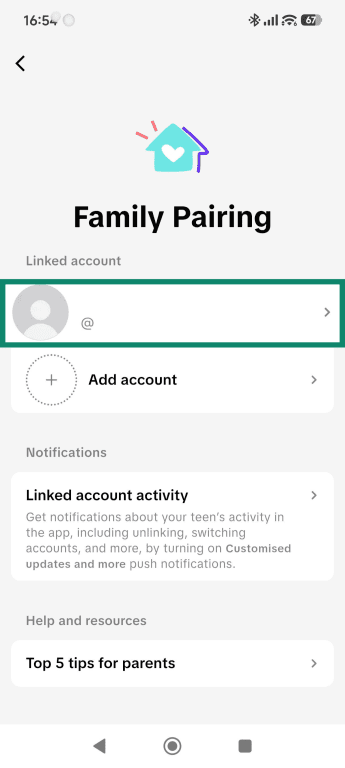
- Tap Family Pairing and select a linked account.
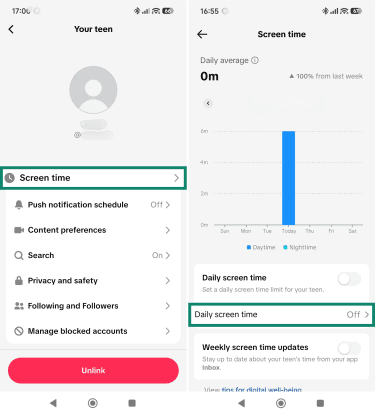
- Tap Screen time > Daily screen time.
- Select a daily screen time and tap Confirm.
Restricting direct messages and contact
Controlling who can reach out to a minor helps reduce unwanted interactions. Parents can't read their child's private messages or access message history. However, through Family Pairing, they can disable DMs entirely.
They can also adjust who can send messages based on TikTok’s messaging categories (such as Friends, Suggested accounts, or Others), depending on the teen’s account settings and age.
Strengthening TikTok privacy settings
Adjusting social media privacy settings can help limit unwanted interactions and give teens more control over their account visibility. TikTok includes several options that allow users and parents to manage who can contact the account, view content, and engage with posts or profile information.
Limiting who can view the account
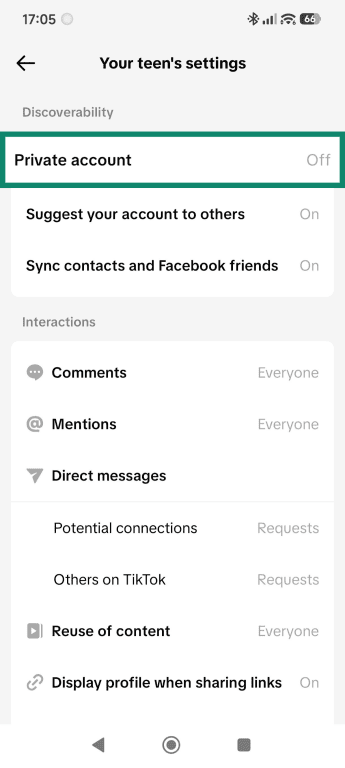
To stop random strangers from viewing posted content, you can change the profile to a private account. When this setting is active, only approved followers can see videos or profile details. Here’s how to do it:
- Tap on the profile icon in the bottom-right corner and select Settings and privacy.
- Tap Family Pairing > Privacy and safety.
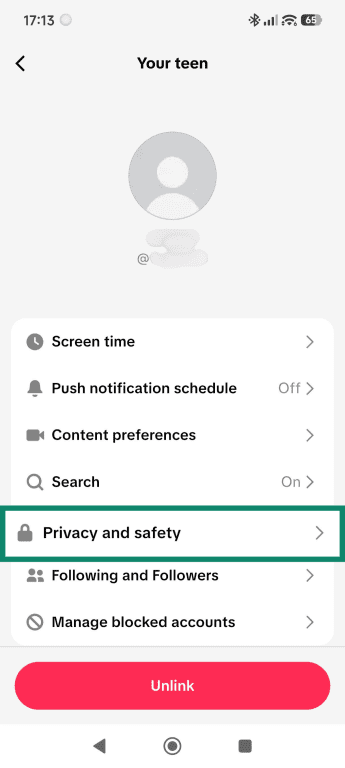
- Turn on the Private account switch.
Tip: If limiting account visibility isn’t enough, learn how to delete a TikTok account.
Controlling comments, mentions, and tags
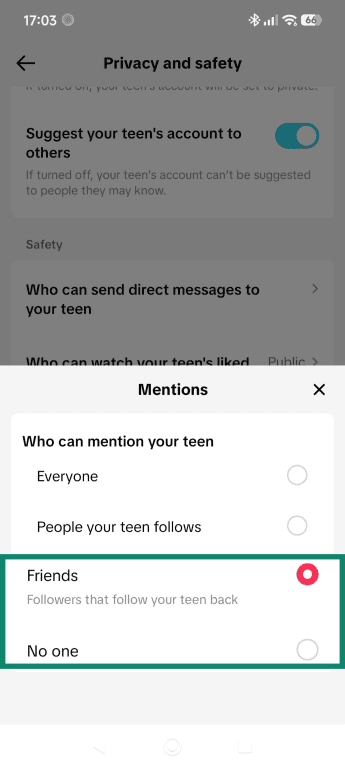
Unwanted interactions often happen when random users tag an account or leave spam comments. To stop strangers from linking to your child's profile, do this:
- Tap on the profile icon in the bottom-right corner and select Settings and privacy.
- Tap Family Pairing > Privacy and safety.
- In the Safety field, tap on Who can mention your teen.
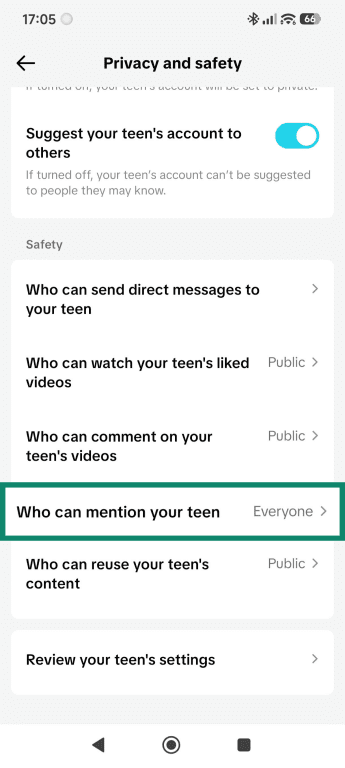
- Change these options to Friends or No one.
Managing profile visibility and search
TikTok may suggest accounts to people based on factors such as mutual connections, phone contacts (if enabled), or Facebook friends. However, for teen accounts aged 13–17, some suggestion features are restricted by default, including reduced visibility to mutual connections.
If you want to keep your child's profile hidden, do the following:
- Tap on the profile icon in the bottom-right corner and select Settings and privacy.
- Tap Family Pairing > Privacy and safety > Review your teen’s settings.
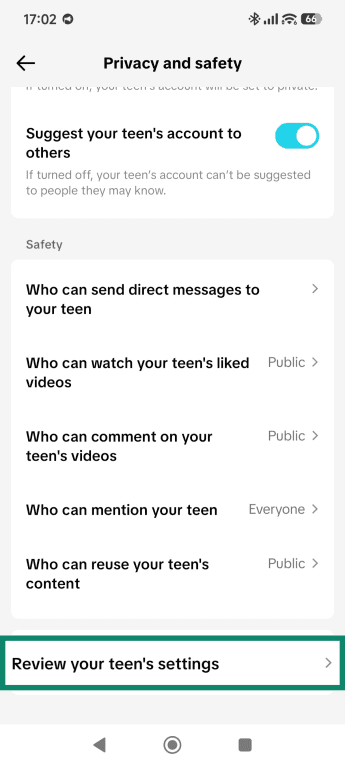
- Tap Suggest your teen’s account to others to turn it off.
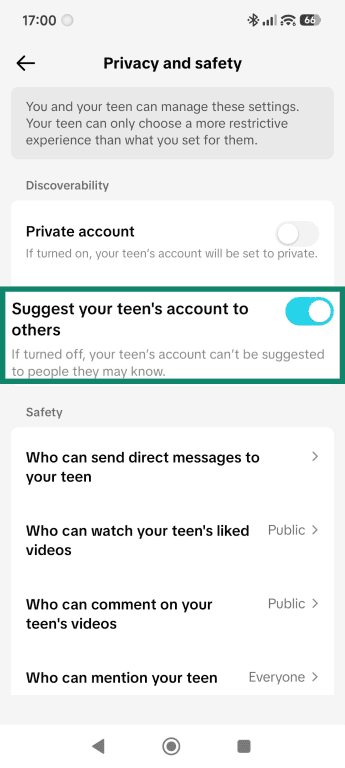
Reviewing ad personalization settings
To limit ad personalization, you can adjust the ad settings on your child’s device or within TikTok’s privacy and advertising controls. Here’s how to do it:
- Open Settings and privacy and tap Ads.
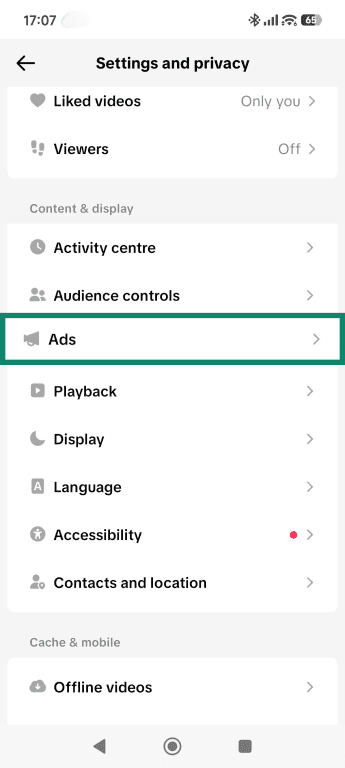
- Toggle off Personalized ads and Targeted ads outside of TikTok to limit data shared by advertising partners.
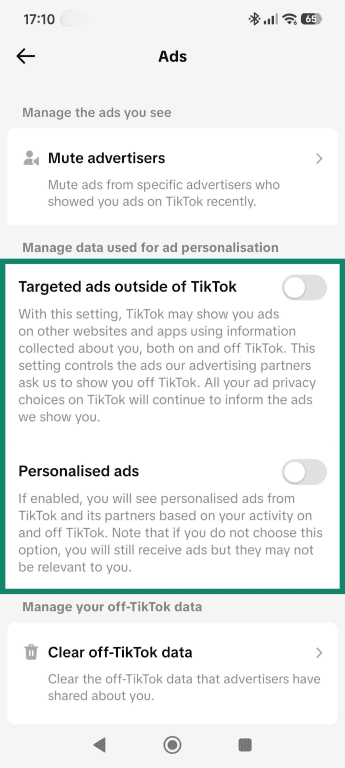
Note: Turning off ad personalization reduces targeted advertising but doesn’t stop ads from appearing entirely.
Learn more: How to stop remarketing ads
Reducing unsafe or unwanted content
TikTok also provides content filtering and safety tools that can help limit exposure to mature, sensitive, or unwanted material. Parents and teens can adjust these settings to better control what appears in the app’s feed and create a more age-appropriate viewing experience.
Enabling Restricted Mode
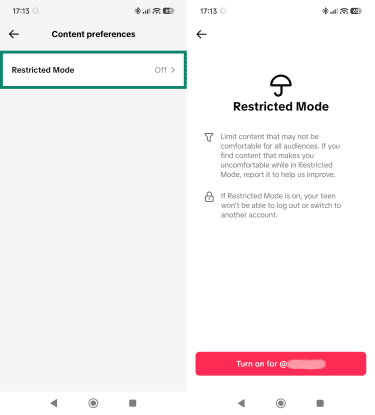
This setting helps limit exposure to content that may not be suitable for all audiences, including videos with mature or complex themes. It uses a combination of automated systems and user reports to help identify and filter content.
- Tap on the profile icon in the bottom-right corner and select Settings and privacy > Family Pairing.
- Open Content preferences.
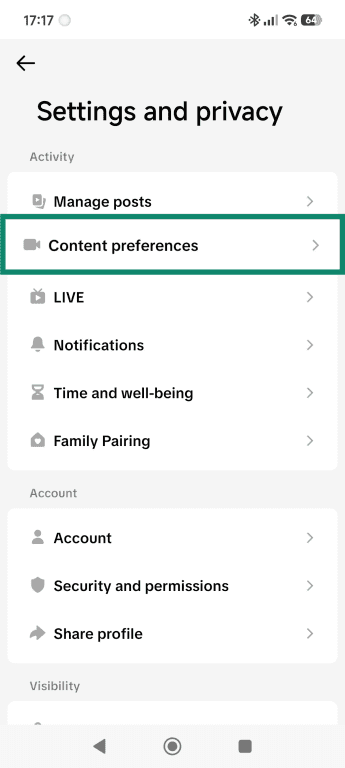
- Tap Restricted Mode. Then press the Turn on for @name button.
Filtering out inappropriate content
If you want to block specific topics that the automated system misses, you can use customized word blocks. On your child’s device, do the following:
- Tap on the profile icon in the bottom-right corner and select Settings and privacy.
- Select Content preferences > Filter keywords.
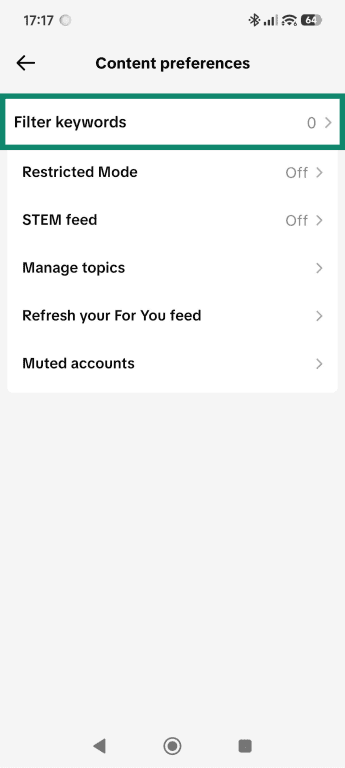
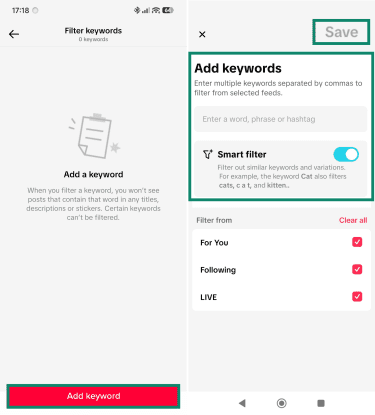
- Tap on the Add keyword button and enter keywords, phrases, and hashtags you wish to filter. Tap Save once you’re done.
Blocking users
If an account is acting inappropriately, you can cut off contact immediately.
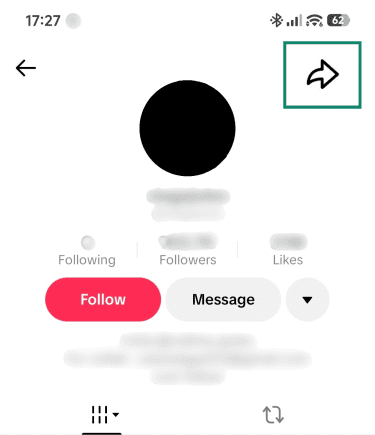
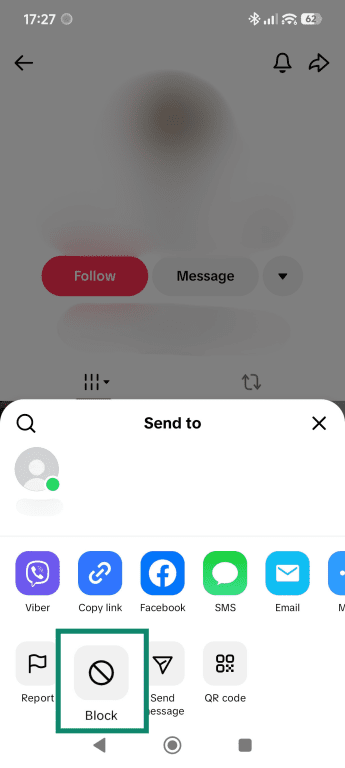
- Go to the user's profile and tap the arrow in the top-right corner.
- Select Block.
TikTok safety risks parents should know
Even with TikTok’s Family Pairing and privacy controls enabled, parents should still be aware of the risks children and teens may encounter on the platform.
Most of these risks are not unique to TikTok and apply broadly to any social media platform. Some of them come from how users interact with each other, while others stem from scams, viral trends, or content that spreads quickly through the recommendation feed. Knowing what to look for can make it easier to spot problems early and talk to your child about safer ways to use the app.
Scams, impersonation, and suspicious messages
TikTok scams often copy the profile pictures and names of popular creators to deceive young audiences. The victim receives a DM claiming they won a giveaway or offering free in-app rewards.
These messages frequently contain links pointing to external websites that steal personal credentials. Some scams ask for login details, payment information, gift card codes, or access to accounts connected to a parent’s payment method.
Viral challenges and risky trends
The recommendation system is designed to reward highly engaging videos, which can cause dangerous physical stunts or the misuse of household products or over-the-counter medication to go viral rapidly. Teens often face extreme peer pressure to replicate these stunts to gain likes, comments, and online visibility.
Because the algorithm pushes content based on watch time, risky trends can spread across thousands of feeds before human moderation teams can flag and delete them.
Cyberbullying and unwanted contact
Cyberbullying and harassment frequently occur in public comment sections or through collaborative video features where users can remix another person's content. Bullies often create secondary anonymous profiles specifically to target peers without revealing their real identities.
If privacy settings allow video downloads, others may be able to save and reuse a child’s content outside TikTok, which can increase the risk of it being reshared on other platforms. Even if downloads are disabled, content can still be shared through link sharing or captured using methods such as screen recording, which aren’t fully preventable.
Extra device-level safety controls
Alongside TikTok’s in-app settings, you can also use OS controls.
If your teen has an iPhone, Apple’s Screen Time tools allow you to set app-level limits directly on the device. Learn how to do this in our article covering parental controls on an iPhone.
On Android devices, Google Family Link provides centralized parental control over app usage and device activity. Just bear in mind that both you and your teen will need a Google Account for this work. To activate this, do the following:
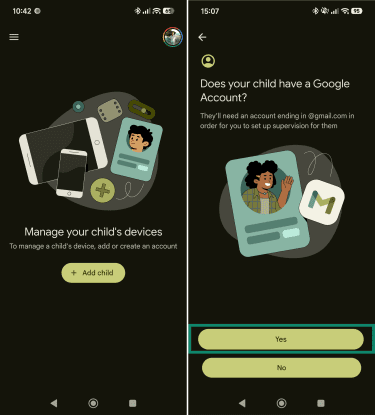
- Install Google Family Link on your device, open the app, and tap on + Add Child button. Once asked if your teen has a Google Account, select Yes.
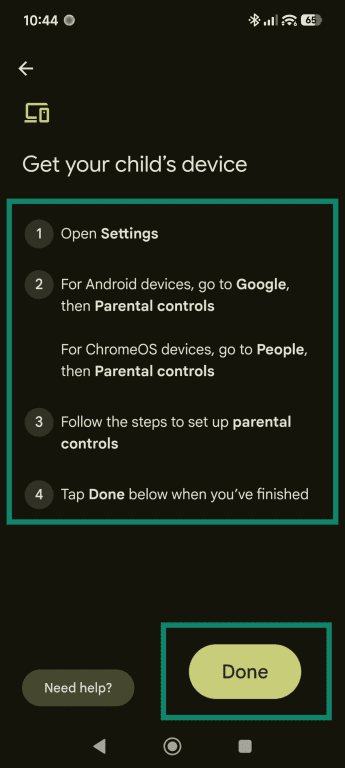
- Follow the on-screen prompts and tap Done when you’ve finished.
- Once on the parent dashboard, tap on Time limits > App limits.
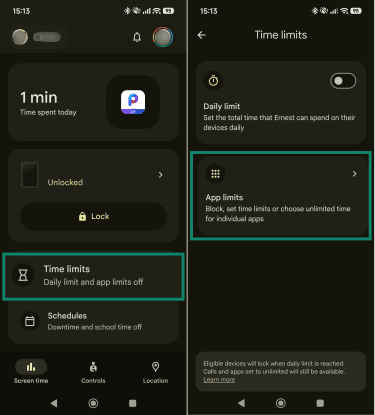
- Find the Tiktok app, set a time limit, and tap Done.
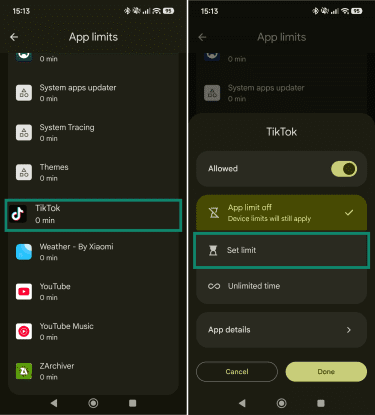
Setting app store and device restrictions
To reduce the likelihood of bypassing limits by reinstalling the TikTok app, you can apply additional device-level controls. These restrictions help ensure that installing or removing apps requires permission, adding an additional layer of oversight at the device level.
On Android
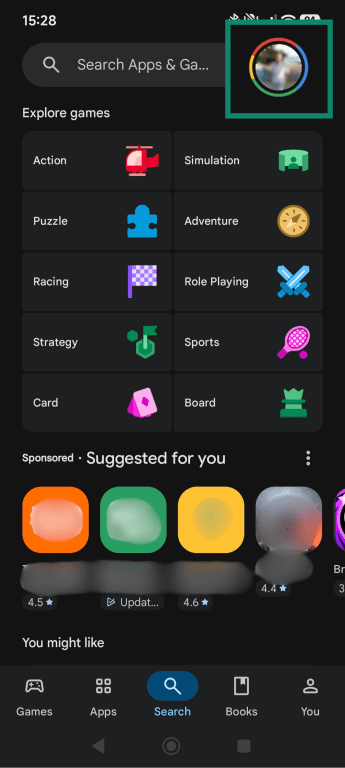
- Open Play Store and tap on your icon in the top-right corner.
- Select Settings. In the Family tab, select Parental controls.
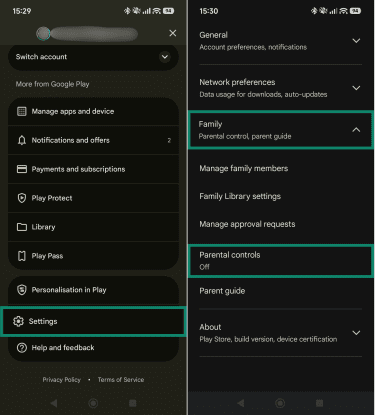
- Activate the parental controls toggle and create a PIN.
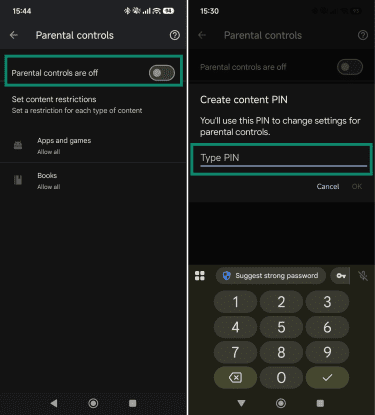
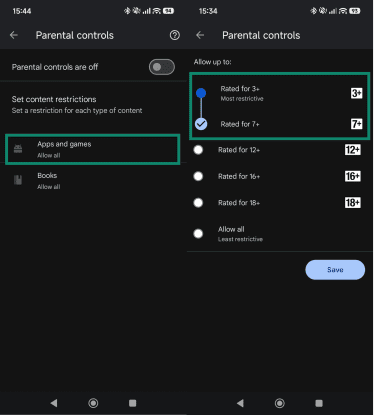
- Access Apps and games and set anything below 12+ limits to prevent reinstalling TikTok.
On iOS
- Open the Settings app.
- Tap Screen Time.
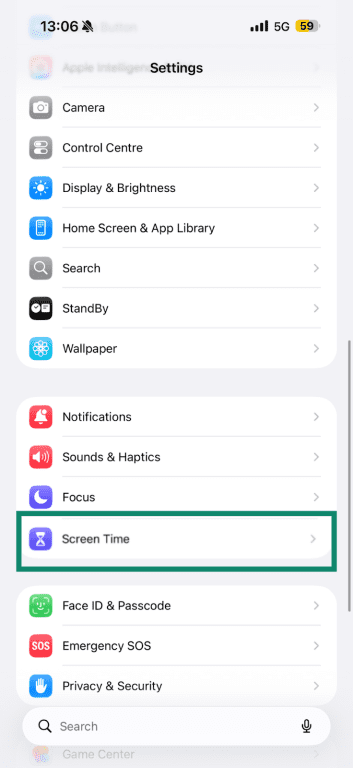
- Under Family, tap your child's name.
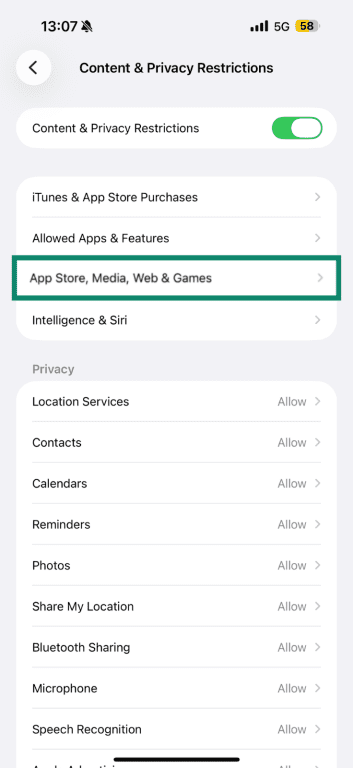
- Tap Content & Privacy Restrictions.
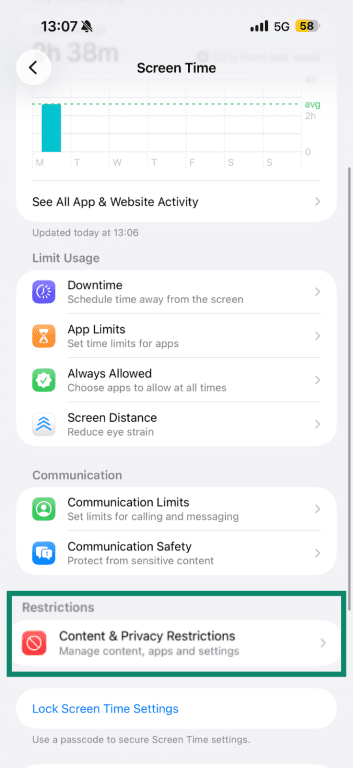
- If asked, enter your Screen Time passcode.
- Tap App Store, Media, Web & Games.
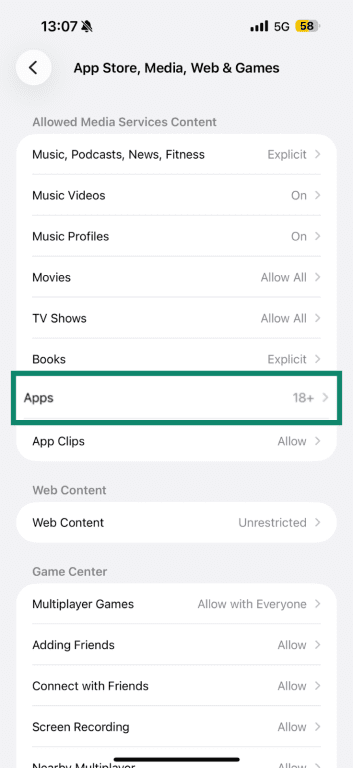
- Select Apps.
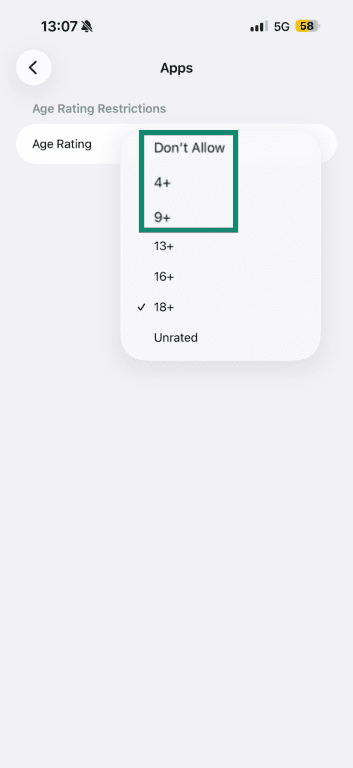
- Set a rating below 13+ to prevent reinstalling TikTok.
FAQ
Can TikTok parental controls be turned off by a child?
Can parents see TikTok messages through Family Pairing?
Does Restricted Mode block all harmful content?
Can TikTok be made private for a teenager?
What TikTok settings help prevent strangers from contacting my child?
Should location, contacts, and ad tracking be disabled?
How often should parents review TikTok privacy settings?
What should parents do if a child sees unsafe content?
How old do you have to be to use TikTok?
In the U.S., a stripped-down version exists for children under 13, which blocks them from posting videos, commenting, or searching freely. If TikTok determines that an account belongs to someone under the minimum age, the account may be removed in accordance with its underage user policies.