 Celebrate with up to 80% off
Are password managers safe? Security risks, breaches, and best practices


For many people, having dozens of accounts makes it harder to remember and use unique passwords for every login. Password managers offer a simpler way to store and organize login details, but their centralized design can raise questions about security.
In this guide, we’ll explain whether password managers are safe to use, how they protect your data, and what can happen if a password manager is breached. We’ll also look at how to use a password manager safely and reduce common security risks.
Are password managers safe to use?
Password managers are generally a safe way to manage online accounts. Instead of relying on memory or reusing passwords, they help you create, store, and manage strong login details across different services. Used properly, they make safer password habits easier to maintain.
The most common alternative to a password manager is reusing the same password (or small variations of it) across multiple accounts. Password reuse is one of the biggest risks in personal online security. If one website suffers a breach and your password is exposed, attackers can try the same credentials on other services, a technique known as credential stuffing. In other words, if you've reused a password, a single breach can quickly compromise several accounts.
Password managers can easily generate and store unique passwords for every account, making password reuse unnecessary.
How password managers protect your passwords
Password managers are built on several layers of security designed to reduce common risks and help keep your data protected in most scenarios. Some of the safeguards that better protect your passwords and data include:
Encryption and zero-knowledge architecture
Encryption is the foundation of password manager security. When you save a password, the password manager encrypts it before storing it in your vault. Encryption converts your password into unreadable ciphertext that can only be decrypted with the correct master password.
Most reputable password managers use strong encryption standards like the Advanced Encryption Standard (AES) with 256-bit keys, the same standard used by governments and financial institutions to protect sensitive data.
Many password managers also use a zero-knowledge architecture. This means your decryption key is generated from your master password on your device before anything is sent to the provider's servers. This way, the provider doesn’t store or know your master password, so it can’t directly access the contents of your vault.
This setup reduces the amount of sensitive data exposed if there’s a server breach. Even if attackers steal encrypted vault files, they still need the correct master password or authentication keys to decrypt the data and see your passwords.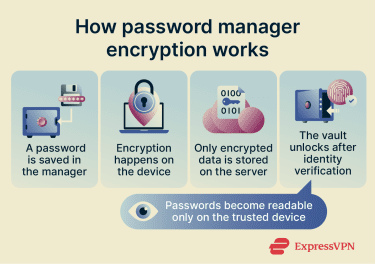
Master passwords and vault access
The master password acts as the main key to the password vault. Instead of remembering dozens of account passwords, you only need to remember one strong master password.
When a user logs in, the password manager uses the master password to derive the encryption keys needed to unlock stored credentials.
Some password managers do support passwordless authentication methods like fingerprint or facial recognition. These can make account access more convenient, though they usually work alongside the master password.
Many password managers lock the vault automatically after inactivity or when a device restarts, too. This helps reduce the risk of unauthorized access if a device is lost, stolen, or left unattended.
Two-factor authentication and passkeys
Many password managers support two-factor authentication (2FA), which adds another layer of protection beyond the master password. With 2FA enabled, logging into the password manager requires a second verification step, such as:
- A temporary authentication code.
- A hardware security key.
- A biometric check.
- An approval prompt from an authenticator app.
This extra step means that if your master password is ever exposed, an attacker still can't access your vault and passwords without also controlling your second factor.
Some password managers also support passkeys, which are designed to replace traditional passwords in certain situations. Passkeys use cryptographic authentication tied to your device, making them resistant to phishing and credential theft.
Unlike passwords, passkeys aren’t manually created or typed by the user. Instead, authentication happens automatically using a stored cryptographic key pair. This can improve both security and convenience.
Breach monitoring and security alerts
Although this is considered an extra feature and not a core functionality, many password managers nowadays include built-in monitoring tools that help users identify potential security issues. These features typically compare stored email addresses and passwords against known breach databases. If a saved credential appears in a reported data breach, you receive an alert recommending that you change your password.
Some password managers might also flag weak or reused passwords.
This kind of proactive monitoring is useful because breaches can sometimes go unnoticed for weeks or months. An early alert allows you to change a compromised password before it's used against you.
What are the main risks of password managers?
Password managers improve password security for most users, but they still come with some risks.
Weak master passwords
Attackers may use automated password-guessing tools and other common password attacks to test leaked or commonly used passwords against password manager login systems. If your master password is short, simple, or reused from another account, it becomes the weakest point in an otherwise strong system.
If attackers obtain your master password, whether through a phishing attack, a separate data breach, or a brute-force attempt, they could potentially access every credential stored in your vault. This is why the strength and uniqueness of your master password matter more than almost any other factor.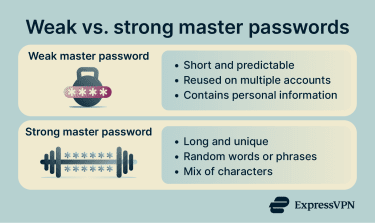
Compromised devices
Password managers can’t fully protect stored credentials if a device has already been compromised by malware. If attackers gain access to or control of a phone, tablet, or computer, they may be able to:
- Capture keystrokes using keyloggers.
- Access unlocked password vaults.
- Steal browser session cookies or authentication tokens.
- Monitor clipboard activity to view copied passwords.
- Install software that enables remote access.
This risk is especially high on devices that use outdated software, download untrusted apps or browser extensions, lack antivirus or other security protections, or frequently connect to unsafe public Wi-Fi networks.
Keeping your operating system and apps updated, using reputable security software, and locking your device when it's not in use all help reduce this risk. Using secure internet connections also helps reduce exposure to certain attacks on public networks.
Phishing attacks
Phishing is one of the most common ways attackers steal passwords and authentication credentials. Instead of breaking encryption directly, phishing attacks try to trick users into entering sensitive information on a fake website or malicious app.
Password managers can offer some protection in these cases. Autofill only works on the correct domain, so if a password manager doesn’t offer to fill a saved login, it may be a sign that the page is fake. This isn’t foolproof, but it can help you spot suspicious login pages.
Master passwords, however, are different. Because you typically enter a master password directly into the password manager, autofill isn’t a meaningful safeguard. A phishing attempt that imitates a password manager’s login screen could still trick you into revealing it.
Developing a habit of checking URLs carefully and learning to spot phishing warning signs before entering any credentials is an important complement to using a password manager.
Losing access to your vault
Because your master password is never stored by the provider, forgetting it can mean losing access to all your stored passwords permanently. This is a deliberate security trade-off. The same design that prevents providers from accessing your stored data also means they can't simply reset your password the way a typical website can.
Some providers offer recovery options such as a one-time recovery key or biometric authentication as a fallback. These options vary significantly between providers and need to be configured before losing access.
Provider breaches or vulnerabilities
Password managers themselves can become targets for cyberattacks because they store large amounts of sensitive user data. Although reputable providers design their systems to limit exposure during a breach, security incidents can still happen, and there have been confirmed cases of breached password managers.
One of the most important factors in determining the impact of a provider breach is how the provider encrypts and stores user data. With a properly implemented zero-knowledge model, data obtained in a breach remains encrypted and inaccessible without your master password. This is why choosing a provider with transparent security practices matters.
What happens if a password manager is breached?
As mentioned above, the impact of a breach depends heavily on how the password manager is designed.
What attackers may be able to access
In some incidents, attackers might only gain access to limited customer data, while in others, they might obtain encrypted vault backups or authentication-related information.
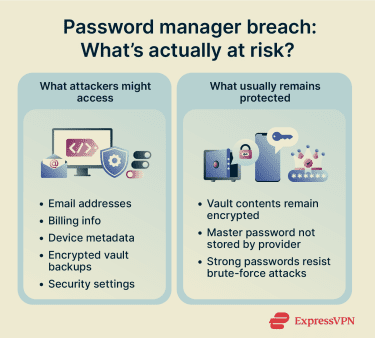
Depending on the provider and the breach, attackers could potentially access:
- Account metadata: Email addresses, account creation dates, billing information, and IP addresses associated with the account.
- Encrypted vault data: The contents of the vault in encrypted form. While unreadable without the master password, this data could be targeted with offline brute-force attacks if the master password is weak.
- Security settings: Information about whether 2FA is enabled, which devices are registered, and other account configuration details.
 It's also worth keeping in mind that metadata alone, even without vault contents, can be useful to attackers for targeted phishing or social engineering attacks. In that regard, a breach is always worth taking seriously, even when vault encryption remains intact.
What should you do after a breach?
If your password manager provider announces a breach, a few steps can help limit any potential impact.
- Follow provider guidance: Password manager providers typically communicate specific recommendations in the aftermath of a breach. Follow their instructions closely, as they'll have the most accurate picture of what was exposed and what steps are most relevant.
- Change your master password: If the provider says encrypted vault data was copied, also rotate passwords stored in the vault, starting with email, banking, financial, and other high-risk accounts.
- Monitor for suspicious activity: Keep an eye on your accounts for any unusual login attempts or activity in the weeks following a breach.
You should also stay alert for follow-up phishing campaigns. Attackers sometimes use news about breaches to send fake password reset emails or impersonate customer support teams.
How to use a password manager safely
Besides using a strong master password and keeping your devices secure, here are some other practical tips to help you get the most out of a password manager without leaving obvious security gaps.
Review security alerts quickly
Password managers like ExpressKeys include built-in security monitoring features that alert users to weak, reused, or exposed passwords. These alerts can help identify problems before attackers exploit them, but they’re only useful if you act on them.
Important alerts to watch out for include:
- Exposed passwords from known breaches.
- Reused passwords across accounts.
- Weak password warnings.
- New device login notifications.
If you receive a breach or security notification, review it promptly.
Secure your recovery options
If you lose access to your master password or 2FA device, recovery tools may be the only way to regain access to your vault.
Ways to reduce the risk of getting locked out include:
- Store recovery codes securely.
- Keep recovery email addresses updated.
- Add backup authentication methods when possible.
- Review emergency access settings periodically.
Recovery options should be protected as carefully as the vault itself because attackers sometimes target recovery systems to bypass standard authentication protections.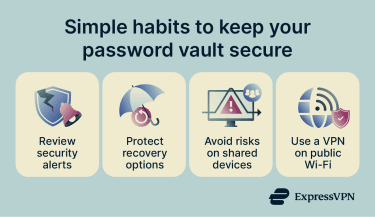
Be careful on shared devices
When you access your vault on a shared device, the next person to use the device might be able to access your open session without needing your master password. Browser-based password manager interfaces are particularly susceptible to this if tabs are left open or sessions aren't explicitly terminated.
Additionally, shared computers like those in hotels, libraries, and airports might be infected with keyloggers and other spyware that could steal your master password.
If you do need to use a password manager on a shared device, here are a few steps that can help limit your exposure:
- Always log out of your vault completely when you're done, rather than just closing the browser tab or app.
- Avoid saving your master password in the device's browser or keychain, even if prompted.
- Disable autofill to prevent accidentally exposing account details if another person opens the same login page.
- Use a private or incognito browsing window to reduce the chance of session data being retained after you close it.
- Check for active sessions in your password manager's account settings afterward and revoke any you don't recognize.
Where possible, accessing your vault from a device you own and control is always the stronger option.
Use a VPN on public networks
Password managers help protect your login details, but they don’t protect everything about the network you’re using. On public Wi-Fi, such as in airports, hotels, or cafes, you may be exposed to risks like rogue hotspots, local network snooping, or attempts to redirect you to fake login pages.
A virtual private network (VPN) adds another layer of protection by encrypting the traffic between your device and the VPN server. This can help reduce some network-level risks when you’re using unfamiliar Wi-Fi. Just remember that a VPN doesn’t replace good browsing habits: you still need to check URLs carefully, avoid suspicious links, and keep your device secure.
How to choose a password manager
Password managers aren’t all built to the same standard, and the security model behind a product matters as much as the features it offers. Knowing what to look for and what to avoid makes it easier to evaluate your options with confidence.
Signs of a trustworthy provider
Reputable password managers are typically transparent about how their security works, rather than asking you to simply take their word for it. A few markers worth looking for include:
- Independent security audits: Trustworthy providers regularly commission third-party audits of their security architecture and publish the results. This gives you an externally verified basis for evaluating security claims, rather than relying solely on the provider's own documentation.
- A clear zero-knowledge policy: A provider that genuinely can't access your vault data is meaningfully more secure than one that could access it but promises not to. ExpressKeys, for example, uses a zero-knowledge architecture, so you’re the only one with access to your stored credentials.
- Open-source or independently verified code: Some providers make their code open source, allowing independent researchers to identify vulnerabilities. Others commission independent code reviews. Either approach offers more assurance than closed, unverified code.
- Active vulnerability disclosure programs: Providers that maintain a bug bounty program or a formal process for researchers to report vulnerabilities are actively investing in finding and fixing problems before they become incidents.
Security red flags to avoid
There are also signals that a provider may not meet the standard you'd want for something as sensitive as a password vault:
- Limited or no updates: Infrequent updates may suggest poor maintenance or outdated security measures, which increase the risk of unpatched vulnerabilities. A reliable password manager should receive regular security updates, bug fixes, and feature improvements to stay ahead of evolving threats.
- Free providers with unclear business models: Free password managers aren't automatically untrustworthy, but it's worth understanding how a provider sustains itself. A provider whose revenue model is unclear might have incentives that don't align with user privacy.
- Poor breach response track record: A provider that has downplayed past security incidents, delayed notifying users, or been inconsistent in its communication is a significant red flag, regardless of how strong its stated security practices are.
FAQ: Common questions about password manager safety
Are password managers safer than browser password saving?
Can password manager employees access my vault?
How can I reduce single-point-of-failure risk?
It's also worth remembering that reusing passwords across accounts creates a much broader attack surface than using a password manager.
Should I store banking passwords in a password manager?
For additional protection, you can also enable transaction alerts or passkeys on financial accounts.
Is it safe to use a password manager on public Wi-Fi?
To reduce risks on public Wi-Fi, avoid logging into suspicious websites, verify website URLs carefully, and consider using a VPN for additional protection against snooping.